
1. Introduction
This user manual provides essential information for the safe and efficient operation of your Samsung UN48J5000 48-Inch 1080p LED TV. Please read these instructions thoroughly before using your television and retain them for future reference. This model features a 48-inch 1080p LED display, offering clear picture quality for your viewing experience.
2. Important Safety Information
Always follow basic safety precautions when using this television to reduce the risk of fire, electric shock, and injury.
- Power Source: Ensure the TV is connected to a power supply within the specified voltage range. Do not overload power outlets.
- Ventilation: Do not block ventilation openings. Allow adequate space around the TV for proper airflow to prevent overheating.
- Liquids: Keep the TV away from water and moisture. Do not place objects filled with liquids on or near the TV.
- Cleaning: Unplug the TV before cleaning. Use a soft, dry cloth. Avoid liquid cleaners or aerosol sprays.
- Placement: Place the TV on a stable, level surface. Avoid placing it in direct sunlight or near heat sources.
- Children: Supervise children to prevent them from climbing on the TV or stand.
- Servicing: Do not attempt to service this product yourself. Refer all servicing to qualified service personnel.
3. What's Included
Verify that all components are present in the packaging:
- Samsung UN48J5000 48-Inch 1080p LED TV
- TV Stand
- Remote Control (with batteries)
- Power Cord
- User Manual (this document)
4. Setup
4.1 Stand Assembly
To attach the stand to your Samsung UN48J5000 TV:
- Carefully place the TV screen-down on a soft, clean surface to prevent scratches.
- Align the stand base with the mounting holes on the bottom of the TV.
- Secure the stand using the provided screws. Ensure all screws are tightened firmly.
- Carefully lift the TV and place it on a stable, level surface.
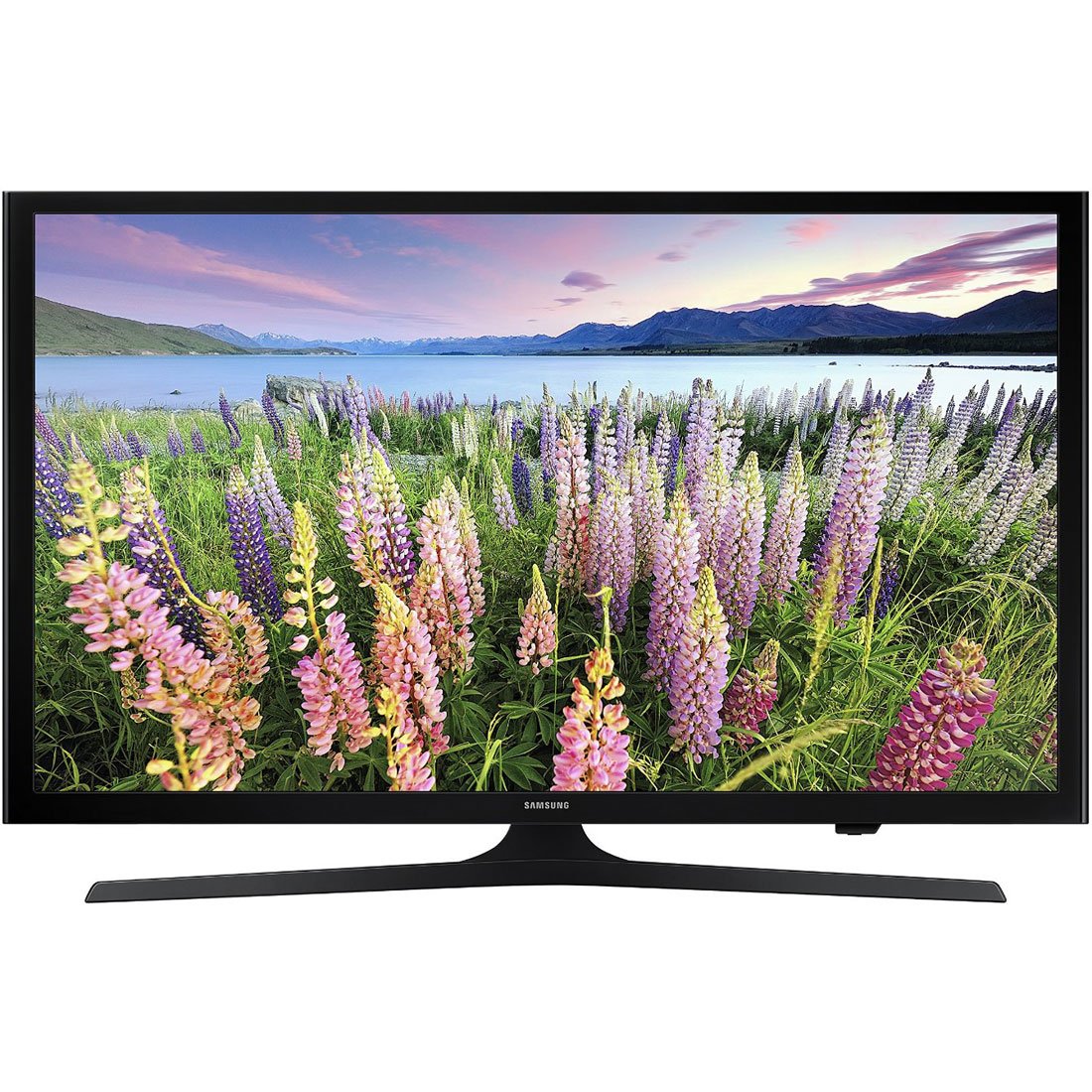
Figure 4.1: Samsung UN48J5000 48-Inch 1080p LED TV with stand. The TV measures approximately 43.3 inches wide, 27.4 inches high (with stand), and 12.2 inches deep (with stand).
4.2 Wall Mounting (Optional)
If you choose to wall mount your TV, ensure you use a VESA-compliant wall mount kit (sold separately) that is appropriate for the TV's weight and size. Follow the wall mount manufacturer's instructions carefully. Samsung recommends professional installation for wall mounting.
4.3 Connecting Devices
Your TV is equipped with various input ports for connecting external devices:
- HDMI Ports (2): Connect Blu-ray players, game consoles, cable/satellite boxes, or other HDMI-enabled devices.
- USB Port (1): Connect USB storage devices to view photos or play media files.
- Component Input (2): For older devices using component video and stereo audio cables.
After connecting devices, plug the power cord into the TV and then into a wall outlet.
5. Operating Your TV
5.1 Power On/Off
Press the POWER button on the remote control to turn the TV on or off.
5.2 Input Selection
To switch between connected devices (e.g., HDMI 1, HDMI 2, USB):
- Press the SOURCE button on your remote control.
- Use the arrow buttons to navigate to the desired input source.
- Press ENTER to select the source.
5.3 Picture and Sound Settings
Access the TV's menu to adjust picture modes (e.g., Standard, Movie, Dynamic) and sound modes (e.g., Standard, Music, Clear Voice). You can also fine-tune brightness, contrast, color, and bass/treble settings to your preference.
6. Maintenance
6.1 Cleaning the TV Screen
Gently wipe the screen with a soft, lint-free cloth. For stubborn marks, lightly dampen the cloth with water or a specialized screen cleaner (ensure it's safe for LED screens) and wipe gently. Do not apply pressure or spray liquid directly onto the screen.
6.2 Cleaning the TV Cabinet
Wipe the TV cabinet and stand with a soft, dry cloth. Avoid using abrasive cleaners or solvents.
7. Troubleshooting
If you encounter issues with your TV, refer to the following common problems and solutions:
| Problem | Possible Solution |
|---|---|
| No power | Check if the power cord is securely plugged into the TV and the wall outlet. Test the outlet with another device. |
| No picture, but sound is present | Ensure the correct input source is selected. Check cable connections between the TV and the source device. |
| No sound, but picture is present | Check the volume level and ensure the TV is not muted. Verify audio cable connections. |
| Remote control not working | Replace the batteries in the remote. Ensure there are no obstructions between the remote and the TV's IR sensor. |
| Picture is distorted or unclear | Check the signal strength of your antenna/cable. Adjust picture settings in the TV menu. Ensure cables are securely connected. |
8. Specifications
| Feature | Description |
|---|---|
| Model Number | UN48J5000AFXZA |
| Screen Size | 48 Inches |
| Display Technology | LED |
| Resolution | 1080p (Full HD) |
| Refresh Rate | 60 Hz (60CMR Effective) |
| Aspect Ratio | 16:9 |
| Product Dimensions (W x H x D) with Stand | 43.3" x 27.4" x 12.2" |
| Product Dimensions (W x H x D) without Stand | 43.3" x 24.8" x 2.4" |
| Item Weight | 20.9 Pounds |
| HDMI Ports | 2 |
| USB Ports | 1 |
| Audio Input | HDMI, USB |
| Speaker Description | Down-firing speakers |
| Wattage | 63 watts |
| Control Method | Remote Control |
| Mounting Type | Table Mount |
| Energy Star Certified | Yes |
9. Warranty Information
This Samsung TV comes with a limited warranty. The warranty provides 1 year coverage for labor and 1 year coverage for parts from the original date of purchase. Please retain your proof of purchase for warranty claims. For full terms and conditions, refer to the warranty card included with your product or visit the official Samsung website.
10. Customer Support
If you require further assistance or have questions not covered in this manual, please contact Samsung Customer Support:
- Online Support: Visit the official Samsung support website for FAQs, troubleshooting guides, and software downloads.
- Telephone Support: Refer to your product's warranty card or the Samsung website for regional contact numbers.
When contacting support, please have your TV model number (UN48J5000AFXZA) and serial number ready.


