
1. Introduction
Thank you for purchasing the Ewin Mini 2.4GHz Wireless Keyboard with Touchpad. This ultra-compact device combines keyboard and mouse functionality, featuring a Japanese JIS layout for efficient input. Its lightweight and portable design makes it ideal for various applications, from PC control to smart TV navigation.
This manual provides detailed instructions on how to set up, operate, and maintain your keyboard. Please read it carefully before use and keep it for future reference.
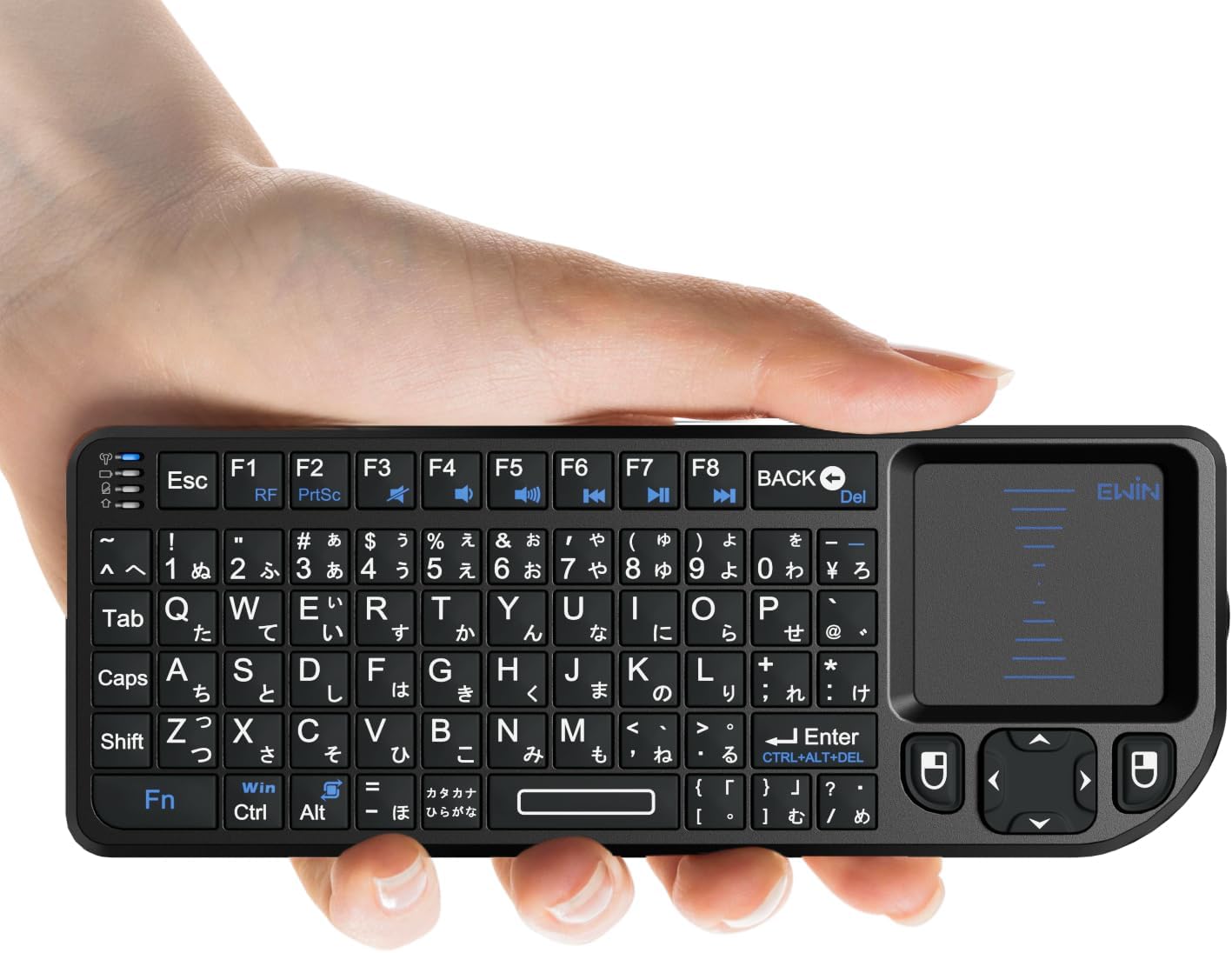
Image: The Ewin Mini 2.4GHz Wireless Keyboard with Touchpad.
2. Product Overview & Components
The Ewin Mini Wireless Keyboard is designed for convenience and versatility. It includes the following items:
- Ewin Mini Wireless Keyboard
- USB Receiver (stored inside the keyboard's battery compartment)
- Type-C Charging Cable
- Type-C Adapter
- Japanese Instruction Manual
- Warranty Card

Image: Contents of the Ewin Mini Wireless Keyboard package, including the keyboard, USB charging cable, USB receiver, Type-C adapter, Japanese instruction manual, and warranty card.
3. Specifications
| Feature | Description |
|---|---|
| Brand | Ewin |
| Model Name | ES-KB01X1 |
| Connectivity Technology | 2.4GHz Wireless (USB-A) |
| Keyboard Description | Flexible, Mini, Integrated Touchpad |
| Recommended Uses | Personal, Business, Multimedia, Student, Everyday Use |
| Special Features | Touchpad, Hotkeys & Media Keys, Rechargeable, Lightweight, Quiet |
| Color | Black |
| Supported Backlight Color | Single Color |
| Style | Vintage |
| Product Dimensions (L x W x H) | 15 cm x 1.3 cm x 5.8 cm |
| Keyboard Layout | QWERTY (JIS Japanese Layout) |
| Number of Keys | 72 |
| Weight | 85 grams |
| Battery Included | 1 |
| Waterproof Type | Not Waterproof |
| UPC | 711717353661 |
4. Compatibility
The Ewin Mini Wireless Keyboard offers broad compatibility with various operating systems and devices:
4.1. PC & Tablet Systems
- Windows OS: Windows 11 / 10 / 8.1 / 8 / 7 / Windows 2000 or later / Windows XP SP2 or later
- macOS: MacBook / iMac / Mac Mini (compatible via USB-A or OTG adapter)
- Linux: Ubuntu / Debian / Fedora, etc.
- Chrome OS: Chromebook compatible
- Android OS: (compatible via USB-A or OTG adapter)
4.2. Smart TV & Media Devices
- Android TV OS: Sony / TCL / Hisense Smart TVs
- Fire OS: Amazon Fire TV Stick / Fire TV Cube (for models without a USB port, compatible via OTG conversion cable)
- Apple TV: (USB connection compatible models)
- Google TV: NVIDIA Shield / Google Chromecast
- WebOS: LG Smart TV (partial compatibility)
- Tizen OS: Samsung Smart TV (partial compatibility)
- Set-top boxes (STB) / IPTV boxes
4.3. Gaming Consoles
- PlayStation: PS4 / PS5 (for text input and browsing)
- Xbox: Xbox Series X / Xbox One (USB keyboard input compatible)
- Nintendo Switch: (compatible via USB dock, for text input and browsing)
4.4. Projectors & Other Devices
- Projectors: (models supporting USB input)
- STB (Set-top boxes) / IPTV boxes / DVR / Media Players
- Car Entertainment Systems: (models supporting USB keyboard input)

Image: The Ewin Mini Wireless Keyboard is compatible with a wide range of devices, including PCs, smart TVs, projectors, and gaming consoles.
5. Setup
5.1. Charging the Keyboard
- Locate the Type-C charging port on the keyboard.
- Connect the included Type-C charging cable to the keyboard and a USB power source (e.g., computer USB port, USB wall adapter).
- The charging indicator light will illuminate. Once fully charged (approximately 1.6 hours), the light will change or turn off.
A full charge provides up to 25 days of use in sleep mode.

Image: The keyboard's Type-C charging port and connection to a power source.
5.2. Connecting to Your Device (2.4GHz Wireless)
- Open the battery compartment cover on the back of the keyboard.
- Remove the USB receiver from its storage slot.
- Insert the USB receiver into an available USB-A port on your target device (PC, Smart TV, game console, etc.). If your device only has a Type-C port, use the included Type-C adapter.
- Turn on the keyboard using the power switch.
- The keyboard should automatically connect to your device. No additional drivers are typically required.
The 2.4GHz wireless connection allows for remote operation up to 10 meters away without obstacles.

Image: The Ewin Mini Wireless Keyboard and its USB receiver, ready for connection.
6. Operating Instructions
6.1. Basic Keyboard Functions
- Typing: The keyboard features a Japanese JIS layout with Kana characters, supporting both Romaji and direct Kana input.
- Shortcut Keys: Numerous shortcut keys are available for common symbols (e.g., '@', '¥') and media controls (volume, music playback).

Image: Close-up of the Ewin Mini Wireless Keyboard demonstrating the JIS Japanese layout for easy typing.
6.2. Touchpad Functions
- Mouse Control: The integrated touchpad allows for precise cursor control, eliminating the need for an external mouse.
- Left/Right Click: Dedicated left and right click keys are located near the touchpad.
- 90-Degree Rotation: Press Fn + Alt simultaneously to rotate the touchpad orientation by 90 degrees, adapting to different holding positions.

Image: The integrated touchpad on the Ewin Mini Wireless Keyboard provides convenient mouse functionality.
6.3. Versatile Usage Scenarios
The Ewin Mini Wireless Keyboard is highly adaptable for various environments:
- Smart TV Control: Easily navigate menus, browse the web, and input text on your smart TV from the comfort of your sofa.
- Mobile Work: Its ultra-lightweight (90g) and compact design allows you to carry it in your pocket, making it perfect for on-the-go productivity.
- Presentations: Control presentations wirelessly, advancing slides and interacting with content effortlessly.
- Gaming: Use it as a compact input device for certain games or for text input within gaming consoles.

Image: Using the keyboard to control a smart TV.

Image: The keyboard's portability for mobile work.
7. Maintenance
To ensure the longevity and optimal performance of your Ewin Mini Wireless Keyboard, follow these maintenance guidelines:
- Cleaning: Use a soft, dry cloth to wipe the surface of the keyboard. For stubborn dirt, a slightly damp cloth can be used, but ensure no moisture enters the device. Avoid harsh chemicals or abrasive cleaners.
- Storage: Store the keyboard in a cool, dry place away from direct sunlight, extreme temperatures, and high humidity.
- Handling: Avoid dropping the keyboard or subjecting it to strong impacts. Do not attempt to disassemble the device, as this will void the warranty.
- Battery Care: Recharge the keyboard regularly, even if not in frequent use, to maintain battery health. Avoid completely draining the battery for extended periods.
8. Troubleshooting
If you encounter issues with your Ewin Mini Wireless Keyboard, please refer to the following common troubleshooting steps:
- Keyboard Not Responding:
- Ensure the keyboard is powered on.
- Check if the battery is charged. Recharge if necessary.
- Verify that the USB receiver is securely plugged into your device's USB port.
- Try plugging the USB receiver into a different USB port.
- Restart your device.
- Touchpad Not Working Correctly:
- Ensure your fingers are clean and dry when using the touchpad.
- Check if the touchpad is enabled in your device's settings (if applicable).
- If the orientation is incorrect, press Fn + Alt to rotate it.
- Poor Wireless Connection:
- Ensure the keyboard is within the 10-meter operating range of the USB receiver.
- Minimize obstacles between the keyboard and the receiver.
- Avoid using the keyboard near other 2.4GHz wireless devices that might cause interference.
If these steps do not resolve the issue, please contact Ewin customer support.
9. Warranty & Support
Your Ewin Mini Wireless Keyboard comes with a warranty. Please refer to the included Warranty Card for specific terms and conditions.
Ewin is committed to providing high-quality products and excellent customer service. We offer 24-hour inquiry support. If you encounter any defects or issues with your product, please do not hesitate to contact us. We will respond promptly to assist you.
For support, please visit the official Ewin store or contact the seller directly through your purchase platform.