
Introduction
This manual provides essential information for the setup, operation, maintenance, and troubleshooting of your Blackmagic Design URSA Mini 4K Digital Cinema Camera EF-Mount. Please read this manual thoroughly before using the camera to ensure proper functionality and to maximize its capabilities.
The URSA Mini 4K is a compact digital cinema camera featuring a Super-35mm 4K sensor, 12 stops of dynamic range, and an EF-mount for a wide range of compatible lenses. It supports recording in CinemaDNG Raw and ProRes formats to CFast 2.0 memory cards.
Safety Information
Observe the following safety precautions to prevent damage to the camera and ensure user safety:
- Do not expose the camera to water or excessive moisture.
- Avoid extreme temperatures. Operate within specified environmental conditions.
- Use only approved power sources and accessories.
- Do not attempt to disassemble or modify the camera. Refer servicing to qualified personnel.
- Protect the lens and sensor from direct sunlight when not in use.
Setup
Unpacking and Initial Inspection
Carefully remove all components from the packaging. Verify that all items listed in the packing list are present and inspect for any visible damage.
Attaching the Side Handle
The included side handle attaches to the rosette on the side of the camera body. Secure it firmly for comfortable handheld operation and access to start/stop control via LANC connection.
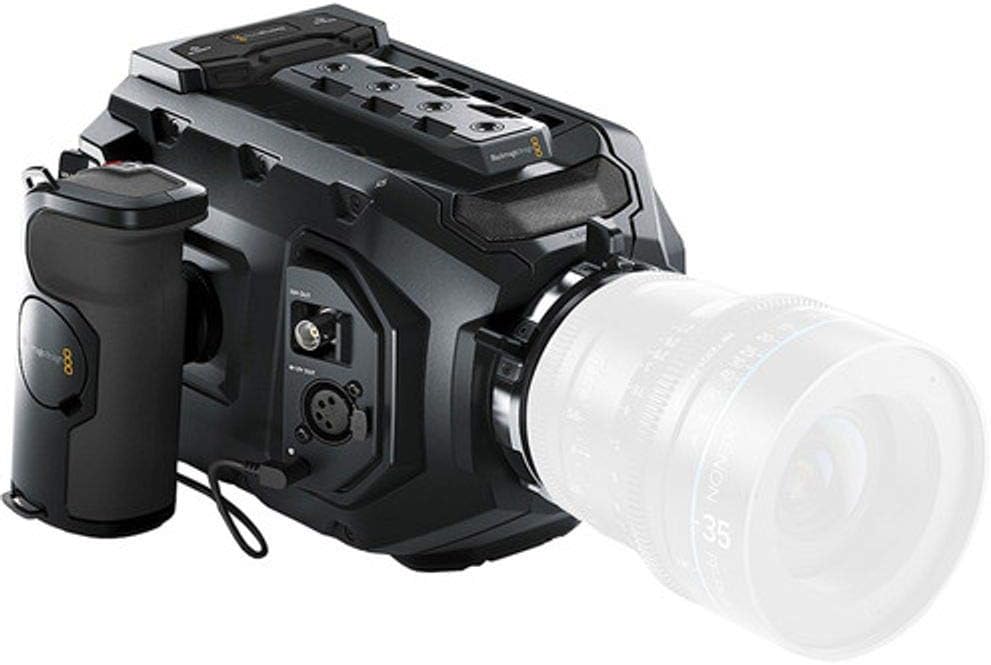
Image: The Blackmagic URSA Mini 4K camera shown with the side handle attached, providing ergonomic grip and control.
Mounting a Lens
Align the red dot on your EF-mount lens with the red dot on the camera's lens mount. Gently insert the lens and twist clockwise until it clicks into place. Ensure the lens is securely locked before operation.

Image: The Blackmagic URSA Mini 4K camera with a lens attached, ready for shooting.
Powering the Camera
The URSA Mini 4K can be powered via a 4-pin XLR jack at the rear. An optional plate allows for V-Mount or Gold-Mount professional batteries. Ensure the power source provides adequate voltage and current.
Inserting CFast 2.0 Cards
Locate the dual CFast 2.0 card slots. Insert the cards with the correct orientation until they click into place. The camera supports continuous recording by switching between cards when one is full.
Operating Instructions
Basic Controls and Interface
The camera features a 5-inch fold-out touchscreen display for menu navigation and monitoring. Physical buttons provide quick access to essential functions.

Image: The Blackmagic URSA Mini 4K camera with its integrated 5-inch touchscreen monitor extended, displaying a live view.
Recording Formats and Settings
The URSA Mini 4K records in CinemaDNG Raw (uncompressed and 3:1 compressed) and ProRes (444 XQ, 444, 422 HQ, 422, 422 LT, 422 Proxy) formats. Access these settings via the touchscreen menu.
- Resolution: Up to 4000 x 2160 (4K) at 60 frames per second.
- Dynamic Range: 12 stops.
- ISO: Adjustable from 200 to 12800.
- White Balance: Auto and manual presets available.
Audio Input
The camera includes XLR audio inputs for professional microphones. Adjust audio levels and monitoring settings through the camera's interface.
Maintenance
Cleaning the Camera
- Use a soft, dry cloth to clean the camera body.
- For the sensor and lens, use specialized cleaning tools and solutions designed for optical components. Avoid touching the sensor directly.
- Keep the touchscreen clean with a microfiber cloth.
Firmware Updates
Periodically check the Blackmagic Design website for firmware updates. Updates can improve performance, add features, and resolve issues. Follow the provided instructions carefully during the update process.
Storage
When not in use, store the camera in a dry, dust-free environment, preferably in a protective case. Remove batteries if storing for extended periods.
Troubleshooting
| Problem | Possible Cause | Solution |
|---|---|---|
| Camera does not power on. | Battery depleted or improperly connected; power cable issue. | Ensure battery is charged and correctly inserted. Check power cable connections. |
| No image on display. | Lens cap on; display brightness too low; incorrect output settings. | Remove lens cap. Adjust display brightness. Verify video output settings. |
| Recording errors. | CFast card full, slow, or corrupted; incorrect recording format. | Use approved CFast 2.0 cards. Format cards in-camera. Select a compatible recording format. |
| Horizontal lines in footage at high ISO. | Known sensor characteristic at high ISO settings. | Avoid shooting at excessively high ISOs if possible. Check for firmware updates that may address this. |
For further assistance, refer to the official Blackmagic Design support resources or contact customer service.
Specifications
| Feature | Detail |
|---|---|
| Sensor Size | Super-35mm CMOS |
| Video Resolution | Up to 4000 x 2160 (4K) at 60p |
| Dynamic Range | 12 Stops |
| Lens Mount | EF-Mount |
| Recording Media | Dual CFast 2.0 Card Slots |
| Recording Formats | CinemaDNG Raw (Uncompressed/3:1), ProRes (444 XQ, 444, 422 HQ, 422, 422 LT, 422 Proxy) |
| ISO Range | 200-12800 |
| Display | 5-inch Fold-out Touchscreen |
| Audio Input | XLR |
| Connectivity | 12G-SDI Output, Timecode, REF Input, USB 2.0, Wi-Fi |
| Weight | 5 Pounds (approx. 2.27 kg) |
Warranty Information
Blackmagic Design products typically come with a limited manufacturer's warranty. For specific details regarding the warranty period and terms for your URSA Mini 4K camera, please refer to the warranty card included with your product or visit the official Blackmagic Design website. Retain your proof of purchase for warranty claims.
Support and Contact
For technical support, product registration, or to download the latest software and manuals, please visit the official Blackmagic Design support page:
www.blackmagicdesign.com/support
You can also find community forums and FAQs on their website which may assist with common queries.


