
Lenovo ThinkPad W510
Lenovo ThinkPad W510 User Manual
Model: ThinkPad W510
Introduction
This manual provides essential information for setting up, operating, maintaining, and troubleshooting your Lenovo ThinkPad W510 laptop. Please read this manual thoroughly to ensure proper use and to maximize the lifespan of your device.
The Lenovo ThinkPad W510 is a powerful mobile workstation designed for demanding tasks. It features an Intel Core i7-820QM Quad Core CPU, 8GB DDR3 SDRAM, a 320GB SATA hard drive, and NVIDIA Quadro FX 880M 1GB Graphics, providing robust performance for professional applications.
Package Contents
Ensure all items are present in the package:
- Lenovo ThinkPad W510 Laptop
- AC Adapter
- DVD±RW Drive (integrated)
If any items are missing or damaged, please contact customer support immediately.
Setup
1. Initial Power-On
Before first use, ensure the laptop is connected to the AC adapter. The AC adapter provides power to the laptop and charges the battery.

Figure 1: Lenovo ThinkPad W510 during initial Windows 7 setup.
This image shows the Lenovo ThinkPad W510 laptop in an open position, displaying the screen with the Windows 7 Professional setup interface. The keyboard and trackpad are visible below the screen. This is the typical view when first powering on the device and proceeding with operating system configuration.
- Connect the AC adapter to the power input port on the laptop and then to a power outlet.
- Open the laptop lid.
- Press the power button, typically located above the keyboard, to turn on the laptop.
- Follow the on-screen instructions to complete the initial Windows 7 setup. If prompted, press F8 during boot to access the recovery partition for system restoration.
2. Connecting Peripherals
The ThinkPad W510 offers various ports for connecting external devices.
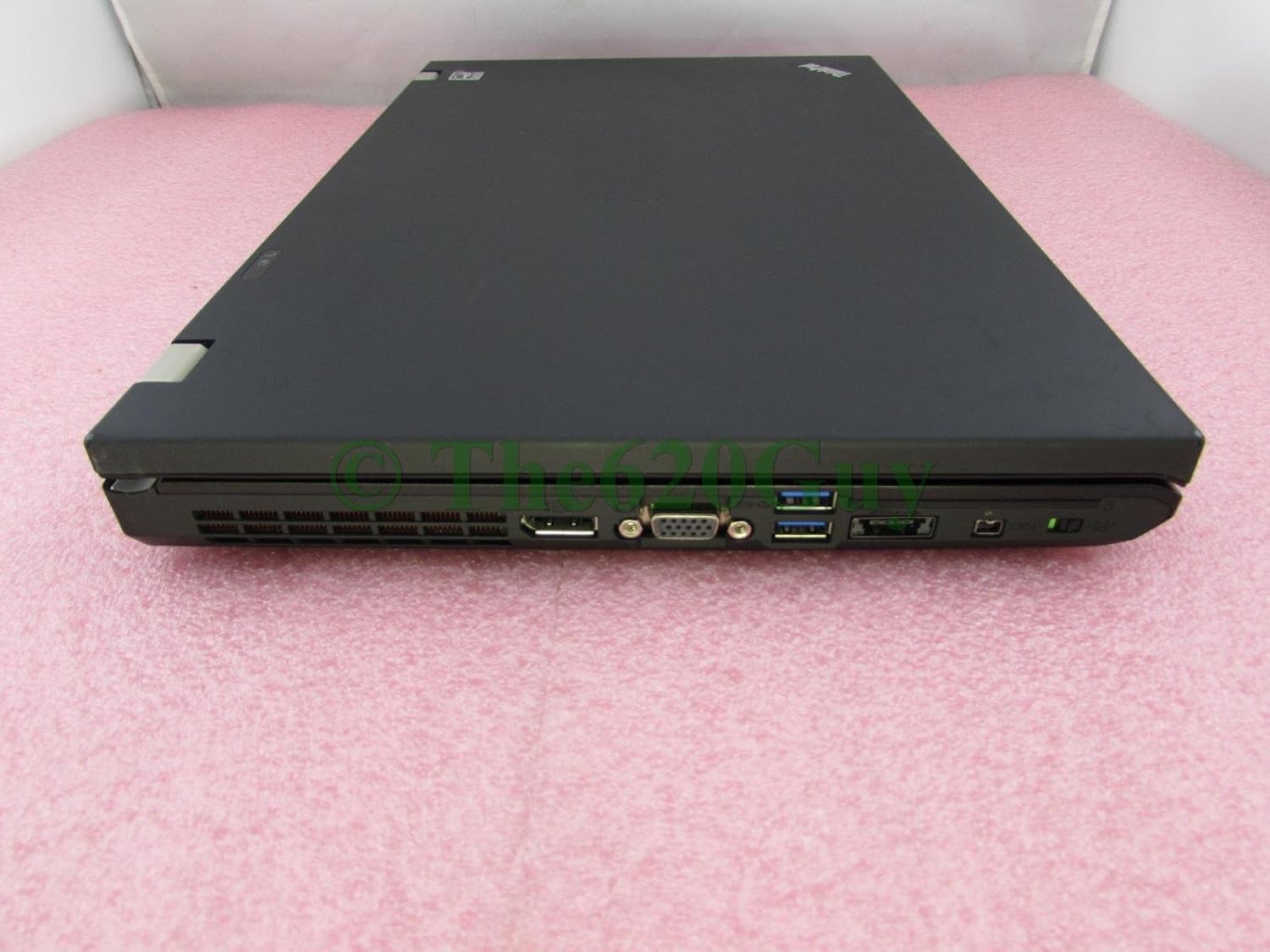
Figure 2: Left side ports of the ThinkPad W510.
This image displays the left side of the Lenovo ThinkPad W510 laptop, showcasing its various connectivity ports. From left to right, these include the power input, an Ethernet port, a VGA port, a DisplayPort, and multiple USB ports (including a powered USB port). This side is crucial for connecting external monitors, network cables, and USB devices.

Figure 3: Right side ports and optical drive of the ThinkPad W510.
This image shows the right side of the Lenovo ThinkPad W510 laptop. Visible features include the integrated DVD±RW drive, an ExpressCard slot, and additional USB ports. This side is used for inserting optical media and connecting other peripherals.
- USB Devices: Connect USB mice, keyboards, external hard drives, or flash drives to any available USB port.
- External Display: Use the VGA or DisplayPort to connect an external monitor or projector.
- Network: Connect an Ethernet cable to the RJ-45 port for a wired network connection.
Operating
1. Keyboard and Trackpad
The ThinkPad W510 features a full-sized keyboard and a dual-pointing system (TrackPoint and multi-touch touchpad).

Figure 4: Keyboard and TrackPoint of the ThinkPad W510.
This image provides a top-down view of the Lenovo ThinkPad W510's keyboard, including the iconic red TrackPoint in the center of the keyboard and the associated mouse buttons above the touchpad. The multi-touch touchpad is also visible below the keyboard. This layout is designed for efficient typing and precise cursor control.
- Keyboard: Use the keyboard for typing. Function keys (F1-F12) often have secondary functions (e.g., volume, brightness) accessible by pressing the Fn key simultaneously.
- TrackPoint: The red pointing stick in the center of the keyboard allows for precise cursor control. Use the three buttons below the spacebar for left-click, right-click, and middle-click (for scrolling).
- Touchpad: The multi-touch touchpad below the keyboard supports gestures for navigation. Tap to click, use two fingers to scroll, and pinch to zoom.
2. Optical Drive
The integrated DVD±RW drive allows you to read and write CDs and DVDs.
- To open the drive tray, press the eject button located on the drive itself.
- Place a disc gently onto the tray, ensuring it is centered.
- Gently push the tray back into the laptop until it clicks into place.
Maintenance
1. Cleaning the Laptop
- Screen: Use a soft, lint-free cloth slightly dampened with water or a screen cleaner. Do not spray cleaner directly onto the screen.
- Keyboard and Casing: Use a soft, dry cloth. For stubborn dirt, a slightly dampened cloth with mild soap solution can be used, ensuring no liquid enters the device.
- Ports: Use compressed air to clear dust from ports and vents.
2. Battery Care
The battery holds approximately 75% of its original capacity. To prolong battery life:
- Avoid extreme temperatures.
- Do not fully discharge the battery frequently.
- If storing the laptop for an extended period, charge the battery to about 50-60% before storage.

Figure 5: Rear view of the ThinkPad W510 with battery.
This image shows the rear side of the Lenovo ThinkPad W510 laptop, highlighting the removable battery pack. The battery is a key component for mobile operation and can be replaced if its capacity significantly degrades over time.
Troubleshooting
| Problem | Possible Cause | Solution |
|---|---|---|
| Laptop does not power on. | No power, dead battery, or power button issue. | Ensure AC adapter is securely connected and power outlet is working. Try powering on with only the AC adapter connected (battery removed if possible). |
| Screen has a bad pixel or white spot. | Manufacturing defect or physical damage. | This is a known characteristic of this specific unit. It typically does not affect functionality for most tasks. |
| Windows 7 not booting correctly. | Corrupted system files or boot sector issues. | Restart the laptop and press F8 repeatedly during startup to access the recovery partition and restore the system. |
| Wi-Fi connection issues. | Driver issues, Wi-Fi adapter disabled, or router problems. | Check Wi-Fi settings in Windows. Ensure Wi-Fi is enabled (Fn+F5). Restart router and laptop. Update Wi-Fi drivers if necessary. |
Specifications
Key technical specifications for the Lenovo ThinkPad W510:
- Processor: Intel Core i7-820QM 1.73GHz Quad Core CPU
- Display: 15.6" WSXGA 1600 x 900 Active Matrix TFT Color LCD LED 16:9
- RAM: 8GB DDR3 SDRAM
- Storage: 320GB SATA 3GBps Hard Drive
- Graphics: NVIDIA Quadro FX 880M 1GB Graphics
- Optical Drive: DVD±RW Drive
- Wireless: Wi-Fi Intel Centrino Advanced-N 6200 IEEE 802.11n, Bluetooth 2.1
- Operating System: Windows 7 Pro 64 Bit
- Dimensions: Approximately 18 x 18 x 9 inches (LxWxH)
- Weight: Approximately 12 pounds

Figure 6: Top view of the closed ThinkPad W510.
This image shows the top casing of the Lenovo ThinkPad W510 when closed, highlighting its robust and professional design. The ThinkPad logo is visible on the corner.

Figure 7: Front view of the closed ThinkPad W510.
This image presents the front edge of the closed Lenovo ThinkPad W510 laptop, showing its slim profile and the latch mechanism.

Figure 8: Bottom view of the ThinkPad W510.
This image displays the bottom panel of the Lenovo ThinkPad W510, showing the various vents for cooling, access panels for components like RAM and hard drive, and the docking station connector.
Warranty and Support
For information regarding warranty coverage and technical support for your Lenovo ThinkPad W510, please refer to the original purchase documentation or visit the official Lenovo support website. The specific warranty terms may vary based on the region and point of purchase.
For general inquiries or to find authorized service centers, you can visit the Lenovo Store on Amazon.