
Introduction
This manual provides comprehensive instructions for the setup, operation, and maintenance of your A4tech G11-570FX-4 Rechargeable Wireless USB Mouse. This device features advanced optical tracking, a rechargeable lithium-ion battery, and customizable functions through the Office Shuttle software to enhance your productivity.
Package Contents
- A4tech G11-570FX-4 Wireless USB Mouse
- USB Nano Receiver
- USB Charging Cable
- User Manual (this document)
Setup
1. Connecting the USB Nano Receiver
The USB Nano Receiver establishes the wireless connection between your mouse and computer.
- Locate the USB Nano Receiver, typically stored in a compartment on the underside of the mouse.
- Remove the receiver from its storage slot.
- Plug the USB Nano Receiver into an available USB port on your computer.
- Your computer should automatically detect and install the necessary drivers. This process may take a few moments.
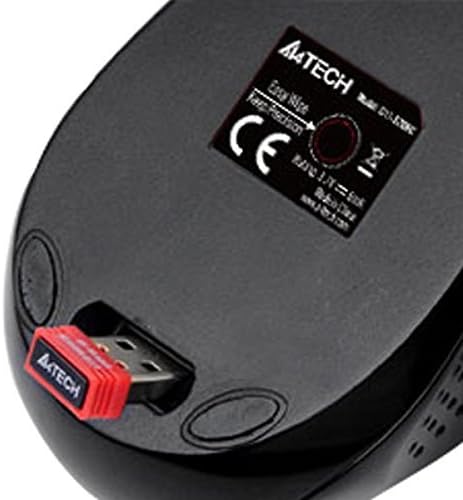
Image: Underside of the A4tech G11-570FX-4 mouse showing the USB nano receiver stored in its dedicated slot. This receiver needs to be removed and plugged into your computer's USB port for wireless operation.
2. Charging the Mouse
The mouse is equipped with a rechargeable lithium-ion battery. Charge the mouse before first use and whenever the battery indicator suggests low power.
- Connect the small end of the provided USB charging cable to the charging port located on the front of the mouse.
- Connect the standard USB-A end of the charging cable to an available USB port on your computer or a USB wall adapter.
- The charging indicator light (if present) will illuminate during charging and typically turn off or change color when fully charged.
- A full charge provides extended usage time.
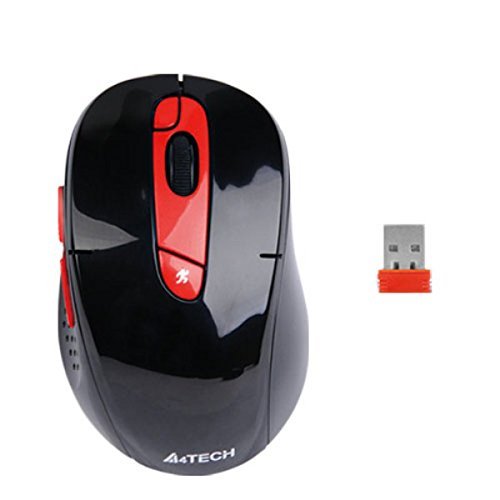
Image: Front view of the A4tech G11-570FX-4 mouse, highlighting the micro-USB charging port located at the front center. This port is used to connect the USB charging cable.
3. Software Installation (Office Shuttle Software)
To unlock advanced customization features, install the A4tech Office Shuttle software.
- Visit the official A4tech website (refer to product packaging or manufacturer's website for the exact URL).
- Navigate to the support or downloads section and locate the software for the G11-570FX-4 model.
- Download and run the installer.
- Follow the on-screen prompts to complete the installation.
- Once installed, launch the Office Shuttle software to configure mouse settings.
Operating Instructions
1. Basic Mouse Functions
The A4tech G11-570FX-4 mouse operates like a standard wireless mouse:
- Left Click: Primary selection and activation.
- Right Click: Opens contextual menus.
- Scroll Wheel: Scrolls content vertically. Can also be pressed for middle-click functionality.
- Side Buttons: Often configured for forward/back navigation in web browsers.
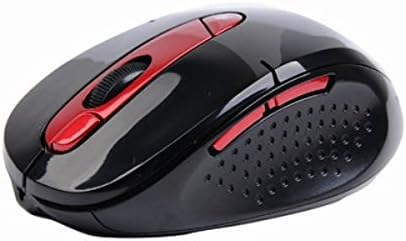
Image: Side view of the A4tech G11-570FX-4 mouse, illustrating its ergonomic shape and the placement of the two customizable side buttons, typically used for navigation.
2. Customizing Buttons with Office Shuttle Software
The Office Shuttle software allows extensive customization of the mouse buttons.
- Launch the Office Shuttle software on your computer.
- Within the software interface, you can define the function of each mouse button.
- Available modes include: Screen Capture, TutorPen, Multimedia controls, 16-in-One functions, 4-Way Wheel scrolling, and Internet navigation shortcuts.
- Apply your desired settings to optimize the mouse for your workflow.
3. DPI Adjustment
The mouse features adjustable DPI (Dots Per Inch) settings, allowing you to change cursor sensitivity.
- Refer to the Office Shuttle software for specific instructions on how to adjust DPI levels.
- Higher DPI settings result in faster cursor movement, suitable for large screens or gaming.
- Lower DPI settings provide more precise control, ideal for graphic design or detailed tasks.
4. Power Saving Management
The mouse incorporates power-saving features to extend battery life.
- The mouse will enter a sleep mode after a period of inactivity.
- Move the mouse or click any button to wake it up.
- Further power management options may be available through the Office Shuttle software.
Maintenance
1. Cleaning the Mouse
Regular cleaning helps maintain optimal performance and hygiene.
- Disconnect the mouse from any charging cables.
- Use a soft, lint-free cloth lightly dampened with water or a mild cleaning solution.
- Wipe the surface of the mouse gently.
- Avoid using harsh chemicals, abrasive cleaners, or excessive moisture.
- For the optical sensor, use a dry cotton swab to carefully remove any dust or debris.
2. Battery Care
To prolong the life of the rechargeable lithium-ion battery:
- Avoid fully discharging the battery frequently.
- Do not expose the mouse to extreme temperatures (hot or cold).
- If storing the mouse for an extended period, charge it to approximately 50% before storage.
Troubleshooting
If you encounter issues with your A4tech G11-570FX-4 mouse, try the following solutions:
- Mouse not responding:
- Ensure the USB Nano Receiver is securely plugged into a working USB port.
- Check if the mouse battery is charged. Connect the charging cable.
- Try plugging the receiver into a different USB port.
- Restart your computer.
- Erratic cursor movement:
- Clean the optical sensor on the underside of the mouse.
- Ensure you are using the mouse on a suitable surface (non-reflective, uniform color).
- Check for any obstructions between the mouse and the receiver.
- Custom functions not working:
- Verify that the Office Shuttle software is installed and running.
- Ensure your custom settings are saved and applied within the software.
- Short battery life:
- Ensure the mouse is fully charged.
- Check power-saving settings in the Office Shuttle software.
- Avoid using the mouse in extreme temperatures.
Specifications
| Feature | Detail |
|---|---|
| Brand | A4tech |
| Model Number | G11-570FX-4 |
| Connectivity Technology | Radio Frequency, USB, Wireless |
| Movement Detection Technology | Optical (Pinpoint Optic) |
| Power Source | Battery Powered (Rechargeable Lithium-Ion) |
| Operating Range | Up to 15 meters |
| Special Features | Zero Delay, Synchronize RF Signal, No Lag Technology, Screen Capture, Selectable Report Rate, Power Saving Management, Adjustable DPI, Channel Lock Setting, Office Shuttle Software |
| Dimensions (LxWxH) | 2.68 x 2.63 x 5.02 inches |
| Weight | 1 pound |
Warranty and Support
For warranty information and technical support, please refer to the documentation included with your product or visit the official A4tech website. Keep your purchase receipt as proof of purchase for warranty claims.


