
Introduction
The Cambridge Audio Azur 851N is a high-performance digital preamplifier and network player designed to deliver exceptional audio quality from various digital sources. It functions as a digital preamplifier, a network player for streaming audio, and a high-performance Digital-to-Analog Converter (DAC). This manual provides essential information for setting up, operating, and maintaining your Azur 851N.
Safety Information
Please read all safety instructions before operating this unit. Keep this manual for future reference.
- Power Supply: Only use the power cable supplied with the unit. Ensure the voltage matches your local power supply.
- Ventilation: Do not block any ventilation openings. Allow adequate space around the unit for proper airflow.
- Moisture: Do not expose the unit to rain, moisture, dripping, or splashing. Do not place objects filled with liquids, such as vases, on the unit.
- Heat: Do not place near any heat sources such as radiators, heat registers, stoves, or other apparatus (including amplifiers) that produce heat.
- Servicing: Do not attempt to service this product yourself. Refer all servicing to qualified service personnel.
What's in the Box
Carefully unpack your Azur 851N. The package should contain the following items:
- Azur 851N Network Player
- Power Cable
- 3 x AAA Batteries
- Remote Control
- Control Bus Cable
- Wi-Fi Dongle
Product Overview
The Azur 851N integrates multiple audio components into one unit, offering versatile connectivity and high-fidelity sound processing.
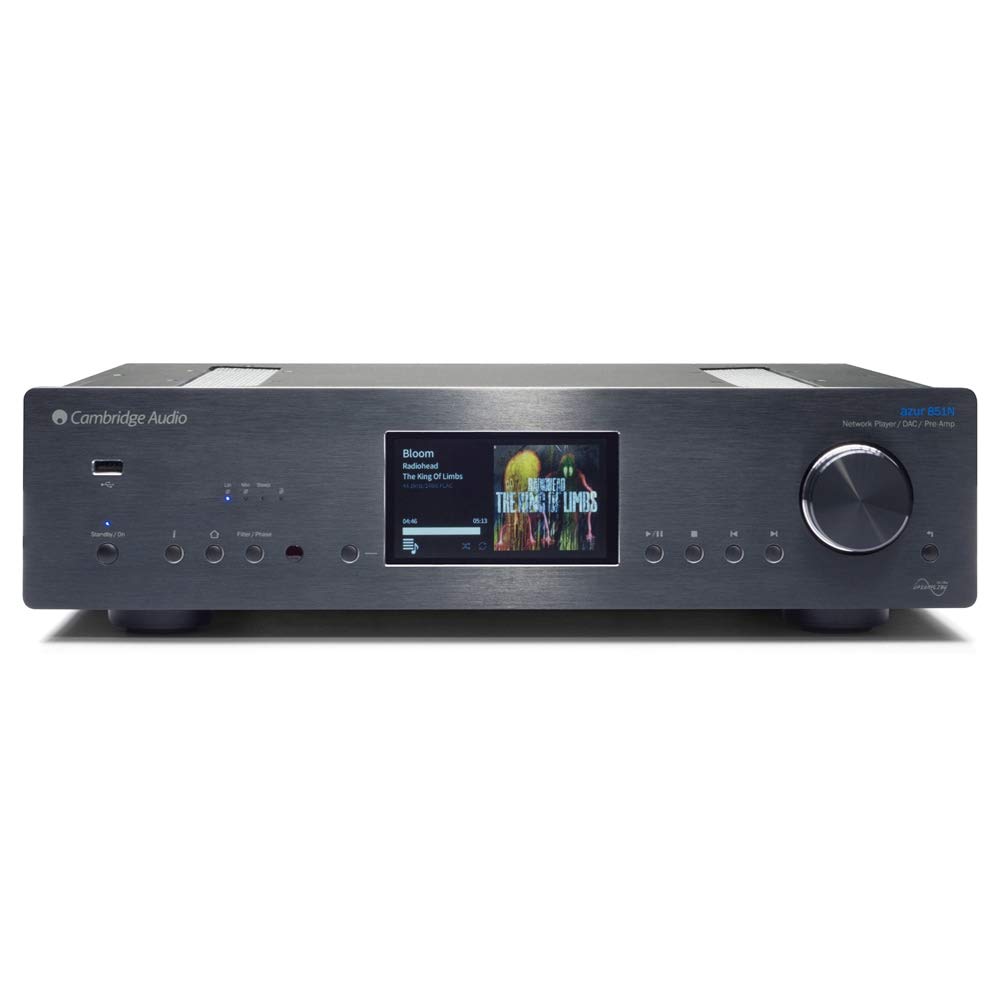
Front view of the Cambridge Audio Azur 851N, showing the display, control knob, and various buttons.
Key Features:
- Digital Preamplifier: Connects directly to power amplifiers or integrated amplifiers.
- Network Player: Streams audio via wired Ethernet or Wi-Fi.
- High-Performance DAC: Features Twin Analog Devices AD1955 24-bit DACs.
- Advanced Upsampling: 2nd Generation ATF2 up-sampling to 24-bit/384kHz with selectable filter modes.
- Extensive Connectivity: Includes AES/EBU, S/PDIF coaxial, TOSLINK optical, USB Type B, Balanced XLR, and Unbalanced RCA outputs.
- Wireless Streaming: Supports UPnP, Internet Radio, Spotify, Tidal, Apple AirPlay, and Bluetooth (via BT100 receiver).
- Control App: Compatible with Cambridge Audio's control app for Apple and Android devices.
Setup
1. Physical Placement
Place the Azur 851N on a flat, stable surface away from direct sunlight, heat sources, and excessive moisture. Ensure there is adequate ventilation around the unit to prevent overheating.
2. Connections
Before making any connections, ensure the Azur 851N and all other audio components are powered off.
- Digital Audio Inputs: Connect your digital sources (CD players, media servers, etc.) to the 1 x AES/EBU, 2 x S/PDIF coaxial, or 2 x TOSLINK optical inputs.
- USB Audio Input (Type B): Connect your computer to this input for high-resolution audio playback. Select USB Audio profile 1.0 or 2.0 as required.
- Analogue Audio Outputs: Connect the Balanced XLR or Unbalanced RCA analogue audio outputs to your amplifier or active speakers.
- Ethernet: For the most stable network connection, connect an Ethernet cable from your router to the Ethernet port on the 851N.
- Wi-Fi: Insert the supplied Wi-Fi dongle into an available USB port on the rear panel for wireless network connectivity.
- Control Bus: Use the Control Bus Cable to connect to other compatible Cambridge Audio components for integrated control.
3. Power Connection
Once all audio and network connections are made, connect the supplied power cable to the Azur 851N and then to a suitable wall outlet.
Operating Instructions
1. Power On/Off
Press the power button on the front panel or the remote control to turn the unit on or off. The display will illuminate upon power-up.
2. Network Setup
Upon first power-up or after a factory reset, the unit may guide you through network setup. Follow the on-screen prompts to connect to your wired or wireless network. For Wi-Fi, select your network and enter the password using the front panel controls or the remote.
3. Streaming Services
- UPnP: Access music files stored on your local network via UPnP servers.
- Internet Radio: Browse and play thousands of internet radio stations.
- Spotify Connect: Stream music directly from the Spotify app on your device.
- Tidal: Access your Tidal subscription for high-fidelity streaming.
- Apple AirPlay: Stream audio wirelessly from Apple devices.
- Bluetooth: Pair your Bluetooth device (via BT100 dongle) to stream audio.
4. USB Media Playback
Connect a USB storage device (thumb drive or external hard drive) to the USB A ports on the front or rear panel. The 851N will scan the device for compatible audio files. Navigate through folders and select tracks using the front panel controls or the remote.
5. Control App Usage
Download the Cambridge Audio StreamMagic app from the Apple App Store or Google Play Store. This app provides a comprehensive interface for controlling the Azur 851N, browsing music libraries, and managing streaming services.
6. Digital Filter Modes
The Azur 851N features 2nd Generation ATF2 up-sampling with selectable digital filter modes: Linear Phase, Minimum Phase, or Steep. Experiment with these settings to find the sound profile that best suits your preferences and audio content.
Maintenance
To ensure the longevity and optimal performance of your Azur 851N, follow these maintenance guidelines:
- Cleaning: Use a soft, dry, lint-free cloth to clean the unit's exterior. Do not use abrasive cleaners, waxes, or solvents.
- Ventilation: Regularly check that the ventilation openings are clear of dust and debris.
- Power Off: Disconnect the unit from the power outlet if it will be unused for an extended period.
Troubleshooting
If you encounter issues with your Azur 851N, refer to the following common solutions:
| Problem | Possible Cause / Solution |
|---|---|
| No power | Ensure the power cable is securely connected to the unit and the wall outlet. Check the power switch. |
| No sound output | Verify correct audio cable connections to your amplifier. Ensure the correct input source is selected on the 851N and your amplifier. Check volume levels. |
| Network connection issues | For wired connections, check the Ethernet cable. For Wi-Fi, ensure the dongle is inserted, the network is selected, and the password is correct. Restart your router and the 851N. |
| USB media playback problems | Ensure the USB device is formatted correctly (FAT32 or NTFS). Check for compatible audio file formats. Some external hard drives may require external power. |
| Remote control not working | Check and replace batteries. Ensure there are no obstructions between the remote and the unit's IR sensor. |
If the problem persists after attempting these solutions, please contact Cambridge Audio customer support.
Specifications
| Feature | Detail |
|---|---|
| D/A Converters | Twin Analog Devices AD1955 24-bit DACs |
| Digital Filter | 2nd Generation ATF2 up-sampling to 24-bit/384kHz (Linear Phase, Minimum Phase, Steep modes) |
| Analogue Filter | 2-pole differential Bessel with DC servo (XLR and RCA outputs) |
| Digital Audio Inputs | 1 x AES/EBU, 2 x S/PDIF coaxial, 2 x TOSLINK optical |
| USB Audio Input | USB Type B (USB Audio profile 1.0 or 2.0 selectable) |
| Analogue Audio Outputs | Balanced XLR and Unbalanced RCA |
| Compatibility (UPnP, Local USB) | Linear PCM 16-24 bit, 11.025-192kHz |
| Compatibility (USB Audio 1.0) | Linear PCM 16-24 bit, 44.1-96kHz |
| Compatibility (USB Audio 2.0) | Linear PCM 16-24 bit, 44.1-192kHz or DSD x64 |
| Compatibility (TOSLINK, S/PDIF, AES3/EBU) | 16-24 bit, 32-192kHz |
| Bluetooth | BT100 Bluetooth receiver: A2DP plus aptX |
| Internet Radio | 16-24 bit, 11.025-192kHz |
| Audio Formats | ALAC, WAV, FLAC, AIFF, DSD (x64), WMA, MP3, AAC, HE AAC, AAC+, OGG Vorbis |
| Ethernet | IEEE 802.3, 10 Base-T or 100 Base-T |
| Wi-Fi | IEEE 802.11 b/g or n (2.4GHz) |
| Standby Power Consumption | 0.5W |
| Dimensions (H x W x D) | 115 x 430 x 360mm (4.5 x 16.9 x 14.7 inches) |
| Weight | 8.1kg (17.9 lbs) |
Warranty and Support
Cambridge Audio products are designed and built to high standards. For warranty information and technical support, please refer to the documentation included with your product or visit the official Cambridge Audio website. Keep your proof of purchase for warranty claims.


