
1. Introduction
The Google Nest Cam Indoor (1st Generation) is a wired indoor security camera designed to help you monitor your home. It provides 24/7 live video streaming in 1080p HD, night vision, and two-way audio communication. This manual provides essential information for setting up, operating, and maintaining your Nest Cam Indoor.

Figure 1: Front view of the Google Nest Cam Indoor (1st Generation).
2. Package Contents
Before you begin, ensure all items are present in the package:
- Google Nest Cam Indoor (1st Generation)
- Camera stand
- Power adapter and cable
- Mounting screws (if applicable)
- Quick Start Guide
3. Setup and Installation
Follow these steps to set up your Google Nest Cam Indoor:
- Download the Nest App: Download the Nest app from the App Store (iOS) or Google Play Store (Android) on your smartphone or tablet.
- Create or Log In to Nest Account: Open the Nest app and create a new account or log in with an existing one.
- Add Your Camera: In the Nest app, tap the 'Add Product' icon (usually a plus sign). The app will guide you through the process.
- Scan QR Code: The app will prompt you to scan the QR code located on the back of your Nest Cam. Hold your phone approximately 12 inches away from the camera for a clear scan.
- Connect to Power: Plug the camera into a wall outlet using the provided power adapter and cable. The camera will power on.
- Connect to Wi-Fi: Follow the in-app instructions to connect your Nest Cam to your home Wi-Fi network. Ensure your Wi-Fi network is stable and has adequate signal strength in the camera's intended location.
- Placement: The Nest Cam Indoor offers flexible mounting options. You can place it on a flat surface like a shelf, mount it to a wall using the included stand and screws, or use its magnetic base to attach it to a metallic surface. Position the camera to cover the desired area, keeping in mind its 130-degree field of view.
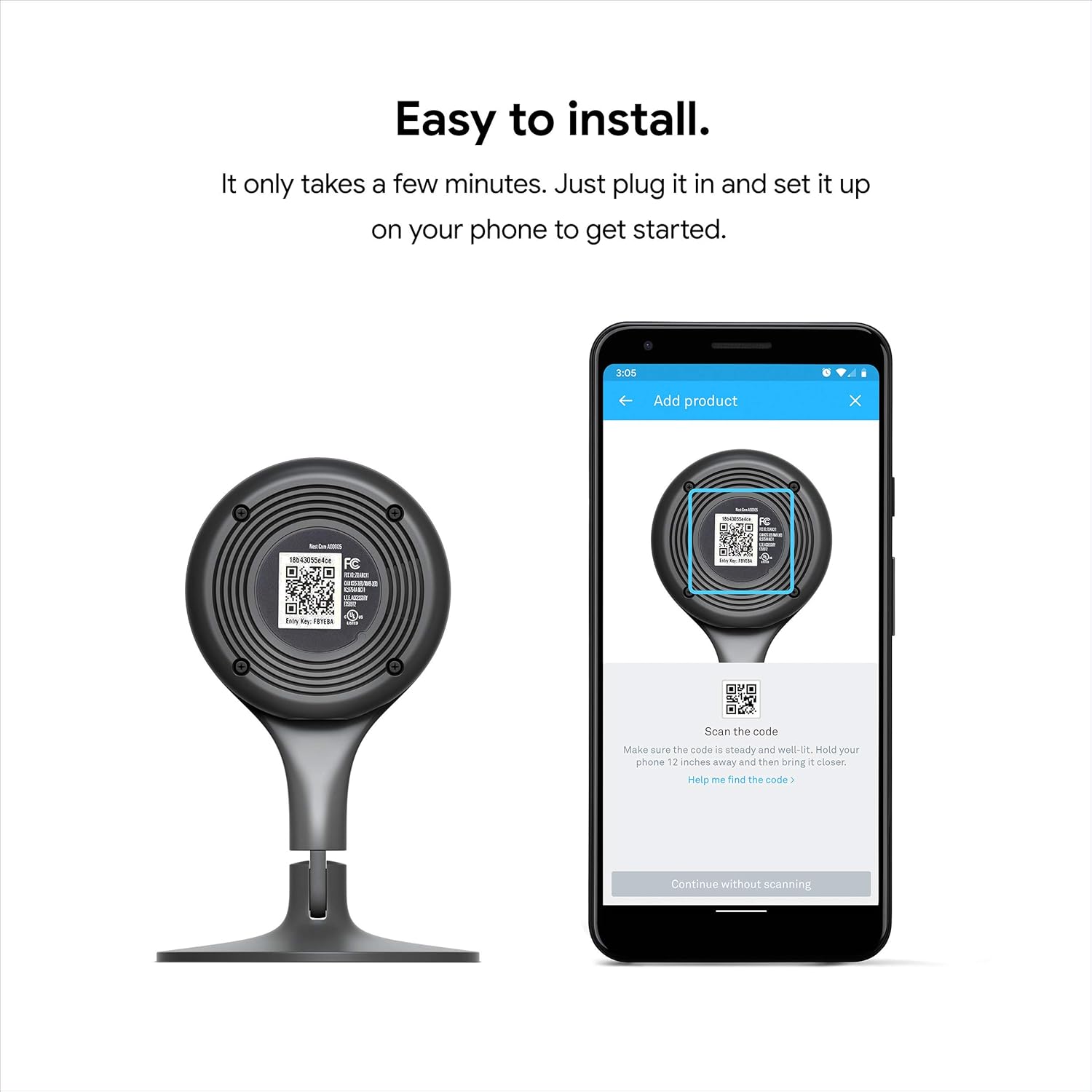
Figure 2: Scanning the QR code for easy setup via the Nest app.

Figure 3: Various mounting options for the Nest Cam Indoor.
4. Operating Instructions
4.1. Live Video Monitoring
Once set up, open the Nest app to view a live 24/7 stream of your camera's feed in full 1080p HD. You can access this from anywhere with an internet connection.

Figure 4: Live 1080p HD video feed displayed on a tablet.
4.2. Night Vision
The Nest Cam Indoor is equipped with 8 high-power infrared LEDs, providing clear video in low-light or dark conditions. Night vision activates automatically when ambient light is insufficient.

Figure 5: Night vision view from the Nest Cam Indoor.
4.3. Two-Way Audio
Utilize the built-in speaker and microphone to communicate through the camera. This allows you to speak to individuals near the camera or listen to sounds in the monitored area directly from the Nest app.

Figure 6: Illustrating two-way audio communication.
4.4. Mobile Alerts and Notifications
The camera detects activity and sends notifications to your mobile device. You can customize alert settings within the Nest app to receive notifications for motion or sound events. The camera also provides a 3-hour snapshot history, allowing you to review recent activity.

Figure 7: Nest app notification for detected activity.
4.5. Nest Aware Subscription (Optional)
For enhanced features, consider a Nest Aware subscription. This service offers continuous video recording, extended video history (e.g., 10 or 30 days), intelligent alerts (person detection, familiar faces), and activity zones. A free trial is often available.

Figure 8: Nest Aware interface showing continuous video recording.
5. Security Features
Google prioritizes the security of your video feed and personal information. The Nest Cam Indoor incorporates industry-leading security protocols. It is recommended to enable two-factor authentication for your Nest account to further protect your data.

Figure 9: Nest app login screen, emphasizing account security.
6. Specifications
| Feature | Specification |
|---|---|
| Model Name | Nest Cam Indoor |
| Model Number | NC1102ES |
| Indoor/Outdoor Usage | Indoor |
| Power Source | Corded Electric |
| Connectivity Protocol | Wi-Fi |
| Video Capture Resolution | 1080p HD |
| Field Of View | 130 Degrees |
| Night Vision | 8 high-power infrared LEDs |
| Two-Way Audio | Yes |
| Alert Type | Audio and Motion |
| Dimensions (L x W x H) | 2.8 x 2.8 x 4.5 inches |
| Item Weight | 7.2 ounces |
| Compatible Devices | Smartphone |
| Controller Type | Amazon Alexa, Nest |
| Mounting Type | Wall Mount, Shelf, Magnetic |
| UPC | 854448003655 |
7. Maintenance
To ensure optimal performance and longevity of your Nest Cam Indoor, follow these maintenance guidelines:
- Cleaning: Gently wipe the camera lens and body with a soft, dry, lint-free cloth. Avoid using harsh chemicals or abrasive materials, as these can damage the camera.
- Software Updates: Keep your Nest app and camera firmware updated. The Nest app will typically notify you of available updates.
- Power Cycle: If the camera becomes unresponsive, unplug it from the power source for 10 seconds, then plug it back in.
8. Troubleshooting
If you encounter issues with your Nest Cam Indoor, consider the following troubleshooting steps:
- No Power: Ensure the power adapter is securely plugged into both the camera and a working wall outlet. Check if the outlet is receiving power.
- Offline/Disconnected:
- Verify your home Wi-Fi network is active and functioning correctly.
- Check the camera's proximity to your Wi-Fi router. Move the camera closer if the signal is weak.
- Restart your Wi-Fi router and modem.
- Restart the Nest Cam by unplugging and replugging it.
- Poor Video Quality:
- Ensure your internet connection meets the minimum upload speed requirements for 1080p streaming.
- Clean the camera lens gently with a soft cloth.
- Check for obstructions in the camera's field of view.
- Audio Issues:
- Ensure the microphone and speaker settings are enabled in the Nest app.
- Check for any physical obstructions covering the microphone or speaker on the camera.
- App Not Responding: Close and reopen the Nest app. If the issue persists, try reinstalling the app.
For further assistance, refer to the official Google Nest support website or contact customer service.
9. Warranty and Support
The Google Nest Cam Indoor (1st Generation) comes with a 2-year Limited Warranty. This warranty covers defects in materials and workmanship under normal use. For detailed warranty terms and conditions, please refer to the documentation included with your product or visit the official Google Nest support website.
For technical support, troubleshooting guides, and frequently asked questions, please visit the Google Nest support page:
- Online Support: support.google.com/nest


