
1. Introduction
Welcome to the user manual for your renewed Lenovo Thinkpad T420. This document provides essential information to help you get started, operate, maintain, and troubleshoot your laptop. The Thinkpad T420 is a robust and reliable business-class laptop, featuring an Intel Core i5 2520M processor, 8GB of RAM, and a 320GB hard drive, running Windows 10 Professional. This manual aims to ensure you have a smooth and productive experience with your device.

Figure 1: The Lenovo Thinkpad T420 laptop. This image displays the laptop in an open position, highlighting its classic black design, keyboard, and screen.
2. Setup
2.1 Unpacking and Initial Inspection
Carefully remove the laptop and all accessories from the packaging. Verify that all components listed in the "What's in the Box" section are present. Inspect the laptop for any visible damage that may have occurred during shipping.
- Lenovo Thinkpad T420 Laptop
- AC Adapter (65-watt)
- Power Cord
- Documentation (this manual)
2.2 Connecting to Power
Before first use, ensure the laptop is connected to a power source. Locate the power adapter port on the side of the laptop. Connect the AC adapter to the laptop and then plug the power cord into a wall outlet.
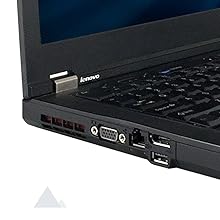
Figure 2: Side ports of the Thinkpad T420. This image illustrates the various connectivity options available on the side of the laptop, including the power input, VGA, Ethernet, and USB ports.
2.3 Initial Boot and Windows 10 Setup
Press the power button to turn on the laptop. Follow the on-screen instructions to complete the initial setup of Windows 10 Professional. This typically involves selecting your region, language, creating a user account, and connecting to a Wi-Fi network.
Figure 3: Windows 10 Professional logo. This image represents the operating system pre-installed on the laptop.
3. Operating Your Laptop
3.1 Keyboard and Pointing Devices
The Thinkpad T420 features a classic Thinkpad keyboard known for its tactile feedback. It also includes both a TrackPoint (red pointing stick in the center of the keyboard) and a touchpad for navigation. Use the TrackPoint with its dedicated buttons for precise cursor control, or the touchpad for multi-touch gestures.
3.2 Connecting to Wi-Fi
To connect to a wireless network:
- Click the Wi-Fi icon in the system tray (bottom right of the screen).
- Select your desired network from the list.
- Click "Connect" and enter the network password if prompted.
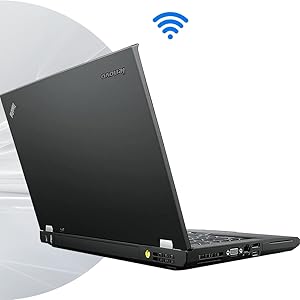
Figure 4: Wireless connectivity. This image shows the laptop with a Wi-Fi symbol, representing its capability to connect to wireless networks.
3.3 Using USB Ports and Optical Drive
The laptop is equipped with multiple USB 2.0 ports (including one Always-On USB 2.0 with yellow marking) for connecting external devices such as mice, keyboards, or external storage. It also includes an optical drive (DVD-RW) for reading and writing CDs and DVDs.
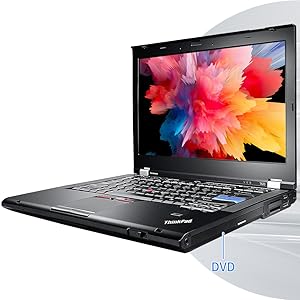
Figure 5: Optical drive location. This image points out the DVD-RW drive on the side of the Thinkpad T420, used for disc media.
4. Maintenance
4.1 Cleaning Your Laptop
- Screen: Use a soft, lint-free cloth lightly dampened with water or a screen cleaner. Avoid harsh chemicals.
- Keyboard and Casing: Use a soft cloth. For stubborn dirt, a slightly damp cloth with mild soap can be used, ensuring no liquid enters the device. Compressed air can help remove dust from between keys.
4.2 Battery Care
To prolong battery life:
- Avoid extreme temperatures.
- Do not leave the laptop plugged in constantly if not necessary.
- For long-term storage, charge the battery to about 50-60% and store in a cool, dry place.
4.3 Software Updates and Security
Regularly update Windows 10 and any installed software to ensure optimal performance and security. Keep your antivirus software up-to-date to protect against malware.
5. Troubleshooting
5.1 Common Issues and Solutions
- Laptop not turning on:
- Ensure the AC adapter is securely connected to both the laptop and a working power outlet.
- Check if the power outlet is functional by plugging in another device.
- If the battery is completely drained, it may take a few minutes of charging before the laptop can power on.
- Wi-Fi not connecting:
- Verify that Wi-Fi is enabled on the laptop (check the Wi-Fi icon in the system tray).
- Restart your router and modem.
- Forget the network and try reconnecting.
- Slow performance:
- Close unnecessary applications running in the background.
- Run a disk cleanup and defragmentation (for HDD).
- Check for and remove any malware using antivirus software.
- Ensure Windows is up-to-date.
- Screen issues (no display, flickering):
- Connect an external monitor to check if the issue is with the laptop's display or the graphics card.
- Restart the laptop.
If these steps do not resolve your issue, please refer to the Warranty & Support section for further assistance.
6. Specifications
Below are the key technical specifications for the Lenovo Thinkpad T420:
| Feature | Detail |
|---|---|
| Model Name | Thinkpad T420 |
| Processor | Intel Core i5-2520M (2.5 GHz) |
| RAM | 8 GB DDR3 |
| Hard Drive | 320 GB HDD |
| Operating System | Windows 10 Pro 64-Bit |
| Screen Size | 14 Inches |
| Screen Resolution | 1366 x 768 pixels |
| Graphics Coprocessor | Intel HD Graphics 4000 |
| Optical Drive Type | DVD-RW |
| Wireless Type | 802.11a/b/g/n |
| USB Ports | 4x USB 2.0 (1 Always-On), 1x USB 3.0 |
| Average Battery Life | 2 Hours |
| Item Weight | 7.25 pounds |
| Product Dimensions | 9.2 x 13.4 x 1.2 inches |
Note: Specifications are based on the product listing and may vary slightly for renewed products.
7. Warranty & Support
7.1 Warranty Information
This renewed Lenovo Thinkpad T420 comes with an 18 Months Warranty. Please retain your purchase receipt as proof of purchase. For specific warranty terms and conditions, refer to the documentation provided by the seller or contact the seller directly.

Figure 6: Microsoft Authorized Refurbisher. This image indicates that the product has been refurbished by an authorized entity, often implying quality standards and support.
7.2 Technical Support
For technical assistance, troubleshooting beyond this manual, or warranty claims, please contact the seller from whom you purchased this renewed product. They are best equipped to provide support for renewed devices.
For general information about Lenovo Thinkpad products, you may visit the official Lenovo support website, though specific support for renewed units should first go through your seller.