
1. Product Overview
The havit Rainbow Backlit Wired Gaming Keyboard Mouse Combo (Model: HV-KB558CM White) is designed to enhance your gaming and computing experience. This combo features a full-sized keyboard with vibrant rainbow backlighting and an ergonomic gaming mouse with adjustable DPI settings and colorful LED effects. Both devices are wired for reliable, lag-free performance and are compatible with various operating systems.

Figure 1: Havit Rainbow Backlit Wired Gaming Keyboard and Mouse Combo.
2. Setup
2.1 Connecting Your Device
The havit Keyboard Mouse Combo is designed for simple plug-and-play functionality. No additional software or drivers are required for basic operation.
- Locate an available USB port on your computer.
- Plug the USB connector of the keyboard into the USB port.
- Plug the USB connector of the mouse into another available USB port.
- The devices should be automatically recognized by your operating system within a few seconds.
2.2 System Compatibility
This keyboard and mouse combo is compatible with the following operating systems:
- Windows 2000
- Windows 2003
- Windows XP
- Windows Vista
- Windows 7
- Windows 8
- Windows 10
- Mac OS (Note: Multimedia keys may only function on Windows operating systems.)
- Linux
3. Operating Instructions
3.1 Keyboard Functions
The keyboard features a full 104-key layout with additional multimedia and gaming-specific functions.
- Rainbow Backlighting: The keyboard features a vibrant rainbow backlight that illuminates the keys, creating an immersive gaming atmosphere. The backlighting is static and cannot be customized to a single color.
- Multimedia Combination Keys: Access various multimedia functions using the FN key in combination with the F1 through F10, and F12 keys. These functions include media playback control, volume adjustment, and more.
- Anti-Ghosting: Supports simultaneous operation of up to 19 keys without conflict, ensuring accurate input during intense gaming sessions.
- Interchangeable WASD Keys: The W, A, S, D keys can be interchanged with the arrow keys for personalized gaming control.
- WIN Key Lock: The Windows key can be disabled during gaming to prevent accidental interruptions.

Figure 2: Close-up view of the Havit gaming keyboard showcasing its rainbow backlighting.
3.2 Mouse Functions
The gaming mouse is designed for precision and comfort, featuring adjustable sensitivity and dynamic LED lighting.
- Adjustable DPI: The mouse offers four adjustable DPI levels: 800, 1200, 2400, and 3200 DPI. Press the DPI switch button on the mouse to cycle through the sensitivity settings. The LED indicator will flash to show the current DPI level.
- 7 Circular Breathing LED Colors: The mouse features a circular breathing LED light effect with seven colors: Red, Green, Blue, Yellow, Purple, Cyan, and Pink. This creates a dynamic visual effect.
- Turning Off Mouse Light: To turn off the mouse light, press the Forward / Back Button + DPI button simultaneously.
- 6-Buttons: The mouse is equipped with 6 buttons for superior productivity and efficiency in gaming and general use.
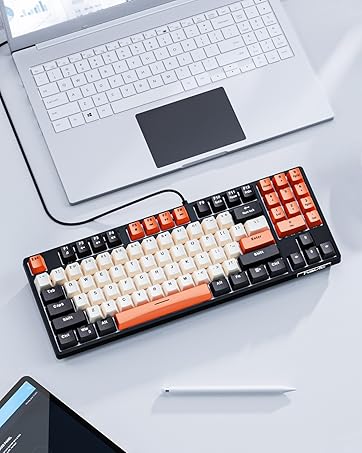
Figure 3: Close-up view of the Havit gaming mouse highlighting its LED lighting.
4. Maintenance
4.1 Care and Cleaning
To ensure the longevity and optimal performance of your havit Keyboard Mouse Combo, follow these cleaning guidelines:
- General Cleaning: Use a soft, dry cloth to wipe down the surfaces of both the keyboard and mouse regularly.
- Keyboard Keys: Due to the elevated design of the keys, dust and debris can accumulate underneath. Use compressed air to blow out particles from between the keys. For deeper cleaning, keycaps can be carefully removed (refer to online guides if unsure) to clean the base, but ensure you remember the key placement for reassembly.
- Mouse Sensor: Periodically clean the optical sensor on the underside of the mouse with a cotton swab lightly dampened with rubbing alcohol. Ensure it is completely dry before use.
- Avoid Liquids: Do not immerse the keyboard or mouse in water or any other liquids. Avoid using harsh chemicals or abrasive cleaners.
5. Troubleshooting
5.1 Common Issues and Solutions
If you encounter any issues with your havit Keyboard Mouse Combo, please refer to the following common troubleshooting steps:
- No Power/Lights Not On:
- Ensure both the keyboard and mouse USB cables are securely plugged into working USB ports on your computer.
- Try plugging the devices into different USB ports.
- Test the devices on another computer to rule out a computer-specific issue.
- Mouse Not Tracking Smoothly:
- Clean the optical sensor on the bottom of the mouse.
- Ensure you are using the mouse on a suitable surface, preferably a mouse pad. Uneven or reflective surfaces can affect tracking.
- Adjust the DPI settings to see if a different sensitivity improves tracking.
- Keys Sticking or Not Responding:
- Check for any debris or crumbs lodged under the keys. Use compressed air to clear them.
- Ensure the keyboard is connected properly.
- Multimedia Keys Not Working (Mac OS):
- As noted in compatibility, some multimedia keys may have limited or no functionality on Mac OS. This is expected behavior.
6. Specifications
Detailed technical specifications for the havit Rainbow Backlit Wired Gaming Keyboard Mouse Combo:
| Feature | Specification |
|---|---|
| Brand | havit |
| Model Number | HV-KB558CM White |
| Connectivity Technology | USB Wired |
| Keyboard Backlight | Rainbow Backlit (Static) |
| Keyboard Anti-Ghosting | Up to 19 keys without conflict |
| Mouse DPI Levels | 800 / 1200 / 2400 / 3200 DPI |
| Mouse LED Colors | 7 Circular Breathing Colors |
| Hardware Platform | PC, Linux, Mac |
| Operating System Compatibility | Windows 2000 / 2003 / XP / Vista / Win7 / Win8 / Win10 / Mac OS |
| Item Weight | 1.67 pounds |
| Product Dimensions | 12 x 2 x 8 inches |
| Color | White |
7. Warranty and Support
7.1 Warranty Information
havit products are manufactured to high quality standards. This product is covered by a limited warranty against defects in materials and workmanship. Please retain your proof of purchase for warranty claims. For specific warranty terms and conditions, refer to the documentation included with your product or visit the official havit website.
7.2 Customer Support
For technical assistance, troubleshooting, or general inquiries, please contact havit customer support:
- Website: Visit the official havit website for FAQs, drivers, and support resources.
- Email: Refer to your product packaging or the havit website for customer service email addresses.
- Phone: Contact numbers for regional support may be available on the havit website.
You can also visit the havit Store on Amazon for more product information and support.