
Rii X1 Mini
Contents
Rii X1 Mini Wireless Keyboard with Touchpad User Manual
Model: Rii X1 Mini | Brand: Rii
Introduction
Thank you for choosing the Rii X1 Mini Wireless Keyboard with Touchpad. This compact and versatile device combines a full QWERTY keyboard with a multi-touch touchpad, designed for seamless control of your Smart TV, PC, gaming console, and other compatible devices. This manual provides detailed instructions to help you set up, operate, and maintain your Rii X1 Mini for optimal performance.
Package Contents
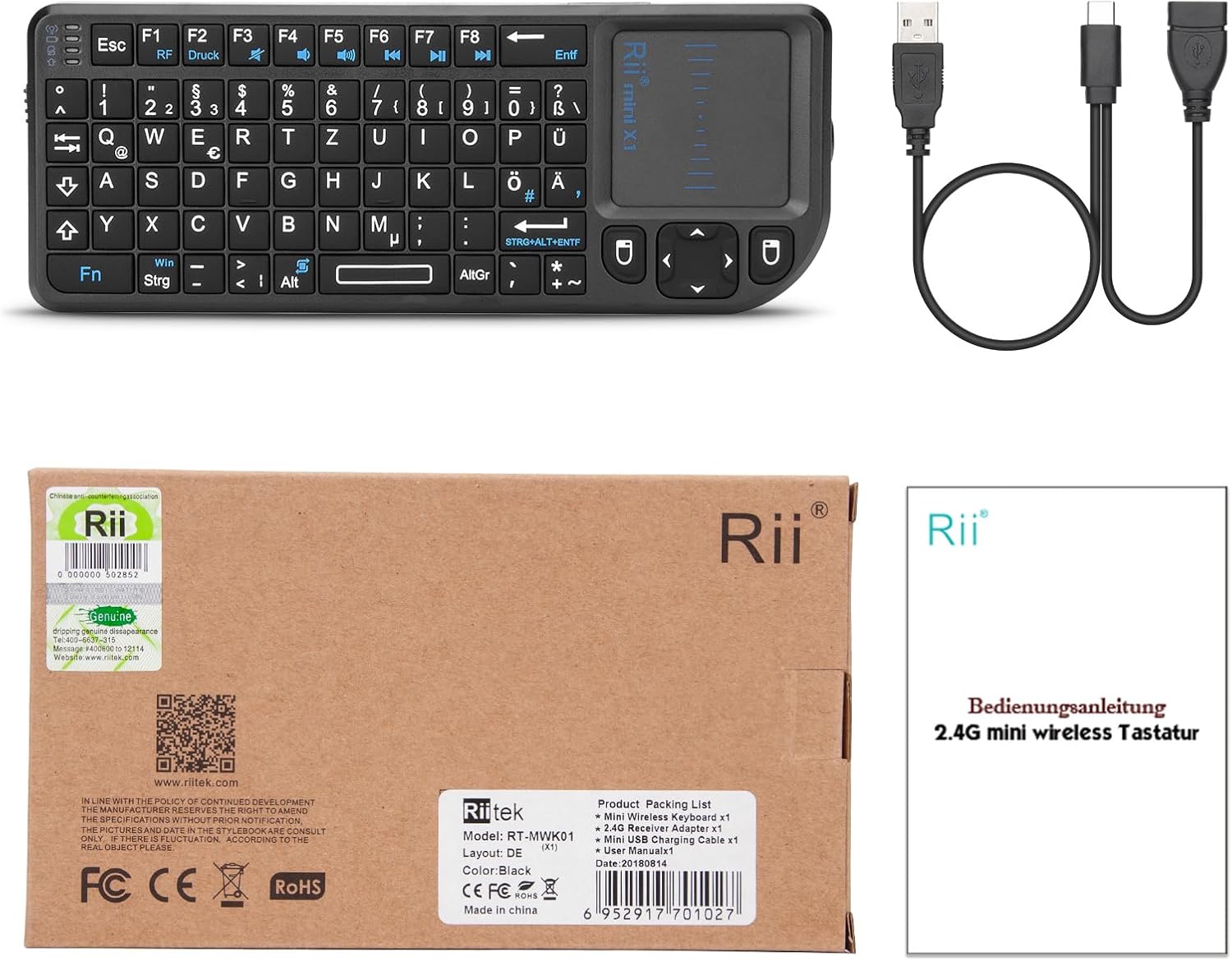
Image: The Rii X1 Mini Wireless Keyboard, its USB receiver, USB charging cable, and the user manual as found in the product packaging.
Please check the package contents to ensure all items are present:
- 1x Rii X1 Mini Wireless Keyboard
- 1x USB Receiver
- 1x USB Charging Cable
- 1x User Manual
Product Overview

Image: A clear view of the Rii X1 Mini Wireless Keyboard, showcasing its compact design with a full QWERTY keyboard and an integrated touchpad.
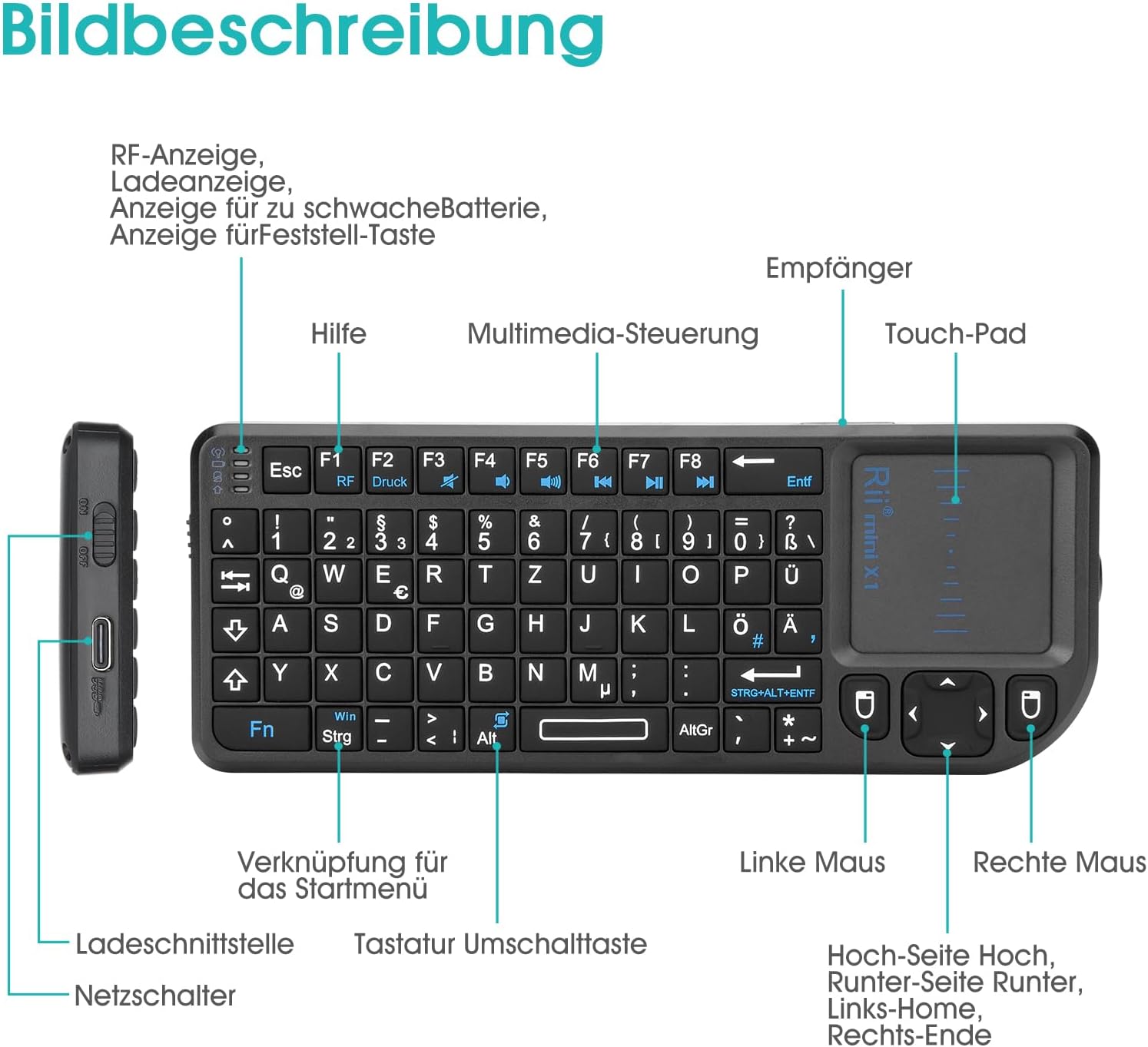
Image: Detailed diagram of the Rii X1 Mini, highlighting key features such as the USB receiver slot, touchpad, multimedia controls, charging interface, and power switch.
Familiarize yourself with the various parts of your Rii X1 Mini keyboard:
- Keyboard Layout: Standard QWERTY layout with function keys (F1-F8) for multimedia control.
- Touchpad: High-sensitivity multi-touch touchpad for mouse cursor control and gestures. Supports 90-degree flip for vertical or horizontal use.
- Mouse Buttons: Dedicated left and right mouse buttons below the touchpad.
- Directional Pad (D-Pad): For alternative navigation, including Page Up, Page Down, Home, and End functions.
- Power Switch: Located on the side for turning the device on/off.
- Charging Interface: Micro USB port for charging the internal battery.
- USB Receiver Slot: A convenient storage slot for the USB receiver when not in use.
- LED Indicators:
- RF Indicator: Shows wireless signal status.
- Charging Indicator: Lights up during charging.
- Low Battery Indicator: Alerts when battery is low.
- Caps Lock Indicator: Shows Caps Lock status.

Image: The Rii X1 Mini Wireless Keyboard with its precise dimensions (151mm length, 59mm width, 12.5mm thickness) and compatible operating systems (Windows, Android, Mac, Linux).
Setup
1. Charging the Keyboard
Before first use, fully charge the keyboard. Connect the supplied USB charging cable to the keyboard's charging port and the other end to a USB power source (e.g., computer USB port, USB wall adapter). The charging indicator LED will light up during charging and turn off when fully charged.
2. Connecting the USB Receiver (Plug and Play)
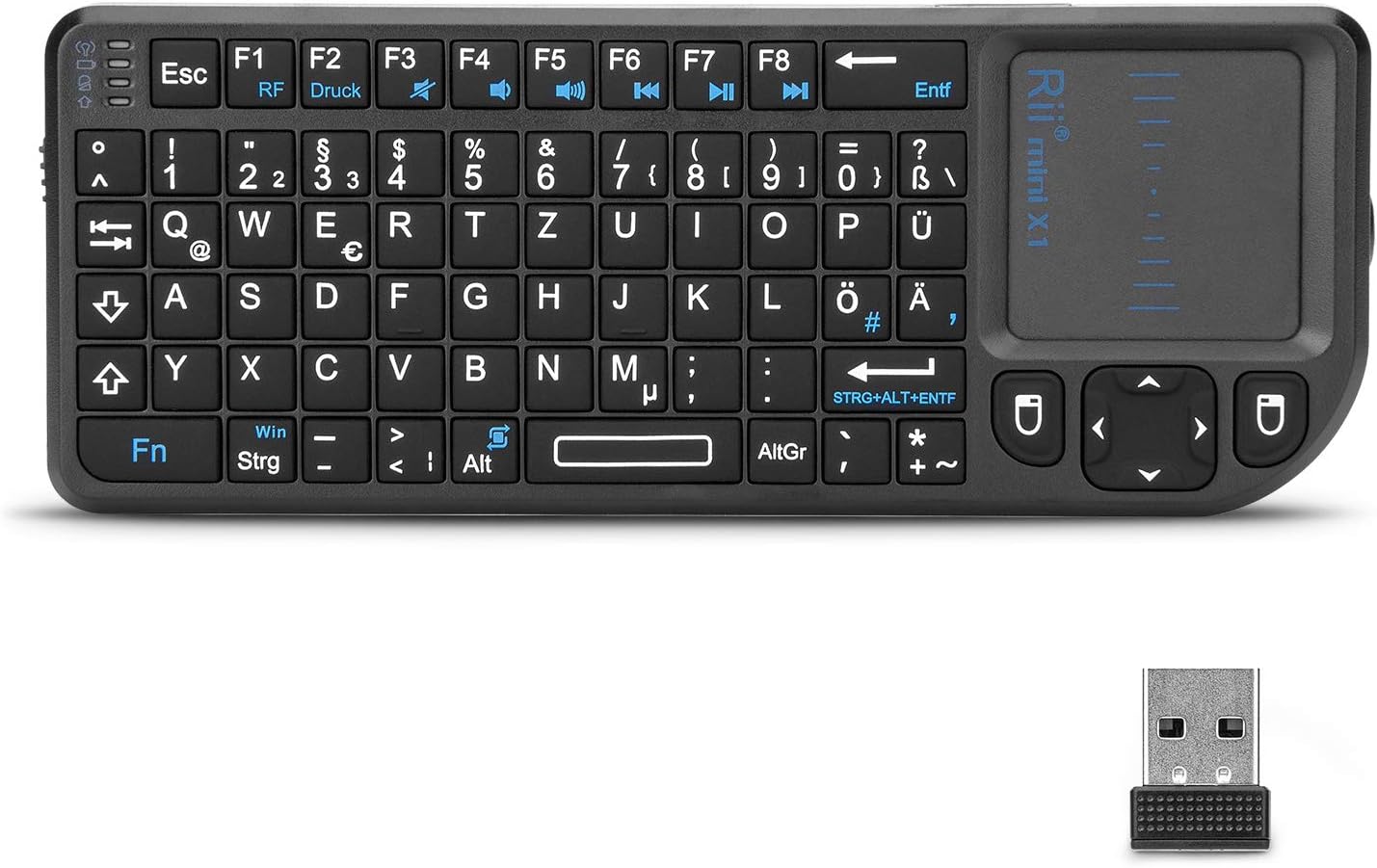
Image: The Rii X1 Mini Wireless Keyboard and its compact 2.4G USB receiver, ready for connection.
- Locate the USB receiver. It is typically stored in a dedicated slot within the keyboard itself.
- Insert the USB receiver into an available USB port on your device (Smart TV, PC, game console, etc.).
- Turn on the Rii X1 Mini keyboard using the power switch on the side.
- The device should automatically recognize the keyboard. No additional drivers are required for most compatible systems.
The wireless range is up to 10 meters (approximately 33 feet).
Operating Instructions
Keyboard Functions
- Typing: Use the QWERTY keys for text input.
- Function Keys (F1-F8): These keys provide multimedia control.
- F1: Help
- F2: Mute
- F3: Volume Down
- F4: Volume Up
- F5: Play/Pause
- F6: Previous Track
- F7: Next Track
- F8: Stop
- Fn Key: Press and hold the Fn key to access the blue-colored secondary functions printed on certain keys, such as Windows key, Ctrl, Alt, and special characters.
- Caps Lock: Press the Caps Lock key to toggle uppercase typing. The Caps Lock LED indicator will light up when active.
- Start Menu Shortcut: A dedicated key for opening the Start Menu (Windows) or equivalent on compatible systems.
Touchpad Usage
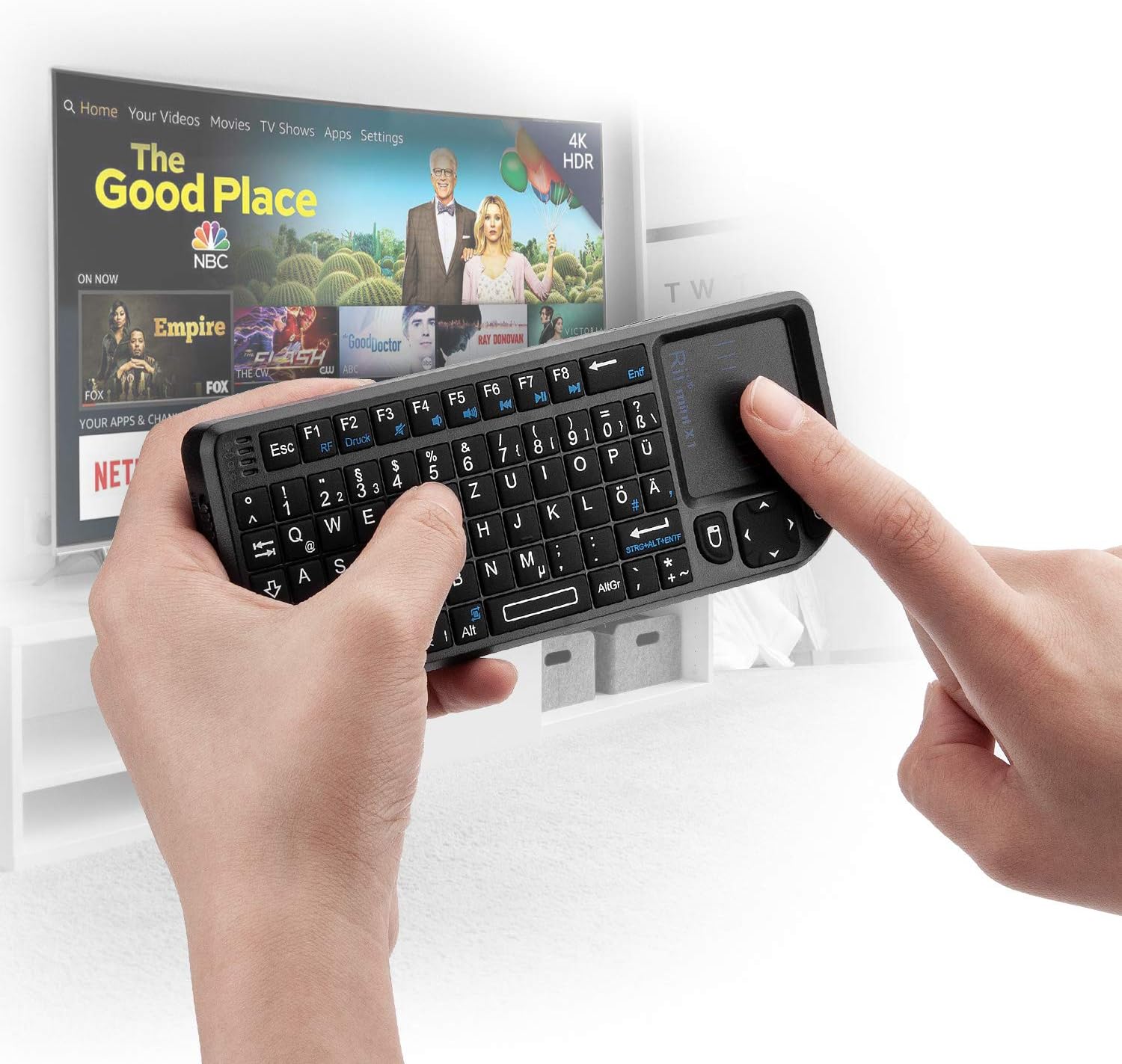
Image: A user comfortably holding the Rii X1 Mini keyboard, demonstrating its use for navigating a Smart TV interface with the integrated touchpad.
- Single Finger Tap: Left-click.
- Two Finger Tap: Right-click.
- Two Finger Scroll: Drag two fingers up or down to scroll.
- Touchpad 90-degree Flip: The touchpad supports a 90-degree rotation feature, allowing it to be used vertically or horizontally depending on your preference or application. This is an automatic orientation adjustment.

Image: A close-up of hands holding the Rii X1 Mini, illustrating its comfortable grip and compact form factor for easy handling.
System Compatibility
The Rii X1 Mini is compatible with a wide range of operating systems and devices:
- Windows (2000, XP, Vista, CE, 7, 8)
- Linux (Debian-3.1, Redhat-9.0, Ubuntu-8.10, Fedora-7.0)
- Macintosh MAC OS
- Android PC Operating System
- Compatible with Laptops, Smart TVs, PCs, and Gaming Consoles (Xbox 360, PS3)
Maintenance
- Cleaning: Use a soft, dry cloth to clean the keyboard surface. For stubborn dirt, slightly dampen the cloth with water or a mild cleaning solution. Avoid excessive moisture.
- Battery Care:
- Charge the battery regularly, even if not in frequent use, to maintain battery health.
- Avoid exposing the device to extreme temperatures.
- If the keyboard will not be used for an extended period, charge it to about 50% and store it in a cool, dry place.
- Storage: When not in use, store the USB receiver in its dedicated slot on the keyboard to prevent loss.
Troubleshooting
| Problem | Possible Cause | Solution |
|---|---|---|
| Keyboard not responding. | Low battery; USB receiver not properly connected; keyboard not powered on; out of range. | Charge the keyboard. Ensure the USB receiver is securely plugged into the device. Turn on the keyboard. Move closer to the USB receiver (within 10m). |
| Cursor movement is erratic or unresponsive. | Dirty touchpad; interference; low battery. | Clean the touchpad surface. Ensure no other wireless devices are causing interference. Charge the keyboard. |
| Keys are typing incorrect characters (e.g., Y and Z swapped). | Incorrect keyboard layout setting on the host device. | On Android devices, go to Settings > General Management > Physical Keyboard > Rii Mini Keyboard and select "German" or the correct layout for your region. For other OS, adjust keyboard input settings accordingly. |
| Keyboard does not charge. | Faulty charging cable; faulty charging port; battery issue. | Try a different USB charging cable and power source. If the issue persists, contact customer support. |
| Keyboard goes to sleep too quickly. | Automatic power-saving feature. | This is a built-in feature to conserve battery. Press any key to wake the keyboard. |
Specifications
| Feature | Detail |
|---|---|
| Brand | Rii |
| Model Number | Rii X1 Mini |
| Connectivity Technology | 2.4G Wireless (USB Receiver) |
| Keyboard Description | Mini Wireless Keyboard with Touchpad |
| Compatible Devices | Laptop, Smart TV, PC, Smartphone, Game Consoles (Xbox 360, PS3) |
| Operating System Support | Android, Linux, Windows, Mac OS |
| Dimensions (L x W x H) | 15.1 x 5.8 x 1.2 cm |
| Item Weight | 140 grams |
| Battery Type | 1 Lithium-Ion Battery (included) |
| Battery Capacity | 1.48 Watt-hours |
| Wireless Range | Up to 10 meters |
Warranty and Support
Rii products are designed and manufactured to the highest quality standards. For warranty information or technical support, please refer to the contact details provided with your purchase or visit the official Rii website. Please retain your proof of purchase for warranty claims.
Official Website: www.riitek.com
Ask a question about this manual
Ask about setup, troubleshooting, compatibility, parts, safety, or missing instructions. Manuals+ will review the question and use this page’s manual context to help answer it.