
1. Introduction
This manual provides detailed instructions for the installation, operation, and maintenance of your JOOAN TC-404AHD-4A 4-Channel 720P AHD Wired Security Camera System. Please read this manual thoroughly before using the product to ensure proper setup and functionality. Keep this manual for future reference.
2. Product Overview
The JOOAN TC-404AHD-4A system is designed to provide reliable surveillance with 720P AHD cameras, offering clear day and night vision. It features H.265+ video compression for efficient storage and supports remote access via mobile devices and PC.

Figure 2.1: JOOAN AHD Camera with Weatherproof Design, mounted on a wall with rain effects, indicating suitability for outdoor use.

Figure 2.2: Day and Night Vision Comparison. The camera automatically switches to black and white infrared vision in low light conditions.

Figure 2.3: Included Components of the JOOAN TC-404AHD-4A System. This package typically includes the DVR, four AHD cameras, necessary cables, power adapters, and a USB mouse.
3. Setup Instructions
Follow these steps to set up your JOOAN security camera system.
3.1 Unboxing and Initial Connection
- Carefully unpack all components from the box. Verify that all items listed in the product overview are present.
- Connect the cameras to the DVR using the provided BNC cables. Ensure secure connections.
- Connect the DVR to a monitor using a VGA or HDMI cable.
- Connect the power adapters to the cameras and the DVR, then plug them into power outlets.
- The system should power on and display camera feeds on the connected monitor.
3.2 Remote Access Setup (Mobile App)
The system supports remote viewing via a mobile application. Refer to the video below for a visual guide on setting up remote access.
Video 3.1: Operation Video for JOOAN System. This video guides you through the unboxing, quick setup, and remote access configuration for your JOOAN security system using a mobile application and PC.
- Ensure your DVR is connected to the internet via an Ethernet cable.
- Download the recommended mobile application (e.g., XMEye Pro) from your device's app store.
- Open the app and register an account if you don't have one.
- Add your device by scanning the QR code displayed on your DVR's monitor (usually found in Network settings or Device Info).
- Once added, you can view live feeds and playback recordings remotely.
4. Operating Instructions
This section covers the basic operation of your security system.
Video 4.1: 8CH Wired Security Camera System - Main Functions. This video highlights key features such as motion detection, remote monitoring, and the system's resilience to various weather conditions.
4.1 Live View and Playback
- Live View: After successful setup, the monitor will display live feeds from all connected cameras. You can switch between single-camera view and multi-camera grid view.
- Playback: Access the 'Playback' option from the main menu to review recorded footage. You can search by date, time, and event type (e.g., motion detection).
4.2 Motion Detection and Alerts
The system supports motion detection to trigger recording and send alerts.
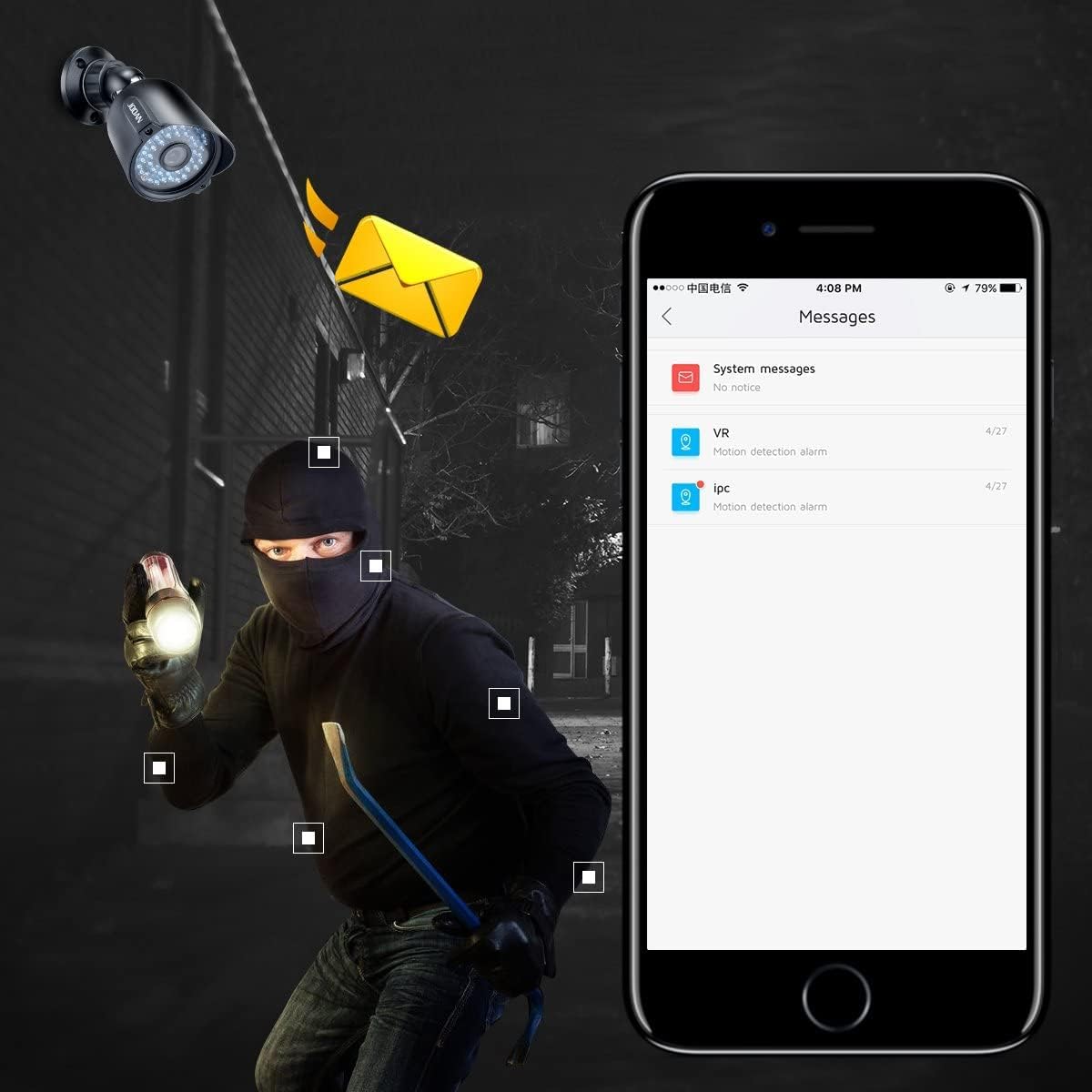
Figure 4.1: Motion Detection Alert. The system can send push notifications to your smartphone or email when motion is detected.
- From the DVR's main menu, navigate to 'Alarm' > 'Motion Detect'.
- Enable motion detection for desired channels.
- Adjust sensitivity and define detection regions as needed.
- Configure alert actions, such as sending email notifications or mobile app push alerts.
4.3 H.265+ Video Compression
The system utilizes H.265+ encoding technology to optimize storage space while maintaining video quality.

Figure 4.2: H.265+ vs H.264 Storage Comparison. H.265+ significantly reduces storage requirements compared to older H.264 compression.
5. Maintenance
- Regular Cleaning: Clean camera lenses periodically with a soft, damp cloth to ensure clear image quality.
- Firmware Updates: Check the manufacturer's website for firmware updates to ensure optimal performance and security.
- Cable Inspection: Periodically inspect all cables for wear, damage, or loose connections.
- Hard Drive Management: Ensure the DVR's hard drive has sufficient space. Configure overwrite settings if continuous recording is desired.
6. Troubleshooting
- No Video Display: Check all cable connections (power, video, monitor). Ensure the monitor is set to the correct input source.
- No Remote Access: Verify the DVR is connected to the internet. Check network settings (IP address, DNS). Ensure the mobile app is correctly configured with the device.
- Poor Image Quality: Clean camera lenses. Check cable integrity. Ensure cameras are within their effective range and not obstructed.
- Motion Detection Not Working: Verify motion detection is enabled for the specific channel. Adjust sensitivity and detection regions. Check alert settings (email, push notifications).
- System Not Recording: Check hard drive status and ensure it is initialized and has sufficient space. Verify recording schedules are correctly set.
7. Specifications
| Feature | Specification |
|---|---|
| Brand | JOOAN |
| Model Number | TC-404AHD-4A (Internal: 01-1004-000005) |
| Connectivity Technology | Wired |
| Video Capture Resolution | 1080p, 720p |
| Special Features | Motion Sensor, Night Vision |
| Number of Channels | 8 |
| Power Source | Battery Powered (for cameras, system is wired) |
| Item Dimensions L x W x H | 12.99 x 6.69 x 12.8 inches |
| Recommended Uses | Indoor, Outdoor |
| Compatible Devices | Cameras, Personal Computers, Smartphones |
| Night Vision Range | 100 Feet |
| Total USB Ports | 1 |
| Item Weight | 8.8 pounds |
| UPC | 700465870322 |
8. Warranty and Support
JOOAN products are designed for reliability and performance. For specific warranty details, please refer to the product packaging or contact JOOAN customer service directly. Our support team is available to assist you with any questions or issues.
- Service Line: +86-755-33094780
- Email: technicalreply@qacctv.com
- Skype: market@qacctv.com


