
1. Introduction
The Mackie ProFX16v2 is a 16-channel professional effects mixer designed to provide high-quality audio mixing for various applications, including live sound, home studios, and more. It integrates essential tools like low-noise mic preamps, a powerful effects engine, and versatile EQ options, all within a rugged and portable design. This manual provides detailed instructions for setting up, operating, and maintaining your ProFX16v2 mixer.

Figure 1: Top-down view of the Mackie ProFX16v2 mixer, highlighting its comprehensive control surface with faders, knobs, and input/output jacks.
2. Setup
Before operating your Mackie ProFX16v2 mixer, follow these steps to ensure proper setup and connectivity.
2.1 Unpacking and Inspection
Carefully remove the mixer from its packaging. Inspect the unit for any signs of damage that may have occurred during shipping. If any damage is found, contact your dealer immediately.
2.2 Power Connection
Connect the supplied power cord to the mixer's AC input on the rear panel and then to a grounded AC outlet. Ensure the power switch is in the OFF position before connecting.

Figure 2: Rear panel of the ProFX16v2, illustrating the power input and USB connectivity.
2.3 Input Connections
The ProFX16v2 features 10 low-noise Mackie Vita mic preamps (channels 1-10) and additional line inputs. Connect your microphones, instruments, and other audio sources to the appropriate input jacks (XLR for mics, 1/4" for line-level signals).
- Microphones: Use XLR cables for channels 1-10.
- Instruments/Line-level devices: Use 1/4" TS/TRS cables for line inputs.
- USB Audio: Connect a USB cable from the mixer to your computer for recording or playback.
2.4 Output Connections
Connect your main speakers, monitors, or recording devices to the mixer's output jacks.
- Main Outputs: Connect to your main PA system or studio monitors using XLR or 1/4" cables.
- Aux Outputs: Use for monitor mixes or external effects sends.
- Headphone Output: Connect your headphones for monitoring.
3. Operation
This section covers the basic operation of the Mackie ProFX16v2 mixer, including channel controls, EQ, effects, and monitoring.
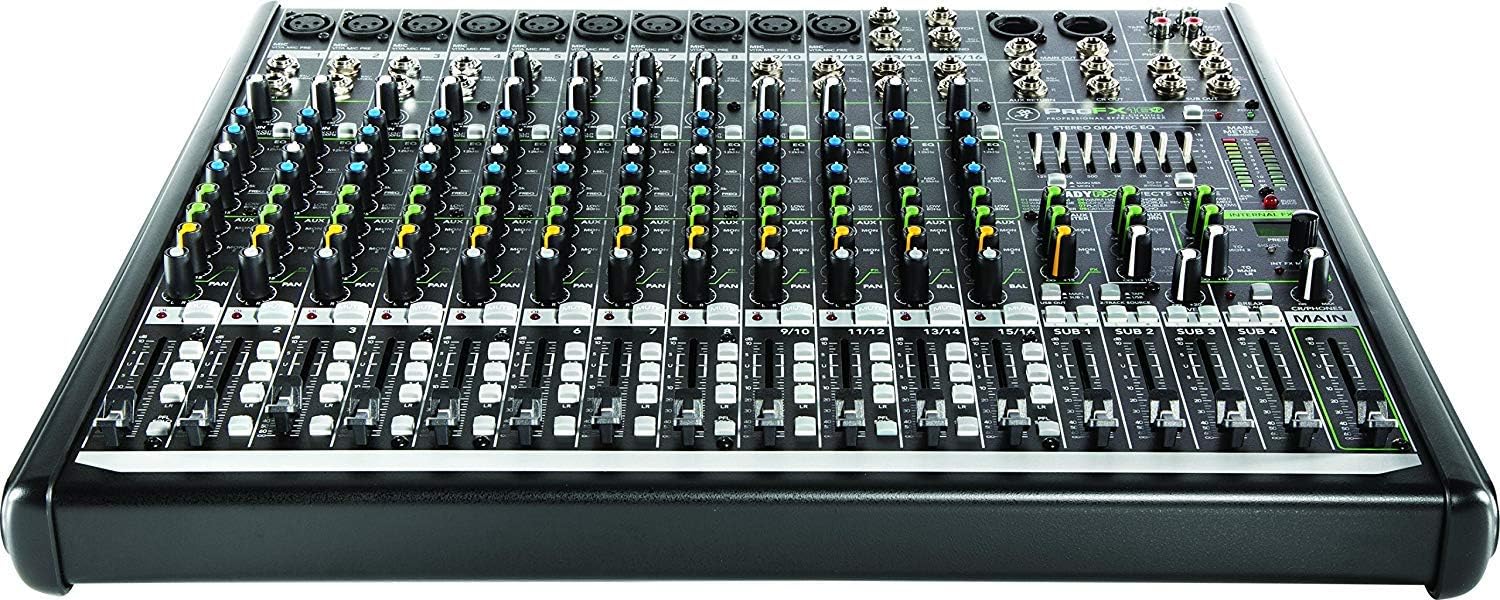
Figure 3: Angled view of the ProFX16v2, showing the detailed layout of channel controls and the main section.
3.1 Channel Controls
Each input channel on the ProFX16v2 features a set of controls to shape your audio signal:
- Gain Knob: Adjusts the input sensitivity for microphones and line-level signals. Set this to achieve a healthy signal level without clipping.
- EQ Section: Each channel includes a 3-band EQ with sweepable mids (channels 1-10) or fixed mids (channels 11-16) to adjust the tone of your audio.
- Aux Send Knobs: Control the amount of signal sent to the auxiliary outputs for monitor mixes or external effects.
- FX Send Knob: Controls the amount of signal sent to the internal ReadyFX effects engine.
- Pan Knob: Positions the signal within the stereo field (left to right).
- Mute Button: Mutes the channel's output to the main mix.
- PFL (Pre-Fader Listen) Button: Sends the channel's signal to the headphones for solo monitoring before the fader.
- Channel Fader: Controls the overall volume of the channel in the main mix.
3.2 ReadyFX Effects Engine
The ProFX16v2 features the ReadyFX effects engine with 16 different effects, including various reverbs, delays, and choruses. Use the FX send knobs on individual channels and the dedicated FX level control to blend effects into your mix.
3.3 Graphic EQ
A 7-band graphic EQ is provided for overall tone shaping of the main mix or monitor sends. This allows for fine-tuning the frequency response of your output.
3.4 USB Interface
The integrated USB interface allows you to record the main stereo mix to your computer or play back audio from your computer through the mixer. This is ideal for recording live performances or integrating computer-based audio into your setup.
4. Key Features
The Mackie ProFX16v2 mixer is equipped with a robust set of features designed for professional audio applications:
- 10 Low-Noise Mackie Vita Mic Preamps: High-quality preamps designed to deliver clear and vibrant audio from any input source.
- ReadyFX Effects Engine: Offers 16 "Gig-Ready" effects, including various reverbs, delays, and choruses, for enhancing your sound.
- 7-Band Graphic EQ: Precision equalization for tuning main outputs or monitor mixes, allowing for detailed frequency adjustments.
- 3-Band EQ with Sweepable Mids: Comprehensive tone control on each channel, including a 100Hz low-cut filter to remove unwanted rumble.
- Aux Output: Dedicated output for creating monitor mixes or sending signals to external processors or 70-volt systems.
- USB I/O: Enables easy recording of the stereo main mix to a computer or playback of audio from a computer through the mixer.
- Rugged Build Quality: Housed in an ultra-tough enclosure with impact-resistant side cheeks, making it suitable for portable applications and road use.
5. Maintenance
Proper maintenance will ensure the longevity and optimal performance of your Mackie ProFX16v2 mixer.
5.1 Cleaning
Regularly clean the mixer's surface with a soft, dry cloth. For stubborn dirt, a slightly damp cloth can be used, followed by a dry cloth. Avoid using abrasive cleaners, solvents, or waxes, as these can damage the finish or internal components.
5.2 Storage
When not in use, store the mixer in a cool, dry place, away from direct sunlight and extreme temperatures. If transporting, use a protective case to prevent physical damage.
5.3 Ventilation
Ensure that the mixer's ventilation openings are not blocked. Adequate airflow is crucial to prevent overheating, especially during extended periods of operation.
6. Troubleshooting
This section addresses common issues you might encounter with your ProFX16v2 mixer and provides solutions.
| Problem | Possible Cause | Solution |
|---|---|---|
| No sound output |
|
|
| Distorted audio |
|
|
| No effects sound |
|
|
7. Specifications
Below are the technical specifications for the Mackie ProFX16v2 16-Channel Professional Effects Mixer:
- Model: PROFX16V2
- Number of Channels: 16
- Mic Preamps: 10 (Mackie Vita)
- Effects Engine: ReadyFX (16 effects)
- EQ: 3-band per channel (sweepable mids on channels 1-10), 7-band Graphic EQ on main/monitor
- Hardware Interface: USB
- Power Source: Corded Electric
- Item Weight: 13 pounds (5.9 kg)
- Product Dimensions: 16 x 18.7 x 3.8 inches (40.6 x 47.5 x 9.7 cm)
- First Available: April 15, 2015
8. Warranty & Support
Mackie products are designed for reliability and performance. For detailed warranty information, please refer to the official Mackie website or the warranty card included with your product. For technical support or service inquiries, please visit the official Mackie support page or contact their customer service.
You can also refer to the comprehensive Official User Manual (PDF) for more in-depth information and diagrams.