
1. Introduction
The Mackie ProFX12v2 is a 12-channel professional effects mixer designed for live sound and recording applications. It features high-quality preamps, a powerful effects engine, and flexible input/output options, all housed in a durable chassis. This manual provides essential information to help you set up, operate, and maintain your mixer for optimal performance.
Key Features:
- 6 low-noise Mackie Vita microphone preamps for clear audio input.
- ReadyFX effects engine with 16 effects, including reverbs, delays, and choruses.
- 7-Band Graphic EQ for precise tuning of main or monitor mixes.
- Aux output for monitor mixes and other routing needs.
- 3-band EQ (80 Hz, 2.5 kHz, 12 kHz) and 100 Hz low-cut filter on all channels.
- Built-in USB interface for hassle-free recording and playback.
2. Product Overview

Figure 2.1: Top-down view of the Mackie ProFX12v2 mixer, showcasing its 12 channels, faders, knobs, and effects section.

Figure 2.2: Rear view of the Mackie ProFX12v2 mixer, highlighting the power input, main outputs, and USB connection.
Video 2.1: This video provides a visual overview of the Mackie ProFX12v2 mixer, demonstrating its physical layout and various controls.
3. Setup
3.1 Power Connection
Connect the provided power cable to the mixer's power input and then to a suitable AC power outlet. Ensure the power switch is in the OFF position before connecting. Turn the mixer ON using the power switch located on the rear panel.
3.2 Input Connections
Connect microphones to the XLR inputs (channels 1-6) and instruments or line-level devices to the 1/4-inch TRS inputs. The ProFX12v2 offers 6 low-noise Mackie Vita mic preamps. For channels 7/8, 9/10, and 11/12, use the 1/4-inch line inputs for stereo sources.
3.3 Output Connections
Connect your main speakers or amplifier to the MAIN OUT XLR or 1/4-inch TRS jacks. Use the AUX SEND output for monitor mixes or external effects processors. The PHONES output allows for headphone monitoring.
3.4 USB Connection
Connect the mixer to your computer using a USB cable. This enables stereo recording of your main mix and stereo playback from your computer through channels 11/12. No special drivers are typically required for basic functionality on most operating systems.
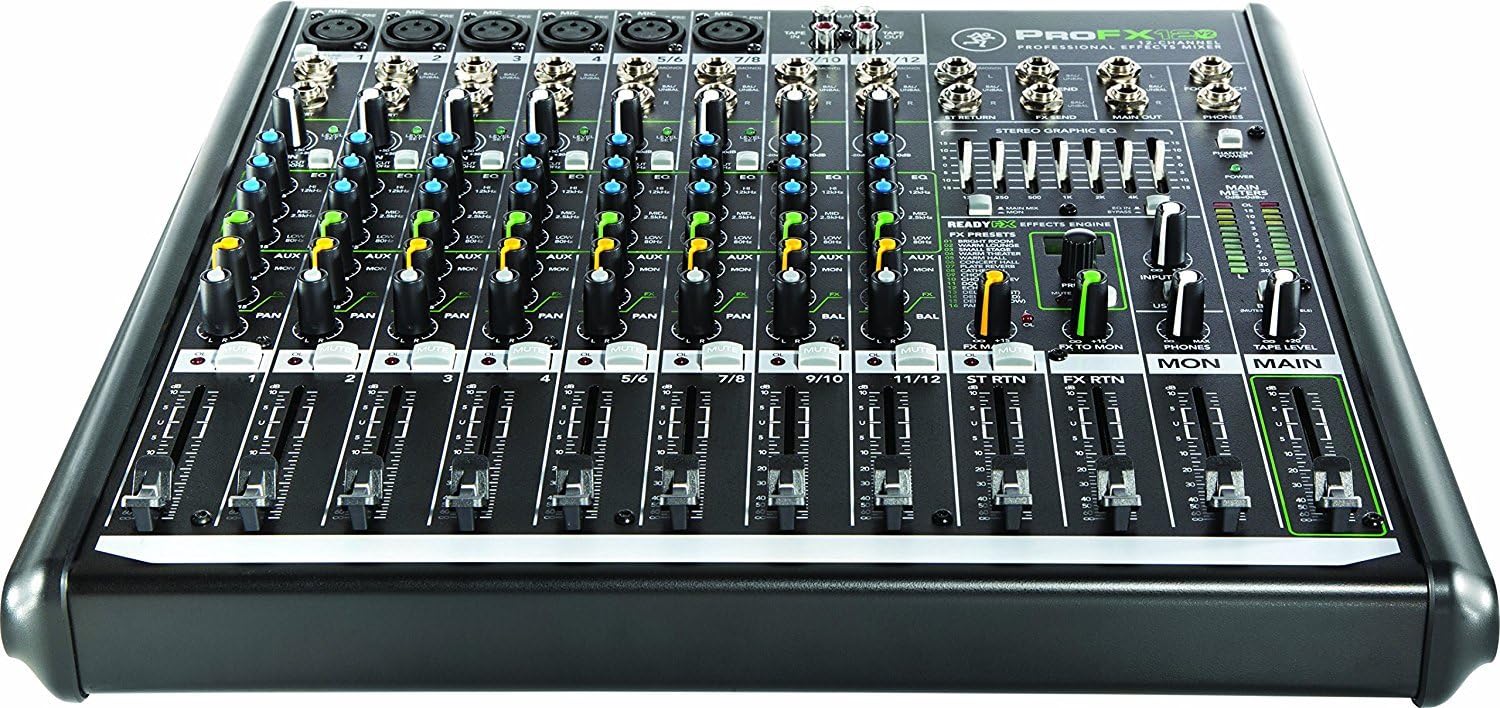
Figure 3.1: Angled view of the Mackie ProFX12v2 mixer, illustrating typical input and output connections.
Video 3.1: This video provides an overview of the ProFX series, including features relevant to setup and various recording modes.
4. Operating Instructions
4.1 Input Channel Controls
- Gain Knob: Adjusts the input sensitivity for each channel. Set this so the 'OL' (Overload) LED flashes only occasionally during the loudest parts of the signal.
- EQ Section: Each channel features a 3-band equalizer (High, Mid, Low) to shape the tone. A 100 Hz low-cut filter is also available to remove unwanted low-frequency rumble.
- AUX Knob: Controls the amount of signal sent from the channel to the Aux Send output, typically used for monitor mixes.
- FX Knob: Controls the amount of signal sent from the channel to the internal ReadyFX effects engine.
- Pan Knob: Adjusts the stereo position of the channel's signal in the main mix.
- Channel Fader: Controls the overall volume level of the channel in the main mix.
4.2 ReadyFX Effects Engine
The ReadyFX engine offers 16 different effects. Use the FX SELECT knob to choose an effect and the FX LEVEL knob to adjust the overall effect return level. The FX TO MON knob allows you to send effects to the monitor mix.
4.3 7-Band Graphic EQ
The stereo 7-band graphic EQ allows for precise frequency adjustments to your main mix or monitor mix. Use the EQ IN/OUT button to engage or bypass the EQ, and the MAIN/MON button to select whether it affects the main output or the monitor output.
4.4 Monitoring
Connect headphones to the PHONES jack. Adjust the PHONES LEVEL knob to control the headphone volume. When setting up, ensure the volume of the input is consistent with normal use to avoid needing to readjust gain during a performance. Listen carefully with headphones and adjust the channel fader and headphone level as needed.

Figure 4.1: Detailed view of the Mackie ProFX12v2 mixer's control surface, showing individual channel controls, EQ, and effects section.
5. Maintenance
To ensure the longevity and optimal performance of your Mackie ProFX12v2 mixer, follow these maintenance guidelines:
- Cleaning: Regularly wipe the mixer's surface with a soft, dry cloth. Avoid using abrasive cleaners, solvents, or waxes. Disconnect the power before cleaning.
- Environment: Operate the mixer in a clean, dry environment away from direct sunlight, excessive dust, moisture, and extreme temperatures. Ensure adequate ventilation around the unit.
- Cable Management: Keep cables organized and free from kinks or excessive tension to prevent damage to connectors and internal wiring.
- Storage: If storing the mixer for an extended period, disconnect all cables, cover it to protect from dust, and store in a cool, dry place.
6. Troubleshooting
If you encounter issues with your Mackie ProFX12v2 mixer, refer to the following common troubleshooting steps:
- No Sound Output:
- Check all power connections and ensure the mixer is turned ON.
- Verify that all input and output cables are securely connected.
- Ensure channel faders, main faders, and master volume controls are raised.
- Check if any MUTE buttons are engaged on channels or outputs.
- Confirm that the correct input source is selected on your playback device (e.g., computer).
- Distorted or Unclear Sound:
- Adjust the GAIN knob for each input channel to prevent clipping (OL LED should not be constantly lit).
- Ensure the volume of the input source is not excessively high.
- Check EQ settings; extreme boosts can cause distortion.
- Verify that speakers or amplifiers are not overdriven.
- Hum or Noise:
- Ensure all audio cables are properly shielded and in good condition.
- Check for ground loops by ensuring all equipment is connected to the same power circuit or using a ground lift adapter (use with caution).
- Keep audio cables away from power cables.
- Headphone Monitoring Issues:
- Ensure the PHONES LEVEL knob is turned up.
- Verify that the channel fader for the desired audio is raised.
7. Specifications
| Specification | Value |
|---|---|
| Item Weight | 12 pounds |
| Product Dimensions | 18 x 18.8 x 7 inches |
| Item Model Number | ProFX12v2 |
| Hardware Interface | USB |
| Mixer Channel Quantity | 12 |
| Number of Channels | 12 |
| Power Source | Corded Electric |
| Connectivity Technology | USB |
8. Warranty and Support
The Mackie ProFX12v2 mixer is covered by a manufacturer's warranty. For specific warranty terms, registration, and technical support, please visit the official Mackie website or contact their customer service. Keep your proof of purchase for warranty claims.