1. Introduction and Overview
The Mackie ProFXv2 series mixers offer a comprehensive live sound solution, designed for a wide range of applications. The ProFX8v2 model features all-new Mackie Vita preamps, engineered for low noise and high dynamic range, suitable for live sound environments. It incorporates the ReadyFX effects engine, providing 16 digital effects for audio enhancement. This mixer also includes a room-shaping 7-band Graphic EQ, flexible input/output options, and a built-in USB interface for recording and playback. Constructed with a rugged steel chassis, the ProFX8v2 is built for durability and reliable sonic performance.
Key Features
- 4 Low-Noise Mackie Vita Mic Preamps: Designed to provide clear audio input.
- ReadyFX Effects Engine: Offers 16 effects, including various reverbs, delays, and choruses.
- 7-Band Graphic EQ: For precise tuning of main outputs or monitor mixes. Operating temperature range: 0°C – 40°C.
- Aux Output: Provides flexibility for monitor mixes or integration with 70-volt systems.
- 3-Band EQ and 100Hz Low-Cut Filter: Available on all channels for sound shaping. Power consumption: 20 watts.
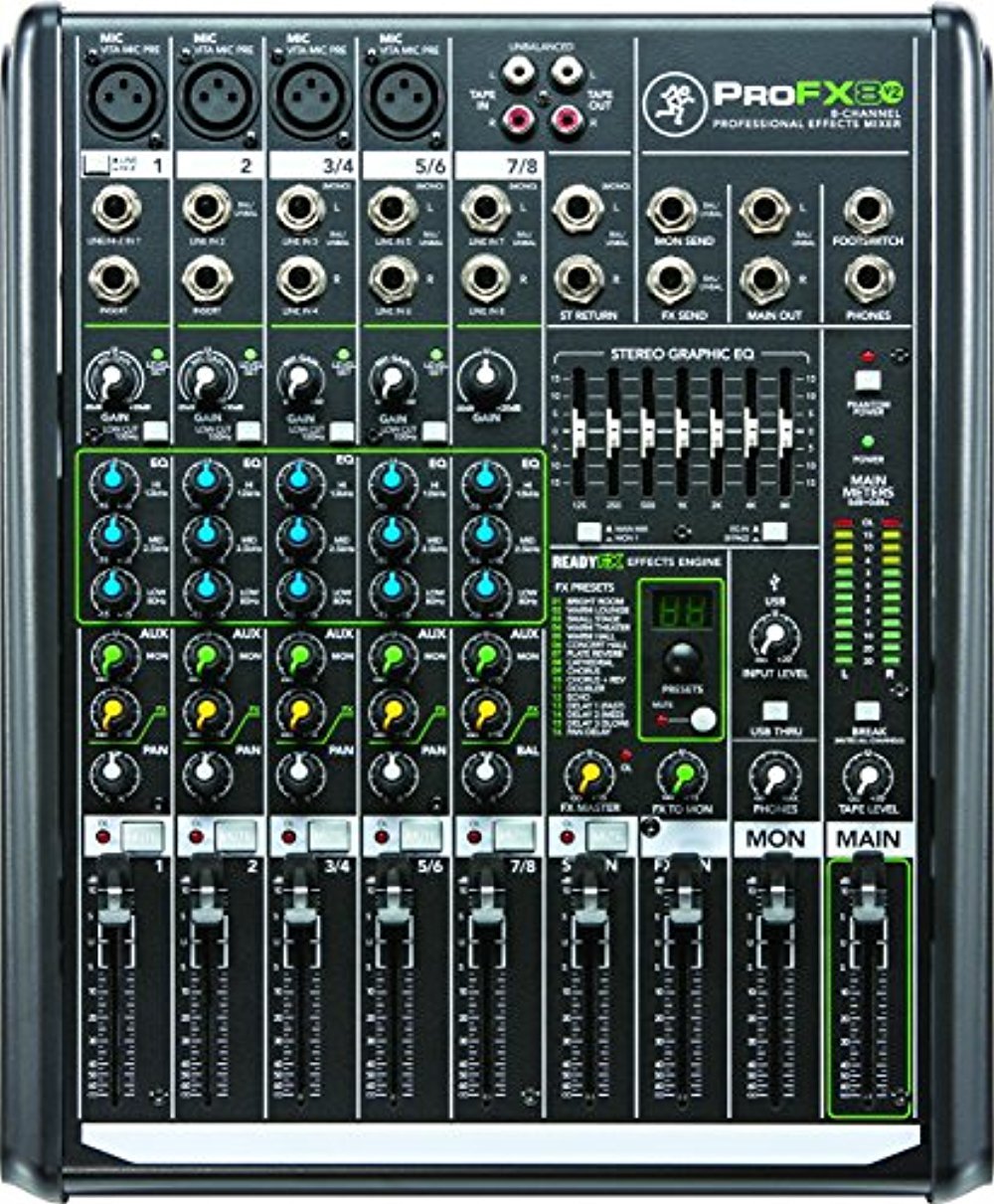
Figure 1: Top-down view of the Mackie ProFX8v2 8-Channel Professional FX Mixer, showcasing its various inputs, controls, and faders.
2. Setup Guide
Follow these steps to set up your Mackie ProFX8v2 mixer for optimal performance.
- Unpacking: Carefully remove the mixer from its packaging. Retain all packaging materials for future transport or storage.
- Power Connection: Connect the supplied power cable to the mixer's power input and then to a suitable AC power outlet. Ensure the mixer's power switch is in the OFF position before connecting.
- Input Connections:
- Microphones: Connect microphones to the XLR inputs (channels 1-4) using balanced XLR cables.
- Line-Level Devices: Connect instruments or other line-level devices to the 1/4-inch TRS inputs on channels 1-8. Stereo devices can be connected to stereo channels.
- Output Connections:
- Main Outputs: Connect the Main Out (XLR or 1/4-inch TRS) to your power amplifier or powered speakers.
- Monitor Outputs: Use the Aux Send output to connect to stage monitors or external effects processors.
- Headphones: Connect headphones to the dedicated headphone jack.
- USB Connection: Connect a USB cable from the mixer's USB port to your computer for recording or playback. No special drivers are typically required for Windows 7/10 or macOS.
- Initial Power On: Once all connections are secure, switch the mixer's power ON.
3. Operation
This section outlines the basic operation of the ProFX8v2 mixer.
Channel Controls
- Gain Control: Adjust the input sensitivity for each channel. Set this to achieve a strong signal without clipping (indicated by the "OL" LED).
- 3-Band EQ: Use the HIGH, MID, and LOW knobs to adjust the tonal characteristics of each channel. The 100Hz low-cut filter can be engaged to remove unwanted low-frequency rumble.
- Aux Send: Controls the amount of signal sent from the channel to the Aux output, typically used for monitor mixes or external effects.
- FX Send: Controls the amount of signal sent from the channel to the internal ReadyFX effects engine.
- Pan Control: Positions the channel's signal within the stereo field (left to right).
- Channel Fader: Adjusts the overall volume level of the channel in the main mix.
ReadyFX Effects Engine
The ReadyFX engine provides 16 different effects. Use the FX SELECT knob to choose an effect and the FX LEVEL knob to adjust the overall return level of the effects into the main mix. The FX MUTE button allows for quick muting of the effects.
Main Mix and Monitoring
- Main Faders: Control the overall output level of the stereo main mix.
- 7-Band Graphic EQ: Apply global equalization to the main mix or monitor mix (selectable).
- Headphone Level: Adjust the volume for the headphone output.
USB Audio Interface
The built-in USB interface allows for 2-channel recording to a computer and 2-channel playback from a computer. Connect the mixer via USB to your computer and select the ProFX8v2 as your audio input/output device in your operating system's sound settings or your Digital Audio Workstation (DAW) software.
4. Maintenance
Proper maintenance ensures the longevity and reliable operation of your ProFX8v2 mixer.
- Cleaning: Use a soft, dry cloth to clean the exterior of the mixer. Avoid abrasive cleaners, solvents, or waxes. Do not spray liquids directly onto the mixer.
- Dust Protection: Keep the mixer covered when not in use to prevent dust accumulation, which can affect faders and potentiometers.
- Storage: Store the mixer in a cool, dry environment away from direct sunlight and extreme temperatures.
- Cable Management: Ensure all cables are neatly organized and not under tension to prevent damage to connectors and ports.
- Ventilation: Ensure adequate airflow around the mixer to prevent overheating. Do not block ventilation openings.
5. Troubleshooting
This section provides solutions to common issues you might encounter with your ProFX8v2 mixer.
| Problem | Possible Cause | Solution |
|---|---|---|
| No sound output |
|
|
| Distorted or noisy sound |
|
|
| No effects sound |
|
|
| USB audio not recognized by computer |
|
|
6. Technical Specifications
| Specification | Detail |
|---|---|
| Brand | Mackie |
| Model Number | ProFX8v2 |
| Number of Channels | 8 |
| Item Weight | 10 pounds (4.54 kg) |
| Product Dimensions | 17.9 x 15.6 x 7 inches (45.5 x 39.6 x 17.8 cm) |
| Hardware Interface | USB |
| Connectivity Technology | USB |
| Power Source | Corded Electric |
| Power Consumption | 20 watts |
| Operating Temperature | 0°C – 40°C (32°F – 104°F) |
7. Warranty and Support
For warranty information, technical support, or service inquiries regarding your Mackie ProFX8v2 mixer, please refer to the official Mackie website or contact their customer support directly. Keep your purchase receipt as proof of purchase for warranty claims.
Official Mackie Website: www.mackie.com


