
Introduction
This manual provides detailed instructions for the installation, operation, and troubleshooting of your A-Tech 2GB KIT (2 x 1GB) DIMM DDR2 NON-ECC PC2-5300 667MHz RAM Memory modules. These modules are specifically designed for compatibility with HP-Compaq HP Pavilion Desktop A6210 series computers. Please read this manual thoroughly before proceeding with installation to ensure proper function and to prevent damage to your system or the memory modules.
Safety Information
WARNING: This product is designed for specific HP-Compaq HP Pavilion Desktop A6210 series models. Using this memory with incompatible systems may result in system instability or damage. Always verify your system's memory requirements before installation.
- Always power off and unplug your computer from the electrical outlet before opening the case or handling internal components.
- Discharge any static electricity from your body by touching a grounded metal object (e.g., the unpainted metal chassis of your computer) before handling memory modules. Static electricity can damage sensitive electronic components.
- Handle memory modules by their edges to avoid touching the gold connectors or the chips.
- Keep memory modules in their anti-static packaging until ready for installation.
Setup and Installation
Follow these steps to install your A-Tech DDR2 DIMM RAM modules:
- Prepare Your System:
- Shut down your computer completely.
- Unplug the power cord and all peripheral cables (monitor, keyboard, mouse, etc.).
- Open the computer case according to your HP Pavilion Desktop's service manual.
- Discharge static electricity by touching a metal part of the computer chassis.
- Locate Memory Slots:
Identify the DIMM memory slots on your motherboard. These are typically long slots with clips on either end. Your HP Pavilion Desktop A6210 series will use DIMM slots.

Image: A-Tech 2GB DDR2 DIMM RAM module. This image shows the physical appearance of the memory module you will be installing.
- Install the Memory Modules:
- Gently push open the clips at both ends of an empty memory slot.
- Align the notch on the A-Tech memory module with the key in the DIMM slot. The module will only fit one way.
- Place the module into the slot and press down firmly and evenly on both ends until the clips snap into place, securing the module.
- Repeat for the second 1GB module in another available DIMM slot. For optimal performance, install modules in matched pairs into designated slots (refer to your motherboard manual for specific slot pairing).
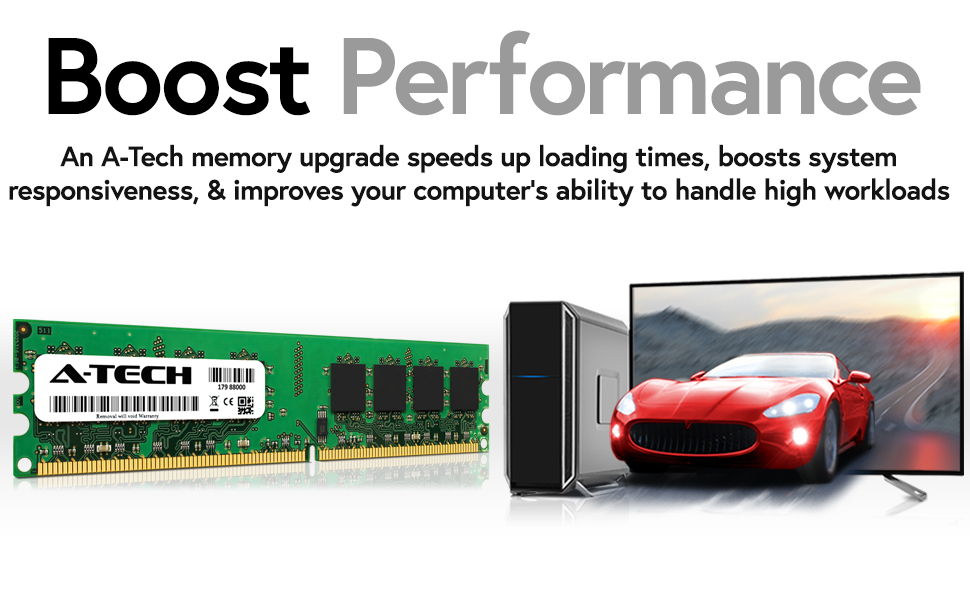
Image: Close-up of an A-Tech DDR2 DIMM RAM module. Note the notch for correct alignment in the memory slot.
- Reassemble and Power On:
- Close the computer case.
- Reconnect all cables and the power cord.
- Power on your computer. The system should automatically detect the new memory.
Operating
Once installed, the A-Tech DDR2 RAM modules operate automatically. Your operating system will recognize the increased memory capacity, leading to improved system responsiveness and multitasking capabilities. No specific software or drivers are required for the memory modules themselves.
To verify successful installation, you can check your system's memory information:
- Windows: Right-click on 'This PC' or 'My Computer', select 'Properties'. The installed RAM amount will be displayed.
- BIOS/UEFI: During startup, access your computer's BIOS/UEFI settings (usually by pressing F2, Del, or F10). The system information section will show the detected memory.
Maintenance
A-Tech RAM modules are designed for long-term reliability and require minimal maintenance. To ensure optimal performance and longevity of your computer's memory:
- Keep your computer's internal components clean from dust buildup. Dust can impede airflow and lead to overheating.
- Ensure adequate ventilation around your computer to prevent excessive heat accumulation.
- Avoid physical shock or impact to your computer, which could dislodge components.
Troubleshooting
If you encounter issues after installing your A-Tech RAM, consider the following troubleshooting steps:
- System Does Not Boot or Beeps Repeatedly:
- Re-seat the Modules: Power off, unplug, and open the case. Carefully remove and re-install each memory module, ensuring they are fully seated and the clips are locked.
- Check Compatibility: Double-check that the memory modules are compatible with your specific HP Pavilion Desktop A6210 series model. Refer to your computer's documentation.
- Test Modules Individually: If you installed multiple modules, try booting with only one module at a time to identify if a specific module is faulty.
- Incorrect RAM Amount Detected:
- Verify Seating: Ensure all modules are fully seated in their slots.
- BIOS Update: In rare cases, an outdated BIOS/UEFI firmware might not fully recognize new memory. Check your HP support website for BIOS updates for your specific model.
- System Instability or Crashes:
- Run Memory Diagnostics: Most operating systems include a memory diagnostic tool (e.g., Windows Memory Diagnostic). Run this tool to check for errors.
- Check for Overheating: Ensure your computer's cooling system is functioning correctly.
Legal Disclaimer: Item may not be compatible with devices other than those listed in the specifications. If your device is not listed, please verify its capabilities before use.
Specifications
| Feature | Detail |
|---|---|
| Brand | A-Tech |
| Model Number | AM063919 |
| Computer Memory Size | 2 GB (2 x 1GB Kit) |
| RAM Memory Technology | DDR2 |
| Memory Speed | 667 MHz (PC2-5300) |
| Form Factor | DIMM |
| Number of Pins | 240 |
| ECC Type | NON-ECC |
| Compatible Devices | HP-Compaq HP Pavilion Desktop A6210.ch, A6210.cs, A6210.fr, A6210.gr, A6210.is, A6210.it, A6210.nl, A6210.pl, A6210.pt, A6210.sc, A6210.uk, A6210in, A6210kr, A6210la, A6210tw, A6210z, A6211.fr, A6211la, A6212.de, A6212.fr, A6212n, A6213.fr, A6213.sc, A6213w, A6214.de, A6214.fr, A6214.sc, A6214x, A6215.ch, A6215.it, A6215.me, A6215.pt, A6215.sc, A6215.tr, A6216.de, A6216.fr, A6217.de, A6217.fr, A6217.it |
Warranty
A-Tech memory modules come with a Limited Lifetime Warranty covering defects in materials and workmanship. This warranty ensures that your memory will perform as expected for the lifetime of the product under normal use. For detailed warranty terms and conditions, please refer to the official A-Tech website.
Support
For further assistance, technical support, or warranty claims, please visit the official A-Tech website or contact their customer service department.
- A-Tech Website: atechmemory.com
- Refer to your computer's manufacturer (HP-Compaq) documentation for system-specific information.


