
Introduction
The XTAR VC2 is a universal USB-powered smart battery charger designed for various Li-ion and IMR battery types. It features an intelligent LCD screen that displays real-time charging information, including current, voltage, and capacity. The charger incorporates advanced safety features and a multi-stage charging process to optimize battery lifespan and performance.
This manual provides detailed instructions for the safe and efficient use of your XTAR VC2 charger. Please read it thoroughly before operation.
Package Contents
- XTAR VC2 Charger
- USB Cable
- EdisonBright Brand USB Power Adapter
- Hop-Pocket (Storage Pouch)
- User Manual
- Warranty Card

Image: Contents of the XTAR VC2 charger package, including the charger, USB cable, power adapter, pouch, manual, and warranty card.
Setup
- Connect Power: Connect the provided USB cable to the XTAR VC2 charger. Plug the other end of the USB cable into the EdisonBright brand USB power adapter, and then plug the adapter into a standard wall outlet. Alternatively, you can connect the USB cable to any compatible 5V USB power source, such as a computer USB port or a power bank.
- Initial Display: Upon successful power connection, the LCD screen will illuminate, indicating the charger is ready for use.

Image: The XTAR VC2 charger demonstrating compatibility with various 5V USB power sources, including wall adapters, computers, and power banks.
Operating Instructions
Battery Insertion
- The XTAR VC2 features two independent charging slots.
- Insert compatible 3.6V/3.7V Li-ion or IMR batteries (e.g., 10440, 14500, 14650, 16340, 17500, 17670, 18350, 18490, 18500, 18650, 18700, 22650, 25500, 26650) into the charging slots, ensuring correct polarity. The charger is designed with polarity-reverse protection.
Charging Process
- The charger will automatically detect the battery type and begin charging using a three-stage (TC-CC-CV) method to prolong battery lifespan.
- The LCD screen will display the charging current, battery voltage, and accumulated charging capacity (mAh).
- The charger intelligently identifies input power and adjusts the charging current from 0.15A to 0.5A to protect your device.
- Charging automatically stops when complete. The charger also has a restart charging function, allowing batteries to be left in overnight.

Image: The XTAR VC2 charger with two batteries inserted, displaying real-time charging information on its LCD screen.
LCD Display Information
- The LCD screen provides real-time status for each battery.
- Each interval of battery voltage displayed corresponds to approximately 10% of the battery's capacity, allowing you to monitor how full your batteries are.
- When batteries are fully charged, the screen light will flash 3 times every 10 seconds as a smart notification.

Image: A close-up of the XTAR VC2 LCD display, illustrating the voltage instrument and how it indicates battery capacity levels.

Image: The XTAR VC2 charger's LCD screen displaying the notification for fully charged batteries, indicated by a flashing light.
Special Features
- 0V Activation Function: This feature can rescue over-discharged batteries, allowing them to be reused instead of discarded.
- Real Capacity Detection: The charger can detect the real capacity (mAh rating) of your batteries. To determine actual mAh, fully discharge the battery before charging it with the VC2. The display will show the accumulated mAh charged.
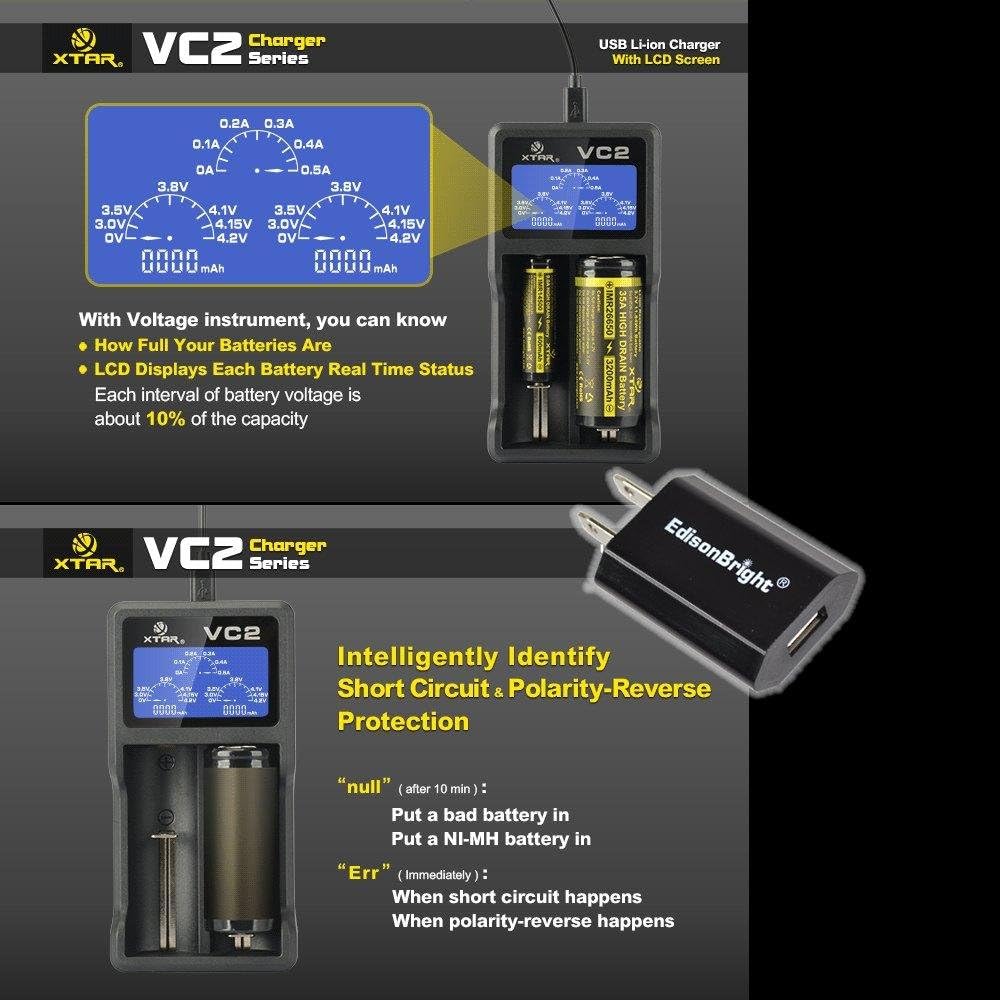
Image: The XTAR VC2 LCD display illustrating how it identifies real battery capacity and shows error messages for problematic batteries.

Image: A chart illustrating the XTAR VC2's charging curve, showing voltage and current over time for a typical charging cycle.
Maintenance
- Keep the charger clean and dry. Use a soft, dry cloth to wipe the surface.
- Avoid exposing the charger to extreme temperatures, direct sunlight, or high humidity.
- Do not disassemble the charger. This will void the warranty and may cause damage.
- Store the charger and accessories in the provided hop-pocket when not in use or during travel.
Troubleshooting
- Charger not turning on: Ensure the USB cable is securely connected to both the charger and the power source, and that the power source is active. Try a different USB port or wall adapter if available.
- LCD displays "Null": This indicates a bad battery or a Ni-MH battery. The VC2 is designed for Li-ion/IMR batteries only. Remove the battery and replace it with a compatible one if necessary.
- LCD displays "Err": This indicates a short circuit or incorrect battery insertion (reverse polarity). Remove the battery, check its condition, and reinsert it with correct polarity. If the error persists, the battery may be faulty.
- Slow charging: The charger automatically adjusts current based on input power. Ensure you are using a reliable 5V USB power source with sufficient current output (e.g., 1A or higher for faster charging, though the charger will draw up to 0.5A per slot).
- Power Adapter Issues: If the included EdisonBright USB power adapter appears faulty or has loose components, discontinue use immediately and contact customer support.
Specifications
| Feature | Specification |
|---|---|
| Input Voltage | 5 Volts (USB) |
| Output Voltage | 5 Volts (DC) |
| Current Rating | 0.5 Amps |
| Amperage | 0.5 Amps |
| Number of Ports | 2 |
| Compatible Battery Types | 3.6V/3.7V Li-ion/IMR (10440, 14500, 14650, 16340, 17500, 17670, 18350, 18490, 18500, 18650, 18700, 22650, 25500, 26650) |
| Connector Type | USB |
| Item Model Number | VC2 |
| Manufacturer | XTAR |
| Package Dimensions | 6.1 x 3.3 x 1.4 inches |
| Weight | 0.35 ounces |
| Safety Certifications | CE, FCC, UL |
Warranty and Support
For warranty information, please refer to the Warranty Card included in your package. If you encounter any issues or require technical assistance, please contact XTAR customer support through their official website or the retailer where the product was purchased.