
1. Introduction
This manual provides essential information for the proper installation, operation, and maintenance of your A-Tech 8GB (4x2GB) DDR2 PC2-5300 667MHz RAM memory kit. Understanding these instructions will help ensure optimal performance and longevity of your memory modules.
Random Access Memory (RAM) is a critical component of your computer system, providing temporary storage for data that the CPU actively uses. Upgrading your RAM can significantly improve system responsiveness, multitasking capabilities, and overall performance, especially when running demanding applications or multiple programs simultaneously.
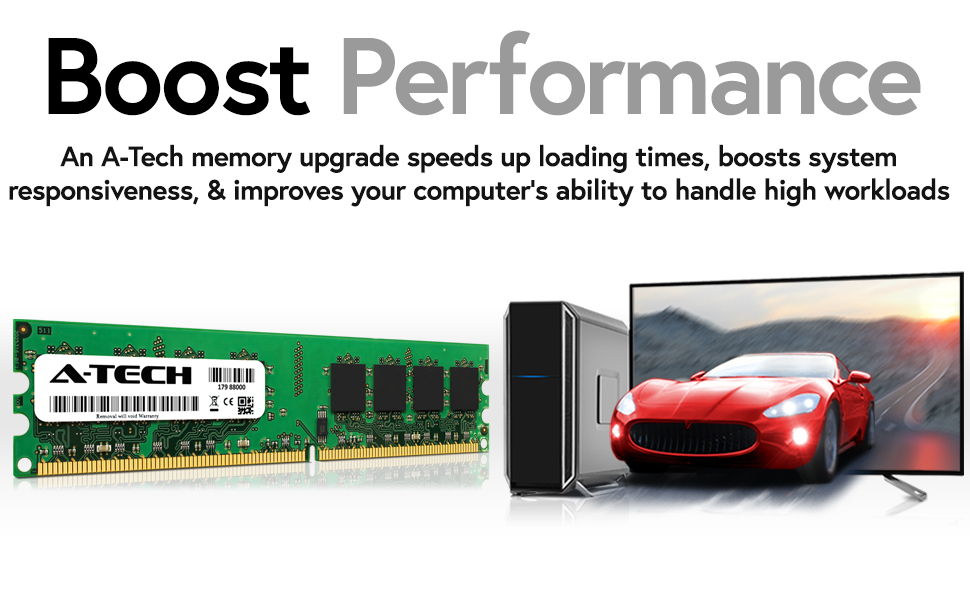
Image: A-Tech DDR2 DIMM RAM module, designed to boost desktop performance.

Image: Enhanced multitasking capabilities with increased RAM capacity.
2. Product Overview
This A-Tech memory kit consists of four (4) 2GB DDR2 DIMM modules, totaling 8GB. These modules operate at a speed of 667MHz (PC2-5300) and are Non-ECC, Unbuffered memory, specifically designed for desktop computers.

Image: The A-Tech 8GB (4x2GB) DDR2 RAM kit.
3. Compatibility
This memory kit is specifically designed for use with Abit I Series motherboards. Verify your system's compatibility before installation. The compatible models include:
- IB9
- IL9 Pro
- IP35
- IP35 Pro
- IP35 Pro XE
- IP35-E
- IP35V
- IP43
- IP44
- IP45
- IP45 Pro
- IP46
- IP47
- IP48
- IP49
- IP50
- IX38 QuadGT
WARNING: This product was designed for the Abit I Series motherboards listed above. The product may not function correctly if used with other systems. If your specific device is not listed, please consult your system's manual or manufacturer to confirm RAM specifications and compatibility.
4. Setup and Installation
Before beginning the installation process, ensure your computer is powered off and unplugged from the wall outlet. It is recommended to wear an anti-static wrist strap to prevent electrostatic discharge (ESD) damage to components.
- Prepare Your System: Power down your computer completely and disconnect all cables, including the power cord.
- Open the Computer Case: Remove the side panel of your computer case to access the motherboard.
- Locate RAM Slots: Identify the DIMM slots on your motherboard. Consult your motherboard manual for the correct slot configuration for multi-channel memory.
- Remove Existing Modules (if applicable): If you are replacing existing RAM, gently push down the retention clips on both ends of the DIMM slot to release the module. Carefully pull the module straight out.
- Install New Modules: Align the notch on the A-Tech DDR2 module with the key in the DIMM slot. Apply even pressure to both ends of the module until it clicks into place and the retention clips automatically lock. Do not force the module.
- Secure the Case: Once all modules are installed, reattach the computer case side panel.
- Reconnect and Power On: Reconnect all cables and power on your computer. The system should automatically detect the new memory.
5. Operating
After successful installation, your operating system should recognize the new 8GB of RAM. You can verify this by checking your system properties (e.g., in Windows, right-click 'This PC' or 'My Computer' and select 'Properties'; in Linux, use commands like `free -h` or `cat /proc/meminfo`).
The increased memory capacity will allow your system to handle more applications simultaneously, reduce loading times, and improve overall system fluidity, especially during resource-intensive tasks such as gaming, video editing, or running virtual machines.
6. Maintenance
RAM modules generally require minimal maintenance. However, adhering to general computer maintenance practices can help ensure their optimal performance:
- Keep System Clean: Regularly clean the interior of your computer case to prevent dust buildup, which can impede airflow and lead to overheating. Use compressed air to gently clear dust from RAM slots and modules.
- Ensure Proper Ventilation: Operate your computer in a well-ventilated area to maintain appropriate operating temperatures.
- Software Updates: Keep your operating system and drivers updated. Sometimes, BIOS/UEFI updates can improve memory compatibility and stability.
7. Troubleshooting
If you encounter issues after installing the A-Tech RAM, consider the following troubleshooting steps:
- System Not Booting / No Display:
- Ensure modules are fully seated in their slots and retention clips are locked.
- Try installing only one module at a time to identify a potentially faulty module or slot.
- Clear the CMOS (Complementary Metal-Oxide-Semiconductor) settings on your motherboard (refer to your motherboard manual for instructions).
- Incorrect RAM Amount Detected:
- Verify all modules are correctly installed.
- Check your motherboard's BIOS/UEFI settings to ensure the correct memory amount is displayed.
- Ensure your operating system is a 64-bit version to fully utilize 8GB of RAM.
- System Instability / Blue Screens:
- Run a memory diagnostic tool (e.g., Windows Memory Diagnostic) to check for errors.
- Ensure your motherboard's BIOS/UEFI is updated to the latest version.
8. Specifications
| Feature | Specification |
|---|---|
| RAM Capacity | 8GB (4 x 2GB) |
| Memory Type | DDR2 DIMM |
| Memory Speed | 667MHz (PC2-5300) |
| Error Correction | NON-ECC |
| Buffering | Unbuffered |
| Voltage | 1.8V (Standard for DDR2) |
| Form Factor | 240-pin DIMM |
| Item Model Number | AM000587 |
| Product Dimensions | 6.7 x 3.6 x 0.8 inches |
9. Warranty Information
A-Tech memory products are backed by a Lifetime Warranty. This warranty covers defects in materials and workmanship for the lifetime of the product. For specific terms and conditions, please refer to the official A-Tech website or contact customer support.
10. Support & Contact
For further assistance, technical support, or warranty claims, please visit the official A-Tech website or contact their customer service department.
Official A-Tech Website: atechmemory.com
You can also find more information and support resources on the A-Tech store page: A-Tech Components Store


