
1. Product Overview
The Bloody AL90 Optical Gaming Mouse is engineered for precision and durability, featuring Light Strike (LK) Optical Switches for rapid response times. Designed with an ergonomic right-hand grip, it includes 8 programmable buttons and supports advanced macros for a customized gaming experience. The mouse also offers colored profile selection and a sweat-resistant, texturized soft-rubber surface for enhanced comfort and control.

Figure 1.1: Bloody AL90 Optical Gaming Mouse.
2. Setup Guide
2.1 Package Contents
- Bloody AL90 Optical Gaming Mouse
- User Manual (this document)
- Additional weights (if included with specific models)
2.2 Connecting the Mouse
- Locate an available USB port on your computer.
- Plug the USB connector of the Bloody AL90 mouse into the USB port.
- The mouse will automatically install the necessary drivers. This may take a few moments.
- Once installed, the mouse's LED lighting will illuminate, indicating it is ready for use.
Note: For advanced customization and macro programming, download the official Bloody software from the manufacturer's website. The mouse is compatible with Windows 10, Windows 8, Windows 7, Windows Vista, Windows XP, and Linux operating systems.
3. Operating Instructions
3.1 Button Functions
The AL90 mouse features 8 programmable buttons designed for optimal gaming and productivity. These include the left click, right click, scroll wheel (click and scroll), two side buttons, and three top-mounted buttons (often labeled 1, N, 3 or similar for mode selection).
- Left/Right Click: Standard mouse functions. Equipped with Light Strike (LK) Optical Switches for ultra-fast response and durability (up to 50 million clicks).
- Scroll Wheel: For vertical scrolling and as a clickable button. Features an optical wheel for precise and durable scrolling.
- Side Buttons: Typically assigned for 'forward' and 'back' navigation by default, but fully programmable via software.
- Top Buttons (1, N, 3): These buttons allow for quick switching between different firing modes or profiles, often indicated by colored LED changes. Refer to the software for specific customization.

Figure 3.1: Optical Wheel and Durable Click Technology. The image shows the mouse with callouts for the optical wheel and the "No Accidental Double Clicks" and "Ultra Durable Clicks 50 Million Clicks" features.
3.2 DPI Adjustment
The mouse supports a maximum sensitivity of 4000 Dots per Inch (DPI). DPI settings can be adjusted through the dedicated software to match your preference for speed and precision. Different profiles can be saved and switched on-the-fly using the programmable buttons.
3.3 Weight Tuning System
The AL90 mouse features a customizable weight tuning system, allowing you to adjust the mouse's weight for optimal balance and feel. This system typically involves removable weights located in a compartment on the underside of the mouse.
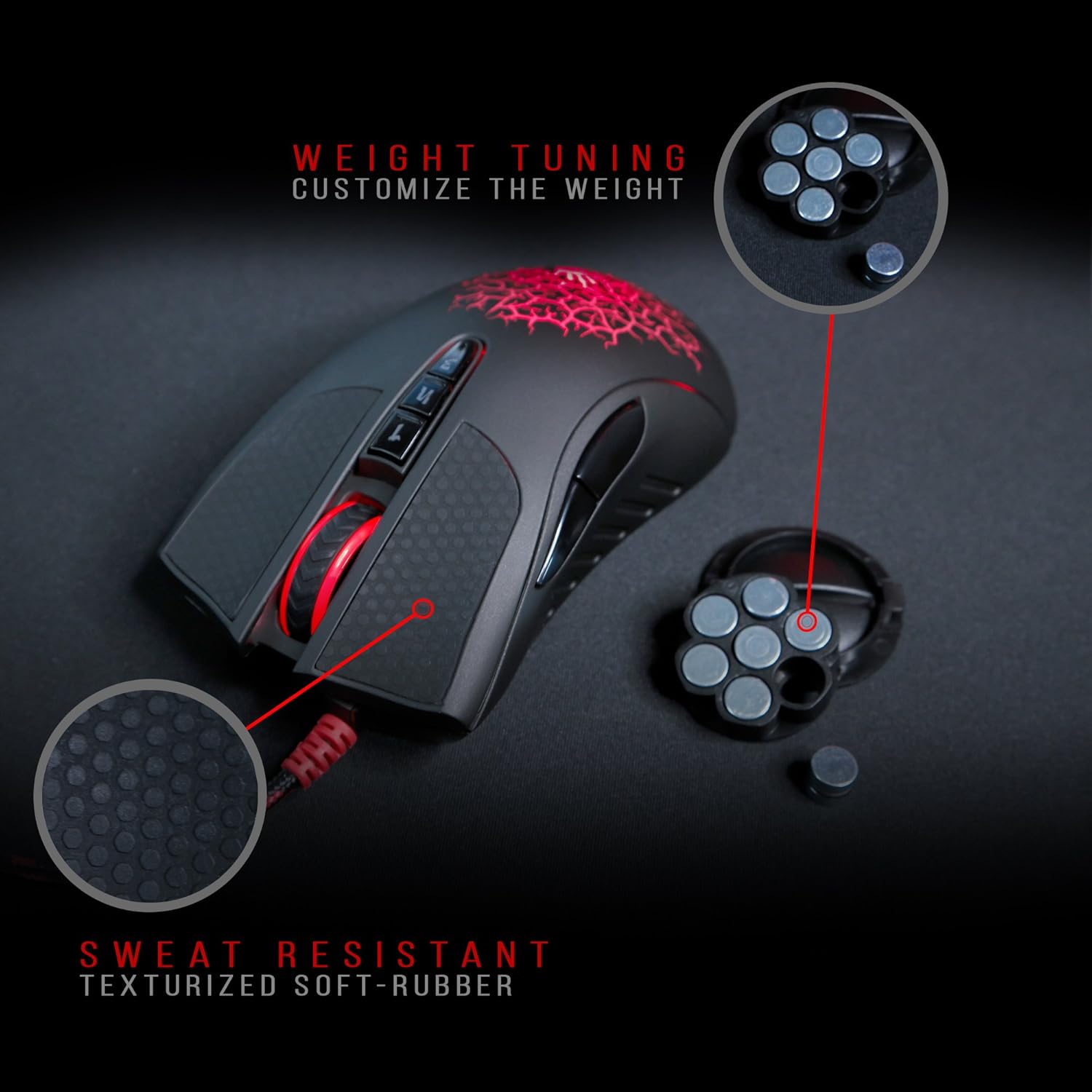
Figure 3.2: Weight Tuning and Sweat-Resistant Grip. The image shows the mouse with callouts for "WEIGHT TUNING CUSTOMIZE THE WEIGHT" and "SWEAT RESISTANT TEXTURIZED SOFT-RUBBER".

Figure 3.3: Mouse with Weight Tuning Components. This image shows the Bloody AL90 mouse alongside its removable weights, illustrating the customizable weight system.
4. Maintenance
4.1 Cleaning Your Mouse
To ensure optimal performance and longevity of your Bloody AL90 mouse, regular cleaning is recommended.
- Disconnect the mouse from your computer before cleaning.
- Use a soft, slightly damp cloth to wipe the exterior of the mouse. The sweat-resistant, texturized soft-rubber surface is designed for easy cleaning.
- Avoid using harsh chemicals, abrasive cleaners, or excessive moisture, as these can damage the mouse.
- For the optical sensor on the underside, use a dry cotton swab to gently remove any dust or debris.
5. Troubleshooting
If you encounter issues with your Bloody AL90 mouse, please refer to the following common solutions:
- Mouse Not Responding:
- Ensure the USB cable is securely plugged into your computer's USB port.
- Try plugging the mouse into a different USB port.
- Restart your computer.
- Erratic Cursor Movement:
- Clean the optical sensor on the underside of the mouse.
- Ensure you are using the mouse on a suitable surface (e.g., a mouse pad). Avoid highly reflective or transparent surfaces.
- Check for any software conflicts or outdated drivers. Reinstalling the mouse software may resolve the issue.
- Buttons Not Functioning Correctly:
- Verify button assignments within the Bloody software.
- Ensure the software is up-to-date.
- LED Lights Not Working:
- Check software settings for LED control.
- Ensure the mouse is properly connected and receiving power.
For further assistance, please visit the official Bloody support website or contact customer service.
6. Technical Specifications
| Model Number | AL90 |
| Brand | Bloody |
| Connectivity Technology | USB (Wired) |
| Movement Detection | Optical |
| Button Quantity | 8 Programmable Buttons |
| Hand Orientation | Right |
| Compatible Devices | Gaming Console, Personal Computer |
| Operating System | Linux, Windows 10, Windows 7, Windows 8, Windows Vista, Windows XP |
| Maximum Sensitivity | 4000 DPI |
| Product Dimensions (L x W x H) | 4.88 x 2.64 x 1.67 inches |
| Item Weight | 0.32 Pounds (5.12 ounces) |
| Material | Plastic (with sweat-resistant rubberized finish) |
| Cable Length | 5.0 meters (approx. 16.4 feet) |

Figure 6.1: Product Dimensions.
7. Warranty and Support
For information regarding product warranty, technical support, or service, please refer to the warranty card included with your product or visit the official Bloody website. You can also contact their customer support for assistance with any product-related inquiries.


