
Product Overview
The Logitech K400 Plus is a wireless touch keyboard designed for comfortable control of your computer connected to a TV. It features an integrated touchpad, providing a seamless navigation experience from your couch. This manual provides detailed instructions for setting up, operating, maintaining, and troubleshooting your device.

Image: Top view of the Logitech K400 Plus Wireless Touch Keyboard, showcasing its compact design and integrated touchpad.
Setup Guide
1. Unpacking and Battery Installation
Carefully remove the keyboard and its components from the packaging. The K400 Plus requires two AA batteries for operation. Locate the battery compartment on the underside of the keyboard, open it, and insert the batteries, ensuring correct polarity. The keyboard comes with pre-installed batteries, often with a pull tab to activate them.
2. Connecting the Unifying Receiver
The Logitech K400 Plus connects wirelessly via a Logitech Unifying USB receiver. Plug the small USB receiver into an available USB port on your computer or smart TV. The keyboard should automatically connect within a few seconds. No additional software installation is typically required for basic functionality.

Image: The Logitech K400 Plus keyboard shown with its approximate dimensions, the included USB Unifying receiver, and two AA batteries, illustrating the components for setup.

Image: A family comfortably using the Logitech K400 Plus keyboard while seated on a couch, demonstrating its intended use for media control with a connected TV.
Operating Instructions
Keyboard Functions
The K400 Plus features a full set of standard keyboard keys, including function keys (F1-F12) that can be used for media control (play/pause, volume, mute) by pressing the 'Fn' key in combination with the respective function key. The keyboard layout is German, indicated by specific key markings such as 'Ä', 'Ö', 'Ü', and 'ß'.
Touchpad Navigation
The integrated 3.5-inch touchpad supports multi-touch gestures for intuitive navigation. Use one finger to move the cursor, two fingers to scroll, and tap to click. The dedicated left and right-click buttons are located below the touchpad for precise control.
- Single-finger tap: Left-click
- Two-finger tap: Right-click
- Two-finger scroll: Scroll vertically or horizontally

Image: A clear top-down view of the Logitech K400 Plus keyboard, highlighting the German key layout and the integrated touchpad on the right side.

Image: A close-up view of the integrated touchpad on the Logitech K400 Plus, showing the yellow accent line and the distinct left and right-click buttons below it.
Maintenance
Battery Replacement
When the keyboard's performance degrades or it stops responding, it may be time to replace the AA batteries. Open the battery compartment on the underside of the keyboard, remove the old batteries, and insert new ones, ensuring correct orientation. Dispose of used batteries responsibly.
Cleaning the Keyboard and Touchpad
To clean the keyboard, use a soft, lint-free cloth slightly dampened with water or a mild cleaning solution. Avoid excessive moisture. For the touchpad, use a dry, soft cloth to wipe away dust and smudges. Do not use abrasive cleaners or immerse the device in liquid.
Troubleshooting
Connection Issues
- Check Receiver: Ensure the USB Unifying receiver is securely plugged into a working USB port on your computer or TV.
- Battery Check: Verify that the batteries are correctly installed and have sufficient charge. Replace them if necessary.
- Proximity: Ensure the keyboard is within the operational range of the receiver (typically up to 10 meters or 33 feet).
- Interference: Move the keyboard and receiver away from other wireless devices or large metal objects that might cause interference.
Unresponsive Keys or Touchpad
- Restart Device: Try restarting the computer or TV to which the keyboard is connected.
- Re-pair: If issues persist, you may need to re-pair the keyboard with the Unifying receiver using Logitech's Unifying software (available for download from Logitech's support website).
- Clean: Ensure no debris is lodged under the keys or on the touchpad surface.
Technical Specifications
| Feature | Specification |
|---|---|
| Model Number | 920-007127 |
| Connectivity Technology | Wireless (2.4 GHz via Unifying Receiver) |
| Compatible Devices | PC |
| Keyboard Description | Wireless Touch Keyboard |
| Item Weight | 13.4 ounces (approx. 380g) |
| Product Dimensions (LxWxH) | 13.78 x 5.51 x 0.79 inches (35 x 14 x 2 cm) |
| Color | Black |
| Batteries | 2 AA batteries required |
| Language | German (Keyboard Layout) |
| Manufacturer | Logitech |
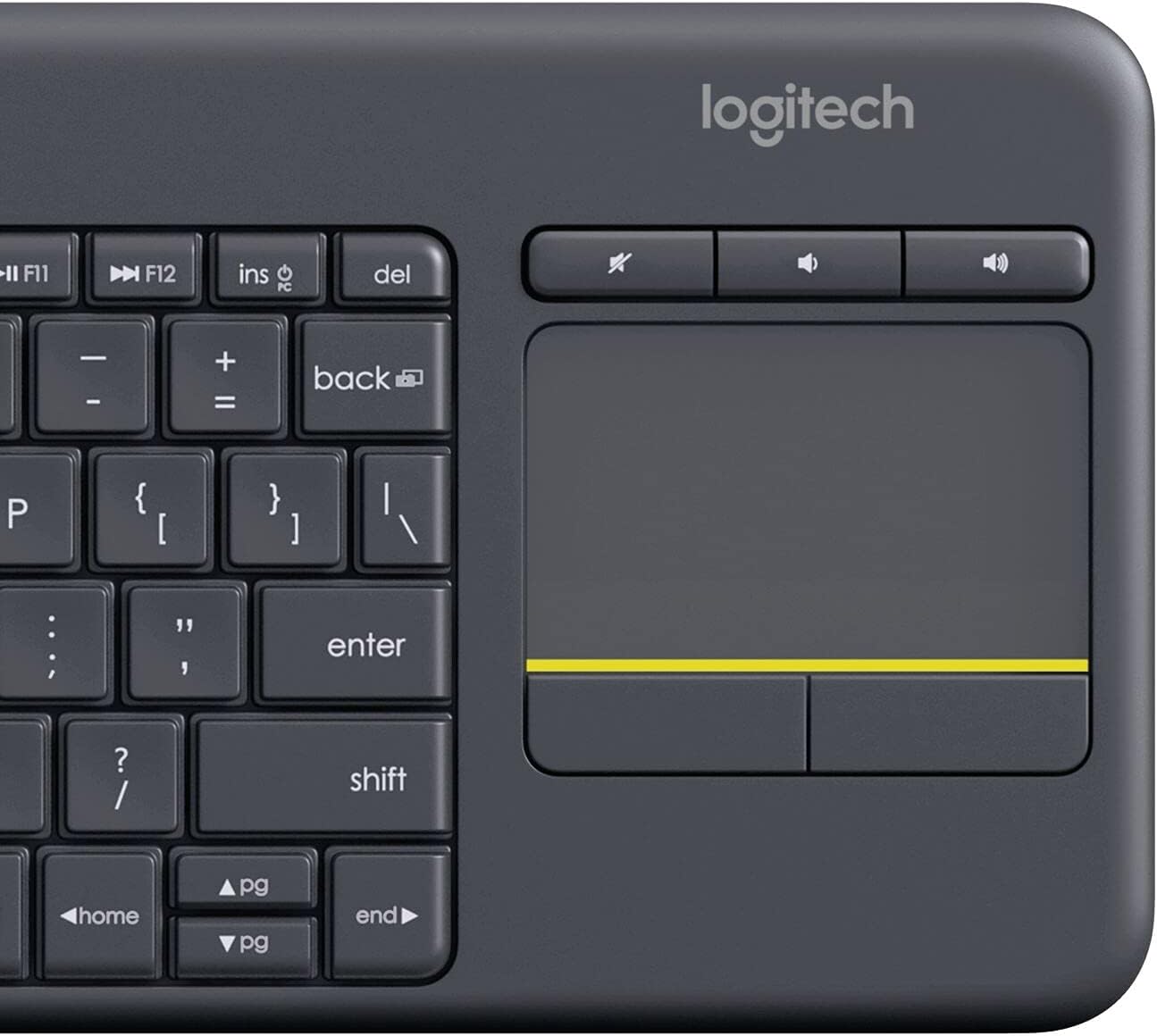
Image: Side profile view of the Logitech K400 Plus keyboard, illustrating its slim and ergonomic design.
Warranty and Support
Logitech products typically come with a limited hardware warranty. For specific warranty terms and conditions applicable to your Logitech K400 Plus keyboard, please refer to the warranty information included with your product or visit the official Logitech website.
For technical support, frequently asked questions, and driver downloads, please visit the Logitech support website. You can find comprehensive resources and contact options there.
Visit the official Logitech Store for more information: Logitech Store on Amazon


