
Smartbitt NB500
Smartbitt NB500 Interactive UPS User Manual
Model: NB500 | Brand: Smartbitt
1. Product Overview
The Smartbitt NB500 is an interactive uninterruptible power supply (UPS) designed to provide reliable power protection for your electronic devices. It acts as a voltage regulator, surge suppressor, and battery backup unit, safeguarding against power outages, voltage fluctuations, and electrical surges.
Key features include:
- 500 VA / 250 W power capacity.
- Provides up to 25 minutes of energy backup for connected equipment.
- Regulates voltage variations from the electrical supply.
- Equipped with 4 Nema 5-15R outlets offering regulation, surge suppression, and battery backup.
- Ideal for personal computers, internet modems, screens, DVD players, Blu-Ray players, and video game consoles.

Figure 1: Front view of the Smartbitt NB500 UPS, showing the power button and indicator lights.
2. Setup Instructions
2.1 Unpacking
Carefully remove the UPS from its packaging. Inspect the unit for any signs of damage. Retain the packaging for future transport or storage.
2.2 Placement
Place the UPS in a cool, dry, and well-ventilated area, away from direct sunlight, heat sources, and excessive moisture. Ensure there is adequate space around the unit for proper airflow. Do not block the ventilation openings.
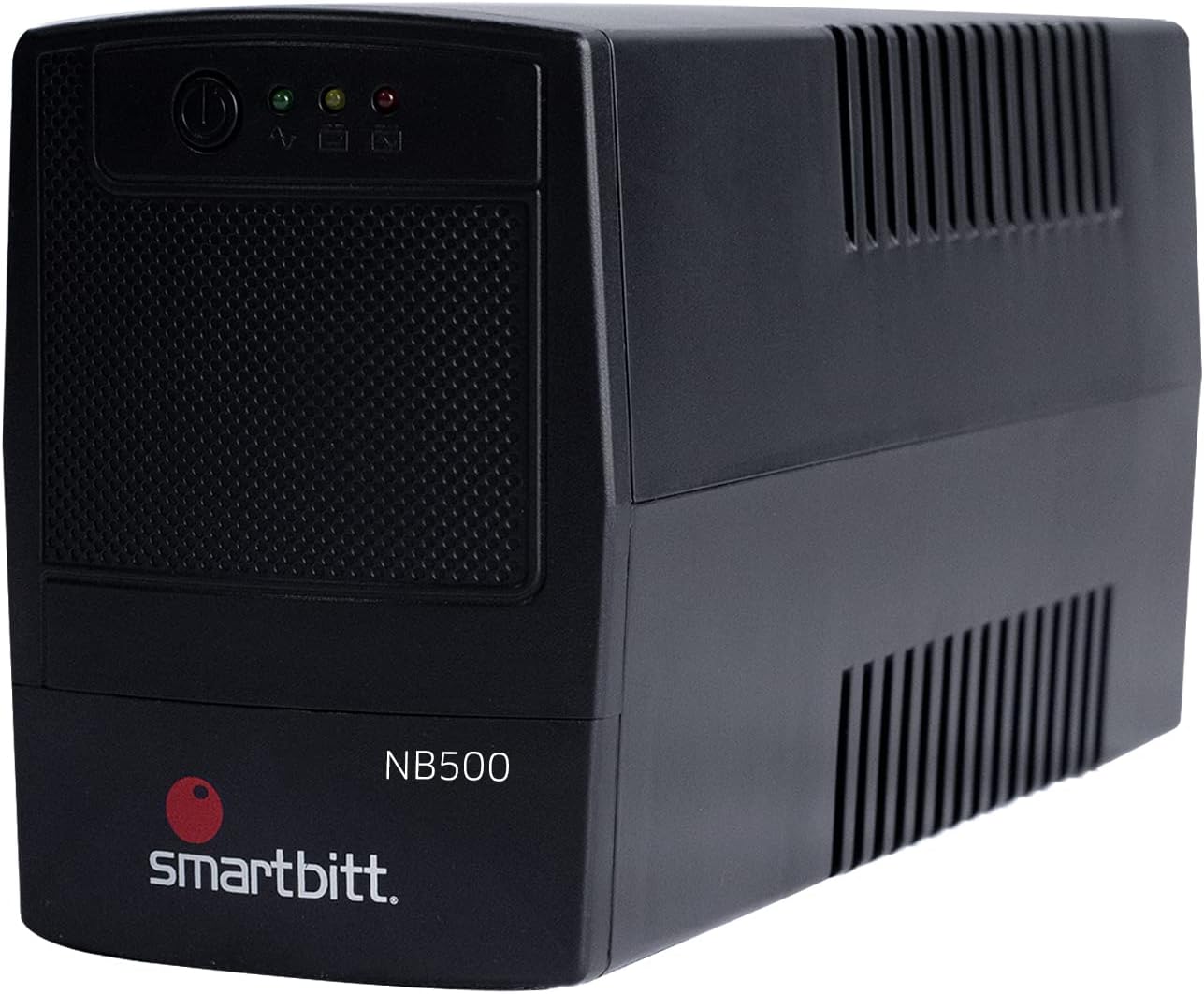
Figure 2: Angled view of the Smartbitt NB500 UPS, illustrating the side ventilation grilles for proper airflow.
2.3 Initial Charging
Before initial use, connect the UPS to a standard wall outlet for at least 8 hours to ensure the internal battery is fully charged. The UPS will charge whether it is turned on or off.
2.4 Connecting Devices
Connect your electronic devices (e.g., computer, monitor, modem) to the Nema 5-15R outlets on the rear of the UPS. Ensure that the total power consumption of connected devices does not exceed the UPS's capacity (250 W).
- All 4 outlets provide battery backup, voltage regulation, and surge protection.
- For optimal performance, connect critical devices that require continuous power during outages to these outlets.
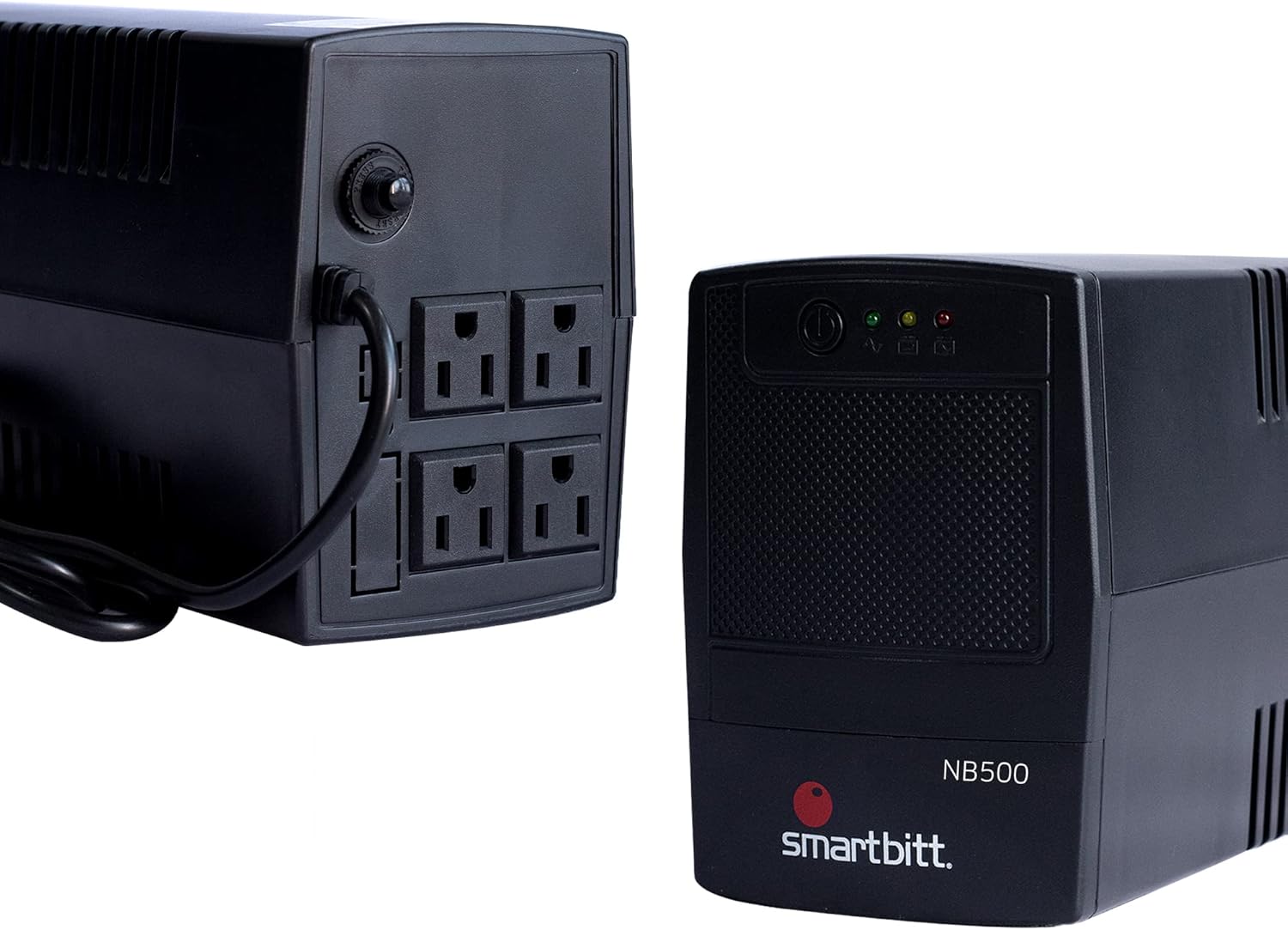
Figure 3: Rear view of the Smartbitt NB500 UPS, displaying the four Nema 5-15R outlets for connecting devices.
3. Operating Instructions
3.1 Turning On/Off
- To Turn On: Press and hold the power button on the front panel for approximately 2 seconds until you hear a beep and the green indicator light illuminates.
- To Turn Off: Press and hold the power button for approximately 2 seconds until you hear a beep and the green indicator light turns off.
3.2 Indicator Lights
The front panel features indicator lights that provide status information:
- Green LED: Indicates the UPS is operating normally and providing AC power to connected devices.
- Yellow LED: Indicates the UPS is operating on battery power (during a power outage or significant voltage fluctuation).
- Red LED: Indicates a fault condition or low battery warning. Refer to the Troubleshooting section.

Figure 4: Close-up of the Smartbitt NB500 UPS front panel, showing the power button and status indicator lights.
3.3 Audible Alarms
The UPS emits various audible alarms to indicate its status:
- Short Beep (every 10 seconds): UPS is operating on battery power.
- Rapid Beeping: Battery is low, and the UPS will shut down soon. Save your work and shut down connected devices.
- Continuous Tone: Overload or fault condition. Disconnect non-essential devices or refer to troubleshooting.
4. Maintenance
4.1 Battery Care
To maximize battery life:
- Keep the UPS connected to AC power to ensure the battery remains charged.
- Avoid storing the UPS with a completely discharged battery.
- If storing for an extended period, recharge the battery every 3 months.
- Battery replacement should be performed by qualified personnel.
4.2 Cleaning
Clean the exterior of the UPS with a soft, dry cloth. Do not use liquid or aerosol cleaners. Ensure ventilation openings are free from dust and debris.
5. Troubleshooting
| Problem | Possible Cause | Solution |
|---|---|---|
| UPS does not turn on. | Battery discharged; Power cord not connected; UPS fault. | Connect to AC power and charge for 8 hours. Ensure power cord is securely plugged in. If problem persists, contact support. |
| Short battery backup time. | Battery not fully charged; Battery nearing end of life; Overload. | Charge the battery for at least 8 hours. Reduce the load on the UPS. Consider battery replacement if old. |
| Continuous beeping / Red LED. | Overload; Internal fault. | Disconnect non-essential devices. If the alarm continues, disconnect all devices and turn off the UPS. Contact support. |
| UPS is on battery mode frequently. | Unstable input voltage. | This indicates the UPS is actively regulating voltage. Ensure the electrical supply is stable. |
6. Specifications
| Feature | Detail |
|---|---|
| Model | NB500 |
| Brand | Smartbitt |
| Capacity | 500 VA / 250 W |
| Battery Cell Composition | Alkaline |
| Outlets | 4 x Nema 5-15R (Battery Backup, Regulation, Surge Protection) |
| Typical Backup Time | Up to 25 Minutes (depending on load) |
| Dimensions (D x W x H) | 32.4 cm x 14 cm x 22 cm (12.76 in x 5.51 in x 8.66 in) |
| Color | Black |

Figure 5: Visual representation of the Smartbitt NB500 UPS dimensions relative to a person.
7. Warranty and Support
For warranty information, technical support, or further inquiries, please refer to the official Smartbitt website or the product datasheet.
You can find the product datasheet here: Smartbitt NB500 Datasheet

Figure 6: Frontal view of the Smartbitt NB500 UPS.
Related documentsNB500


Ask a question about this manual
Ask about setup, troubleshooting, compatibility, parts, safety, or missing instructions. Manuals+ will review the question and use this page’s manual context to help answer it.