
1. Introduction
Thank you for purchasing the QFX SBX-1518BTL 2-Way Bluetooth Cabinet Speaker. This manual provides essential information for the safe and efficient operation of your speaker. Please read it thoroughly before use and retain it for future reference.
The SBX-1518BTL is a versatile audio system featuring Bluetooth streaming, USB/SD/FM playback and recording, a 5-band graphic equalizer, and multiple input/output options for various audio sources and connectivity needs.
2. Safety Instructions
- Power Source: Ensure the speaker is connected to a power source that matches the voltage specified on the unit.
- Ventilation: Do not block ventilation openings. Maintain adequate space around the speaker for proper airflow.
- Water and Moisture: Do not expose the speaker to rain, moisture, or liquids. This product is not waterproof.
- Heat Sources: Keep the speaker away from heat sources such as radiators, heat registers, stoves, or other apparatus that produce heat.
- Cleaning: Unplug the speaker from the power outlet before cleaning. Use a dry cloth for cleaning.
- Servicing: Do not attempt to service this product yourself. Refer all servicing to qualified service personnel.
- Placement: Place the speaker on a stable, flat surface to prevent it from falling.
- Volume: Avoid prolonged listening at high volume levels to prevent hearing damage.
3. Package Contents
Please check that all items listed below are included in your package:
- QFX SBX-1518BTL Cabinet Speaker
- Remote Control
- Power Cord
- Instruction Manual (this document)
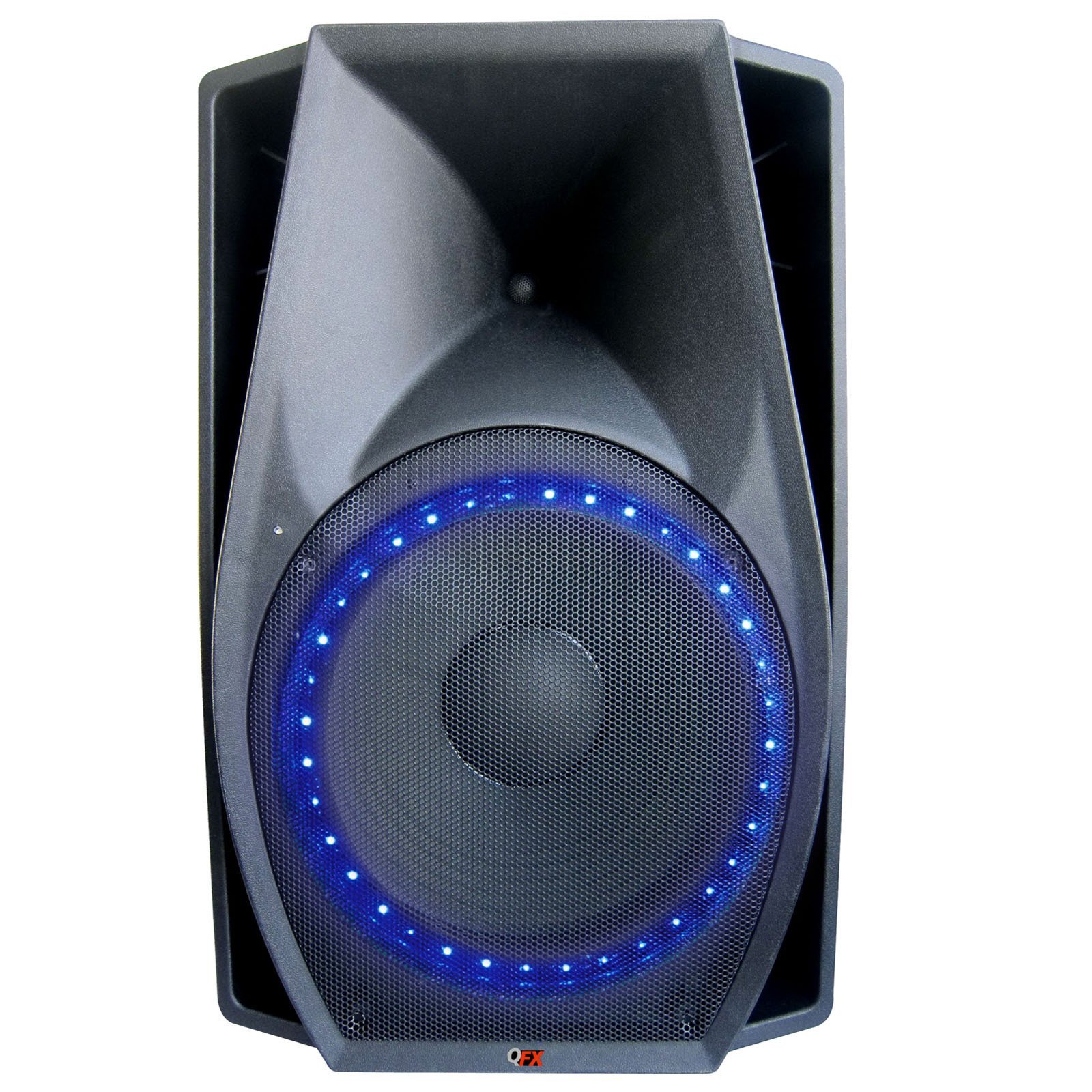
Image 1: QFX SBX-1518BTL Cabinet Speaker and included remote control. The speaker features a large 15-inch woofer and control panel on the front.
4. Setup
4.1 Physical Placement
Place the speaker on a stable, flat surface. Ensure there is enough space around the unit for proper ventilation. Avoid placing it in direct sunlight or near heat sources.
4.2 Power Connection
- Connect the provided power cord to the AC IN port on the back of the speaker.
- Plug the other end of the power cord into a standard wall outlet (AC 120V/60Hz or as specified on the unit).
4.3 Initial Power On
Locate the POWER switch on the speaker (usually on the rear or control panel). Flip the switch to the "ON" position. The display (if available) will illuminate, indicating the unit is powered on.
5. Operating Instructions
5.1 Control Panel Overview
The control panel, typically located on the front or top of the speaker, includes various buttons and knobs for controlling functions. Common controls include:
- MODE Button: Switches between input sources (Bluetooth, USB, SD, FM, AUX).
- PLAY/PAUSE Button: Controls playback for media.
- PREVIOUS/NEXT Buttons: Navigates tracks or FM stations.
- MASTER VOLUME Knob: Adjusts the overall sound output level.
- MIC VOLUME Knob: Adjusts the microphone input volume.
- ECHO Knob: Adjusts the echo effect for microphone input.
- 5-Band Graphic Equalizer: Sliders to adjust specific frequency ranges.
5.2 Bluetooth Pairing
- Power on the speaker.
- Press the MODE button until "BLUETOOTH" or "BT" appears on the display. The speaker will enter pairing mode, indicated by a flashing Bluetooth icon or audible prompt.
- On your mobile device (smartphone, tablet, etc.), enable Bluetooth and search for available devices.
- Select "QFX SBX-1518BTL" or a similar name from the list of devices.
- Once paired, the speaker will emit a confirmation sound, and the Bluetooth indicator will stop flashing. You can now play audio from your device through the speaker.
5.3 USB/SD Playback and Recording
- Insert a USB flash drive or SD card into the corresponding slot on the control panel.
- Press the MODE button to select "USB" or "SD" mode. The speaker will automatically begin playing audio files from the device.
- Use the PLAY/PAUSE and PREVIOUS/NEXT buttons to control playback.
- Recording: While in USB/SD mode, if a microphone is connected, you may have a dedicated "REC" button to start recording audio directly to the USB/SD device. Consult the specific button layout on your unit.
5.4 FM Radio Operation
- Press the MODE button to select "FM" mode.
- Press and hold the PLAY/PAUSE button to initiate an automatic scan for FM stations. The speaker will scan and save available stations.
- Use the PREVIOUS/NEXT buttons to navigate through the saved FM stations.
5.5 AUX Input
- Connect an external audio device (e.g., MP3 player, laptop) to the AUX IN port using a 3.5mm audio cable.
- Press the MODE button to select "AUX" mode.
- Control playback and volume from your external device.
5.6 Microphone Input
- Connect a microphone to the MIC IN port.
- Adjust the MIC VOLUME knob to control the microphone's output level.
- Use the ECHO knob to add an echo effect to the microphone's sound.
5.7 5-Band Graphic Equalizer
The 5-band graphic equalizer allows you to fine-tune the audio output. Each slider corresponds to a specific frequency range. Move the sliders up to boost that frequency or down to cut it, customizing the sound to your preference.
5.8 Remote Control
The included remote control provides convenient access to most functions from a distance. Point the remote directly at the speaker's IR receiver. Functions typically include power, mode selection, volume control, track navigation, and equalizer presets.
6. Maintenance
6.1 Cleaning
Before cleaning, ensure the speaker is powered off and unplugged from the wall outlet. Use a soft, dry cloth to wipe the exterior surfaces. Do not use abrasive cleaners, waxes, or solvents as they may damage the finish.
6.2 Storage
If storing the speaker for an extended period, unplug it from the power source and store it in a cool, dry place, away from direct sunlight and extreme temperatures. It is recommended to keep the original packaging for protection during storage.
7. Troubleshooting
| Problem | Possible Cause | Solution |
|---|---|---|
| No power | Power cord not connected; Power switch off; Outlet not working. | Ensure power cord is securely connected. Turn power switch ON. Test outlet with another device. |
| No sound | Volume too low; Incorrect input mode; Audio cable loose/faulty; Bluetooth not connected. | Increase master volume. Select correct input mode. Check audio cable connections. Re-pair Bluetooth device. |
| Bluetooth pairing fails | Speaker not in pairing mode; Device too far; Interference; Device already paired to another speaker. | Ensure speaker is in Bluetooth pairing mode. Move device closer. Turn off other Bluetooth devices. Disconnect from other speakers. |
| USB/SD not playing | Incorrect mode; Unsupported file format; Corrupt files; USB/SD card not inserted correctly. | Select USB/SD mode. Ensure files are supported (e.g., MP3). Check card insertion. Try another USB/SD card. |
| Remote control not working | Batteries dead/incorrectly inserted; Obstruction; Remote too far/not aimed correctly. | Replace batteries. Check battery polarity. Remove obstructions. Aim remote directly at IR receiver. |
8. Specifications
| Model Name: | SBX-1518BTL |
| Speaker Type: | 2-Way Cabinet Speaker, Woofer |
| Connectivity Technology: | Bluetooth, Auxiliary, USB, Wired, Wireless |
| Wireless Communication: | Bluetooth |
| Speaker Size: | 15 Inches (Woofer) |
| Speaker Maximum Output Power: | 300 Watts (RMS) |
| Audio Output Mode: | Stereo |
| Control Method: | Remote |
| Included Components: | Remote Control |
| Power Source: | Corded Electric |
| Product Dimensions: | 78.74 x 53.34 x 50.8 cm |
| Color: | Black |
| Manufacturer: | QFX |
9. Warranty and Support
QFX products are designed and manufactured to the highest quality standards. For information regarding warranty coverage, please refer to the warranty card included with your product or visit the official QFX website. For technical support or service inquiries, please contact QFX customer service through their official channels.
Please note: Warranty terms and support availability may vary by region.


