
Introduction
This manual provides instructions for the Datalogic Barcodescanner Touch TD1100 90 Light, model TD1120-BK-90K1. It covers essential information for setting up, operating, maintaining, and troubleshooting your device to ensure optimal performance. Please read this manual thoroughly before using the scanner.
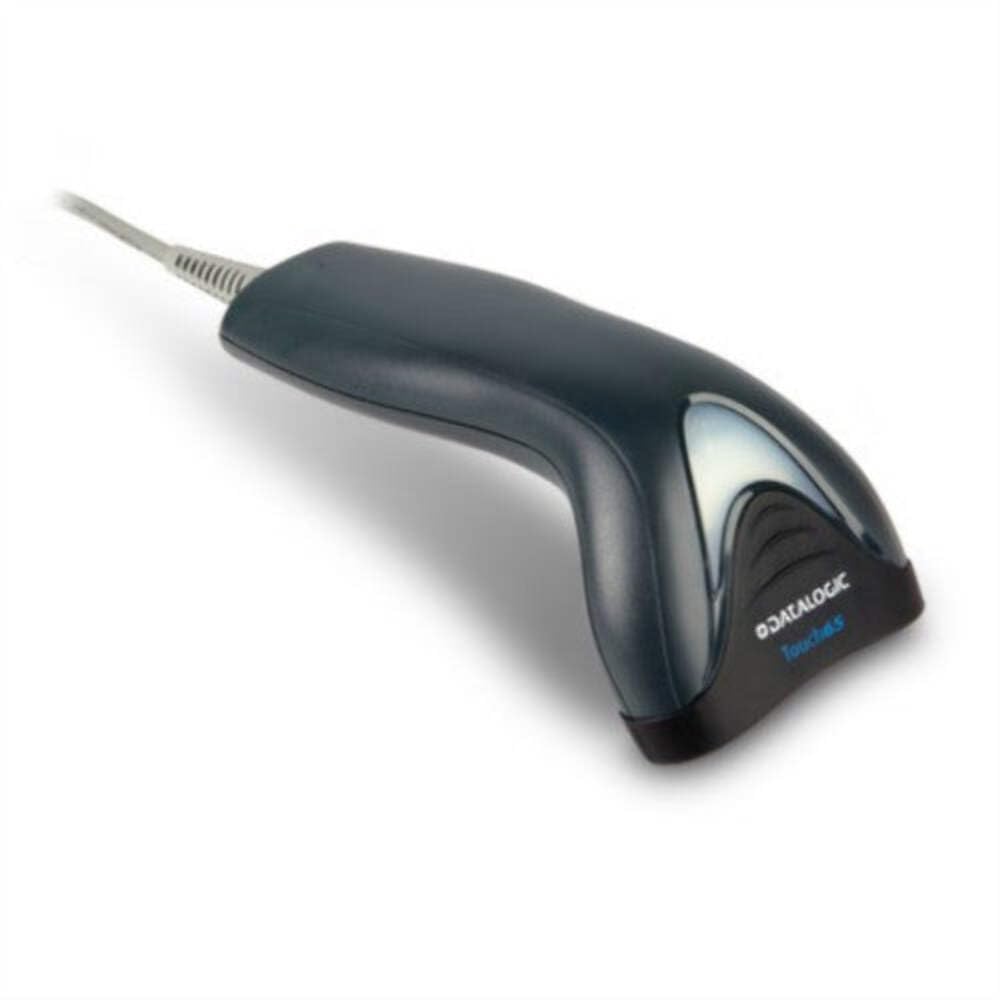
Image: The Datalogic Touch TD1100 90 Light barcode scanner, showing its ergonomic design and integrated cable.
Setup
1. Unpacking
Carefully remove all components from the packaging. Verify that all items are present:
- Datalogic Touch TD1100 90 Light Barcode Scanner
- USB Cable (integrated)
- Quick Start Guide (if included)
2. Connecting the Scanner
The TD1120-BK-90K1 model connects via a USB interface. Follow these steps:
- Locate an available USB port on your computer (desktop or laptop).
- Insert the USB connector of the scanner's cable firmly into the USB port.
- The operating system should automatically detect the new hardware and install the necessary drivers. This process may take a few moments.
- Once drivers are installed, the scanner will typically emit a short beep or an indicator light will illuminate, signifying it is ready for use.
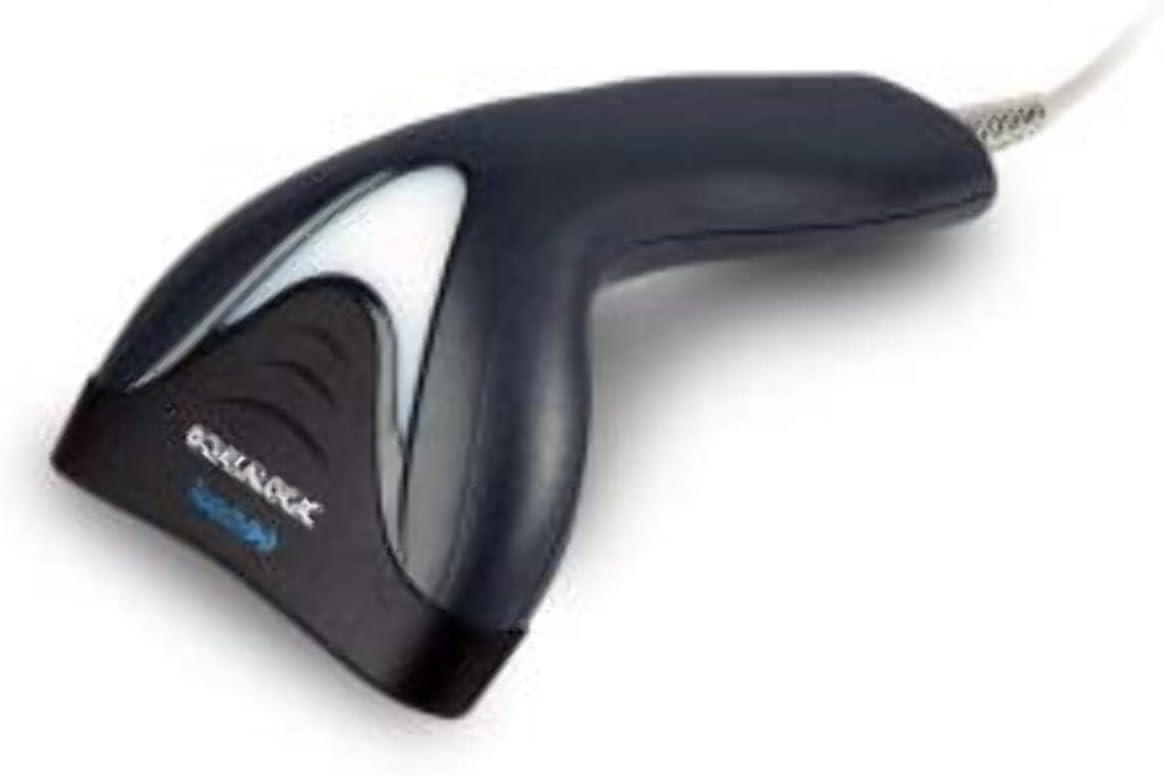
Image: Side view of the Datalogic Touch TD1100 90 Light barcode scanner, highlighting the integrated cable for connection.
Operating Instructions
1. Basic Scanning Procedure
To scan a barcode:
- Ensure the scanner is connected and powered on.
- Open an application on your computer where you want the scanned data to appear (e.g., a text editor, spreadsheet, or POS software).
- Hold the scanner with the scanning window facing the barcode.
- Press and hold the trigger button. A red aiming line or light will project from the scanning window.
- Position the aiming line across the entire barcode.
- Once the barcode is successfully read, the scanner will emit a beep and/or the indicator light will flash green. The data will then appear in your active application.
- Release the trigger button.
2. Scanning Techniques
- Optimal Distance: Hold the scanner at an appropriate distance from the barcode, typically between 2-10 cm (1-4 inches), depending on the barcode size and density.
- Angle: Scan barcodes at a slight angle to avoid direct reflection, which can interfere with reading.
- Damaged Barcodes: For poorly printed or damaged barcodes, try scanning from different angles or distances.
Maintenance
1. Cleaning the Scanner
Regular cleaning helps maintain optimal scanning performance.
- Scanning Window: Use a soft, lint-free cloth dampened with a mild, non-abrasive cleaner (e.g., isopropyl alcohol or glass cleaner) to gently wipe the scanning window. Avoid harsh chemicals or abrasive materials.
- Exterior: Wipe the exterior casing with a soft, damp cloth. Do not allow liquids to enter the scanner.
- Ensure the scanner is disconnected from the power source before cleaning.
2. Storage
When not in use, store the scanner in a clean, dry environment, away from direct sunlight, extreme temperatures, and corrosive materials.
Troubleshooting
If you encounter issues with your Datalogic TD1100 scanner, refer to the following common problems and solutions:
| Problem | Possible Cause | Solution |
|---|---|---|
| Scanner does not power on or respond. | Loose cable connection, faulty USB port, power issue. |
|
| Scanner does not read barcodes. | Incorrect scanning technique, damaged barcode, dirty scanning window, incompatible barcode type, application not ready. |
|
| Scanned data appears incorrectly. | Keyboard wedge settings, incorrect language settings. |
|
Specifications
Key technical specifications for the Datalogic Touch TD1100 90 Light (TD1120-BK-90K1):
- Model Number: TD1120-BK-90K1
- Brand: Datalogic
- Scan Rate: 90 frames per second (fps)
- Connectivity Technology: Bluetooth
- Compatible Devices: Desktop, Laptop
- Power Source: Battery Powered
- Item Weight: 153 Grams
- Real Angle of View: 3.5 Degrees
- Manufacturer: Datalogic
Note: Some specifications like "Battery Powered" and "Bluetooth" might be generic for the TD1100 series. The TD1120-BK-90K1 is primarily a wired USB scanner.
Warranty and Support
Warranty Information
Datalogic products are covered by a standard manufacturer's warranty. For specific warranty terms and conditions, please refer to the warranty card included with your product or visit the official Datalogic website. Keep your proof of purchase for warranty claims.
Technical Support
For technical assistance, troubleshooting beyond this manual, or to inquire about repairs, please contact Datalogic customer support. You can typically find contact information on the Datalogic website or in the documentation provided with your scanner.
- Datalogic Official Website: www.datalogic.com
- Support Resources: Check the support section of the website for FAQs, drivers, and additional documentation.


