
1. Introduction
The Behringer X Air XR18 is an 18-channel, 12-bus digital mixer designed for iPad/Android tablets, featuring 16 gain-programmable Midas preamps. It integrates a multichannel USB audio interface and a built-in Wi-Fi module, offering versatile control and recording capabilities for live sound and studio applications.

Figure 1.1: Front view of the Behringer X Air XR18, highlighting its comprehensive input and output panel.
2. Setup Guide
2.1 Physical Connections
Before powering on the XR18, ensure all necessary audio and network connections are made. The unit features 16 XLR/TRS combo inputs with Midas preamps, 6 Aux outputs, Main L/R outputs, and a dedicated Phones output. Connect microphones, instruments, and other audio sources to the appropriate inputs. For network control, use either the built-in Wi-Fi or the Ethernet port.
Figure 2.1: Detailed view of the XR18's input and output connections, including XLR/TRS combo jacks, Aux outputs, Main outputs, and network ports.
2.2 Powering On
Connect the provided power cable to the AC input on the side of the unit. Ensure the power switch is in the 'Off' position before connecting to a power outlet. Once connected, flip the power switch to 'On'. The power indicator LED will illuminate.
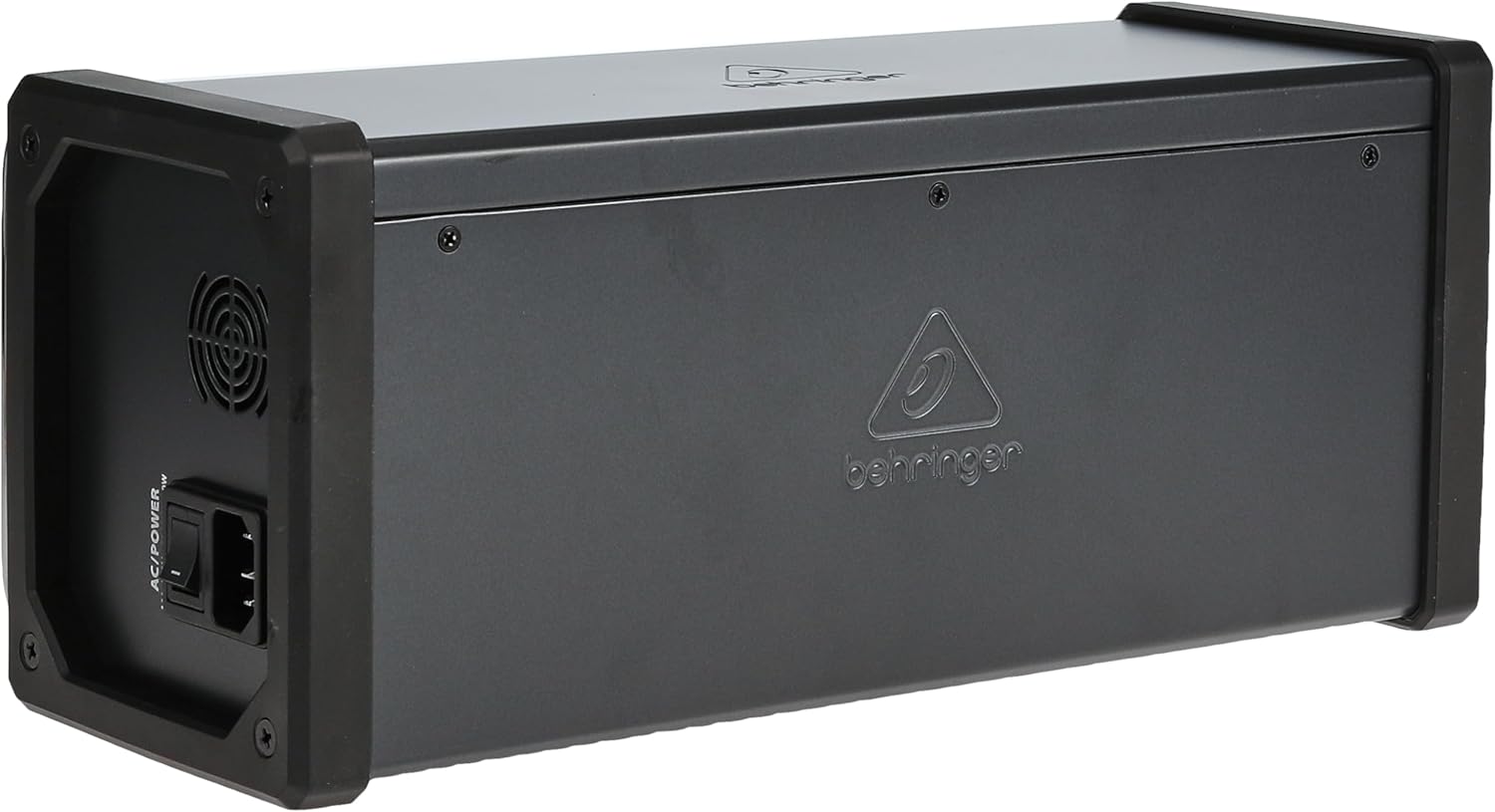
Figure 2.2: Side view of the XR18, illustrating the location of the AC power input and power switch.
2.3 Wireless Setup (Wi-Fi)
The XR18 features an integrated Wi-Fi module, allowing for wireless control via a tablet or computer. The unit can operate in three Wi-Fi modes: Access Point (AP), Wi-Fi Client, and Ethernet. For quick setup, the AP mode creates its own network. For more stable connections in complex environments, Wi-Fi Client mode allows the XR18 to join an existing network, or a direct Ethernet connection can be used.

Figure 2.3: Visual representation of the XR18's Wi-Fi capabilities.
2.4 Software Installation
To control the XR18, download the dedicated X AIR app for your iPad, Android tablet, or computer (PC/Mac/Linux). The app provides a comprehensive interface for mixing, effects processing, and routing. Ensure your control device is connected to the XR18's network (either directly via AP mode or through a shared Wi-Fi network in Client mode).

Figure 2.4: A tablet running the X AIR control application, demonstrating the tablet-controlled nature of the mixer.

Figure 2.5: The XR18 can be controlled from multiple devices, including tablets, smartphones, and laptops.
3. Operation
3.1 Channel Management
The X AIR app provides intuitive control over all 18 input channels. Adjust gain, EQ, dynamics, and send levels for each channel. The 16 Midas-designed preamps ensure high-quality audio capture. Channels 17/18 are dedicated line inputs for stereo sources.

Figure 3.1: The X AIR app interface, demonstrating virtual faders and channel controls for precise mixing.
3.2 USB Audio Interface
The XR18 functions as an 18x18 channel, bi-directional USB audio interface, allowing direct recording and playback with your Digital Audio Workstation (DAW). This feature is ideal for multi-track recording of live performances or studio sessions.

Figure 3.2: The XR18 connected to a computer, illustrating its function as a USB audio interface for recording.
3.3 Personal Monitoring (Ultranet)
Utilize the ULTRANET port for seamless integration with Behringer's P16 Personal Monitoring System. This allows musicians to create their own custom monitor mixes, reducing stage clutter and improving performance clarity.

Figure 3.3: An example setup demonstrating the XR18's ULTRANET connectivity for personal monitoring systems.
3.4 Effects Processing
The XR18 includes a virtual FX Rack with four true-stereo (8-mono) multi-effects processors, featuring studio-quality reverbs, delays, chorus, and more. These effects can be assigned to any input channel or bus, enhancing your mix with professional-grade sound.

Figure 3.4: The effects processing section within the X AIR app, allowing for detailed control over various audio effects.
3.5 Headphone Output
A dedicated Phones output with an individual level control is provided for direct monitoring. This allows for private listening to the main mix or a specific bus, which is useful for sound checks or personal monitoring during recording.
4. Maintenance
To ensure the longevity and optimal performance of your Behringer X Air XR18, regular maintenance is recommended. Keep the unit clean by wiping it with a soft, dry cloth. Avoid using abrasive cleaners or solvents. Ensure all vents are clear of dust and debris to prevent overheating. Periodically check all cable connections for secure fit and signs of wear.
It is crucial to keep the X AIR app and the XR18's firmware updated to the latest versions. Firmware updates often include performance enhancements, bug fixes, and new features. Refer to the Behringer website for the most current software and firmware downloads and update instructions.
5. Troubleshooting
5.1 Connectivity Issues
- No Wi-Fi Connection: Ensure the XR18's Wi-Fi mode switch is set correctly (AP or Client). If in AP mode, check for the XR18's network on your control device. If in Client mode, verify the XR18 is connected to your router and your control device is on the same network. Try restarting both the XR18 and your control device.
- Ethernet Connection Problems: Confirm the Ethernet cable is securely connected to both the XR18 and your computer/router. Check network settings on your computer to ensure it's configured for a wired connection.
5.2 Audio Issues
- No Sound Output: Verify that input channels are active and gain levels are set appropriately. Check main mix faders and ensure mute buttons are disengaged. Confirm that output cables are correctly connected to your speakers/amplifiers.
- Distorted Sound: Reduce input gain levels if clipping indicators are active. Check for proper impedance matching between sources and inputs. Ensure output levels are not overdriving connected equipment.
- Feedback: Lower microphone gain, adjust monitor levels, or use the built-in EQ to cut problematic frequencies. Ensure microphones are not pointed directly at speakers.
5.3 Software Glitches
- App Not Connecting: Close and reopen the X AIR app. Restart the XR18. Ensure your control device's operating system is compatible with the app version.
- Unresponsive Controls: Check network stability. A weak Wi-Fi signal can cause delays or unresponsiveness. Consider using a wired Ethernet connection for critical applications.
6. Specifications
| Feature | Specification |
|---|---|
| Model Number | X AIR XR18 |
| Number of Channels | 18 |
| Item Weight | 9.35 pounds (4.24 kg) |
| Product Dimensions | 5.87 x 13.11 x 5.51 inches (14.9 x 33.3 x 14 cm) |
| Hardware Interface | USB |
| Power Source | Corded Electric |
| Connectivity Technology | USB |
| Date First Available | February 26, 2015 |
7. Warranty and Support
7.1 Warranty Information
Behringer products typically come with a limited warranty. For detailed information regarding the warranty period, coverage, and terms and conditions for your X Air XR18, please refer to the warranty card included with your product or visit the official Behringer website.
7.2 Customer Support
For technical assistance, troubleshooting beyond this manual, or service inquiries, please contact Behringer customer support. You can find contact information, FAQs, and additional resources by visiting the official Behringer website or their Amazon store page.
Visit the Behringer Store on Amazon for more information.


