Introduction
The Logitech MX Master Wireless Mouse is a high-precision device designed for power users, offering exceptional comfort, advanced features, and versatile connectivity. This manual provides comprehensive instructions for setting up, operating, and maintaining your MX Master mouse to ensure optimal performance.
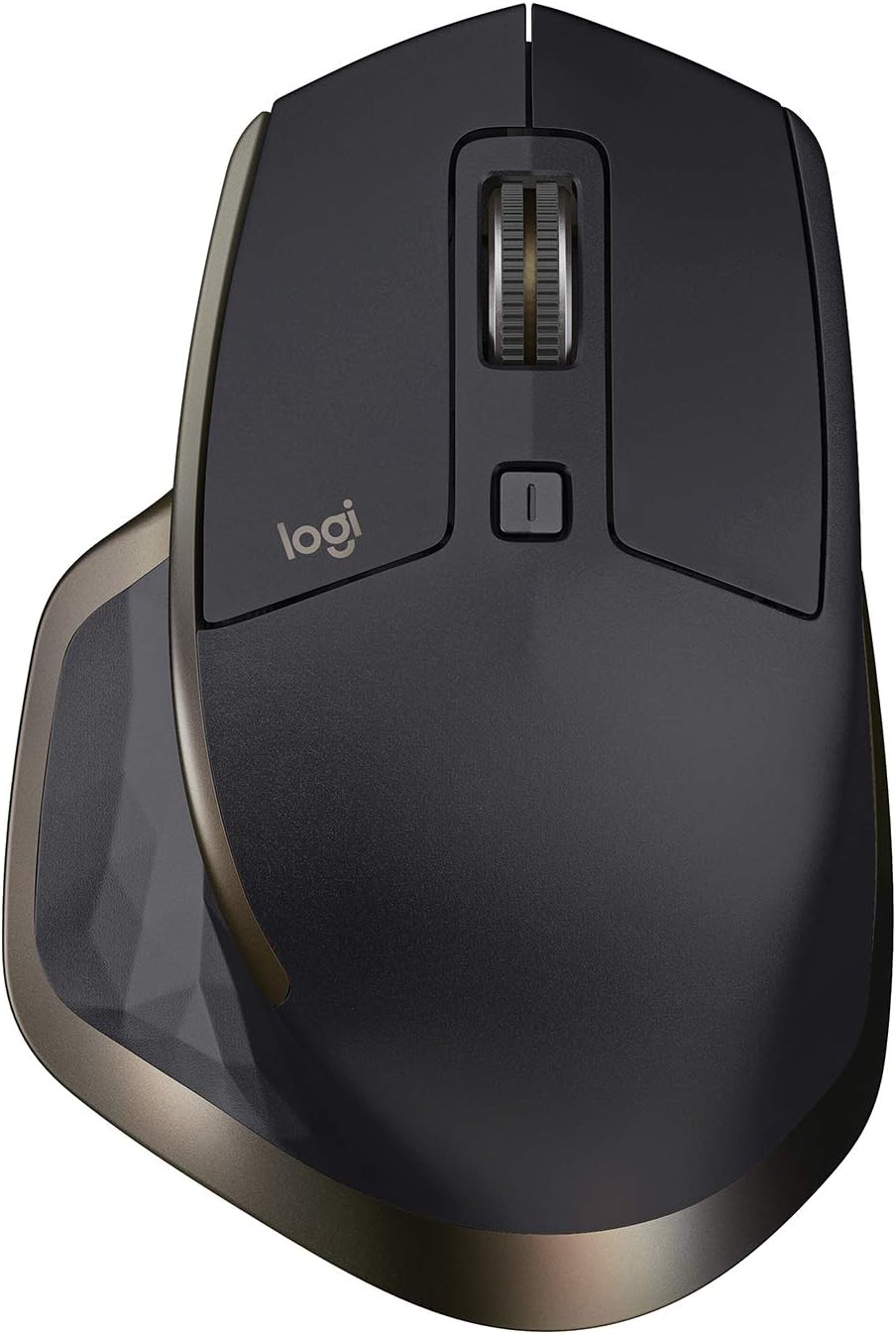
Figure 1: Top view of the Logitech MX Master Wireless Mouse.
Product Overview
The MX Master mouse features a hand-sculpted contour for comfortable use, along with several innovative controls:
- Speed-Adaptive Scroll Wheel: Automatically shifts between click-to-click and hyper-fast scrolling.
- Thumb Scroll Wheel: Provides horizontal navigation and advanced gesture controls.
- Easy-Switch Technology: Connects to up to three devices and switches between them with a single button.
- Darkfield High Precision Sensor: Tracks flawlessly on virtually any surface, including glass (4mm minimum thickness).
- Rechargeable Battery: Offers up to 40 days of power on a single charge.

Figure 2: Side view highlighting the thumb wheel and battery indicator lights.
Setup
1. Charging the Mouse
Before first use, it is recommended to fully charge your MX Master mouse. Connect the included micro-USB charging cable to the port on the front of the mouse and to a USB power source (e.g., computer USB port, USB wall adapter). The battery indicator lights on the side of the mouse will show charging status.
2. Connecting the Mouse
The MX Master offers two primary connection methods: Logitech Unifying Receiver or Bluetooth Smart wireless technology.
Using the Logitech Unifying Receiver:
- Plug the Logitech Unifying receiver into an available USB port on your computer.
- Turn on the mouse using the ON/OFF switch located on the bottom of the mouse.
- Ensure the device selection button (1, 2, or 3) on the bottom of the mouse is set to an available channel (e.g., 1). The LED for the selected channel should blink rapidly, indicating it's ready to pair.
- The mouse should automatically connect to the receiver. If not, use the Logitech Options software to complete the pairing.

Figure 3: Logitech MX Master Mouse shown with its Unifying Receiver.
Using Bluetooth Smart:
- Turn on the mouse using the ON/OFF switch located on the bottom of the mouse.
- Press the device selection button (1, 2, or 3) on the bottom of the mouse to select an available channel. The LED for the selected channel should blink rapidly.
- Press and hold the 'Connect' button on the bottom of the mouse until the LED for the selected channel starts blinking rapidly. This indicates the mouse is in pairing mode.
- On your computer, open Bluetooth settings and select the Logitech MX Master from the list of available devices to complete the pairing process.

Figure 4: Bottom view of the mouse, showing the power switch and device selection buttons.
3. Install Logitech Options Software
For full customization of buttons, gestures, and advanced features, download and install the Logitech Options software from the official Logitech website. This software allows you to tailor the mouse's functionality to your specific workflow.
Operating Instructions
Using the Speed-Adaptive Scroll Wheel
The main scroll wheel automatically switches between two modes:
- Click-to-Click Mode: Ideal for precise navigation of lists and individual items.
- Hyper-Fast Scrolling Mode: Engages automatically when you spin the wheel quickly, allowing you to glide through long documents or web pages.
You can also manually switch between these modes by pressing the button located directly below the main scroll wheel.
Using the Thumb Scroll Wheel
The thumb wheel on the side of the mouse provides horizontal scrolling, which is particularly useful for navigating wide spreadsheets, timelines, or image galleries. By default, it scrolls horizontally, but its function can be customized via Logitech Options.

Figure 5: Side view of the mouse, highlighting the thumb scroll wheel.
Customizing Buttons and Gestures
The MX Master mouse features several programmable buttons and a gesture button (the thumb rest area). Using the Logitech Options software, you can assign custom functions to these controls, including application-specific settings. For example, you can configure the gesture button to perform actions like launching applications, navigating desktops, or controlling media playback by moving the mouse while holding the button.
Easy-Switch Between Devices
To switch between up to three paired devices, simply press the device selection button (1, 2, or 3) on the bottom of the mouse. The corresponding LED will illuminate to indicate the active device.
Maintenance
Cleaning
To maintain optimal performance and appearance, regularly clean your MX Master mouse:
- Use a soft, lint-free cloth slightly dampened with water or a mild cleaning solution.
- Avoid using harsh chemicals, abrasive cleaners, or solvents.
- Clean the sensor area on the bottom of the mouse gently to ensure accurate tracking.
Battery Care
The integrated rechargeable battery is designed for long life. To maximize battery lifespan:
- Avoid fully discharging the battery frequently.
- Store the mouse at room temperature when not in use for extended periods.
- Charge the mouse when the battery indicator lights show low power.
Troubleshooting
Mouse Not Connecting/Responding
- Check Power: Ensure the mouse is turned on and has sufficient battery charge.
- Re-pair: For Unifying receiver, try unplugging and re-plugging the receiver. For Bluetooth, go to your computer's Bluetooth settings and try re-pairing the mouse.
- Change Channel: If using Easy-Switch, try switching to a different channel (1, 2, or 3) to see if it connects.
- Interference: Move the mouse closer to the receiver/computer or away from other wireless devices that might cause interference.
Inaccurate Tracking
- Clean Sensor: Gently clean the Darkfield sensor on the bottom of the mouse.
- Surface: While the Darkfield sensor works on most surfaces, try a different surface or a mouse pad to rule out surface-related issues.
- DPI Settings: Adjust the DPI sensitivity in Logitech Options software to suit your preference.
Scroll Wheel Malfunction
- Clean Wheel: Check for any debris or dust around the scroll wheels and clean them carefully.
- Software: Ensure Logitech Options software is up-to-date, as software issues can sometimes affect scroll wheel behavior.
Specifications
| Brand | Logitech |
| Model Number | 910-004337 |
| Connectivity Technology | Wireless (Unifying Receiver, Bluetooth Smart) |
| Movement Detection Technology | Laser (Darkfield High Precision) |
| DPI Range | 200 to 4000 dpi (in 50 dpi increments) |
| Battery Life | Up to 40 days (on a single charge) |
| Power Source | Rechargeable Battery (1 A battery included) |
| Item Weight | 5.1 ounces |
| Product Dimensions | 1.9 x 3.37 x 4.96 inches |
| Operating System Compatibility | Mac OS X 10.7 Lion, Windows 10 (and later) |
Warranty and Support
For detailed warranty information, technical support, and additional resources, please visit the official Logitech support website. You can find FAQs, driver downloads, and contact information for customer service.
Logitech Support Website: https://support.logi.com/


