1. Introduction
This manual provides essential information for the safe and efficient operation of your Sharp LC-32LE653U 32-inch 1080p Smart LED TV. Please read these instructions thoroughly before using the television and retain them for future reference. This television offers a full HD 1080p display, Smart Central Apps for internet connectivity, and a sleek design.

Figure 1: Front view of the Sharp LC-32LE653U Smart LED TV, showcasing its slim bezel and display.
Safety Information
Always follow basic safety precautions to reduce the risk of fire, electric shock, and injury. Do not expose the TV to rain or moisture. Do not open the cabinet; refer all servicing to qualified personnel. Ensure proper ventilation and avoid blocking ventilation openings. Keep the TV away from heat sources and direct sunlight. Use only attachments/accessories specified by the manufacturer.
2. Package Contents
Verify that all items listed below are included in your package:
- Sharp LC-32LE653U 32-Inch Smart LED TV
- Remote Control
- TV Stand
- AA Batteries (2) for Remote Control
- Power Cord
- User Manual (this document)
3. Setup
3.1 Attaching the Stand
Carefully place the TV screen-down on a soft, clean surface to prevent damage. Align the stand with the mounting holes on the bottom of the TV. Secure the stand using the provided screws. Ensure the stand is firmly attached before placing the TV upright.
3.2 Wall Mounting (Optional)
If you choose to wall mount your TV, ensure you use a VESA-compliant wall mount kit (sold separately) that is appropriate for the TV's size and weight. Follow the instructions provided with your wall mount kit. Remove the stand before wall mounting.
3.3 Connecting Devices
Your Sharp LC-32LE653U TV offers various connection ports for external devices. Refer to the images below for port locations.

Figure 2: Side view of the TV, illustrating accessible ports such as USB and HDMI.

Figure 3: Rear view of the TV, displaying the full array of input and output connections.

Figure 4: Detailed view of the TV's rear connection panel, highlighting HDMI, Ethernet, Component/Video, and DTV/TV (Antenna) inputs.
- HDMI (High-Definition Multimedia Interface): Connect Blu-ray players, game consoles, cable/satellite boxes, or other HDMI-enabled devices. This model includes 2 HDMI inputs, one with MHL (Mobile High-Definition Link) support.
- USB: Connect USB storage devices to view photos or play media files. This model includes 1 USB port.
- Antenna/Cable (DTV/TV): Connect an antenna for over-the-air broadcasts or a cable TV connection.
- Ethernet: Connect an Ethernet cable for a wired internet connection.
- Component/Video: For older devices using component (YPbPr) or composite video connections.
3.4 Power Connection
After connecting all desired devices, plug the power cord into the TV's power input, then into a standard electrical outlet. The TV will enter standby mode.
4. Operating the TV
4.1 Remote Control Overview
The included remote control allows you to access all TV functions. Insert the two AA batteries into the remote, ensuring correct polarity. The remote features standard buttons for power, input selection, volume, channel navigation, and dedicated buttons for Smart Central Apps like Netflix.
4.2 Basic Functions
- Power On/Off: Press the POWER button on the remote or the TV.
- Volume Control: Use the VOL +/- buttons to adjust the sound level.
- Channel Selection: Use the CH +/- buttons to change channels or enter channel numbers directly using the numeric keypad.
- Input Selection: Press the INPUT button to cycle through available input sources (HDMI 1, HDMI 2, TV, etc.).
- Menu Navigation: Use the directional arrows and ENTER button to navigate the on-screen menus.
4.3 Smart Central Apps and Wi-Fi
Your Sharp LC-32LE653U TV features Smart Central Apps, providing access to various streaming services and a built-in web browser. To use these features, the TV must be connected to the internet via Wi-Fi or an Ethernet cable.
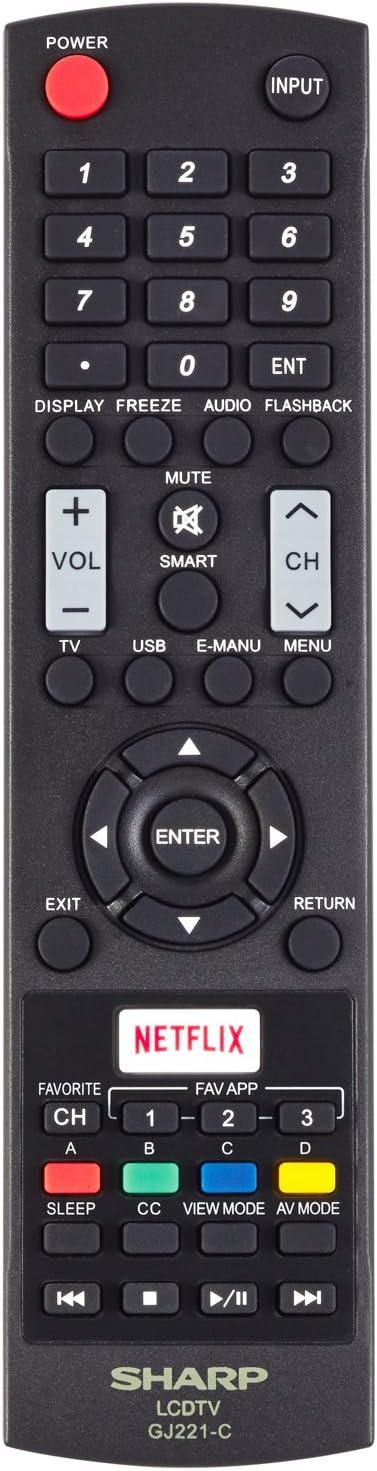
Figure 5: The TV screen showing the Smart Central Apps interface with icons for Netflix, YouTube, Pandora, and other services.
- Connecting to Wi-Fi: Navigate to the TV's settings menu, select 'Network', and then 'Wireless Setup'. Choose your Wi-Fi network from the list and enter the password.
- Accessing Apps: Press the SMART button on your remote or select 'Smart Central' from the main menu to access the app interface.
- Supported Internet Services: This TV supports services such as Hulu Plus, Netflix, Pandora, Vudu, and YouTube.
4.4 Wallpaper Mode
The Wallpaper Mode allows the TV to display virtually any image when it is turned off, transforming it into a digital art display. This feature can be configured in the TV's picture settings menu.

Figure 6: The TV screen showcasing a vibrant nature scene, demonstrating the Wallpaper Mode functionality.
5. Maintenance
5.1 Cleaning the TV
- Screen: Gently wipe the screen with a soft, lint-free cloth. For stubborn marks, lightly dampen the cloth with water or a specialized screen cleaner. Do not spray cleaner directly onto the screen.
- Cabinet: Wipe the TV cabinet with a soft, dry cloth. Avoid using abrasive cleaners or solvents.
5.2 General Care
- Unplug the TV from the power outlet before cleaning or when not in use for extended periods.
- Avoid placing heavy objects on the TV.
- Do not block the ventilation openings on the back of the TV.
6. Troubleshooting
If you encounter issues with your TV, refer to the following common problems and solutions:
| Problem | Possible Solution |
|---|---|
| No power | Ensure the power cord is securely plugged into both the TV and a working electrical outlet. Try a different outlet. |
| No picture, but sound is present | Check the input source. Press the INPUT button on the remote to select the correct source. Ensure all video cables are securely connected. |
| No sound, but picture is present | Check the volume level and ensure the TV is not muted. Check audio cable connections if using external speakers. |
| Cannot connect to Wi-Fi | Ensure your Wi-Fi router is on and functioning. Re-enter the Wi-Fi password carefully. Try restarting both the TV and the router. |
| Remote control not working | Check and replace the batteries. Ensure there are no obstructions between the remote and the TV's IR sensor. |
For more complex issues, please refer to the support section or contact customer service.
7. Specifications
Below are the technical specifications for the Sharp LC-32LE653U Smart LED TV:

Figure 7: Diagram illustrating the product dimensions: 28.43 inches width, 6.54 inches depth, and 18.67 inches height.
| Feature | Specification |
|---|---|
| Brand | Sharp |
| Model Number | LC-32LE653U |
| Screen Size | 32 Inches |
| Display Technology | LCD (LED Backlit) |
| Resolution | 1080p (Full HD) |
| Refresh Rate | 60 Hz |
| Connectivity Technology | Wi-Fi, Ethernet |
| HDMI Inputs | 2 (including MHL) |
| USB Ports | 1 |
| Supported Internet Services | Hulu Plus, Netflix, Pandora, Vudu, YouTube |
| Aspect Ratio | 16:9 |
| Speaker Type | Built-In |
| Voltage | 120 Volts |
| Product Dimensions (W x D x H) | 28.43 x 6.54 x 18.67 inches (with stand) |
| Item Weight | 11.7 Pounds |
| Color | Black |
| Energy Star Certified | Yes |
8. Warranty and Support
For warranty information and customer support, please refer to the documentation included with your product or visit the official Sharp website. Keep your purchase receipt as proof of purchase for warranty claims. Technical support may be available through online resources or dedicated customer service lines.


