
1. Introduction
This manual provides essential instructions for the safe and efficient operation of your Sharp LC-43LE653U 43-Inch 1080p 60Hz Smart LED TV. Please read this manual thoroughly before using your television and retain it for future reference. This television features a 43-inch 1080p display, 60Hz refresh rate, and Smart Central Apps for internet connectivity.
2. What's in the Box
Verify that all the following items are included with your television:
- Sharp LC-43LE653U 43-Inch 1080p 60Hz Smart LED TV
- Remote Control
- Stand
- Batteries (2 AA)
3. Setup
3.1 Unpacking
Carefully remove the TV from its packaging. It is recommended to keep the original packaging materials for future transport or service needs. Handle the screen with care to avoid damage.
3.2 Stand Installation
To install the TV stand:
- Place the TV screen-down on a soft, flat surface to prevent scratches.
- Align the stand with the mounting holes on the bottom of the TV.
- Secure the stand using the provided screws. Ensure the stand is firmly attached before placing the TV upright.
3.3 Wall Mounting (Optional)
This TV is compatible with VESA standard wall mounts. Refer to your wall mount's instructions for installation. Ensure proper ventilation around the TV when wall-mounted.
3.4 Connecting Peripherals
The TV offers various connection ports for external devices.

Image: Side view of the Sharp LC-43LE653U TV, highlighting the accessible HDMI, USB, and audio output ports on the side panel.

Image: Close-up view of the rear connection panel of the Sharp LC-43LE653U TV, detailing inputs for HDMI, Ethernet, Component/Video, and DTV/TV antenna.
- HDMI: Connect up to three HDMI devices (e.g., Blu-ray player, game console, cable box) to the HDMI 1, HDMI 2, or HDMI 3 ports.
- USB: Connect a USB storage device to the USB port for media playback.
- Antenna/Cable: Connect an antenna or cable TV coaxial cable to the DTV/TV input.
- Ethernet: For a wired internet connection, connect an Ethernet cable to the LAN port.
- Audio Out: Use the optical or analog audio output ports to connect to an external sound system.
3.5 Power Connection
After connecting all necessary devices, plug the TV's power cord into a standard electrical outlet.
3.6 Initial Power On and Setup
Press the Power button on the remote control or the TV. The TV will guide you through the initial setup process, including language selection, time zone, and network connection setup.
4. Operating Instructions
4.1 Remote Control Overview
Familiarize yourself with the remote control buttons for easy navigation.

Image: Layout of the Sharp LC-43LE653U remote control, showing buttons for power, input, volume, channel, smart features, menu, and dedicated Netflix access.
- Power: Turns the TV on or off.
- Input: Selects the input source (HDMI, TV, USB).
- VOL +/-: Adjusts the volume level.
- CH +/-: Changes channels.
- SMART: Accesses the Smart Central Apps menu.
- MENU: Opens the main settings menu.
- NETFLIX: Direct access to the Netflix application.
- Navigation Pad (Up/Down/Left/Right/ENTER): Navigates menus and confirms selections.
4.2 Basic Functions
- Power On/Off: Press the Power button on the remote or TV.
- Selecting Input: Press the Input button repeatedly to cycle through available sources, or use the menu to select.
- Adjusting Volume: Use the VOL +/- buttons.
- Changing Channels: Use the CH +/- buttons or the number pad.
4.3 Smart TV Features (Smart Central Apps)
Your TV includes Smart Central Apps, providing access to various online services and a web browser.
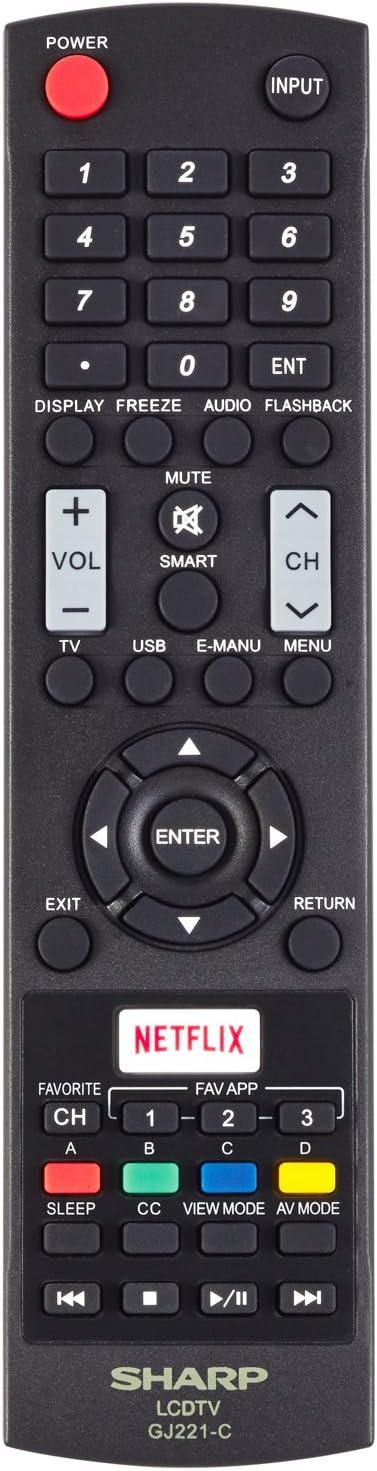
Image: The Sharp LC-43LE653U TV screen showing the Smart Central Apps interface, with icons for Netflix, YouTube, Pandora, and other services.
- Press the SMART button on your remote.
- Use the navigation pad to select desired applications such as Netflix, Hulu Plus, Pandora, Vudu, or YouTube.
- To connect to Wi-Fi, navigate to the Network settings within the main menu and follow the on-screen instructions to select your network and enter the password.
4.4 Picture and Sound Settings
Access the main menu to customize picture and sound settings:
- Picture Settings: Adjust modes (Standard, Movie, Game), brightness, contrast, color, sharpness, and backlight.
- Sound Settings: Select sound modes (Standard, Music, Movie), adjust bass, treble, and enable/disable surround sound.
4.5 Wallpaper Mode
The Wallpaper Mode allows the TV to display an image when turned off. This feature can be configured in the TV's settings menu. Navigate to the display settings to activate and customize this mode.
5. Maintenance
5.1 Cleaning the TV
- Screen: Gently wipe the screen with a soft, lint-free cloth. For stubborn marks, slightly dampen the cloth with water or a specialized screen cleaner. Do not spray liquid directly onto the screen.
- Cabinet: Wipe the TV cabinet with a soft, dry cloth. Avoid using abrasive cleaners or solvents.
5.2 Software Updates
Periodically check for software updates to ensure optimal performance and access to the latest features. Navigate to the System or Support menu in your TV settings to check for and install available updates via your internet connection.
6. Troubleshooting
If you encounter issues with your TV, refer to the following common solutions:
- No Power: Ensure the power cord is securely plugged into both the TV and a working electrical outlet. Try a different outlet.
- No Picture/Sound: Verify the correct input source is selected. Check all cable connections (HDMI, antenna). Ensure volume is not muted or set to zero.
- Remote Control Not Working: Check the batteries and replace them if necessary. Ensure there are no obstructions between the remote and the TV's IR sensor.
- Network Connection Issues: For Wi-Fi, ensure your router is on and within range. Re-enter your Wi-Fi password. For wired connections, check the Ethernet cable. Restart your router and modem.
- Smart App Performance (e.g., Netflix): Slow loading or buffering can be due to internet speed or network congestion. Try restarting your router. Ensure the TV's software is up to date. If issues persist, try reinstalling the app if possible or contacting the app provider's support.
- TV Turns On/Off Randomly: Check for any scheduled power-on/off timers in the TV settings. Ensure the power cord is not loose. If the issue persists, contact customer support.
- Poor Sound Quality: The TV's downward-firing speakers may produce muffled sound. Consider connecting external speakers or a soundbar for improved audio. Adjust sound settings in the menu.
7. Specifications
| Feature | Specification |
|---|---|
| Model Number | LC-43LE653U |
| Screen Size | 43 inches |
| Display Technology | LCD |
| Resolution | 1080p (1920 x 1080) |
| Refresh Rate | 60 Hz |
| Connectivity Technology | Wi-Fi, Ethernet |
| HDMI Ports | 3 (including MHL) |
| USB Ports | 1 |
| Supported Internet Services | Hulu Plus, Netflix, Pandora, Vudu, YouTube |
| Aspect Ratio | 16:9 |
| Product Dimensions (D x W x H) | 10.55" x 38.06" x 23.74" |
| Item Weight | 24.3 pounds |
| Speaker Output Power | 20 watts |
| Voltage | 120 volts |
| Included Components | Batteries, Remote Control, Stand, TV |
| Color | Black |
| Model Year | 2015 |

Image: Diagram showing the dimensions of the Sharp LC-43LE653U TV, including width (38.06"), height (23.74"), and depth (10.55").
8. Warranty and Support
8.1 Limited Warranty
This Sharp LC-43LE653U television comes with a 1-year limited warranty from the date of purchase. This warranty covers manufacturing defects in materials and workmanship under normal use. For specific terms and conditions, please refer to the warranty card included with your product or visit the official Sharp support website.
8.2 Customer Support
For technical assistance, troubleshooting beyond this manual, or warranty claims, please contact Sharp customer support. You can typically find contact information (phone numbers, email, or online chat) on the official Sharp website or in your product documentation.


