1. Introduction
This manual provides comprehensive instructions for the proper use, setup, and maintenance of your Seenda IS11-BT05 Mini Bluetooth Keyboard with Touchpad. Please read this manual thoroughly before operating the device to ensure optimal performance and longevity.
Key Features:
- Stylish design with a slim 10mm thickness.
- Fast Bluetooth 3.0 connectivity, compatible with all Bluetooth-enabled devices.
- Built-in high-sensitive smart touchpad with 360-degree flip design.
- Portable and elegant form factor.
- Compatible with PC, Pad, Android TV Box, Google TV Box, Xbox 360, PS3, HTPC, IPTV, Amazon Fire TV, and Fire TV Stick.
2. Product Overview
The Seenda IS11-BT05 is a compact wireless keyboard featuring 77 keys and an integrated touchpad, designed for versatile use across various devices.
Package Contents:
- 1 x Seenda IS11-BT05 Mini Bluetooth Keyboard
- 1 x Charging Cable (80cm)
- 1 x User Manual (Chinese / English)
Component Identification:
Below are images illustrating the key components and overall design of the keyboard.
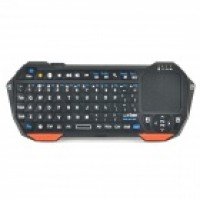
Image 1: Front view of the Seenda IS11-BT05 Mini Bluetooth Keyboard, showcasing the 77-key layout and the integrated touchpad on the right side. The keyboard features an orange and black color scheme.
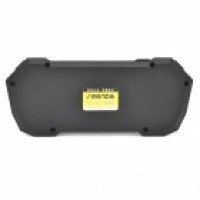
Image 2: Back view of the Seenda IS11-BT05 Mini Bluetooth Keyboard, showing the smooth, black casing and a product label in the center.
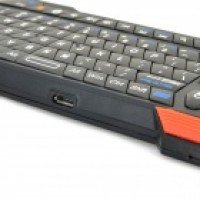
Image 3: Side view of the Seenda IS11-BT05 Mini Bluetooth Keyboard, highlighting the micro USB charging port located on the side of the device.
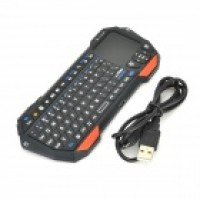
Image 4: The Seenda IS11-BT05 Mini Bluetooth Keyboard displayed alongside its included USB charging cable, ready for use.
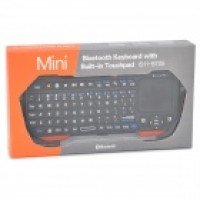
Image 5: The retail packaging for the Seenda IS11-BT05 Mini Bluetooth Keyboard, featuring the product image and branding.
3. Setup
3.1 Charging the Keyboard
Before initial use, fully charge the keyboard's built-in battery. Use the provided USB charging cable to connect the keyboard to a USB power source (e.g., computer USB port, USB wall adapter).
- Charging Time: Approximately 2.5 hours for a full charge.
- An indicator light will typically show charging status and turn off or change color when fully charged. Refer to the device's specific LED indicators for details.
3.2 Bluetooth Pairing
To connect the keyboard to your device, follow these steps:
- Ensure the keyboard is sufficiently charged.
- Turn on the keyboard using its power switch (location may vary, typically on the side or back).
- Activate Bluetooth on your host device (e.g., PC, smartphone, tablet, smart TV).
- Put the keyboard into pairing mode. This usually involves pressing a dedicated Bluetooth pairing button or a combination of keys (e.g., Fn + Bluetooth icon key). The Bluetooth indicator light on the keyboard will typically flash rapidly.
- On your host device, search for available Bluetooth devices. The keyboard should appear as "Seenda IS11-BT05" or a similar name.
- Select the keyboard from the list to initiate the pairing process. Your device may prompt you to enter a code displayed on the screen using the keyboard, then press Enter.
- Once paired, the Bluetooth indicator light on the keyboard will stop flashing and remain solid or turn off, indicating a successful connection.
The keyboard supports Bluetooth V3.0 and is compatible with operating systems such as iOS, Android 2.x, Android 4.x, Win7 32, and Win7 64.
4. Operating Instructions
4.1 Keyboard Functions
The keyboard features 77 keys, providing a comprehensive typing experience for its compact size. Standard QWERTY layout is generally followed, with additional function keys accessible via the 'Fn' key.
- Typing: Use the alphanumeric keys for text input.
- Function Keys (Fn): Press and hold the 'Fn' key, then press a corresponding key to access secondary functions (e.g., media controls, volume adjustment, backlight control if available).
4.2 Touchpad Functions
The integrated touchpad allows for mouse-like navigation and gesture control.
- Single Finger Tap: Left-click.
- Two Finger Tap: Right-click.
- Single Finger Drag: Move the cursor.
- Two Finger Scroll: Scroll vertically or horizontally (application dependent).
- The touchpad features a 360-degree flip design, allowing for comfortable use in various orientations.
4.3 Device Compatibility
This keyboard is designed to work with a wide range of devices, including:
- Personal Computers (PC)
- Tablets (Pad)
- Android TV Boxes
- Google TV Boxes
- Xbox 360
- PlayStation 3 (PS3)
- Home Theater Personal Computers (HTPC)
- Internet Protocol Television (IPTV) systems
- Amazon Fire TV and Fire TV Stick
Ensure your device has a functional Bluetooth driver for proper connectivity.
5. Maintenance
Proper care and maintenance will extend the life of your keyboard.
- Cleaning: Use a soft, dry cloth to wipe the surface of the keyboard. For stubborn dirt, slightly dampen the cloth with water or a mild, non-abrasive cleaner. Avoid excessive moisture.
- Storage: Store the keyboard in a cool, dry place away from direct sunlight and extreme temperatures.
- Battery Care: To maintain battery health, avoid fully discharging the battery frequently. If storing for an extended period, charge the battery to about 50% and recharge every few months.
- Avoid Liquids: Do not expose the keyboard to liquids, as this can cause internal damage.
6. Troubleshooting
If you encounter issues with your Seenda IS11-BT05 keyboard, refer to the following common solutions:
6.1 Keyboard Not Connecting/Pairing:
- Check Power: Ensure the keyboard is turned on and fully charged.
- Bluetooth On: Verify that Bluetooth is enabled on your host device.
- Re-pair: Delete the keyboard from your device's Bluetooth list and attempt to pair it again following the instructions in Section 3.2.
- Distance: Ensure the keyboard is within the 10-meter operating range of your device.
- Interference: Move away from other wireless devices that might cause interference.
- Device Compatibility: Confirm your device's operating system is supported.
6.2 Keyboard Not Responding:
- Recharge: The battery might be low. Connect the keyboard to a charger.
- Restart: Turn the keyboard off and then on again.
- Re-establish Connection: Disconnect and reconnect the Bluetooth connection on your host device.
6.3 Touchpad Not Working:
- Clean Touchpad: Ensure the touchpad surface is clean and free of debris.
- Restart: Turn the keyboard off and on.
- Re-pair: If the issue persists, try re-pairing the keyboard.
7. Specifications
| Feature | Specification |
|---|---|
| Brand | Seenda |
| Model | IS11-BT05 |
| Material | ABS |
| Color | Orange + Black |
| Connectivity | Bluetooth V3.0 |
| Interface | USB 2.0 (for charging) |
| Number of Keys | 77 |
| Operating Range | Up to 10 meters |
| Power Source | Built-in 250mAh Battery |
| Charging Time | Approximately 2.5 hours |
| Supported Systems | iOS, Android 2.x, Android 4.x, Win7 32, Win7 64 |
| Dimensions (L x W x H) | 16 cm x 6.8 cm x 1.3 cm (6.3 in x 2.68 in x 0.51 in) |
| Weight | 81 g (2.86 oz) |
8. Warranty and Support
For warranty information and technical support, please refer to the documentation provided at the time of purchase or contact your retailer. Keep your proof of purchase for any warranty claims.


