
Rii rm400
Contents
Rii Gaming Keyboard and Mouse Combo User Manual
Model: RM400
1. Introduction
Thank you for choosing the Rii Gaming Keyboard and Mouse Combo. This set is designed to enhance your gaming and daily computing experience with its responsive performance and vibrant aesthetics. The combo includes a 104-key wired keyboard with a 7-color rainbow backlight and a wired gaming mouse with adjustable DPI settings.
Package Contents:
- 1 x Rii RM400 Wired Gaming Keyboard
- 1 x Rii Wired Gaming Mouse
- 1 x User Booklet (Directions)
2. Setup Guide
Setting up your Rii Gaming Keyboard and Mouse Combo is a straightforward process. Both devices are plug-and-play, requiring no additional software or drivers for basic functionality.
Connecting the Devices:
- Locate an available USB port on your computer (PC, Mac, or compatible device).
- Plug the USB connector of the Rii Gaming Keyboard into the USB port.
- Plug the USB connector of the Rii Gaming Mouse into another available USB port.
- Your operating system should automatically detect and install the necessary drivers. The devices will be ready for use within a few moments.
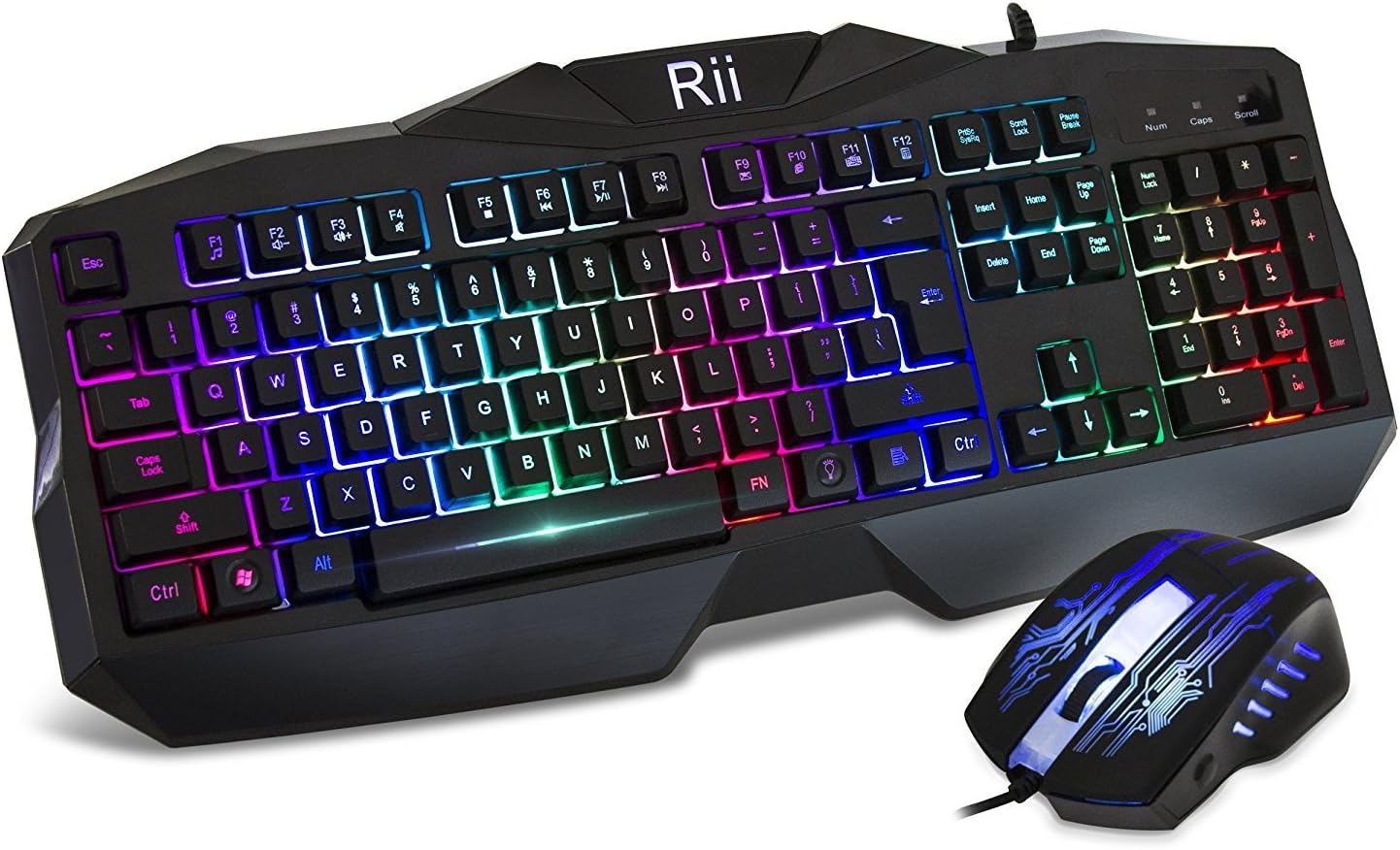
Figure 2.1: The Rii Gaming Keyboard and Mouse Combo, ready for connection. Both devices connect via standard USB ports.
Compatibility:
The Rii Gaming Keyboard and Mouse Combo is compatible with a wide range of operating systems, including Windows Vista/7/8/10, Mac, and Linux. It can be used with PCs, Macs, and other devices that support USB 2.0 input.
3. Operating Instructions
3.1 Keyboard Features:
- Rainbow Backlight: The keyboard features a vibrant 7-color rainbow backlight. This backlight is always active when the keyboard is connected and powered, providing illumination for keys in low-light conditions and enhancing the aesthetic.
- Mechanical Feeling Keys: The keys are designed to provide a tactile feedback similar to mechanical keyboards, ensuring comfortable and responsive typing and gaming.
- Spill-Resistant Design: The keyboard is built to withstand accidental liquid splashes. In case of a spill, gently wipe the liquid off immediately. Note: This design protects against minor splashes but does not make the keyboard waterproof. Avoid directly splashing water on the device.
- Durable Construction: The keyboard is built for longevity, supporting up to 80 million clicks.
3.2 Mouse Features:
- Adjustable DPI Settings: The mouse offers three preset DPI (Dots Per Inch) levels to adjust sensitivity and tracking speed. You can switch between these levels to suit different tasks, such as precise aiming in games or faster cursor movement for general use.
- DPI Levels:
- 1000 DPI
- 1600 DPI
- 2000 DPI
- How to Adjust DPI: The DPI button is typically located near the scroll wheel on the mouse. Press this button to cycle through the available DPI settings. The mouse's LED lighting may change to indicate the current DPI level.
- Ergonomic Design: The mouse is shaped to fit naturally in your hand, providing comfort during extended use.

Figure 3.1: The Rii Gaming Mouse with its DPI adjustment feature highlighted. Press the DPI button to cycle through sensitivity settings.
4. Maintenance
Proper care and maintenance will ensure the longevity and optimal performance of your Rii Gaming Keyboard and Mouse Combo.
- Cleaning: Use a soft, dry cloth to wipe down the surfaces of the keyboard and mouse. For stubborn dirt, a slightly damp cloth can be used, but ensure no moisture enters the internal components. Avoid using harsh chemicals or abrasive cleaners.
- Spill Care: While the keyboard is spill-resistant, it is best to avoid exposing it to liquids. If a spill occurs, immediately disconnect the keyboard from your computer and gently wipe away the liquid. Allow it to air dry completely before reconnecting.
- Storage: When not in use for extended periods, store the keyboard and mouse in a clean, dry environment away from direct sunlight and extreme temperatures.
- Cable Management: Avoid sharp bends or excessive pulling on the USB cables to prevent damage.
5. Troubleshooting
If you encounter any issues with your Rii Gaming Keyboard and Mouse Combo, please refer to the following common troubleshooting steps:
- Keyboard or Mouse Not Responding:
- Ensure both the keyboard and mouse USB connectors are securely plugged into your computer's USB ports.
- Try plugging the devices into different USB ports on your computer.
- Restart your computer.
- Keyboard Backlight Not On:
- Verify the keyboard is properly connected to a powered USB port.
- The backlight is designed to be always on when connected. If it's not, try reconnecting the keyboard or using a different USB port.
- Mouse Cursor Movement is Erratic or Slow/Fast:
- Adjust the DPI setting using the DPI button on the mouse to find a comfortable sensitivity level.
- Ensure the mouse sensor is clean and free from debris.
- Use the mouse on a clean, non-reflective surface or a mouse pad.
- Keys Not Registering:
- Check for any physical obstructions under the keycap.
- Ensure the keyboard is firmly connected.
If these steps do not resolve your issue, please refer to the Warranty and Support section for further assistance.
6. Specifications
| Feature | Description |
|---|---|
| Model Number | RM400 |
| Connectivity | Wired USB 2.0 |
| Keyboard Keys | 104 Keys |
| Keyboard Backlight | 7-Color Rainbow LED |
| Mouse DPI Settings | 1000 / 1600 / 2000 DPI |
| Operating System Compatibility | Windows Vista/7/8/10, Mac, Linux |
| Hardware Platform | PC, Mac, UNIX |
| Item Weight | 2.5 pounds (approx. 1.13 kg) |
| Product Dimensions (L x W x H) | 18 x 9 x 2 inches (approx. 45.7 x 22.9 x 5.1 cm) |
| Color | Black |
| Manufacturer | Zettaguard Inc. |
| Country of Origin | China |
7. Warranty and Support
The Rii Gaming Keyboard and Mouse Combo comes with a 1-year manufacturer's warranty from the date of purchase. This warranty covers defects in materials and workmanship under normal use.
For warranty claims, technical support, or any product-related inquiries, please contact Rii customer service. You may find contact information or further support resources by visiting the official Rii store page on Amazon: Rii Official Store.
Please retain your proof of purchase for warranty validation.
Ask a question about this manual
Ask about setup, troubleshooting, compatibility, parts, safety, or missing instructions. Manuals+ will review the question and use this page’s manual context to help answer it.