1. Introduction
This manual provides essential information for setting up, operating, maintaining, and troubleshooting your Dell Latitude E5550 laptop. Please read this manual thoroughly to ensure proper use and to maximize the lifespan of your device. Keep this document for future reference.
2. Safety Information
- Always use the original Dell power adapter provided with your laptop. Using incompatible adapters may damage the device or pose a fire hazard.
- Avoid exposing the laptop to extreme temperatures, direct sunlight, or high humidity.
- Do not open the laptop casing. Servicing should only be performed by authorized Dell technicians.
- Keep liquids away from the laptop to prevent electrical shock or damage.
- Ensure proper ventilation by not blocking the air vents on the laptop.
- Dispose of batteries and electronic components according to local regulations.
3. Package Contents
Verify that all items are present in the package:
- Dell Latitude E5550 Laptop
- 65W A/C Adapter (3-pin)
- Power Cord
- Documentation (Quick Start Guide, Safety Information)
4. Product Overview
Familiarize yourself with the components and ports of your Dell Latitude E5550 laptop.
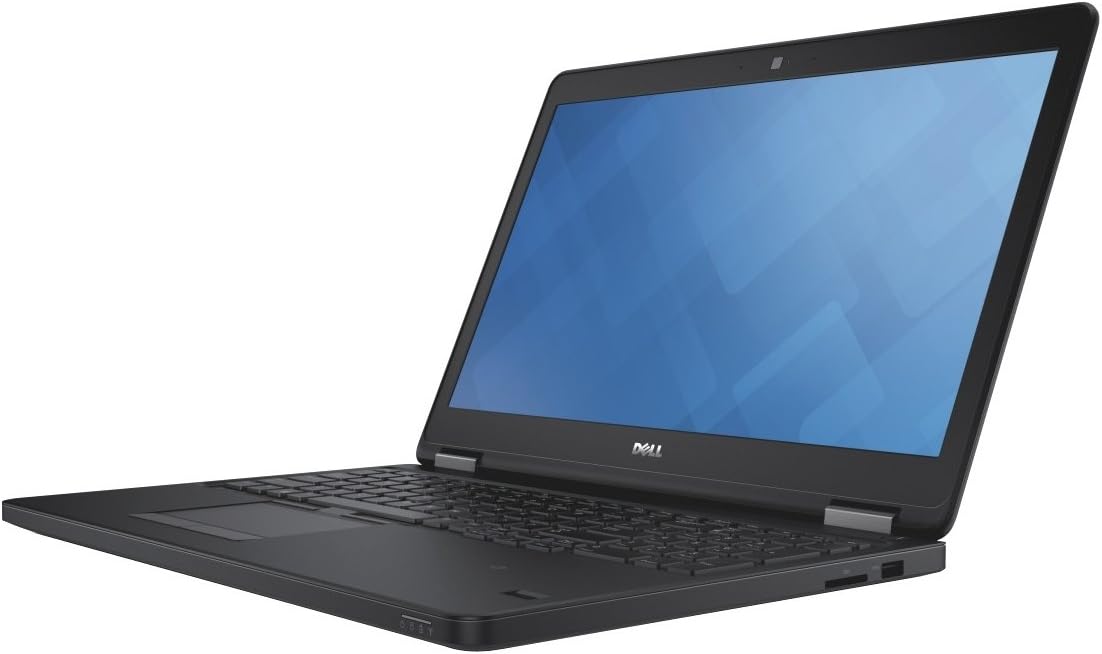
Figure 4.1: Angled view of the Dell Latitude E5550 laptop with the screen open, showcasing the keyboard, touchpad, and display. The laptop is black with a silver hinge mechanism.
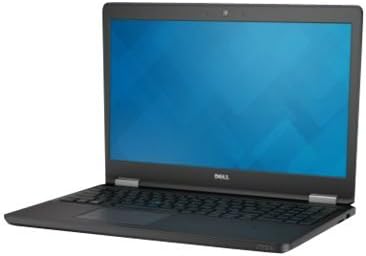
Figure 4.2: Side view of the Dell Latitude E5550 laptop, illustrating the thickness and potential port locations on one side.

Figure 4.3: Front view of the Dell Latitude E5550 laptop with the screen open, showing the full display and keyboard layout.
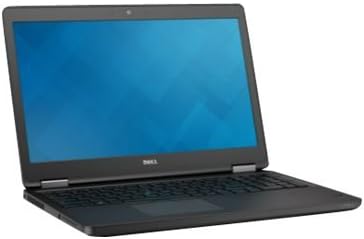
Figure 4.4: Another side view of the Dell Latitude E5550 laptop, highlighting additional ports or features on the opposite side.

Figure 4.5: Top-down view of the Dell Latitude E5550 laptop's keyboard and touchpad, showing the full layout including the pointing stick.
4.1. External Ports and Connectors
- USB 3.0 Ports: Three ports, one with Power Share capability for charging devices when the laptop is off.
- HDMI Port: For connecting to external displays or projectors.
- VGA Port: For connecting to older external displays or projectors.
- Network Connector (RJ-45): For wired Ethernet connection.
- SD 4.0 Memory Card Reader: For reading SD cards.
- Universal Jack: For audio input/output.
- SIM Card Slot: Optional, for mobile broadband connectivity.
- Optional E-docking Connector: For connecting to a docking station.
- Lock Slot: For securing the laptop with a compatible security cable.
- Optional Smartcard Reader: For enhanced security.
- Optional Fingerprint Reader: For biometric authentication.
5. Setup
5.1. Connecting the Power Adapter
- Connect the power cord to the 65W A/C adapter.
- Plug the A/C adapter into the power connector on your Dell Latitude E5550 laptop.
- Plug the power cord into a grounded electrical outlet.
- The battery will begin charging automatically.
5.2. Initial Boot and Operating System Setup
- Open the laptop lid and press the power button, typically located on the top right of the keyboard deck.
- Follow the on-screen instructions to complete the initial setup of Windows 7 Professional. This includes setting up user accounts, language preferences, and network connections.
- It is recommended to connect to the internet during setup to download critical updates.
6. Operating the Laptop
6.1. Power On/Off and Sleep Mode
- Power On: Press the power button.
- Shut Down: Click the Start button, then select "Shut down".
- Sleep Mode: Close the laptop lid or select "Sleep" from the Start menu.
6.2. Using the Keyboard and Touchpad
- The laptop features an internal dual-pointing keyboard and a touchpad for navigation.
- Adjust touchpad sensitivity and disable while typing settings through the Windows Control Panel under "Dell Touchpad" settings.
6.3. Connecting to a Wireless Network
- Click the network icon in the system tray (bottom right of the screen).
- Select your desired Wi-Fi network from the list.
- Enter the network security key (password) if prompted.
- Click "Connect".
7. Maintenance
7.1. Cleaning Your Laptop
- Use a soft, lint-free cloth dampened with water or a specialized screen cleaner for the display.
- For the keyboard and casing, use a soft cloth. Avoid harsh chemicals.
- Use compressed air to clear dust from vents and keyboard crevices.
7.2. Battery Care
- Avoid fully discharging the battery frequently.
- Store the laptop in a cool, dry place if not used for extended periods.
- The Dell Latitude E5550 features a 3-cell Lithium Polymer battery with Express Charge.
7.3. Software Updates
- Regularly check for Windows updates through the Control Panel.
- Visit the official Dell support website for driver and BIOS updates specific to your Latitude E5550 model. Enter your service tag for personalized updates.
8. Troubleshooting
This section addresses common issues you might encounter with your Dell Latitude E5550.
8.1. Power Issues
- Laptop does not turn on: Ensure the power adapter is securely connected to both the laptop and a working electrical outlet. Check the power indicator light on the adapter.
- Battery not charging: Verify the power adapter connection. If the issue persists, contact Dell support.
8.2. Display Problems
- No image on screen: Connect an external monitor to the HDMI or VGA port to check if the issue is with the laptop's internal display. Restart the laptop.
- Flickering or distorted image: Update your graphics drivers from the Dell support website.
8.3. Connectivity Issues
- Cannot connect to Wi-Fi: Ensure Wi-Fi is enabled. Check if other devices can connect to the same network. Restart your router and laptop.
- USB devices not recognized: Try connecting the device to a different USB port. Ensure necessary drivers are installed.
For more complex issues, refer to the Dell support website or contact Dell technical support.
9. Specifications
| Feature | Detail |
|---|---|
| Model Name | Dell Latitude E5550 (NJ12M) |
| Display | 15.6-inch HD (1366x768) Wide View Anti-Glare WLED-backlit |
| Processor | 5th Gen Intel Core i5-5300U (2.3GHz, 3M cache) |
| RAM | 4GB (1x4GB) 1600MHz DDR3L Memory |
| Hard Drive | 500GB 2.5-inch Serial ATA (7,200 Rpm) Hard Drive |
| Graphics | Intel HD Graphics 5500 |
| Operating System | Windows 7 Professional English 64bit (Includes Windows 8.1 Pro license) |
| Wireless Connectivity | Intel Dual Band Wireless-AC 7265 802.11AC Wi-Fi + BT 4.0 LE (2X2) |
| Ports | 3x USB 3.0 (one with Power Share), HDMI, VGA, RJ-45, SD 4.0 Card Reader, Universal Jack, Optional E-docking connector, SIM card slot |
| Security Features | Lock slot, Optional Smartcard Reader, Optional Fingerprint Reader |
| Webcam | HD Video Webcam / Dual Array Microphone with Waves Noise Cancelling Software |
| Battery | 38 Wh (3 Cell) Lithium Polymer with Express Charge |
| Dimensions (LxWxH) | 19.3 x 13 x 3.2 inches |
| Weight | 7.65 pounds |
10. Warranty and Support
Your Dell Latitude E5550 laptop typically comes with a standard warranty. Specific warranty terms, including the 3-year ProSupport for Software mentioned in some configurations, are provided at the time of purchase.
For technical assistance, warranty claims, or to download the latest drivers and documentation, please visit the official Dell Support website and enter your product's service tag.
Dell Support Website: www.dell.com/support


