
Rii UK RT-MWK02 Black
Rii Portable Mini Wireless Bluetooth Keyboard User Manual
Model: UK RT-MWK02 Black
Introduction
This manual provides comprehensive instructions for the setup, operation, and maintenance of your Rii Portable Mini Wireless Bluetooth Keyboard. Please read this manual carefully before using the device to ensure proper functionality and to avoid damage.
The Rii RT-MWK02 is a versatile 4-in-1 multifunction portable mini wireless Bluetooth keyboard featuring a touchpad mouse, laser pointer, and LED backlight. It is designed for multi-media use with various devices including PCs, laptops, Raspberry Pi, macOS, Linux, HTPC, IPTV, Google Smart TV, Android Box, XBMC, and Windows operating systems (2000, XP, Vista, 7, 8, 10).
Package Contents
- Rii Portable Mini Wireless Bluetooth Keyboard
- USB Charging Cable
- User Manual (this document)
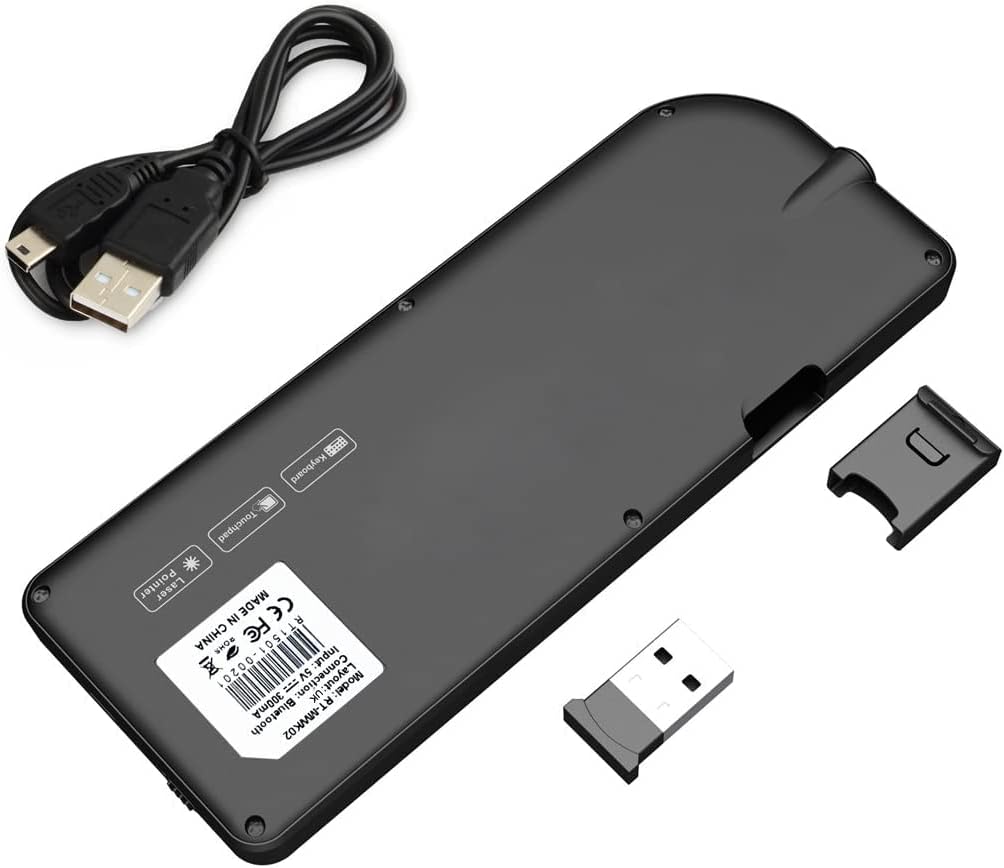
Image: The back of the Rii keyboard, showing the slot for the USB receiver and the included USB charging cable.
Product Overview

Image: The Rii keyboard held in a hand, illustrating its compact size, full QWERTY keyboard layout, integrated touchpad, and the active laser pointer beam.

Image: The Rii keyboard with its keys illuminated by the LED backlight, demonstrating its usability in low-light environments.

Image: A side view of the Rii keyboard, highlighting the charging port and the scroll wheel for navigation.
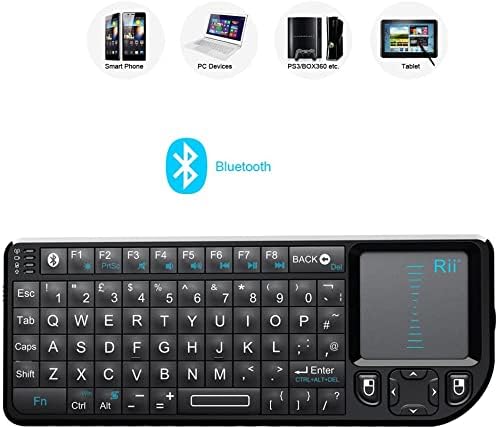
Image: The Rii keyboard displayed alongside icons representing its compatibility with various devices, including smartphones, PCs, gaming consoles (PS3/Xbox), and tablets, emphasizing its Bluetooth connectivity.

Image: The Rii keyboard being used in a living room setting, demonstrating its application with a smart TV, with a hand interacting with the touchpad.
Setup
Charging the Keyboard
The Rii keyboard comes with a built-in rechargeable Lithium-ion battery. Before first use, it is recommended to fully charge the device.
- Connect the supplied USB charging cable to the keyboard's charging port.
- Connect the other end of the USB cable to a USB power source (e.g., computer USB port, USB wall adapter).
- The charging indicator light will illuminate. Once fully charged, the light may change color or turn off.
Bluetooth Pairing
This keyboard connects via Bluetooth. Ensure your device has built-in Bluetooth functionality.
- Turn on the Rii keyboard.
- Activate Bluetooth on your host device (e.g., smart TV, PC, tablet, smartphone).
- Search for available Bluetooth devices. The keyboard should appear as "Rii Keyboard" or similar.
- Select the keyboard from the list to initiate pairing.
- If prompted, enter the pairing code displayed on your screen using the Rii keyboard, then press Enter.
- If the first connection attempt fails, press Fn + Q on the keyboard to re-enter pairing mode, then try pairing again.
The keyboard supports iPad (3.2, 4.0), iPhone, iPhone 3G, and Nokia Symbian S60 systems, as well as smart TVs, PCs, laptops, and Android boxes with built-in Bluetooth.
Operating Instructions
Keyboard Functions
The keyboard features a full QWERTY layout with additional function keys.
- Standard Keys: All standard alphanumeric and symbol keys are present.
- Function Keys (F1-F8): These keys often have secondary functions (e.g., media controls, volume) accessible by pressing the Fn key simultaneously.
- Fn Key: Used to access the blue-printed secondary functions on certain keys.
Touchpad Operation
The integrated touchpad supports various gestures for navigation.
- Single Finger Tap: Left-click.
- Two Finger Tap: Right-click.
- Single Finger Drag: Move cursor.
- Two Finger Scroll: Scroll up/down or left/right (if supported by application).
- Dedicated Mouse Buttons: Left and Right mouse buttons are also available next to the touchpad.
Laser Pointer
The keyboard includes a built-in laser pointer for presentations or highlighting.
- Activation: Locate the dedicated laser pointer button, typically on the side or top of the keyboard. Press it to activate the laser.
- Deactivation: Press the button again to turn off the laser.
- Warning: Do not point the laser beam directly into eyes or at reflective surfaces.
LED Backlight
The keyboard features 26 dazzling LED lights for use in low-light environments.
- Activation/Deactivation: Look for a dedicated backlight key or a combination with the Fn key (e.g., Fn + F2 or a light bulb icon). Press to toggle the backlight on/off.
Auto Sleep Mode
To conserve battery life, the keyboard will automatically enter sleep mode after a period of inactivity. To wake it up, simply press any key.
Maintenance
Cleaning
- Use a soft, dry cloth to wipe the surface of the keyboard.
- For stubborn dirt, slightly dampen the cloth with water or a mild, non-abrasive cleaner.
- Do not use harsh chemicals, solvents, or abrasive materials.
- Ensure no liquid enters the keyboard's internal components.
Battery Care
- Charge the battery regularly, even if the keyboard is not in frequent use, to maintain battery health.
- Avoid exposing the keyboard to extreme temperatures (hot or cold) as this can affect battery performance and lifespan.
- If the keyboard will not be used for an extended period, charge it to about 50% before storing.
Troubleshooting
| Problem | Possible Cause | Solution |
|---|---|---|
| Keyboard does not turn on. | Battery is depleted. | Charge the keyboard using the supplied USB cable. |
| Cannot pair via Bluetooth. | Keyboard not in pairing mode; Host device Bluetooth off; Interference. | Ensure keyboard is on. Press Fn + Q to enter pairing mode. Ensure host device Bluetooth is enabled and discoverable. Move closer to the host device. |
| Keyboard input is delayed or unresponsive. | Low battery; Too far from host device; Interference. | Recharge the keyboard. Move closer to the host device. Reduce interference from other wireless devices. |
| Touchpad is not working correctly. | Software issue on host device; Dirty touchpad surface. | Restart the host device. Clean the touchpad surface with a soft cloth. |
| Laser pointer not working. | Not activated; Low battery. | Press the laser pointer button. Charge the keyboard. |
Specifications
- Model: UK RT-MWK02 Black
- Connectivity: Bluetooth
- Battery Type: Built-in Rechargeable Lithium-ion
- Battery Energy Content: 3 Watt Hours
- Number of Lithium Ion Cells: 1
- Battery Weight: 2 g
- Operating System Compatibility: Android, Windows 2000/XP/Vista/7/8/10, macOS, Linux, iOS (iPad/iPhone), Symbian S60
- Dimensions: Approximately 18.4 x 10.7 x 2.4 cm
- Weight: Approximately 130 g
- Colour: Black
- Special Features: Portable, Wireless, Touchpad Mouse, Laser Pointer, Backlit LED
Warranty and Support
Warranty Information
For specific warranty details, please refer to the warranty card included with your product or contact Rii customer support. The manufacturer guarantees the product against defects in materials and workmanship under normal use.
Customer Support
If you encounter any issues or have questions regarding your Rii keyboard, please contact the seller directly via Amazon Message. A professional after-sale support team is available to assist you.
For product authenticity verification and additional support, you may visit the official Rii website:
http://www.riitek.com/support/security.html

Image: The back of the Rii product box, displaying a QR code and website address for verifying product authenticity and accessing support.
Related Documents - UK RT-MWK02 Black
 |
Rii Mini RT-MWK01 [2.4GHz] User's Manual User's manual for the Rii Mini RT-MWK01 2.4GHz wireless keyboard, featuring a QWERTY layout, 27 LED backlighting, a touchpad, and a laser pointer. Includes safety precautions, operating instructions, maintenance, and troubleshooting. |
 |
Rii i8 Plus Mini Keyboard: Features, Layout, and Usage Guide A comprehensive guide to the Rii i8 Plus Mini Keyboard, detailing its multimedia functions, touchpad gestures, special keys, and full QWERTY layout for optimal use. |
 |
Mini Wireless Keyboard with Touchpad User Manual User manual for the Mini Wireless Keyboard with Touchpad, covering safety precautions, product overview, connection, sleep features, charging, technical specifications, maintenance, and troubleshooting. |
 |
Rii K06 Dual Mode Multimedia Keyboard Touchpad Combo Installation and User Manual This manual provides installation and user instructions for the Rii K06 Dual Mode Multimedia Keyboard Touchpad Combo, covering Bluetooth and 2.4G wireless connectivity, LED indicators, shortcut keys, and maintenance. |
 |
Rii RT518S Dual Mode Multimedia Keyboard User Manual User manual for the Rii RT518S Dual Mode Multimedia Keyboard, detailing features, specifications, setup, operation, and troubleshooting for use with Smart TVs, PCs, tablets, and mobile devices. |
 |
Rii K12+ Multifunction Slim Mini Wireless Keyboard User Manual User manual for the Rii K12+ Multifunction Slim Mini Wireless Keyboard with Touchpad, covering setup, features, specifications, and troubleshooting. |
Ask a question about this manual
Ask about setup, troubleshooting, compatibility, parts, safety, or missing instructions. Manuals+ will review the question and use this page’s manual context to help answer it.