1. Introduction
This manual provides essential information for setting up, operating, maintaining, and troubleshooting your ASUS UN62-E093X Mini PC. Please read this manual thoroughly before using the device to ensure proper and safe operation.
The ASUS UN62-E093X is a compact and versatile mini PC designed for various computing needs, offering robust performance in a small form factor.

Figure 1: Top view of the ASUS UN62-E093X Mini PC, featuring the ASUS logo and the power button.
2. Setup
Follow these steps to set up your ASUS UN62-E093X Mini PC.
- Unpacking: Carefully remove all components from the packaging. Ensure the following items are present: ASUS UN62-E093X Mini PC, power adapter, and documentation.
- Connecting Peripherals:
- Connect your monitor(s) to the HDMI or DisplayPort outputs on the rear of the Mini PC.
- Connect your keyboard and mouse to the available USB ports.
- For wired network access, connect an Ethernet cable to the LAN port.
- If using external speakers or headphones, connect them to the audio jack.

Figure 2: Rear view of the ASUS UN62-E093X Mini PC, illustrating the various connectivity ports.
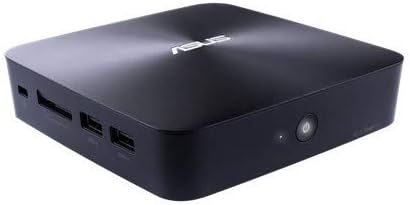
Figure 3: Angled front view of the ASUS UN62-E093X Mini PC, highlighting front-accessible ports.
- Power Connection: Connect the power adapter to the DC-in port on the Mini PC, then plug the power cord into a wall outlet.
- Powering On: Press the power button located on the front of the Mini PC. The power indicator light will illuminate.
- Initial Setup: Follow the on-screen instructions to complete the operating system setup, including language selection, network configuration, and user account creation.
3. Operating
This section covers basic operation of your Mini PC.
- Power On/Off: Press the power button to turn the device on. To turn off, use the operating system's shutdown function. A short press of the power button can put the device to sleep.
- Restart: Use the operating system's restart function to reboot the Mini PC.
- Network Connectivity:
- Wired: Connect an Ethernet cable to the LAN port for a stable wired connection.
- Wireless: The Mini PC supports Wi-Fi. Access network settings in your operating system to connect to a wireless network.
- USB Ports: Utilize the USB ports for connecting external devices such as USB drives, external hard drives, and other peripherals.
- Video Output: The Mini PC supports dual display output via HDMI and DisplayPort, allowing for extended desktop or mirrored display configurations.
- Audio: Connect headphones or speakers to the audio jack for sound output.
4. Maintenance
Proper maintenance ensures the longevity and optimal performance of your Mini PC.
- Cleaning: Use a soft, dry cloth to clean the exterior of the Mini PC. For dust accumulation in vents, use compressed air. Do not use liquid cleaners directly on the device.
- Software Updates: Regularly update your operating system and drivers to ensure security and performance improvements. Visit the official ASUS support website for the latest drivers.
- Ventilation: Ensure the Mini PC is placed in a well-ventilated area. Do not block the ventilation openings to prevent overheating.
- Storage: When not in use for extended periods, store the Mini PC in a cool, dry place, away from direct sunlight and extreme temperatures.
5. Troubleshooting
This section provides solutions to common issues you might encounter.
- No Power:
- Check if the power adapter is securely connected to both the Mini PC and the wall outlet.
- Ensure the wall outlet is functional by testing it with another device.
- Try a different power outlet.
- No Display:
- Verify that the monitor is powered on and the video cable (HDMI/DisplayPort) is securely connected to both the Mini PC and the monitor.
- Ensure the correct input source is selected on your monitor.
- Try connecting to a different monitor or using a different video cable.
- No Network Connection:
- Wired: Check if the Ethernet cable is properly connected and the router/modem is working.
- Wireless: Ensure Wi-Fi is enabled in your operating system and you are connected to the correct network with the correct password. Restart your router/modem.
- System Freezes/Unresponsive:
- Press and hold the power button for 5-10 seconds to force a shutdown, then restart the Mini PC.
- If the issue persists, consider checking for software conflicts or performing a system restore.
6. Specifications
Key technical specifications for the ASUS UN62-E093X Mini PC:
| Feature | Specification |
|---|---|
| Brand | Asus |
| Model | UN62-E093X |
| Processor Brand | Intel |
| RAM Memory Installed Size | 4 GB |
| RAM Memory Maximum Size | 4 GB |
| RAM Memory Technology | DDR4 |
| Hard Disk Size | 4 GB |
| Graphics Description | Integrated |
| Display Resolution | 1920 x 1080 pixel |
| Form Factor | All-in-One |
| Product Dimensions | 5.84 x 32.77 x 21.08 cm; 1.22 kg |
| ASIN | B00SQG1OS2 |
| Date First Available | March 22 2015 |
7. Warranty and Support
Your ASUS UN62-E093X Mini PC comes with a standard manufacturer's warranty. Please refer to the warranty card included with your product for specific terms and conditions, including warranty period and coverage details.
For technical support, driver downloads, FAQs, and further assistance, please visit the official ASUS support website or contact ASUS customer service. You can find more information and resources at the ASUS Brand Store on Amazon.


