
Introduction
The Panda Wireless Express Router (PWRU01) is a portable 2.4GHz 802.11n device designed for versatile networking applications. It can function as a WiFi Hotspot, a Wireless Repeater, or a Client, and supports Airplay for audio streaming. This manual provides instructions for setting up and operating your PWRU01 router.
Package Contents
Verify that all items listed below are included in your package:
- Panda Wireless Express Router (PWRU01)
- USB Power AC Adapter
- USB Cable
- Quick Start Manual (this document serves as the detailed manual)
Note: Audio cables and Ethernet cables are not included.

Image: The Panda Wireless Express Router (PWRU01) and its included accessories: USB cable and USB power adapter, shown alongside the product packaging.
Key Features
- Wireless Standard: Supports IEEE 802.11 b/g/n standards with a maximum data rate of 150 Mbps.
- Multiple Operating Modes: Functions as a Wireless Router (default), Wireless Repeater, and Client.
- Airplay Support: Compatible with iPhone/iPad/iTunes for wireless music streaming to a stereo system (in Wireless Router Mode).
- User-Friendly Interface: Configuration via a web-based interface.
- Security: Supports WPA-PSK and WPA2-PSK (TKIP+AES) security features.
- File Sharing: Allows backup and sharing of photos and videos from mobile devices to an attached USB flash drive or hard disk.
Setup Guide
Follow these steps for initial setup of your Panda Wireless Express Router:
- Power On: Connect the USB cable to the router's DC-IN port and the other end to the USB Power AC Adapter. Plug the adapter into a power outlet. The router will power on.
- Initial Connection:
- Wireless: On your computer or mobile device, search for available Wi-Fi networks. Connect to the network named "Panda!_XXXXXX" (where XXXXXX is a unique identifier). The default password is usually printed on the device or in the quick start guide.
- Wired: Alternatively, connect your computer to the router's LAN port using an Ethernet cable.
- Access Web Interface: Open a web browser and enter the router's default IP address (e.g., 192.168.1.1 or 192.168.0.1). Refer to the quick start manual for the exact default IP and login credentials.
- Configure Settings: Once logged in, you can change the Wi-Fi network name (SSID), password, and select your desired operating mode.

Image: Front view of the Panda Wireless Express Router (PWRU01), showing its compact design and indicator lights.

Image: Rear view of the Panda Wireless Express Router (PWRU01), displaying the WAN, LAN, USB, Audio Out, Audio In, and DC-IN ports.
Operating Modes
The Panda Wireless Express Router supports several operating modes to suit various networking needs:
1. Wireless Router Mode (Default)
In this mode, the router creates its own wireless network. Connect an Ethernet cable from your DSL/Cable modem to the router's WAN port. Your devices can then connect wirelessly to the router's Wi-Fi network to access the internet.
2. Wireless Repeater Mode
Use this mode to extend the range of an existing Wi-Fi network. Access the router's web interface and switch it to Wi-Fi Repeater mode. The router will connect to an existing Wi-Fi network and re-broadcast the signal, expanding coverage. This is useful in hotels or large homes to share a single wireless link.
3. Client Mode
In Client Mode, the router connects to an existing Wi-Fi network and provides internet access to a wired device. Connect your computer or other wired device to the router's LAN port using an Ethernet cable. The router acts as a wireless adapter for the wired device.
4. Airplay Mode
This mode is available when the router is operating in Wireless Router Mode. It allows you to stream music wirelessly from your iPhone, iPad, or iTunes to any stereo system. Simply connect your stereo system to the router using a 3.5mm audio cable (not included). Then, select the router as an Airplay output device from your Apple device.

Image: An iPhone screen displaying Wi-Fi settings, with the "Panda!_6717F8" network selected and connected.

Image: An iPhone music player interface showing the Airplay output option, with "Panda!_6717F8" selected for audio playback.
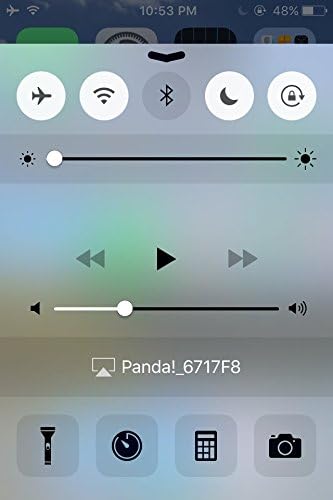
Image: An iPhone Control Center screen, illustrating the Airplay icon and the "Panda!_6717F8" device listed as an available audio output.
5. Wireless File Sharing
The router allows you to connect a USB flash drive or external hard disk to its USB port. You can then back up photos and videos from your iPhone, Android phones, iPad, or other mobile devices to this attached storage. The stored files can also be shared with other smart devices and computers connected to the router's network.
Specifications
| Feature | Detail |
|---|---|
| Brand | Panda Wireless |
| Model Name | PWRU01 |
| Wireless Communication Standard | 802.11bgn |
| Frequency Band Class | Single-Band (2.4GHz) |
| Connectivity Technology | Ethernet, USB, Wi-Fi |
| Special Feature | WPS |
| Compatible Devices | Laptop, Smartphone |
| Recommended Uses | Home, Portable |
| Operating System | Android (compatible) |
| Item Weight | 1.1 pounds |
| Package Dimensions | 3.43 x 3.39 x 3.03 inches |
Troubleshooting
If you encounter issues with your Panda Wireless Express Router, consider the following steps:
- No Power: Ensure the USB cable is securely connected to both the router and the power adapter, and the adapter is plugged into a working power outlet.
- Cannot Connect to Wi-Fi:
- Verify the Wi-Fi network name (SSID) and password are correct.
- Restart the router by unplugging and re-plugging the power.
- Ensure your device's Wi-Fi is enabled.
- No Internet Access:
- In Router Mode, check the Ethernet cable connection from your modem to the router's WAN port.
- Verify your modem has an active internet connection.
- In Repeater Mode, ensure the router is successfully connected to the main Wi-Fi network.
- Slow Performance:
- Reduce the distance between your device and the router.
- Minimize interference from other electronic devices.
- Ensure the router's firmware is up to date (check the Panda Wireless website).
- Airplay Issues:
- Confirm the router is in Wireless Router Mode.
- Ensure the 3.5mm audio cable is correctly connected between the router and your stereo system.
- Verify your Apple device is connected to the router's Wi-Fi network.
Maintenance
To ensure optimal performance and longevity of your Panda Wireless Express Router:
- Keep Clean: Regularly wipe the device with a soft, dry cloth to remove dust. Avoid using liquid cleaners.
- Ventilation: Ensure the router is placed in a well-ventilated area to prevent overheating. Do not cover ventilation openings.
- Firmware Updates: Periodically check the official Panda Wireless website for firmware updates. Keeping the firmware updated can improve performance, add features, and enhance security.
- Safe Environment: Avoid exposing the router to extreme temperatures, humidity, or direct sunlight.
Warranty and Technical Support
The Panda Wireless Express Router (PWRU01) is backed by a 1-year limited warranty. For detailed warranty information, please contact Panda Wireless directly.
For technical assistance, support, or warranty inquiries, please contact Panda Wireless Technical Support or your seller. They aim to respond to inquiries within 24 hours. The latest manual and firmware updates are also available on the official Panda Wireless website.
