Introduction
The Satechi Bluetooth Media Button provides convenient wireless control over your music and media playback. Designed for ease of use in various environments, it allows you to manage audio functions without directly interacting with your device, enhancing safety and convenience.

Figure 1: Satechi Bluetooth Media Button, a compact circular device with media control buttons.
What's Included
Your Satechi Media Button package contains the following items:
- Satechi Media Button
- Universal Mount (for steering wheel or handlebars)
- Keychain
- 3M Adhesive Sticker
- Pre-installed CR2016 Battery
- Quick Start Guide

Figure 2: All components included in the Satechi Media Button package, laid out on a surface.
Specifications
| Product Dimensions | 1.3 x 1.3 x 0.24 inches |
| Item Weight | 0.494 ounces |
| Model Number | ST-BMB |
| Battery Type | 1 x CR2016 (included) |
| Connectivity | Bluetooth 3.0 |
| Wireless Range | Up to 40ft (12m) |
| Material | Aluminum" or "ABS Plastic |
Setup: Bluetooth Pairing
Follow these steps to pair your Satechi Media Button with your device:
- Ensure the Media Button has a fresh CR2016 battery installed.
- On the back of the Media Button, locate the small pairing button.
- Press and hold the pairing button for 3 seconds until the blue LED indicator on the front of the button begins to flash. This indicates it is in pairing mode.
- On your smartphone, tablet, or computer, navigate to the Bluetooth settings.
- Look for "Satechi Media Button" or "POP Multimedia" in the list of available devices.
- Select the Media Button to connect. The LED will stop flashing once successfully paired.

Figure 3: Visual guide showing the pairing button location, the blue LED indicator, and the device's Bluetooth settings screen.
Operating Instructions
The Satechi Media Button features an intuitive layout for easy control of your media playback:

Figure 4: Diagram illustrating the button layout and corresponding functions: Volume Up (+), Next Track (>), Play/Pause (||), Volume Down (-), Previous Track (<).
- Play/Pause: Press the center button (||) to play or pause your current media.
- Next Track: Press the right arrow button (>) to skip to the next track.
- Previous Track: Press the left arrow button (<) to go back to the previous track.
- Volume Up: Press the top button (+) to increase the volume.
- Volume Down: Press the bottom button (-) to decrease the volume.
The tactile design allows for operation without needing to look at the device, promoting distraction-free use.

Figure 5: A hand pressing the Satechi Media Button, demonstrating its easy, distraction-free operation within a vehicle's interior.

Figure 6: The Satechi Media Button held in a hand, positioned next to a smartphone screen showing a music playback application, illustrating its function for music control.
Mounting Options
The Media Button offers versatile mounting options to suit your needs:
- Steering Wheel/Handlebar Mount: Use the included universal clip to attach the button securely to your car's steering wheel or bike handlebars.
- Adhesive Mount: For flat surfaces, utilize the provided 3M adhesive sticker to place the button on your dashboard, desk, or any other convenient location.
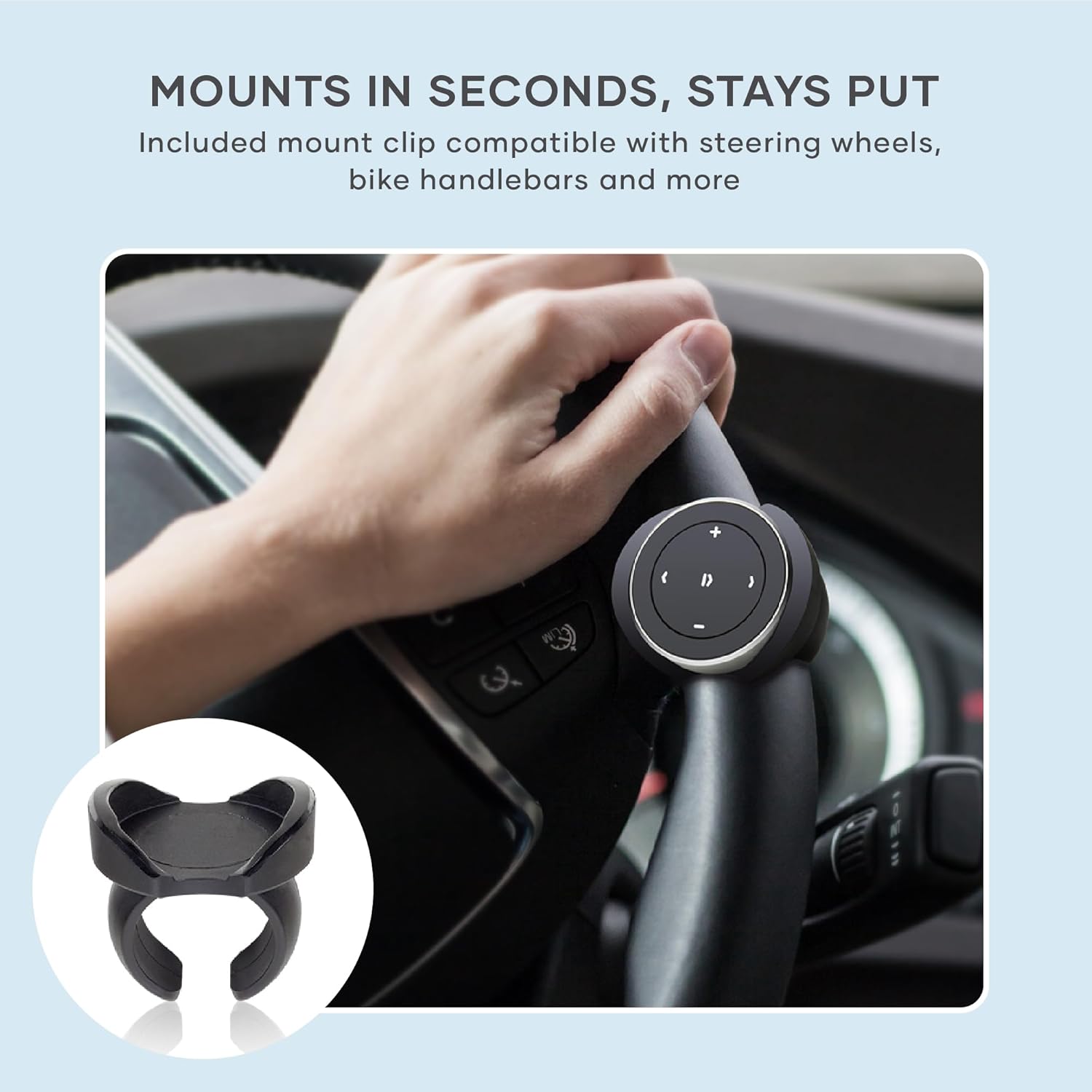
Figure 7: The Satechi Media Button attached to a car's steering wheel using the included mount, with a close-up of the mount itself.

Figure 8: A hand gripping a car steering wheel with the Satechi Media Button securely mounted, ready for use.
The compact design allows for portability and use in various scenarios, including in a car, on a motorbike, on a bike, or during workouts.

Figure 9: A collage of images demonstrating the versatility of the Satechi Media Button across various activities, including driving, motorbiking, cycling, and exercising.
Battery Information
The Satechi Media Button is powered by a replaceable CR2016 coin cell battery. It is designed for long-term use, with an estimated battery life of up to two years under normal usage conditions. The auto-sleep functionality helps conserve power when the device is not in use.
To replace the battery, carefully open the back cover of the Media Button using a small screwdriver (like those used for eyeglasses). Insert a new CR2016 battery, ensuring correct polarity, and then securely close the cover.

Figure 10: The Satechi Media Button displayed alongside a CR2016 coin cell battery, highlighting its long-lasting, replaceable power source.
Video 1: A demonstration of the Satechi Media Button's functionality, including media control and pairing. The video also shows how to open the device to replace the battery using a small screwdriver.
Compatibility
The Satechi Media Button is broadly compatible with a range of operating systems, requiring no additional software:
- iOS devices
- Android devices (Android OS 4.4.4 or later)
- macOS devices
- iPadOS devices
Note: Not recommended for Mac devices released before 2012 due to older Bluetooth versions.

Figure 11: The Satechi Media Button displayed with icons representing its compatibility with iOS, Android, macOS, and iPadOS operating systems.
Troubleshooting
If you encounter issues with your Satechi Media Button, try the following solutions:
- Device Not Connecting:
- Ensure the Media Button is in pairing mode (blue LED flashing).
- Check that Bluetooth is enabled on your device.
- Move the Media Button closer to your device (within 40ft/12m).
- Forget the device in your Bluetooth settings and attempt to re-pair.
- Restart both the Media Button (by removing and reinserting the battery) and your device.
- Buttons Not Responding:
- The Media Button enters an auto-sleep mode after about 10 minutes of inactivity to conserve battery. The first press after sleep will wake it up but may not register the command. Press again to execute the command.
- Check the battery level and replace if necessary.
- Ensure the Media Button is still paired and connected to your device.
- Volume Control Issues (especially with CarPlay):
- The Media Button controls the iPhone/device volume, not necessarily the car's head unit volume directly, especially with systems like CarPlay. Use your car's native volume controls for the head unit.
Maintenance
To ensure the longevity and optimal performance of your Satechi Media Button:
- Keep the device dry and away from extreme temperatures.
- Clean with a soft, dry cloth. Avoid using harsh chemicals or abrasive materials.
- Replace the CR2016 battery as needed (approximately every two years).
Warranty and Support
The Satechi Media Button is backed by a 2-year limited warranty against defects in materials and workmanship under normal use.
For dedicated customer service and support, please visit the official Satechi website or contact their support team directly. Refer to the Quick Start Guide included in your package for specific contact information.
For more information, you can visit the Satechi Store on Amazon.