
Introduction
This manual provides essential information for the proper use and care of your DYMO 30327 LabelWriter Self-Adhesive File Folder Labels. These labels are designed for clear presentation and ease of use with compatible DYMO LabelWriter printers. Please read this manual thoroughly to ensure optimal performance and longevity of your labels.
Setup
The DYMO 30327 labels come in rolls, ready for use with your DYMO LabelWriter printer.
Unpacking and Inspection
- Carefully remove the label rolls from their packaging.
- Inspect the labels for any visible damage or defects. If any issues are found, contact DYMO support.
- Ensure you have the correct label size (9/16" x 3 7/16" or 14mm x 87mm) for your intended application.
Loading Labels into Your LabelWriter
Refer to your specific DYMO LabelWriter printer's user manual for detailed instructions on how to load label rolls. Generally, the process involves:
- Open the label compartment of your LabelWriter printer.
- Place the label roll onto the spindle, ensuring the labels feed from the bottom of the roll.
- Feed the leading edge of the label roll into the printer's label slot until it catches and aligns automatically.
- Close the label compartment.
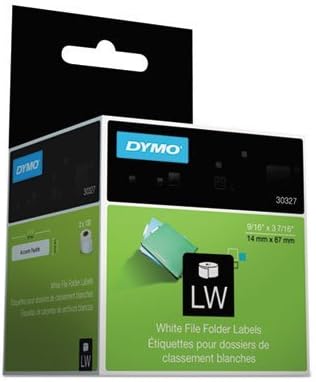
Image showing the packaging for DYMO 30327 LabelWriter Self-Adhesive File Folder Labels, highlighting the product name, dimensions (9/16" x 3 7/16" or 14mm x 87mm), and the DYMO brand logo. This packaging contains the label rolls ready for use.
Operating
Once the labels are loaded into your DYMO LabelWriter printer, you can begin printing.
Printing Labels
- Ensure your DYMO LabelWriter printer is connected to your computer and the appropriate software (e.g., DYMO Connect or DYMO Label Software) is installed and running.
- Select the correct label type and size within the software.
- Design your label with the desired text, graphics, or barcodes. These labels are designed to present copy clearly.
- Initiate the print command from the software. The labels are easy to use and should feed smoothly through the printer.
- Once printed, peel the self-adhesive label from its backing and apply it to your file folder or desired surface.
Maintenance
Proper storage and handling will ensure the longevity and adhesive quality of your DYMO labels.
Storage
- Store unused label rolls in their original packaging or a sealed container to protect them from dust, moisture, and direct sunlight.
- Keep labels in a cool, dry environment, away from extreme temperatures or humidity, which can affect adhesive properties.
- Avoid storing labels near heat sources or in areas with high chemical fumes.
Handling
- Handle label rolls by the edges to avoid transferring oils or dirt from your hands to the adhesive surface.
- Do not bend or crease the labels unnecessarily before printing.
Troubleshooting
While these labels are designed for reliable performance, issues can sometimes arise. Most label-related issues are often linked to the printer or software settings.
Common Issues and Solutions
- Labels Not Feeding Correctly:
- Ensure the label roll is loaded correctly into the printer, with the leading edge properly aligned.
- Check for any obstructions in the label path within the printer.
- Verify that the label roll is not jammed or tangled.
- Poor Print Quality:
- This is typically a printer issue. Refer to your DYMO LabelWriter printer's manual for troubleshooting print quality.
- Ensure the labels are clean and free from dust or debris before printing.
- Labels Not Sticking:
- Ensure the application surface is clean, dry, and smooth.
- Verify that the labels have been stored correctly (see Maintenance section) to preserve adhesive quality.
- Apply firm, even pressure when adhering the label to the surface.
For further troubleshooting, consult the user manual for your specific DYMO LabelWriter printer or visit the official DYMO support website.
Specifications
| Feature | Detail |
|---|---|
| Model Number | 30327 |
| Brand | DYMO |
| Label Dimensions | 9/16" x 3 7/16" (14mm x 87mm) |
| Label Color | White (for black text) |
| Label Shape | Rectangular |
| Material Type | Paper |
| Labels Per Roll | 130 |
| Rolls Per Pack | 2 (Sold as 10 packs, totaling 20 rolls) |
| Adhesive Type | Self-Adhesive |
Warranty and Support
For information regarding product warranty, returns, or technical support for your DYMO 30327 LabelWriter Self-Adhesive File Folder Labels, please refer to the official DYMO website or the documentation included with your DYMO LabelWriter printer.
You can typically find support resources, FAQs, and contact information on the DYMO Support Page.


