
SteelSeries 69026
SteelSeries Stratus XL Wireless Gaming Controller User Manual
Model: 69026 | Brand: SteelSeries
Product Overview
The SteelSeries Stratus XL Wireless Gaming Controller is a full-sized, premium wireless controller designed for iOS devices and Mac. It offers a console-style gaming experience with broad compatibility across hundreds of iOS games. Key features include pressure-sensitive controls, precise dual analog triggers, LED notifications, and an extended battery life of over 40 hours.

Image: Front view of the SteelSeries Stratus XL Wireless Gaming Controller, showcasing its ergonomic design and button layout.
Key Features
- Pressure sensitive buttons for precise gaming control.
- Console-style left and right analog triggers.
- Bluetooth 2.1 + EDR for reliable wireless connectivity.
- Extended battery life of 40+ hours with 2 AA batteries (included).
- 4 LEDs to display player status during multiplayer gameplay.
- Dedicated On/Off Slider Switch to enhance battery life and a Dedicated Pairing Button.
- Console-like Form Factor: Comfort and ergonomics of a full-sized controller with standard console controls in familiar locations. Color-coded action buttons for easy identification.
- Multi-Device Compatibility: Requires iOS 7 or later on iPhone 6 / 6 Plus, iPhone 5 / 5S / 5C, iPad mini / mini with Retina Display, iPad Air, iPad 4th Gen, iPod Touch 5th Gen, Apple TV, and MAC with OSX.
Setup Guide
1. Unboxing and Initial Inspection
Carefully remove the SteelSeries Stratus XL controller from its packaging. Inspect the controller for any visible damage or missing components. Ensure all listed contents are present before proceeding.

Image: Angled view of the controller, useful for initial inspection.
2. Battery Installation
The controller requires two AA batteries, which are included. Locate the battery compartment on the back of the controller. Open the compartment cover, insert the AA batteries according to the polarity indicators (+/-), and then close the cover securely.

Image: Rear view of the controller with the battery compartment open, showing where to insert the AA batteries.
3. Pairing with Devices
- Ensure your iOS device or Mac has Bluetooth enabled.
- Turn on the SteelSeries Stratus XL controller using the On/Off Slider Switch.
- Press and hold the dedicated Pairing Button on the controller until the LED indicators begin to flash, indicating it is in pairing mode.
- On your device, navigate to the Bluetooth settings and select "SteelSeries Stratus XL" from the list of available devices.
- Once connected, the LED indicators on the controller will stop flashing and remain solid, or indicate player status.

Image: Top-angled view of the controller, highlighting the central buttons including the pairing button.
Operating Instructions
1. Power On/Off
To power on the controller, slide the On/Off switch to the 'On' position. To power off, slide the switch to the 'Off' position. This helps conserve battery life when the controller is not in use.
2. Button Layout and Functions
The Stratus XL features a standard console controller layout:
- D-Pad (Directional Pad): Located on the left, used for directional input.
- Left and Right Analog Sticks: For precise 360-degree movement and camera control.
- Action Buttons (A, B, X, Y): Color-coded buttons on the right for in-game actions.
- Left and Right Shoulder Buttons (L1, R1): Located on the top front edge.
- Left and Right Analog Triggers (L2, R2): Pressure-sensitive triggers on the underside of the front edge.
- Pause Button: Central button for pausing games or accessing menus.
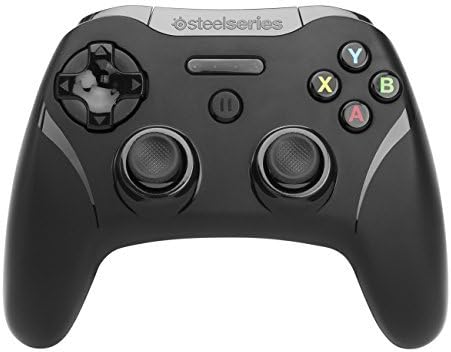
Image: Detailed front view of the controller, illustrating the placement of all buttons and analog sticks.
3. In-Game Control
Once paired, the controller will automatically be recognized by compatible games. Game-specific controls will vary, but the controller provides a familiar and intuitive input method for a wide range of titles. Refer to individual game settings for customization options.
Maintenance
Cleaning
To clean the controller, use a soft, dry cloth. For stubborn dirt, slightly dampen the cloth with water or a mild, non-abrasive cleaner. Avoid using harsh chemicals or abrasive materials, as these can damage the controller's finish and internal components. Do not submerge the controller in water.
Storage
Store the controller in a cool, dry place away from direct sunlight and extreme temperatures. If storing for an extended period, it is recommended to remove the AA batteries to prevent potential leakage and damage to the battery compartment.
Troubleshooting
Common Issues and Solutions
- Controller not pairing:
- Ensure the controller is powered on and in pairing mode (LEDs flashing).
- Verify Bluetooth is enabled on your device.
- Try restarting both the controller and your device.
- Check if the batteries are properly installed and have sufficient charge.
- Buttons unresponsive or input lag:
- Ensure the controller is fully charged or has fresh batteries.
- Move closer to your device to reduce potential interference.
- Disconnect and re-pair the controller.
- Check for any firmware updates for the controller (refer to SteelSeries support website).
- Short battery life:
- Ensure you are using high-quality AA batteries.
- Always turn off the controller using the On/Off switch when not in use.
Specifications
| Attribute | Value |
|---|---|
| Brand | SteelSeries |
| Model Name | reg |
| Item Model Number | 69026 |
| Hardware Platform | PC |
| Operating System | iOS, iOS 7 |
| Item Weight | 9.4 ounces |
| Product Dimensions (LxWxH) | 4.33 x 5.9 x 2.45 inches |
| Color | blue |
| Power Source | Battery Powered |
| Batteries | 2 AA batteries required (included) |
| Connectivity Technology | Bluetooth |
| Controller Type | Joystick |
| Compatible Devices | iOS, Mac |
Warranty and Support
This product comes with a manufacturer's warranty. For detailed information regarding warranty terms, coverage, and duration, please refer to the documentation included with your purchase or visit the official SteelSeries website.
For further assistance, technical support, or to download the official user guide in PDF format, please visit the SteelSeries support page or refer to the following link:
Related documents69026

Ask a question about this manual
Ask about setup, troubleshooting, compatibility, parts, safety, or missing instructions. Manuals+ will review the question and use this page’s manual context to help answer it.