
Ewin EW-RB05
Ewin Mini Bluetooth Keyboard EW-RB05 Instruction Manual
Model: EW-RB05 | Brand: Ewin
1. Introduction
Thank you for purchasing the Ewin Mini Bluetooth Keyboard EW-RB05. This compact and versatile keyboard features a Japanese JIS layout, an integrated touchpad, and a backlight, making it ideal for various devices including PCs, smart TVs, and gaming consoles. This manual provides detailed instructions for setup, operation, and maintenance to ensure optimal performance.
2. Safety Information
- Keep the device away from water and high humidity.
- Avoid exposing the device to extreme temperatures.
- Do not attempt to disassemble or repair the device yourself. Contact customer support for assistance.
- Use only the provided charging cable to prevent damage.
- Keep out of reach of children.
3. Package Contents
Verify that all items are present in the package:
- Ewin Mini Bluetooth Keyboard EW-RB05
- USB Dongle (stored in the battery compartment of the keyboard)
- USB Charging Cable
- Instruction Manual (Japanese)
- One-year Warranty Card

Image: Package contents showing the keyboard, USB dongle, USB charging cable, and instruction manual.
4. Product Overview
The Ewin Mini Bluetooth Keyboard EW-RB05 combines a full QWERTY keyboard with a multi-touch touchpad, offering a compact and ergonomic design for easy handling. It features a Japanese JIS layout for efficient input.

Image: Ewin Mini Bluetooth Keyboard featuring JIS layout and an integrated touchpad, demonstrated in a usage scenario with a tablet.

Image: A detailed view of the Ewin Mini Bluetooth Keyboard, emphasizing its integrated touchpad and compact keyboard layout.
5. Setup
5.1. Charging the Keyboard
Before first use, fully charge the keyboard. The device uses a built-in lithium battery.
- Connect the small end of the included USB charging cable to the charging port on the keyboard.
- Connect the larger end of the USB cable to a USB power adapter (not included) or a computer's USB port.
- The charging indicator light will illuminate. A full charge typically takes approximately 2 hours.
- Once fully charged, the indicator light will change or turn off. Disconnect the charging cable.
A full charge provides up to 20 days of continuous use and 10 months of standby time.

Image: Illustration of the keyboard's charging process and internal high-performance IC, emphasizing durability.
5.2. Connecting via Bluetooth
To connect the keyboard via Bluetooth:
- Turn on the keyboard by sliding the power switch to the 'ON' position.
- Press and hold the Fn key and the Bluetooth icon key (usually F1 or a dedicated Bluetooth key) simultaneously until the Bluetooth indicator light starts blinking, indicating pairing mode.
- On your device (PC, tablet, smartphone), go to Bluetooth settings and enable Bluetooth.
- Search for available devices. The keyboard should appear as "Ewin Keyboard" or similar.
- Select the keyboard to pair. If prompted, enter the displayed code on the keyboard and press Enter.
- Once paired, the Bluetooth indicator light will stop blinking and remain solid or turn off.
5.3. Connecting via 2.4GHz Wireless (USB Dongle)
For devices without Bluetooth or for a more stable connection:
- Locate the USB dongle, which is typically stored in the battery compartment of the keyboard.
- Insert the USB dongle into an available USB port on your device (PC, Smart TV, etc.).
- Turn on the keyboard by sliding the power switch to the 'ON' position.
- The keyboard should automatically connect to the USB dongle. No additional pairing is usually required.

Image: Connection diagram showing both Bluetooth and 2.4GHz wireless modes, compatible with computers, HDTVs, car TVs, projectors, and smart TV boxes.
6. Operating Instructions
6.1. Basic Keyboard Functions
- Typing: Use the QWERTY keys for text input. The Japanese JIS layout supports kana input.
- Function Keys: Keys F1-F8 often have secondary functions (e.g., media control, volume). Press the Fn key simultaneously with the desired function key to activate its secondary function.
- Hotkeys: The keyboard includes various hotkeys for quick access to common functions. Refer to the key labels for specific actions.
6.2. Touchpad Operation
The integrated touchpad allows for precise cursor control and supports multi-touch gestures.
- Single Finger Tap: Left-click.
- Two Finger Tap: Right-click.
- Single Finger Drag: Move the cursor.
- Two Finger Scroll: Scroll up or down pages.
- Left/Right Click Buttons: Dedicated buttons are provided for left and right clicks, located near the touchpad.
6.3. Backlight and LED Light Control
The keyboard features a backlight for use in dark environments and an emergency LED light.
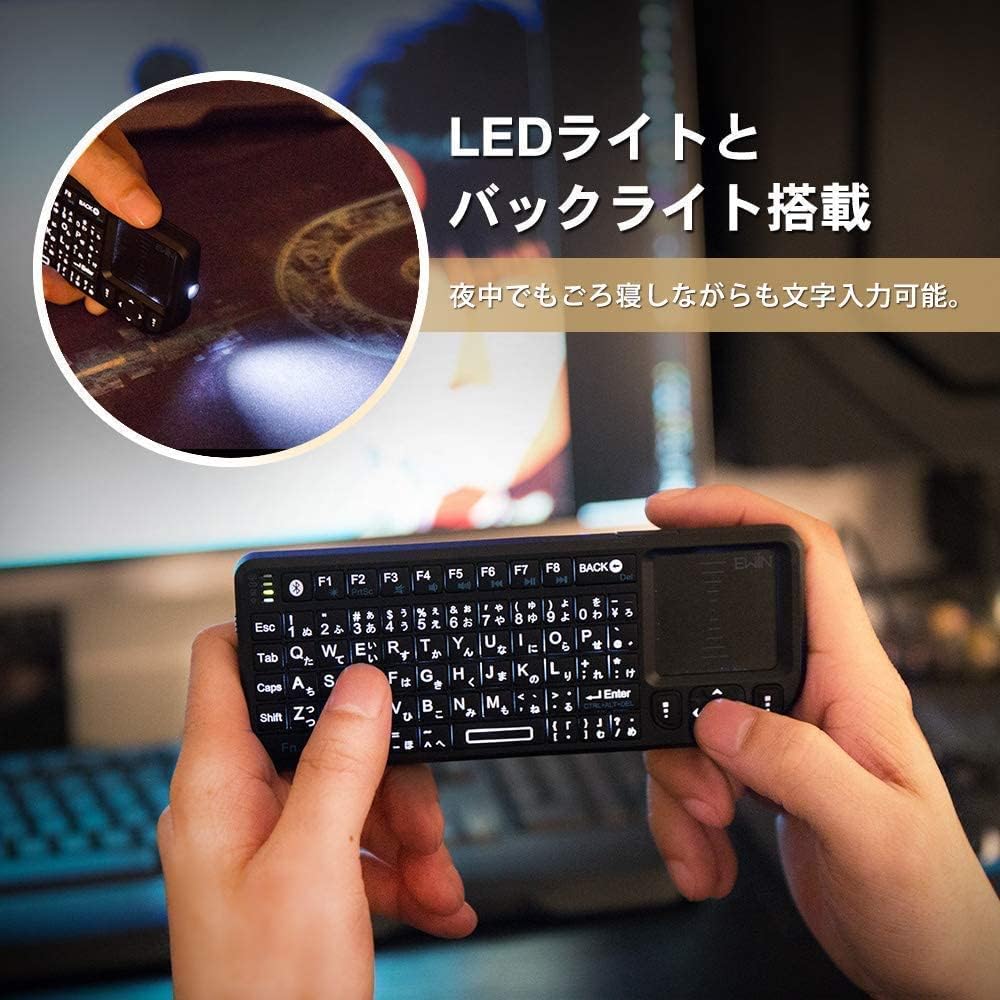
Image: The keyboard with its backlight active, and a demonstration of the emergency LED light.
- Backlight On/Off: Press the Fn key and the light bulb icon key (or similar) to toggle the backlight.
- Adjust Backlight Brightness/Color: Some models may allow adjusting brightness or color by pressing Fn + specific keys (refer to keyboard markings).
- Emergency LED Light: A dedicated button or key combination activates the small LED light on the keyboard for illumination.
6.4. Compatibility
The Ewin Mini Bluetooth Keyboard is compatible with a wide range of operating systems and devices:
- PC Systems: Windows (11 / 10 / 8.1 / 8 / 7 / 2000 / XP SP2 or higher), macOS (MacBook / iMac / Mac Mini), Linux (Ubuntu / Debian / Fedora), Chrome OS.
- Smartphones & Tablets: iOS / iPadOS (iPhone / iPad - some shortcut keys may differ), Android (Smartphones / Tablets - supports text input and touchpad operation. For Android 12, use the included USB receiver with a Type-C conversion adapter).
- Smart TVs & Media Devices: Android TV OS (Sony / TCL / Hisense Smart TVs), Fire OS (Amazon Fire TV Stick / Fire TV Cube), Apple TV (tvOS), WebOS (LG Smart TV - partial support), Google TV (NVIDIA Shield / Google Chromecast), Tizen OS (Samsung Smart TV - partial support), Set-top boxes (STB) / IPTV boxes.
- Gaming Consoles: PlayStation (PS4 / PS5 - for text input and browsing), Xbox (Xbox Series X / Xbox One), Nintendo Switch (for text input and browsing).
- Projectors & Other Devices: Projectors, STB / IPTV boxes / DVR / Media players, Car entertainment systems.

Image: User operating a smart TV with the Ewin Mini Bluetooth Keyboard, highlighting its versatility for home entertainment.
7. Maintenance
- Cleaning: Use a soft, dry cloth to clean the keyboard surface. For stubborn dirt, slightly dampen the cloth with water or a mild cleaning solution. Do not use harsh chemicals or abrasive materials.
- Storage: Store the keyboard in a cool, dry place away from direct sunlight and extreme temperatures.
- Battery Care: If not used for an extended period, charge the keyboard at least once every three months to maintain battery health.
8. Troubleshooting
- Keyboard not responding:
- Ensure the keyboard is powered on.
- Check battery level and charge if necessary.
- For Bluetooth connection, ensure it's paired correctly and within range. Try re-pairing.
- For 2.4GHz connection, ensure the USB dongle is securely inserted and try a different USB port.
- Touchpad not working:
- Ensure the touchpad is not accidentally disabled (some keyboards have a function key to toggle the touchpad).
- Clean the touchpad surface.
- Backlight not working:
- Ensure the backlight function is activated (Fn + backlight key).
- Check battery level. Low battery might disable the backlight.
- Connection unstable:
- Ensure the keyboard is within the 10-meter operating range.
- Minimize interference from other wireless devices.
- Try reconnecting the keyboard.
9. Specifications
| Feature | Specification |
|---|---|
| Product Model Number | EW-RB05 |
| Product Dimensions | 18 cm (Length) x 3 cm (Width) x 8 cm (Height) |
| Item Weight | 90 grams |
| Material | ABS, Synthetic Rubber |
| Color | Black |
| Finish | Plastic |
| Connection Technology | Bluetooth, 2.4GHz Wireless (via USB dongle) |
| Wireless Connectivity | Bluetooth |
| Compatible OS | Windows, macOS, Linux, Chrome OS, iOS, Android, tvOS, Fire OS, WebOS, Tizen OS |
| Compatible Devices | Amazon Fire TV, PS3, PS4, PS4 Pro, Raspberry PI, Google Smart TV, IPTV, Laptops, Xbox360, HTPC, TV BOX, Android TV, Windows tablets, Windows PCs, iPhones, iPod Touch, iPads, Sony Xperia, Asus Zenpad, Lenovo Tab |
| Other Features | Touchpad, Backlight, Hotkeys, Media Keys, Rechargeable, Lightweight |
| Supported Backlight Color | Single Color |
| Average Charging Time | 2 Hours |
| Battery Included | Yes |
10. Warranty and Support
The Ewin Mini Bluetooth Keyboard EW-RB05 comes with a one-year warranty from the date of purchase. If you encounter any issues or have questions regarding the product, please contact Ewin customer support.
For prompt assistance, please refer to the contact information provided on the warranty card or the official Ewin website.
Ask a question about this manual
Ask about setup, troubleshooting, compatibility, parts, safety, or missing instructions. Manuals+ will review the question and use this page’s manual context to help answer it.