
Introduction
This manual provides instructions for the LogicKeyboard XL Print Bluetooth Mini Keyboard. This keyboard is designed with large, high-contrast yellow keys and black lettering to enhance visibility and ease of use, particularly for individuals with visual impairments. It offers wireless connectivity via Bluetooth, making it compatible with various devices including Apple iPad, iPhone, iPod, and Android devices.
Safety Information
- Keep the keyboard away from liquids and excessive moisture.
- Avoid exposing the keyboard to extreme temperatures.
- Do not attempt to disassemble or repair the keyboard yourself. Refer to qualified service personnel.
- Dispose of batteries according to local regulations.
Product Overview
The LogicKeyboard XL Print features a compact design with clearly visible keys. Below are images illustrating the keyboard's layout and features.

Figure 1: Top-down view of the LogicKeyboard XL Print Bluetooth Mini Keyboard, highlighting the large yellow keys with black characters.

Figure 2: Angled view of the keyboard, showing its slim profile and key arrangement.
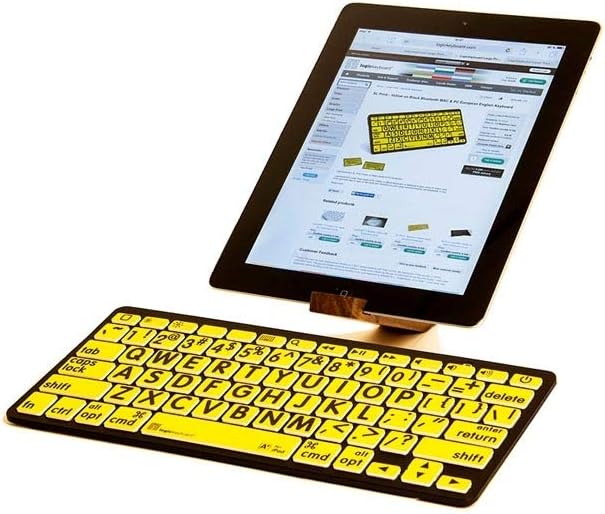
Figure 3: The keyboard in use with an Apple iPad, demonstrating its compact size and compatibility.

Figure 4: Side profile of the keyboard, illustrating its ergonomic design for comfortable typing.
Setup
1. Powering On the Keyboard
Locate the power switch, typically on the side or back of the keyboard. Slide the switch to the "ON" position. An indicator light may illuminate briefly.
2. Bluetooth Pairing
- Ensure the keyboard is powered on.
- On your device (iPad, iPhone, iPod, or Android), navigate to the Settings menu.
- Select Bluetooth and ensure Bluetooth is enabled.
- The device will scan for available Bluetooth devices. Look for "LogicKeyboard" or a similar name in the list.
- Tap on the keyboard's name to initiate the pairing process.
- Your device may display a pairing code. Type this code on the LogicKeyboard and press Enter.
- Once paired, the device will show the keyboard as "Connected."
Note: The keyboard is designed for easy setup. If you encounter issues, ensure your device's Bluetooth is active and the keyboard has sufficient power.
Operating Instructions
Basic Typing
Once paired, the keyboard functions like a standard QWERTY keyboard. Simply open any text input application on your device and begin typing. The large print keys are designed for enhanced readability.
Special Function Keys
The top row of the keyboard includes various function keys (F-keys) that can control media playback, volume, and other system functions on compatible devices. These functions are typically accessed directly or by holding the Fn key (if present) and pressing the desired F-key. Examples of these keys include icons for brightness control (sun icons), media playback (play/pause, stop, previous, next track icons), and volume control (speaker icons).
Note: The exact functionality of these keys may vary depending on the connected device and its operating system.
Maintenance
Cleaning
To clean the keyboard, gently wipe the surface with a soft, damp, lint-free cloth. Avoid using harsh chemicals, abrasive cleaners, or excessive moisture, as these can damage the keys or internal components.
Storage
When not in use for extended periods, store the keyboard in a cool, dry place. It is recommended to turn off the keyboard to conserve battery life.
Troubleshooting
| Problem | Possible Cause | Solution |
|---|---|---|
| Keyboard does not power on. | Low or depleted batteries. | Replace the batteries with fresh ones. Ensure correct polarity. |
| Keyboard does not connect via Bluetooth. | Bluetooth is off on the device; keyboard not in pairing mode; interference. |
|
| Keys are unresponsive or typing is delayed. | Keyboard entered sleep mode; low battery; connection issue. |
|
| Specific function keys do not work. | Device incompatibility; operating system settings. |
|
Specifications
- Model Number: LKBU-LPBY-BTON-US
- Connectivity: Bluetooth, RF
- Compatible Devices: Apple iPad, iPhone, iPod, Android devices
- Keyboard Type: Wireless, Mini Keyboard
- Key Features: Large Print, High Contrast (Black on Yellow), Ergonomic
- Color: Black (keyboard body), Yellow (keys)
- Product Dimensions: 12.8 x 5.5 x 1.3 inches (32.5 x 14 x 3.3 cm)
- Weight: Approximately 11.11 ounces (315 grams)
Warranty Information
LogicKeyboard products typically come with a limited manufacturer's warranty. Please refer to the warranty card included with your purchase or visit the official LogicKeyboard website for detailed warranty terms and conditions. Keep your proof of purchase for warranty claims.
Support
For technical assistance, troubleshooting, or product inquiries, please visit the official Logickeyboard website or contact their customer support.
- Online Support: Visit www.logickeyboard.com for FAQs, drivers, and support resources.
- Contact: Refer to the website for contact information, including email and phone support.


