
1. Product Overview
The COMTEC HDR-021GH is a compact, high-performance drive recorder designed for reliable in-car video recording. Manufactured in Japan, this device features GPS for location and speed data, a G-sensor for impact detection, and a 1.5-inch LCD for immediate playback. It is engineered with noise countermeasures to prevent interference with other in-car electronics.

Figure 1: Front view of the COMTEC HDR-021GH Drive Recorder with its mounting bracket.
2. Key Features
- GPS Module: Records vehicle speed and location information. Date and time are automatically corrected via GPS, eliminating manual setup.
- G-Sensor: Detects impacts and automatically saves the footage as impact recording data, preventing overwriting of critical event data. Impact sensitivity is adjustable across 11 levels (including OFF).
- 1.5-inch LCD Screen: Allows for immediate playback and confirmation of recorded footage directly on the device. The screen also displays live recording, aiding in angle adjustment during installation.
- Easy Playback Switch: A dedicated switch allows for quick viewing of the most recently recorded footage. This switch can also be configured for manual recording.
- Noise Countermeasures: Designed to minimize interference with digital terrestrial broadcasting reception and car navigation GPS signals.
- SD Card Check Function: Upon startup, the device checks the microSDHC card for damage, preventing missed recordings due to card issues.
- Dashboard Mounting Support: The built-in G-sensor automatically detects the device's orientation (upright or inverted) and rotates the LCD display accordingly, allowing for flexible mounting on either the front windshield or dashboard.
- Other Functions: Voice recording, date/time information recording, backup function (saves recorded images even if power is cut), LED signal light compatibility, calendar/clock display, and emergency recording stop function.

Figure 2: Overview of the HDR-021GH's main features and benefits.
3. Setup and Installation
Proper installation ensures optimal performance and recording quality. The HDR-021GH can be mounted on the front windshield or dashboard.
3.1. Package Contents
Before installation, verify that all components are present:

Figure 3: Contents of the HDR-021GH package.
3.2. Mounting Options
The device supports two primary mounting positions:
- Rearview Mirror Front Glass: Provides a clear line of sight and minimizes obstruction.
- Dashboard: Offers easy access and a stable mounting point. The LCD automatically rotates for correct display.

Figure 4: Mounting options for the HDR-021GH, with automatic LCD display inversion.
3.3. Installation Steps
Follow these steps for a secure installation:
- Attach the Device: Secure the drive recorder to your chosen mounting location (windshield or dashboard) using the provided adhesive mount.
- Connect Power: Insert the power cord into the device and route it discreetly along the vehicle's interior.
- Secure Wiring: Use the provided clips to secure the power cable along the A-pillar and door molding, tucking it away from view.
- Connect to Power Outlet: Route the cable to the vehicle's 12V power outlet (cigarette lighter socket) and plug it in.
- Insert MicroSD Card: Ensure the microSDHC card is inserted correctly into the designated slot.
Video 1: Detailed installation process for the COMTEC drive recorder, showing how to connect the power cord, route it along the A-pillar and door molding, and connect to the power socket.
4. Operating Instructions
The HDR-021GH offers multiple recording modes and easy playback options.
4.1. Recording Modes
The device supports three primary recording methods:
- Continuous Recording: Starts automatically when the engine is turned on and continues until the engine is turned off.
- Impact Recording (G-Sensor): When an impact is detected, the footage is automatically saved as separate impact data, preventing it from being overwritten by continuous recording.
- Manual Recording: Pressing the dedicated switch allows you to manually initiate a recording at any time.

Figure 5: Explanation of the three recording methods: continuous, impact (G-sensor), and manual.
4.2. Playback and Review
Recorded footage can be reviewed directly on the device, via PC, or connected to a car navigation system or TV.
- On-Device Playback: Use the 1.5-inch LCD and the easy playback switch to quickly review the last recorded video or navigate through saved files.
- PC Playback: Remove the microSDHC card and insert it into a computer. Use the dedicated viewer software (included on the microSDHC card) to review footage, including GPS data and G-sensor readings.
- Car Navigation/TV Playback: Connect the device to a compatible car navigation system or TV using an optional AV cable for larger screen viewing.
Video 2: Demonstration of the HDR-021GH's features, including objective recording for accident clarification, three recording methods, high-quality video, and various playback options.
5. Product Specifications
| Feature | Specification |
|---|---|
| Recording Method | Continuous recording / 3-axis acceleration sensor / Manual switch recording |
| Power Supply | 12V |
| Mounting Position | Rearview mirror front glass / Dashboard |
| Camera Pixels | Approx. 1 million pixels CMOS camera |
| Camera Angle | Diagonal 134° (Horizontal 108° / Vertical 63°) |
| Recording Image Size | HD (1280 × 720) / SD (640 × 360) |
| LCD Size | 1.5 inch TFT |
| LCD Resolution | 160 × 240 |
| Recording Media | microSDHC card (4GB) included |
| Recording Time | 30-360 minutes (with included microSDHC card) |
| Frame Rate | 30/20/10fps |
| Image Confirmation Method | Main unit LCD / PC / TV |
| Body Size | 83(W) × 45(H) × 22.8(D) mm |
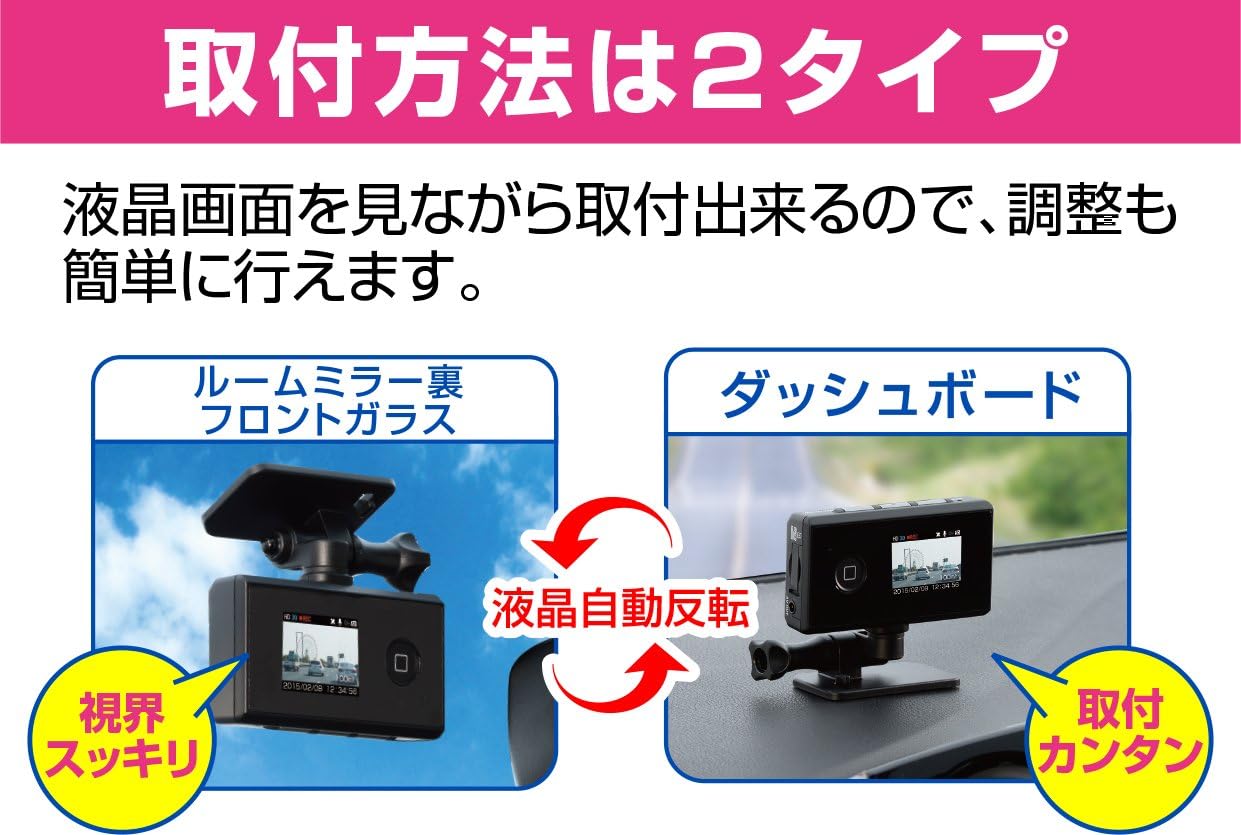
Figure 6: The compact size of the HDR-021GH, approximately 7 cm (2.9 inches) in height.
6. Maintenance
Regular maintenance ensures the longevity and optimal performance of your drive recorder.
- MicroSD Card Management: Periodically format the microSDHC card (e.g., once a month) to maintain optimal recording performance and prevent data corruption. Replace the card if it shows signs of wear or error messages.
- Lens Cleaning: Gently clean the camera lens with a soft, dry cloth to ensure clear video quality. Avoid abrasive materials or harsh chemicals.
- Device Cleaning: Wipe the exterior of the device with a soft, damp cloth. Do not use solvents or alcohol.
- Firmware Updates: Check the COMTEC official website periodically for any available firmware updates to ensure your device has the latest features and bug fixes.
7. Troubleshooting
If you encounter issues with your HDR-021GH, refer to the following common problems and solutions:
| Problem | Possible Cause / Solution |
|---|---|
| Device does not power on. | Check the power cable connection to the device and the car's power outlet. Ensure the vehicle's ignition is on. |
| Recording stops unexpectedly. | The microSDHC card may be full or corrupted. Format the card or replace it. Ensure the SD card check function is enabled. |
| Video quality is poor or blurry. | Clean the camera lens. Ensure the protective film has been removed. Check the recording resolution settings. |
| GPS signal is not acquired. | Ensure the device has a clear view of the sky. Avoid mounting near metallic objects that may block the signal. Allow a few minutes for initial signal acquisition. |
| Interference with other car electronics. | The device has noise countermeasures. If interference persists, ensure proper grounding and cable routing. |
8. Warranty and Support
The COMTEC HDR-021GH comes with a 3-year product warranty from the date of purchase. Please retain your proof of purchase for warranty claims.
8.1. Compensation Service
This product includes a unique compensation service. In the event of an accident, COMTEC will provide a uniform payment of 20,000 JPY within one year of registration. To avail this service, please register your product within one month of purchase using the included registration postcard or through the official COMTEC website.
8.2. Contact Support
For further assistance, technical support, or warranty inquiries, please visit the official COMTEC website or contact their customer service department. Refer to the warranty card included in your package for specific contact details.