
Introduction
This user manual provides detailed instructions for the Logitech G710 Mechanical Gaming Keyboard. It covers essential information regarding product setup, operational features, maintenance, and troubleshooting to ensure optimal performance and longevity of your device. Please read this manual thoroughly before using the keyboard.
Package Contents
Verify that all items are present in your product packaging:
- Logitech G710 Mechanical Gaming Keyboard
- Detachable Palm Rest
- User Documentation (this manual)
Setup
1. Connecting the Keyboard
- Locate an available USB-A port on your computer.
- Plug the USB connector from the Logitech G710 keyboard into the USB-A port.
- Your operating system should automatically detect and install the necessary drivers.
2. Attaching the Palm Rest
For enhanced comfort during extended use, you can attach the included palm rest.
- Align the clips on the palm rest with the corresponding slots at the bottom front edge of the keyboard.
- Gently press until the palm rest clicks securely into place.

Image: Logitech G710 Mechanical Gaming Keyboard with its detachable palm rest, viewed from an angle.
3. Software Installation (Optional)
To unlock advanced features such as programmable G-keys, custom backlighting profiles, and game-specific settings, download and install the Logitech G HUB software from the official Logitech G website. This software is compatible with Windows and macOS operating systems.
Operating Instructions
Programmable G-Keys (G1-G6)
The Logitech G710 features six programmable G-keys (G1-G6) located on the left side of the keyboard. These keys can be assigned to perform complex macros, in-game commands, or system functions using the Logitech G HUB software. Three mode keys (M1, M2, M3) above the function keys allow you to switch between three different sets of G-key assignments, providing up to 18 unique functions per game or application.

Image: Top-down view of the Logitech G710 Mechanical Gaming Keyboard, showing the layout of keys, including the G-keys on the left and media controls on the top right.
Backlighting Control
The G710 keyboard features adjustable white LED backlighting. There are two independent lighting zones:
- WASD and Arrow Keys: These keys have their own dedicated brightness control.
- All Other Keys: The rest of the keyboard keys share a separate brightness control.
Use the dedicated backlighting buttons located above the F-keys to adjust the brightness levels for each zone. Pressing the button cycles through different brightness settings, including off.
Media Controls
Dedicated media control keys are located in the upper right corner of the keyboard, allowing for convenient control of audio and video playback:
- Volume Roller: Adjusts system volume.
- Mute Button: Mutes/unmutes audio.
- Play/Pause, Stop, Previous, Next: Controls media playback.
Game Mode Button
The Game Mode button, typically indicated by a joystick icon, disables the Windows key and Context Menu key during gameplay. This prevents accidental interruptions that could minimize your game. Press the button once to activate Game Mode (indicator light on) and again to deactivate it (indicator light off).
Maintenance
Regular cleaning helps maintain the performance and appearance of your keyboard.
- General Cleaning: Use a soft, lint-free cloth slightly dampened with water to wipe the surface of the keyboard. Avoid harsh chemicals or abrasive materials.
- Keycap Cleaning: For deeper cleaning, keycaps can be carefully removed using a keycap puller (not included) to clean underneath. Ensure the keyboard is disconnected before attempting this.
- Dust Removal: Use compressed air to remove dust and debris from between the keys.
Do not immerse the keyboard in any liquid.
Troubleshooting
If you encounter issues with your Logitech G710 keyboard, refer to the following common solutions:
- Keyboard Not Responding:
- Ensure the USB cable is securely plugged into a working USB-A port on your computer.
- Try plugging the keyboard into a different USB-A port.
- Restart your computer.
- Keys Not Registering or Double-Typing:
- Clean around and under the affected keycaps to remove any debris.
- Ensure the Logitech G HUB software is up to date.
- Backlighting Not Working:
- Check the backlighting brightness buttons on the keyboard to ensure they are not set to the lowest (off) setting.
- Verify settings within the Logitech G HUB software.
- G-Keys Not Functioning:
- Ensure the Logitech G HUB software is installed and running.
- Check the assigned macros and profiles within the software.
- Verify that the correct M-mode (M1, M2, or M3) is selected.
If problems persist, visit the Logitech G support website for further assistance.
Specifications
| Brand | Logitech G |
| Model Number | 920-006519 |
| Hardware Platform | PC |
| Operating System Compatibility | Mac, Windows 10, Windows 7, Windows 8, Windows Vista |
| Connectivity Technology | USB-A (Corded Electric) |
| Keyboard Description | Gaming |
| Special Features | Adjustable Backlighting, Programmable G-Keys, Dedicated Media Controls, Game Mode |
| Color | Black |
| Item Weight | 3.92 pounds |
| Product Dimensions (LxWxH) | 19.5 x 9.5 x 2 inches |
| Included Components | G710 Mechanical Gaming Keyboard |
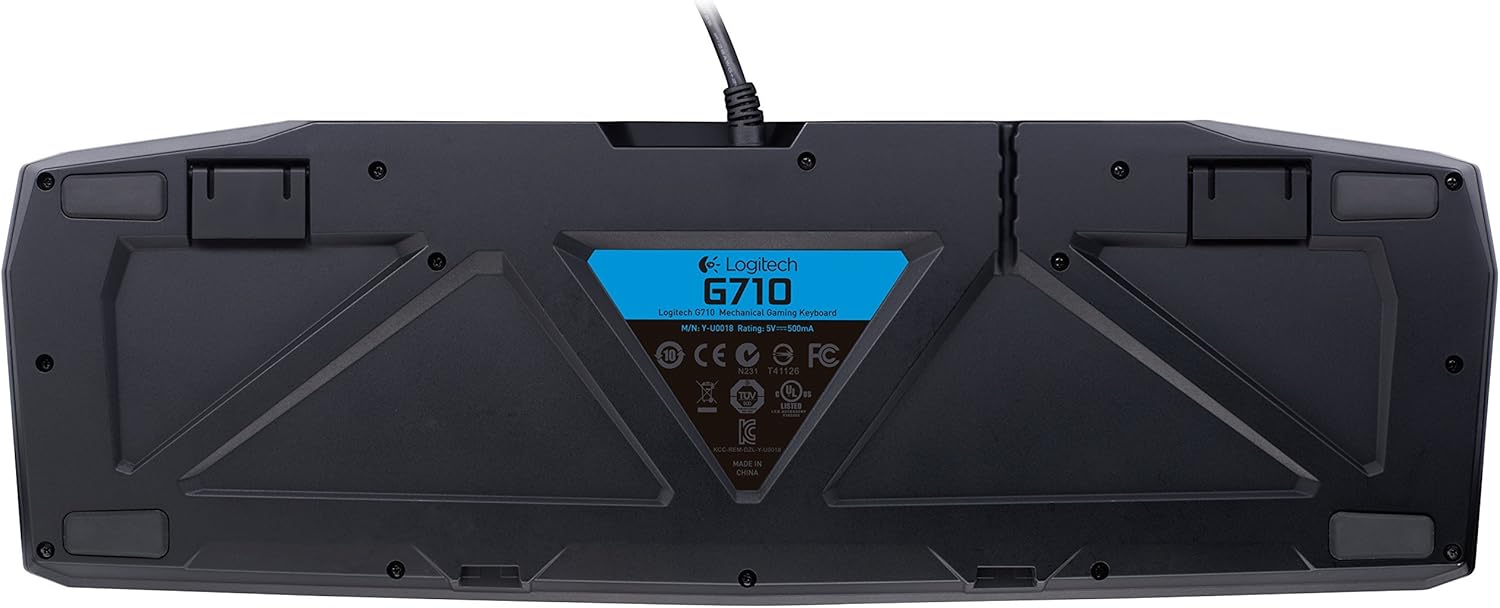
Image: Underside of the Logitech G710 Mechanical Gaming Keyboard, displaying the product information label and rubber feet.
Warranty Information
Logitech G products are typically covered by a limited hardware warranty. The specific duration and terms of the warranty may vary by region and product. Please refer to the warranty documentation included with your purchase or visit the official Logitech G website for the most current and detailed warranty information.
Keep your proof of purchase for warranty claims.
Support
For additional support, driver downloads, FAQs, and community forums, please visit the official Logitech G support website:
support.logitech.com/category/gaming
You can also find product registration and contact information for customer service on the website.


