
1. Introduction
This manual provides essential information for the safe and effective operation of your iLive THE2021BDL Pop-up Movie Theater Kit. This kit is designed to transform any space into an entertainment area, featuring a projector, a Bluetooth speaker, and a 120-inch diagonal screen. Please read this manual thoroughly before use and retain it for future reference.
2. What's in the Box
Upon opening the package, verify that all components listed below are present and in good condition:
- Projector
- Bluetooth Speaker
- 120-inch Diagonal Foldable Screen
- Power Adapter for Projector
- Power Adapter for Bluetooth Speaker
- Remote Control (for projector)
- User Manual (this document)
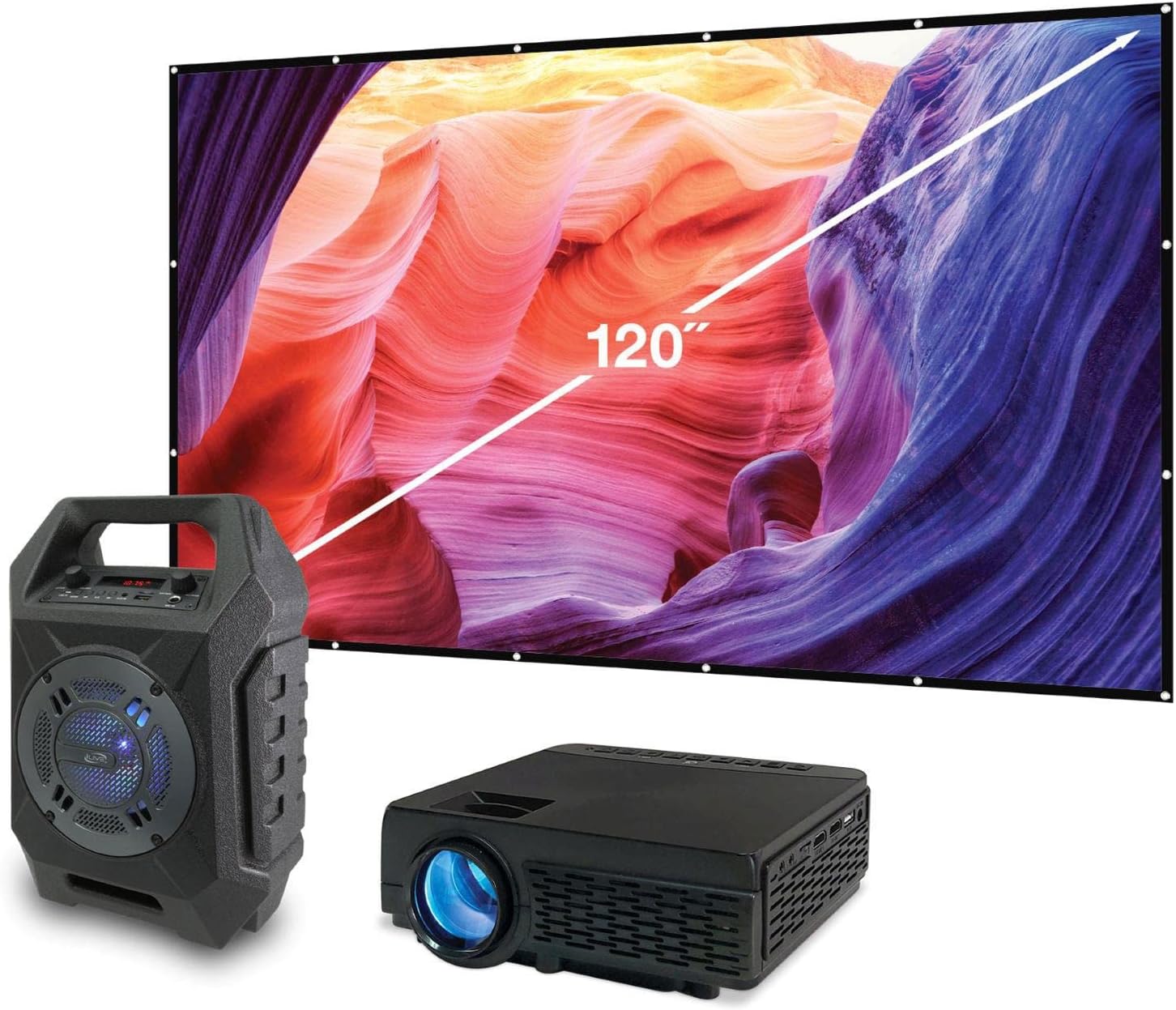
Image 2.1: Overview of the iLive Pop-up Movie Theater Kit, showing the projector, Bluetooth speaker, and the 120-inch screen.
3. Setup
3.1 Projector Placement
Position the projector on a stable, flat surface. The optimal display distance ranges from 3.9 ft. (1.2 m) to 12.1 ft. (3.7 m) from the screen. Adjust the distance to achieve the desired screen size and clarity.

Image 3.1: Dimensions of the projector, indicating its compact size for placement. The projector measures approximately 8.07 inches in length, 6.02 inches in width, and 3.27 inches in height.
3.2 Screen Setup
The 120-inch diagonal screen is foldable for portability. Carefully unfold the screen and secure it to a flat wall or frame using appropriate mounting methods (e.g., hooks, adhesive strips, or a stand, not included). Ensure the screen is taut and wrinkle-free for the best viewing experience.

Image 3.2: Details of the 120-inch screen, highlighting its diagonal measurement, 16:9 aspect ratio, and foldable design for travel.
3.3 Connecting Devices
The projector supports multiple input sources:
- HDMI: Connect HDMI-enabled devices such as Blu-ray players, gaming consoles, or streaming sticks.
- VGA: Connect computers or laptops using a VGA cable.
- USB: Insert USB drives to play media files directly.
- A/V: Use the A/V port for older devices with composite video and stereo audio outputs.
3.4 Powering On
Connect the projector's power adapter to the projector and then to a power outlet. Press the power button on the projector or the remote control to turn it on.
3.5 Focus and Angle Correction
Use the focus ring on the projector lens to sharpen the image. If the image appears trapezoidal, adjust the keystone correction (angle correction) dial or setting on the projector to achieve a rectangular image.
3.6 Bluetooth Speaker Pairing
To enhance audio, pair the included Bluetooth speaker with the projector or another Bluetooth-enabled device:
- Turn on the Bluetooth speaker. It will typically enter pairing mode automatically, indicated by a flashing LED.
- On your projector (if it supports Bluetooth audio output) or other device, navigate to the Bluetooth settings.
- Select the iLive Bluetooth speaker from the list of available devices to pair.
- Once paired, audio from your device will play through the speaker.

Image 3.3: Front view of the iLive Bluetooth speaker, showing its speaker grille and control panel.

Image 3.4: Dimensions of the iLive Bluetooth speaker, measuring approximately 9.45 inches in width, 6.3 inches in depth, and 13.98 inches in height.
4. Operating the Kit
4.1 Basic Controls
The projector can be controlled using the buttons on the unit or the included remote control.
- Power Button: Turns the projector on or off.
- Input/Source Button: Cycles through available input sources (HDMI, VGA, USB, A/V).
- Navigation Buttons: Used to navigate menus and select options.
- Menu Button: Accesses the projector's settings menu.
- Volume Buttons: Adjusts the volume of the projector's built-in speakers or connected audio device.
4.2 Media Playback
Once an input source is selected, the projector will display the content. For USB playback, navigate to the media browser on the projector's interface and select the desired file (movies, photos, music).
4.3 Adjusting Settings
Access the projector's menu to adjust various settings such as:
- Picture Mode: Standard, Dynamic, User, etc.
- Aspect Ratio: 16:9, 4:3, Auto. The native aspect ratio is 16:9.
- Color Settings: Brightness, Contrast, Saturation, Sharpness.
- Sound Settings: Volume, Audio Mode.
5. Maintenance
5.1 Cleaning the Projector
To maintain optimal performance, regularly clean the projector:
- Lens: Use a soft, lint-free cloth specifically designed for optical lenses. Do not use abrasive cleaners.
- Exterior: Wipe the projector's casing with a soft, dry cloth. Avoid using liquid cleaners directly on the unit.
- Ventilation: Ensure the ventilation ports are clear of dust and debris to prevent overheating.
5.2 Cleaning the Screen
The foldable screen can be gently wiped with a damp, soft cloth if necessary. Avoid harsh chemicals or scrubbing, which may damage the screen surface.
5.3 Storage
When not in use, store the projector and screen in a cool, dry place, away from direct sunlight and extreme temperatures. Ensure the screen is folded neatly to prevent creases.
6. Troubleshooting
If you encounter issues with your Pop-up Movie Theater Kit, refer to the following common problems and solutions:
| Problem | Possible Cause | Solution |
|---|---|---|
| Projector does not power on. | No power connection; faulty power adapter. | Ensure power adapter is securely connected to both projector and outlet. Try a different outlet. |
| No image displayed. | Incorrect input source selected; loose cable connection; device not powered on. | Press the "Input" or "Source" button to select the correct input. Check all cable connections. Ensure the connected device is powered on. |
| Image is blurry. | Focus not adjusted; projector too close/far from screen. | Adjust the focus ring on the projector lens. Reposition the projector within the recommended distance range. |
| Image is trapezoidal. | Projector not perpendicular to screen. | Adjust the keystone correction dial/setting on the projector. Reposition the projector to be more directly in front of the screen. |
| No sound from projector/speaker. | Volume too low; incorrect audio output selected; Bluetooth not paired. | Increase volume on projector/speaker and source device. Ensure Bluetooth speaker is paired correctly. Check audio settings on source device. |
| Projector turns off unexpectedly. | Overheating; power supply issue. | Ensure ventilation ports are clear. Allow projector to cool down. Check power connection for stability. |
7. Specifications
| Feature | Detail |
|---|---|
| Model Number | THE2021BDL |
| Display Technology | LCD |
| Native Resolution | 800 x 480 |
| Aspect Ratio | 16:9 (Native) |
| Contrast Ratio | 1,000:1 |
| Peak Lumens | 2,000 |
| Projection Distance | 3.9 ft. to 12.1 ft. (1.2 m to 3.7 m) |
| Screen Size (Diagonal) | 120 inches (305 cm) |
| Input Ports | HDMI, VGA, USB, A/V |
| Audio | Built-in full-range speakers, Bluetooth connectivity for external speaker |
| Projector Dimensions (L x W x H) | 8.03 x 6.14 x 3.27 inches (approx.) |
| Projector Weight | 1 pound (approx.) |
| Power Source | AC Power Adapter |
| Batteries (for remote) | 1 Lithium Ion battery (included) |
8. Warranty and Support
For warranty information and customer support, please refer to the warranty card included with your product or visit the manufacturer's official website. Keep your purchase receipt as proof of purchase for any warranty claims.
Manufacturer: iLive
For technical assistance or service inquiries, please contact iLive customer support through their official channels.