
Fractal Design FDCADEFR5BK
Fractal Design Define R5 Instruction Manual
Model: FDCADEFR5BK
Product Overview
The Fractal Design Define R5 represents the pinnacle of the Define Series, offering a blend of silent operation and extensive cooling capabilities. This mid-tower computer case is engineered with enthusiast-oriented features, including dense sound-absorbing material and versatile fan support. Its highly configurable layout allows for accommodating numerous storage drives and advanced cooling solutions, making it suitable for a wide range of PC builds.
Key features include:
- Optimized for silent computing with high-density noise-reducing material.
- Extensive water cooling support, including radiators up to 420mm in the top and 360mm in the front.
- Equipped with tool-less ModuVent fan slot covers for flexible fan installation or sound absorption.
- Includes two Fractal Design Dynamic GP-14 140mm silent fans.
- Accommodates up to 8 hard drives and all modern graphics cards.
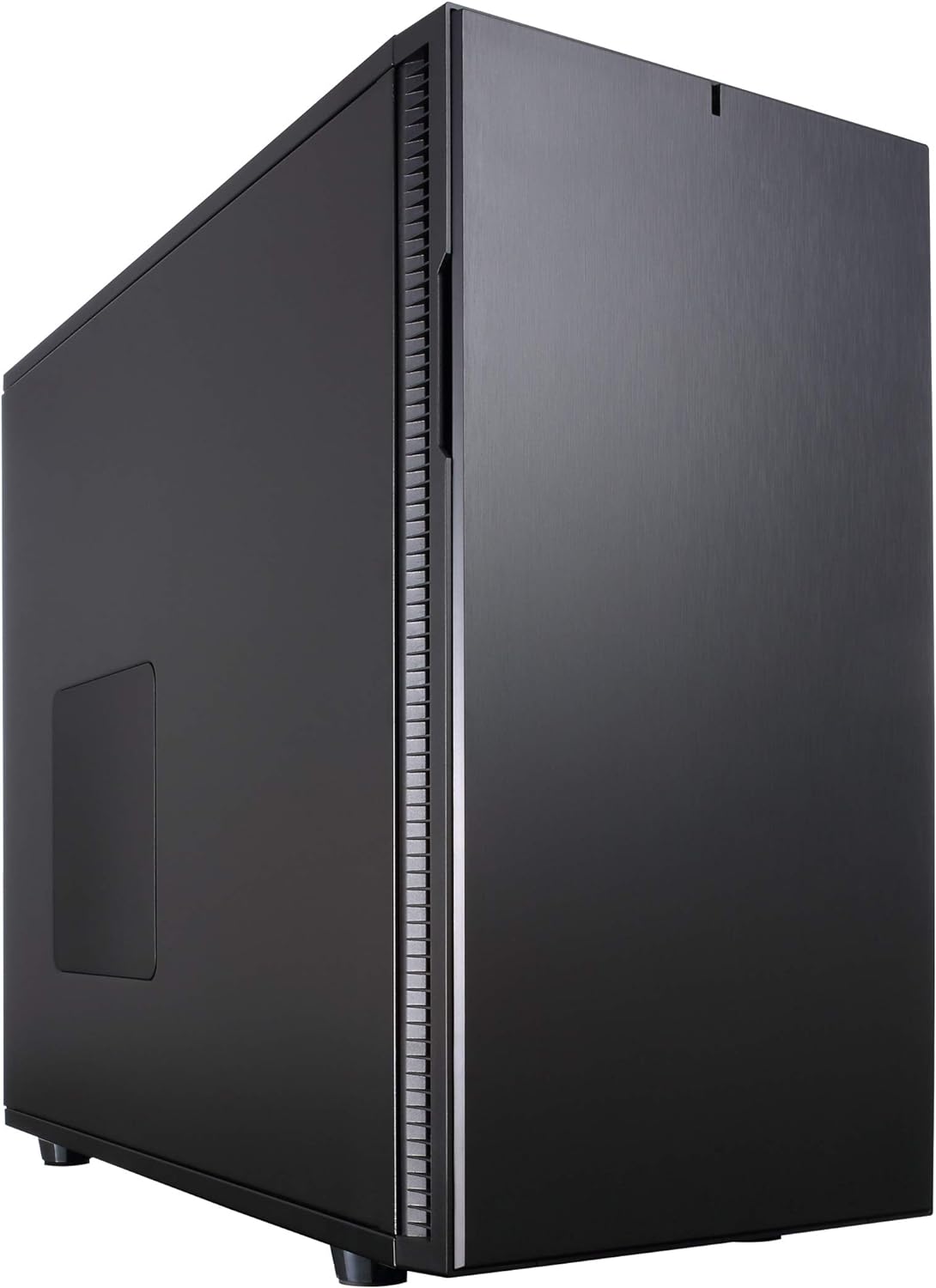
Figure 1: Front angle view of the Fractal Design Define R5 computer case, showcasing its sleek black exterior and minimalist design.
Setup and Installation
1. Unboxing and Initial Inspection
Carefully remove the computer case from its packaging. Inspect for any signs of damage during transit. Ensure all accessories, including the user guide and hardware box, are present.

Figure 2: Front view of the Define R5 case, highlighting its solid front panel and top I/O ports.
2. Accessing the Interior
The Define R5 features tool-less side panels for easy access. Locate the two captive thumbscrews at the rear of the case for each side panel. Loosen these screws and gently pull the panels away from the chassis to remove them.

Figure 3: Rear view of the Define R5, showing the thumbscrews for side panel removal, PCI slots, and rear fan mount.

Figure 4: The left side panel of the case, featuring a solid design with sound dampening material on the interior.
3. Motherboard Installation
The Define R5 supports ATX, Micro-ATX, and Mini-ITX motherboards. Install the necessary standoffs into the motherboard tray according to your motherboard's form factor. Carefully place your motherboard onto the standoffs and secure it with screws.

Figure 5: Interior view of the Define R5, showing the spacious layout for motherboard and component installation.
4. Drive Installation
The case offers versatile storage options:
- 3.5" HDD / 2.5" SSD Bays: The case features drive cages that can accommodate up to eight 3.5" hard drives or 2.5" SSDs. Drives slide into trays which then secure into the cages.
- Dedicated 2.5" SSD Mounts: Two dedicated 2.5" SSD mounts are located behind the motherboard tray for discreet installation.
- 5.25" Optical Drive Bays: Two 5.25" bays are available at the top front of the case for optical drives or other accessories.

Figure 6: Internal front view showing the drive cages and 5.25" bays.
5. Power Supply Installation
Install your ATX power supply into the bottom rear compartment of the case. Ensure proper alignment and secure it with screws from the rear.
6. Cable Management
The Define R5 provides ample space and routing options behind the motherboard tray for clean cable management. Utilize the integrated Velcro straps and rubber grommets to neatly route and secure cables, optimizing airflow and aesthetics.

Figure 7: View with the right side panel removed, revealing cable management channels and dedicated SSD mounts.
7. Fan Installation and Configuration
The case comes with two Dynamic GP-14 140mm fans. Additional fan mounts are available in the top, front, and bottom. The ModuVent covers on the top panel can be removed to install additional fans or radiators. The front door can be opened to access the front fan mounts and dust filter.

Figure 8: The front door of the case opened, showing the front fan mount and removable dust filter.

Figure 9: The front dust filter removed for cleaning or fan installation.
Operating Instructions
The front I/O panel provides convenient access to essential controls and ports:
- Power Button: Located on the top panel, used to power on/off the system.
- Reset Button: For system reset.
- Audio Jacks: Headphone and microphone ports.
- USB 2.0 Ports: Two USB 2.0 ports for peripheral connectivity.
- USB 3.0 Ports: Two high-speed USB 3.0 ports.
- Fan Controller: A built-in fan controller allows for adjusting fan speeds to balance cooling performance and noise levels.

Figure 10: Close-up of the top I/O panel, showing USB ports, audio jacks, and power/reset buttons.
Maintenance
Regular maintenance ensures optimal performance and longevity of your Define R5 case:
- Dust Filter Cleaning: The case features easily removable dust filters on the front and bottom. Regularly remove and clean these filters to prevent dust buildup and maintain optimal airflow.
- Interior Cleaning: Periodically open the side panels and use compressed air to remove dust from internal components and fan blades.
Troubleshooting
If you encounter issues with your Define R5 case, consider the following:
- Excessive Noise:
- Check fan connections and ensure no cables are obstructing fan blades.
- Verify fan speeds are set appropriately using the integrated fan controller or motherboard software.
- Ensure all side panels and ModuVent covers are securely closed to maximize sound dampening.
- If a specific fan is making noise, inspect it for damage or consider replacement.
- Overheating Components:
- Clean all dust filters to ensure unrestricted airflow.
- Verify all case fans are operating correctly and are oriented for optimal airflow (intake/exhaust).
- Check internal cable routing to ensure it does not impede airflow.
- Front I/O Not Functioning:
- Ensure all front panel connectors (USB, audio, power, reset) are correctly plugged into the motherboard headers.
Specifications
| Feature | Detail |
|---|---|
| Brand | Fractal Design |
| Model Name | Fractal Design Define R5 Black |
| Item Model Number | FDCADEFR5BK |
| Case Type | Mid Tower |
| Motherboard Compatibility | ATX, Micro-ATX, Mini-ITX |
| Color | Black |
| Material | Aluminum |
| Item Weight | 23.6 pounds |
| Product Dimensions (LxWxH) | 23 x 21.5 x 13 inches |
| Number of USB 2.0 Ports | 2 |
| Number of USB 3.0 Ports | 2 |
| Audio-out Ports | 1 |
| Cooling Method | Air |
| Included Fan Size | 140 Millimeters (2x Dynamic GP-14) |
| Power Supply Mounting Type | Bottom Mount |
Warranty and Support
For detailed warranty information and technical support, please refer to the official Fractal Design website or the comprehensive User Guide provided with your product.
You can also download the User Guide PDF here.
Related documentsFDCADEFR5BK


Ask a question about this manual
Ask about setup, troubleshooting, compatibility, parts, safety, or missing instructions. Manuals+ will review the question and use this page’s manual context to help answer it.