
1. Introduction
Thank you for choosing the GUSTARD H10 High-current Discrete Class A Stage Headphone Amplifier. The H10 is designed to deliver high-fidelity audio performance for a wide range of headphones. It features a discrete Class A output stage, independent amplification circuits for each channel, and versatile input options including RCA and balanced XLR. This manual provides essential information for the safe and optimal use of your amplifier.
2. Safety Information
- Power Supply: Ensure the amplifier is connected to a power outlet with the correct voltage (115V AC or 230V AC) as indicated on the rear panel. Incorrect voltage can cause damage.
- Ventilation: Do not block ventilation openings. Ensure adequate airflow around the unit to prevent overheating.
- Moisture: Keep the amplifier away from water, humidity, and liquids. Do not operate with wet hands.
- Cleaning: Disconnect power before cleaning. Use a soft, dry cloth. Do not use liquid or aerosol cleaners.
- Servicing: Do not attempt to service this product yourself. Refer all servicing to qualified service personnel.
- Placement: Place the unit on a stable, level surface. Avoid placing it near heat sources or in direct sunlight.
- Headphone Volume: Start with low volume and gradually increase to a comfortable listening level to prevent hearing damage.
3. Product Overview
3.1 Front Panel

This image displays the front panel of the GUSTARD H10 amplifier. From left to right, it features the power button, an input selector switch, a large central volume control knob, and a 6.35mm TRS headphone output jack. The 'GUSTARD' logo is visible on the top left, and 'Model H10' is on the bottom right.
- Power Button: Toggles the amplifier on or off.
- Input Selector: Switches between RCA and XLR input sources.
- Volume Knob: Adjusts the output volume level for the headphones.
- Headphone Output (6.35mm TRS Jack): Connects to your headphones.
3.2 Rear Panel

The rear panel of the GUSTARD H10 amplifier is shown, detailing its connectivity options. It includes balanced XLR inputs for both right and left channels, unbalanced RCA inputs, and corresponding DIP switches for 'PRE GAIN' adjustment next to each input type. A standard IEC power inlet is located on the right, with a voltage selector (230V/115V AC) nearby. Safety warnings are also visible.
- XLR Inputs (Left/Right): Balanced audio inputs.
- RCA Inputs (Left/Right): Unbalanced audio inputs.
- PRE GAIN DIP Switches: Adjusts the input gain for each channel.
- Power Inlet: Connects the power cord.
- Voltage Selector: Allows selection between 230V AC and 115V AC power.
3.3 Internal Components
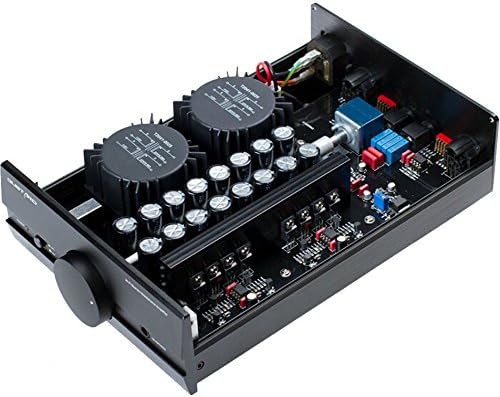
This image provides an internal view of the GUSTARD H10 amplifier, revealing its high-quality components. Key elements visible include the main circuit board, two toroidal transformers for independent power supply to left and right channels, and an array of capacitors, highlighting the discrete Class A design.
4. Setup
4.1 Power Connection
- Before connecting, verify the voltage selector on the rear panel matches your local power supply (115V AC or 230V AC).
- Connect the provided three-prong power cord to the power inlet on the rear panel of the H10.
- Plug the other end of the power cord into a suitable wall outlet.
4.2 Audio Input Connection
The H10 supports both balanced XLR and unbalanced RCA inputs.
- For XLR Input: Connect your audio source (e.g., DAC, preamplifier) to the XLR female inputs on the rear panel using balanced XLR cables. Ensure left and right channels are correctly matched.
- For RCA Input: Connect your audio source to the RCA inputs on the rear panel using RCA cables. Ensure left and right channels are correctly matched.
Note: Only connect one type of input (XLR or RCA) at a time. Use the input selector on the front panel to choose the active input.
4.3 Headphone Connection
- Ensure the volume knob on the front panel is set to its minimum position (fully counter-clockwise).
- Plug your headphones into the 6.35mm TRS headphone output jack on the front panel.
5. Operating Instructions
5.1 Power On/Off
Press the power button on the front panel to turn the amplifier on. The power indicator light will illuminate. Press it again to turn the unit off.
5.2 Input Selection
Use the input selector switch on the front panel to choose between the connected RCA or XLR audio source.
5.3 Gain Adjustment (PRE GAIN DIP Switches)
The H10 features buffer preamp gain adjustment with four segments. These DIP switches are located on the rear panel next to the input connectors. Adjusting these switches allows you to match the amplifier's sensitivity to your audio source and headphones. The main amplifier gain adjustment range is -4 / +2 / +8 / +14 / +20 dB. Refer to the markings on the rear panel for specific switch configurations. It is recommended to start with a lower gain setting and increase if necessary to achieve adequate volume without distortion.
5.4 Volume Control
After selecting your input and setting the appropriate gain, slowly rotate the large volume knob on the front panel clockwise to increase the headphone volume to your desired listening level. Always start at a low volume to protect your hearing.
6. Maintenance
- Cleaning: Disconnect the power cord before cleaning. Use a soft, dry, lint-free cloth to wipe the exterior of the amplifier. Avoid using abrasive cleaners, solvents, or chemical sprays.
- Storage: If storing the unit for an extended period, disconnect it from power and store it in a cool, dry place, away from direct sunlight and extreme temperatures.
- Ventilation: Periodically check that the ventilation openings are clear of dust and debris.
7. Troubleshooting
- No Power:
- Check if the power cord is securely connected to both the amplifier and the wall outlet.
- Verify the wall outlet is functional.
- Ensure the voltage selector on the rear panel is set correctly for your region.
- No Sound:
- Confirm headphones are properly plugged into the 6.35mm jack.
- Check that the correct input (RCA or XLR) is selected on the front panel.
- Ensure the audio source is playing and its output volume is not muted or too low.
- Increase the volume knob on the H10.
- Check the PRE GAIN DIP switch settings; try a higher gain if the source signal is weak.
- Verify audio cables are securely connected and not damaged.
- Distorted Sound:
- Reduce the volume level.
- Check the PRE GAIN DIP switch settings; a gain setting that is too high for the input signal can cause distortion.
- Ensure the audio source is not sending a distorted signal.
- Test with different headphones to rule out headphone issues.
8. Specifications
| Feature | Specification |
|---|---|
| Signal Input | 2x XLR female (balanced), 2x RCA (unbalanced) |
| Maximum Input Level | +21 dBu |
| Input Impedance | XLR: 10kohm, RCA: 68kohm |
| Input Sensitivity | +6 dBu |
| Main Amplifier Gain Adjustment Range | -4 / +2 / +8 / +14 / +20 dB |
| Frequency Response | 0-55kHz (-0.5dB) |
| Damping Factor | > 400 @ 50ohm |
| Dynamic Range | > 128dB (A-weighted) |
| THD + N (1kHz 1W @ 100ohm) | <0.00035% |
| Headphone Output | 1x 6.35mm TRS Jack |
| Power Supply Voltage | 230V AC / 115V AC; 50/60Hz |
| Power Consumption | Not specified (typical for Class A, consult manufacturer for exact value) |
| Dimensions (L x W x H) | 273mm × 190mm × 70mm (excluding prominent parts) |
| Net Weight | 3.3 KG |
9. Warranty and Support
For warranty information and technical support, please refer to the documentation provided with your purchase or contact your authorized GUSTARD dealer. Keep your proof of purchase for warranty claims.