
1. Introduction
Thank you for purchasing the McGrey BK-5420 Electronic Keyboard. This instrument is designed for learning and musical exploration, featuring 54 keys, 100 sounds, 100 rhythms, and an LCD display. This manual provides essential information for safe operation, setup, and use of your new keyboard. Please read it thoroughly before use and retain it for future reference.
2. Safety Instructions
- Power Source: Use only the provided 9V DC/AC adapter or six D-size batteries. Ensure the voltage matches the keyboard's requirements.
- Water and Moisture: Do not expose the keyboard to water, rain, or high humidity. Avoid placing liquid containers near the instrument.
- Heat Sources: Keep the keyboard away from direct sunlight, radiators, heat registers, stoves, or other heat-producing appliances.
- Ventilation: Do not block any ventilation openings. Ensure adequate airflow around the instrument.
- Cleaning: Clean only with a dry cloth. Do not use liquid cleaners or aerosols.
- Servicing: Do not attempt to service this product yourself. Refer all servicing to qualified service personnel.
- Children: This product is suitable for adults. Supervise children when they are using the keyboard.
3. Package Contents
Please check that all items are present in the package:
- McGrey BK-5420 Electronic Keyboard
- Music Stand
- Microphone
- 9V DC/AC Power Adapter
- Instruction Manual (this document)
4. Product Overview
Familiarize yourself with the various parts and controls of your McGrey BK-5420 keyboard.

Figure 4.1: McGrey BK-5420 Electronic Keyboard with music stand. This image shows the full keyboard, including the 54 keys, control panel, and attached music stand.
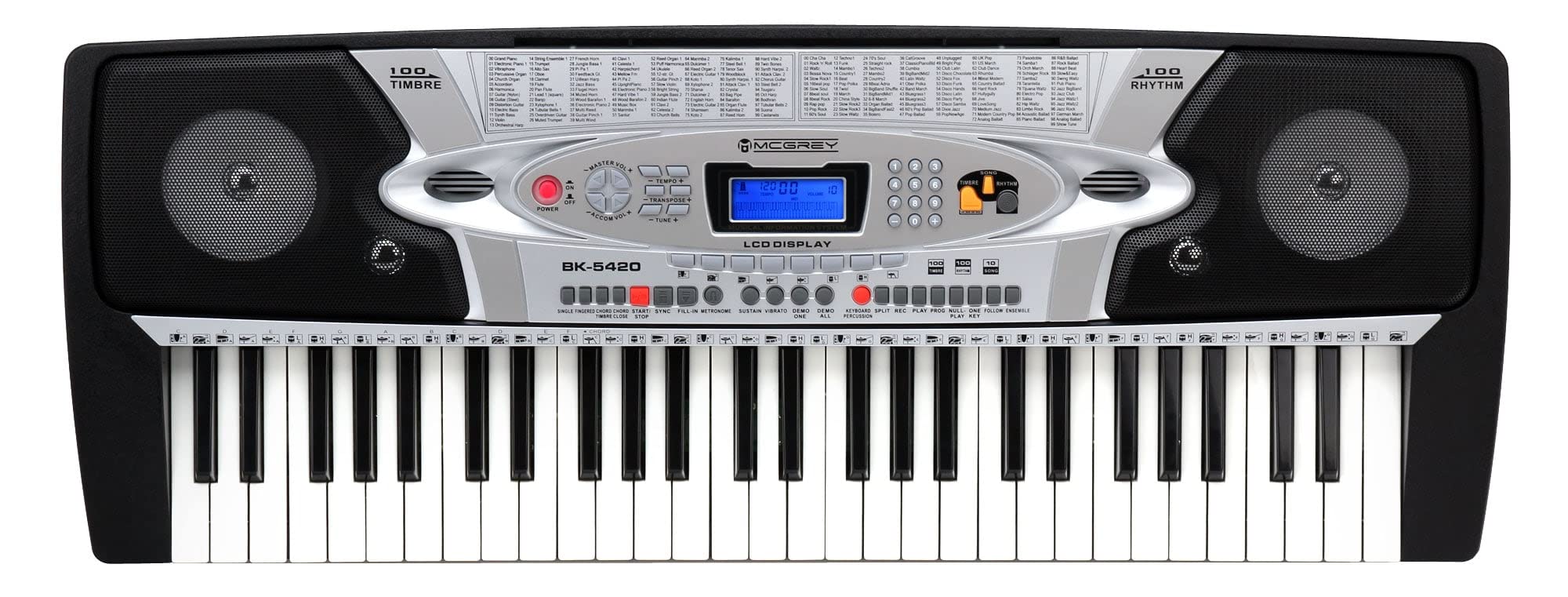
Figure 4.2: Detailed view of the McGrey BK-5420 control panel. This image highlights the LCD display, power button, volume and tempo controls, number pad, and function buttons for sounds, rhythms, and other features.
4.1 Control Panel Features
- POWER Button: Turns the keyboard on or off.
- MASTER VOL +/-: Adjusts the overall volume level.
- TEMPO +/-: Adjusts the speed of rhythms and demo songs.
- TRANSPOSE +/-: Shifts the pitch of the keyboard up or down.
- LCD Display: Shows current settings, selected sound, rhythm, tempo, and other information.
- Number Pad (0-9, +, -): Used to select sounds, rhythms, and other parameters by number.
- TIMBRE Button: Selects instrument sounds.
- RHYTHM Button: Selects accompaniment rhythms.
- SONG Button: Selects demo songs.
- PERCUSSION Buttons: Triggers various percussion sounds.
- CHORD Functions (SINGLE FINGER, FINGERED CHORD, CHORD TIMBRE): Controls automatic chord playing modes.
- SYNC/FILL-IN/METRONOME: Controls rhythm synchronization, fill-ins, and metronome function.
- RHYTHM PROG/PLAY: For programming and playing custom rhythms.
- RECORD/PLAY: Records and plays back your performance.
- SUSTAIN/VIBRATO/TUNE: Adds effects to the sound.
- KEYBOARD SPLIT: Divides the keyboard into two sections with different sounds.
- GUIDE Functions (ONE-KEY, FOLLOW, ENSEMBLE): Assists with learning songs.
4.2 Rear Panel Connections

Figure 4.3: Rear panel connections of the McGrey BK-5420. This image shows the DC IN port for the power adapter, the MIC input for the microphone, and the HEADPHONE output.
- DC IN (9V): Connect the included power adapter here.
- MIC (3.5mm Jack): Connect the included microphone for vocal input.
- HEADPHONE (3.5mm Jack): Connect headphones for private practice.
4.3 Included Accessories

Figure 4.4: The detachable music stand for the McGrey BK-5420. This stand is designed to hold sheet music or a tablet.

Figure 4.5: The included microphone for the McGrey BK-5420. This microphone connects to the MIC input for vocal performance.

Figure 4.6: The 9V DC/AC power adapter for the McGrey BK-5420. This adapter provides power to the keyboard when not using batteries.
5. Setup
5.1 Powering the Keyboard
The BK-5420 can be powered by the included AC adapter or by batteries.
Using the AC Adapter:
- Ensure the keyboard is turned off.
- Connect the small plug of the 9V DC/AC adapter to the DC IN jack on the rear of the keyboard.
- Plug the adapter into a standard wall outlet.
Using Batteries (Optional):
- Ensure the keyboard is turned off.
- Open the battery compartment cover on the underside of the keyboard.
- Insert six (6) D-size batteries, ensuring correct polarity (+/-).
- Close the battery compartment cover securely.
Note: Remove batteries if the keyboard will not be used for an extended period to prevent leakage.
5.2 Attaching the Music Stand
The included music stand can be easily attached to the top of the keyboard. Locate the two slots on the top rear of the keyboard and insert the tabs of the music stand firmly into these slots until it clicks into place.
5.3 Connecting the Microphone
Plug the 3.5mm jack of the included microphone into the MIC input on the rear panel of the keyboard.
5.4 Connecting Headphones
For private practice, plug any standard 3.5mm stereo headphones into the HEADPHONE output on the rear panel. The internal speakers will automatically mute when headphones are connected.
6. Operating Instructions
6.1 Power On/Off and Volume
- Press the POWER button to turn the keyboard on. The LCD display will light up.
- Use the MASTER VOL +/- buttons to adjust the overall output volume.
- Press the POWER button again to turn the keyboard off.
6.2 Selecting Sounds (Timbre)
The keyboard features 100 different instrument sounds.
- Press the TIMBRE button. The display will show the current sound number.
- Use the number pad (0-9) to enter the desired sound number (e.g., 01 for Grand Piano).
- Alternatively, use the + or - buttons to scroll through the sounds.
6.3 Selecting Rhythms
The keyboard includes 100 accompaniment rhythms.
- Press the RHYTHM button. The display will show the current rhythm number.
- Use the number pad (0-9) to enter the desired rhythm number.
- Alternatively, use the + or - buttons to scroll through the rhythms.
- Press START/STOP to begin or end the rhythm.
6.4 Tempo Control
Adjust the speed of the selected rhythm or demo song.
- While a rhythm or demo song is playing, use the TEMPO +/- buttons to increase or decrease the speed.
6.5 Demo Songs
The keyboard has 10 built-in demo songs.
- Press the SONG button.
- Use the number pad or +/- buttons to select a demo song.
- Press START/STOP to play or stop the demo song.
6.6 Percussion Sounds
There are 8 percussion sounds available directly from dedicated buttons on the control panel. Simply press the desired percussion button to trigger the sound.
6.7 Chord Functions
The keyboard offers various auto-accompaniment chord modes:
- SINGLE FINGER: Play a single key in the lower section of the keyboard to trigger a full chord.
- FINGERED CHORD: Play specific key combinations in the lower section to trigger more complex chords.
- CHORD TIMBRE: Changes the sound of the auto-accompaniment chords.
Refer to the detailed chord chart (if available in a separate supplement) for specific key combinations.
6.8 Sync, Fill-in, Metronome
- SYNC: Starts the rhythm automatically when you play a key in the chord section.
- FILL-IN: Adds a short rhythmic variation to the current rhythm.
- METRONOME: Provides a steady click track for practice.
6.9 Rhythm Programming
The keyboard allows you to create and store your own rhythm patterns.
- Press the RHYTHM PROG button.
- Use the percussion buttons to input your desired rhythm pattern.
- Press PLAY to listen to your programmed rhythm.
- Press RHYTHM PROG again to exit programming mode.
6.10 Record and Playback
Record your performances and play them back.
- Press the RECORD button. The keyboard is now in recording standby.
- Begin playing on the keyboard. Your performance will be recorded.
- Press PLAY to stop recording and play back your recorded performance.
6.11 Effects and Functions
- SUSTAIN: Extends the decay of notes, making them ring out longer.
- VIBRATO: Adds a slight pitch oscillation to the sound.
- TUNE: Fine-tunes the overall pitch of the keyboard.
- TRANSPOSE: Shifts the pitch of the entire keyboard up or down in semitone steps.
- KEYBOARD SPLIT: Divides the keyboard into two sections, allowing different sounds to be played on the left and right hands simultaneously.
6.12 Learning Functions (Guide)
These functions assist in learning songs:
- ONE-KEY: Allows you to play a song by pressing any key, while the correct melody plays automatically.
- FOLLOW: The keyboard waits for you to play the correct note before proceeding with the song.
- ENSEMBLE: Plays the accompaniment while you play the melody.
7. Maintenance
- Cleaning: Wipe the keyboard surface with a soft, dry cloth. Do not use abrasive cleaners, waxes, or solvents.
- Storage: When not in use, store the keyboard in a clean, dry place away from extreme temperatures and direct sunlight.
- Transport: When transporting the keyboard, ensure it is securely packed to prevent damage.
8. Troubleshooting
| Problem | Possible Cause | Solution |
|---|---|---|
| No power | Power adapter not connected; batteries drained or incorrectly inserted. | Check AC adapter connection and wall outlet. Replace batteries or ensure correct polarity. |
| No sound | Volume too low; headphones connected; sound selected is silent. | Increase MASTER VOL. Disconnect headphones. Select a different sound. |
| Microphone not working | Microphone not connected properly; microphone faulty. | Ensure microphone is fully plugged into the MIC jack. Test with another microphone if available. |
| Rhythm/Song not playing | Rhythm/Song not selected; START/STOP not pressed. | Select a rhythm/song and press START/STOP. |
9. Specifications
- Model Name: BK-5420
- Number of Keys: 54
- Sounds: 100 Tones
- Rhythms: 100 Rhythms
- Demo Songs: 10
- Percussion Sounds: 8
- Display: LCD Display
- Functions: Single Finger/Fingered Chord/Chord Timbre, Sync/Fill-in/Metronome, Rhythm Programming, Record/Play, Sustain/Vibrato/Tune/Transpose, Keyboard Split, One-key/Follow/Ensemble Guide Functions
- Connections: Headphone Jack (3.5 mm), Microphone Jack (3.5 mm), DC IN (9V)
- Power Supply: 9V DC/AC Adapter (included) or 6 x D-size Batteries (optional)
- Dimensions: Approximately 858 x 335 x 105 mm (33.8 x 13.2 x 4.1 inches)
- Weight: Approximately 4.5 kg (9.9 lbs)
- Included Accessories: Microphone, Music Stand, Power Adapter
10. Warranty and Support
For warranty information and technical support, please refer to the documentation provided at the time of purchase or contact your retailer. Keep your proof of purchase for any warranty claims.


