
Rii Mini i7
Rii Mini i7 Wireless Gyro Mouse Remote Control User Manual
Model: Mini i7 (RT-MWK07)
1. Introduction
Thank you for choosing the Rii Mini i7 Wireless Gyro Mouse Remote Control. This device combines the functionality of a traditional remote control with a precise gyro mouse, offering versatile control for a wide range of devices. It is designed for use with Smart TVs, game consoles (Xbox 360, Xbox ONE), PCs (Windows, Mac, Linux), Mini PCs, and Android Tablets, providing an intuitive and efficient user experience.

Figure 1: Rii Mini i7 Wireless Gyro Mouse Remote Control, front view.
2. Package Contents
- 1 x Rii Mini i7 Wireless Gyro Mouse Remote Control
- 1 x USB Receiver
- User Manual (this document)
Note: 2 AAA batteries are required and are not included in the package.
3. Product Overview
Familiarize yourself with the layout and functions of your Rii Mini i7 remote control.
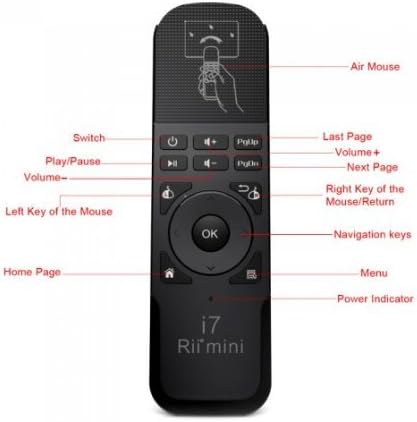
Figure 2: Front view of the Rii Mini i7 remote control with labeled buttons.
- Power Button: Turns the connected device on/off or puts it into standby.
- Volume +/-: Adjusts the volume.
- Play/Pause: Controls media playback.
- PgUp/PgDn: Page Up/Page Down functionality.
- Left Mouse Key: Functions as a left-click.
- Right Mouse Key/Return: Functions as a right-click or back/return button.
- OK Button: Confirms selections.
- Navigation Keys: Up, Down, Left, Right for menu navigation.
- Home Page Button: Returns to the home screen.
- Menu Button: Opens context menus.
- Power Indicator: LED light indicating power status.
- Air Mouse: Activates/deactivates the gyro mouse function.

Figure 3: Back view of the Rii Mini i7 remote control, showing the battery compartment and USB receiver storage.
4. Setup Instructions
4.1. Installing Batteries
- Locate the battery compartment on the back of the remote control.
- Slide open the battery cover.
- Insert two (2) AAA alkaline batteries, ensuring correct polarity (+/-).
- Close the battery cover securely.

Figure 4: Open battery compartment showing placement for AAA batteries and the USB receiver.
4.2. Connecting the USB Receiver
- The USB receiver is stored inside the battery compartment for convenience. Carefully remove it.
- Plug the USB receiver into an available USB port on your Smart TV, PC, game console, Mini PC, or Android Tablet.
- The device should automatically detect and install the necessary drivers. This may take a few moments.
- Once the drivers are installed, the remote control is ready for use.
5. Operating Instructions
5.1. Basic Remote Functions
Most buttons on the Rii Mini i7 function similarly to a standard remote control. Press the corresponding button for power, volume adjustment, media playback (play/pause), and navigation within menus.
5.2. Using the Gyro Mouse (Air Mouse)
- To activate the gyro mouse function, press the dedicated Air Mouse button (often indicated by a hand icon or mouse cursor icon).
- Once activated, move the remote control in the air to control the on-screen cursor. The cursor will follow your hand movements.
- Press the Left Mouse Key to click on items.
- Press the Right Mouse Key for right-click functionality or to go back in some applications.
- To deactivate the gyro mouse and return to standard button navigation, press the Air Mouse button again.
5.3. Compatibility
The Rii Mini i7 is compatible with various operating systems and devices. For optimal performance, ensure your device's software is up to date. While generally plug-and-play, some advanced functions may vary depending on the specific device and application.
6. Maintenance
6.1. Battery Replacement
When the remote control's performance degrades or the power indicator light does not illuminate, it is time to replace the batteries. Follow the steps in Section 4.1 to replace the two AAA batteries.
6.2. Cleaning
To clean the remote control, use a soft, dry cloth. For stubborn dirt, a slightly damp cloth can be used, but ensure no moisture enters the device. Do not use harsh chemicals or abrasive cleaners.
7. Troubleshooting
- Remote not responding:
- Check if the batteries are correctly inserted and have sufficient charge. Replace if necessary.
- Ensure the USB receiver is securely plugged into the device's USB port.
- Verify that the remote control is within the operating range (up to 10 meters) and there are no significant obstructions between the remote and the receiver.
- Try plugging the USB receiver into a different USB port on your device.
- Gyro mouse cursor is erratic or not moving smoothly:
- Ensure the remote is held steady when activating the gyro mouse.
- Try recalibrating the gyro mouse by placing the remote on a flat surface for a few seconds, then picking it up and moving it.
- Check for potential interference from other wireless devices.
- Specific buttons not working:
- Some buttons may have different functionalities or may not be supported by all applications or operating systems. Refer to your device's software settings.
- Ensure the remote is not in a significant distance from the receiver.
8. Specifications
| Feature | Detail |
|---|---|
| Model Name | Mini i7 |
| Model Number | RT-MWK07 |
| Brand | Rii (Riitek) |
| Connectivity Technology | Radiofrequency (Wireless) |
| Operating Range | Up to 10 meters |
| Compatible Devices | Smart TV, Game Consoles (Xbox 360, Xbox ONE), PC (Windows, Mac, Linux), Mini PC, Android Tablet |
| Number of Buttons | 10 |
| Controller Type | Button Control, Gyro Mouse |
| Batteries Required | 2 x AAA Alkaline batteries |
| Product Dimensions | 13.2 x 2.2 x 4 cm |
| Weight | 65 grams |
9. Warranty and Support
For warranty information and technical support, please refer to the documentation provided with your purchase or contact your retailer. You may also visit the official Riitek website for further assistance.
Related documentsMini i7


Ask a question about this manual
Ask about setup, troubleshooting, compatibility, parts, safety, or missing instructions. Manuals+ will review the question and use this page’s manual context to help answer it.