
Introduction
This manual provides detailed instructions for the installation, operation, and maintenance of your ECS A55F-M4 FM1 AMD A55 Motherboard. Please read this manual thoroughly before beginning installation to ensure proper setup and to maximize the performance and longevity of your system.
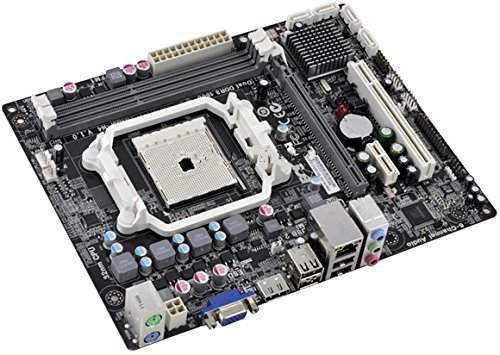
Image: ECS A55F-M4 Motherboard, showcasing its layout with various ports and slots.
Setup and Installation
1. Unpacking and Inspection
- Carefully remove the motherboard from its packaging.
- Inspect the motherboard for any signs of physical damage during transit.
- Ensure all accessories listed in the packing list are present.
2. Component Compatibility
This motherboard supports AMD A-Series processors with an FM1 socket. It uses DDR3 RAM. Refer to the specifications section for detailed compatibility information.
3. CPU Installation
- Locate the FM1 CPU socket on the motherboard.
- Lift the CPU socket lever.
- Align the CPU with the socket, ensuring the golden triangle on the CPU matches the triangle on the socket.
- Gently place the CPU into the socket without forcing it.
- Lower the CPU socket lever to secure the CPU.
- Install the CPU cooler according to its manufacturer's instructions.
4. RAM Installation
- Open the clips at both ends of the DIMM slots.
- Align the notch on the DDR3 memory module with the notch in the DIMM slot.
- Insert the memory module firmly into the slot until the clips snap into place.
5. Motherboard Mounting
- Install standoffs in your PC case according to the motherboard's screw holes.
- Carefully place the motherboard onto the standoffs.
- Secure the motherboard with screws, ensuring not to overtighten.
6. Connecting Peripherals
- Power Connectors: Connect the 24-pin ATX power connector and the 4-pin CPU power connector from your power supply to the motherboard.
- SATA Devices: Connect SATA data cables from your storage drives (HDD/SSD) to the SATA2 ports on the motherboard.
- Front Panel Connectors: Connect the power switch, reset switch, HDD LED, power LED, and USB/audio headers from your PC case to the corresponding pins on the motherboard. Refer to the motherboard diagram for exact pin locations.
- Expansion Cards: Install any PCI Express expansion cards (e.g., graphics card) into the appropriate slots and secure them.
Operating Instructions
1. First Boot
- After connecting all components and power, press the power button on your PC case.
- The system should power on, and you should see a display on your monitor.
- If no display appears, refer to the Troubleshooting section.
2. BIOS/UEFI Setup
- During startup, repeatedly press the DEL key (or F2, depending on BIOS version) to enter the BIOS/UEFI setup utility.
- Here you can configure boot order, system time, and other hardware settings.
- Save changes and exit to continue booting into your operating system installation media.
3. Driver Installation
After installing your operating system, install the necessary drivers for the motherboard chipset, audio, LAN, and any integrated graphics. These drivers are typically provided on a support CD or can be downloaded from the ECS Elitegroup website.
Maintenance
1. Cleaning
- Regularly clean dust from the motherboard and components using compressed air.
- Ensure the system is powered off and unplugged before cleaning.
- Avoid using liquid cleaners directly on components.
2. BIOS Updates
Periodically check the ECS Elitegroup website for updated BIOS versions. BIOS updates can improve system stability, add support for new hardware, or fix bugs. Follow the instructions provided by ECS carefully when performing a BIOS update.
Troubleshooting
Common Issues and Solutions
- No Power:
- Check if the power supply is connected correctly to the motherboard (24-pin and 4-pin connectors).
- Ensure the power supply switch is in the ON position.
- Verify front panel power switch connection.
- No Display:
- Ensure the monitor is connected to the correct video output (onboard HDMI or discrete graphics card).
- Reseat the RAM modules.
- If using a discrete graphics card, ensure it is properly seated and has power connected.
- System Beeps (POST Codes):
- Refer to the motherboard's specific beep codes in the full manual (if available) or ECS support website to diagnose hardware issues (e.g., RAM, CPU, graphics card).
- Operating System Not Booting:
- Check boot order in BIOS/UEFI.
- Ensure the storage drive with the operating system is properly connected and detected.
Specifications
| Feature | Detail |
|---|---|
| Brand | ECS Elitegroup |
| Model | A55F-M4 |
| CPU Socket | Socket FM1 |
| Compatible Processors | AMD A-Series |
| Chipset Type | AMD A55 |
| RAM Memory Technology | DDR3 |
| Memory Slots Available | 2 |
| RAM Memory Maximum Size | 16 GB |
| Graphics Card Interface | PCI Express |
| System Bus Standard Supported | SATA 2 |
| S/PDIF Connector Type | Optical |
| Compatible Devices | Personal Computer |
Warranty and Support
For detailed warranty information and technical support, please visit the official ECS Elitegroup website. The website provides access to drivers, BIOS updates, FAQs, and contact information for customer service.