
Product Overview
The Huawei E8377 HiLink CarFi is a mobile WiFi hotspot designed to provide wireless internet connectivity within your vehicle. It plugs into the car's cigarette lighter socket, drawing power directly from the vehicle's electrical system. This device supports download speeds of up to 150 Mbit/s and can connect up to ten devices simultaneously. It features a built-in SIM card slot, allowing it to function as a wireless hotspot once a SIM card is inserted. Additionally, it includes a USB port for charging mobile electronic devices such as smartphones or tablets.
The CarFi unit is designed with a brushed metal effect, integrating seamlessly into most car interiors. Its primary function is to provide a stable internet connection for passengers, enhancing entertainment and connectivity during car journeys. As it operates directly from the car's 12V power socket, it does not require separate recharging.
Device Components
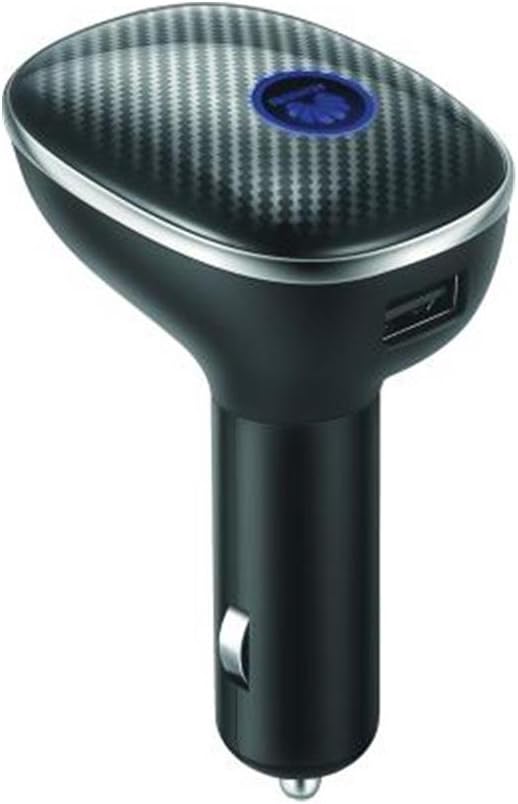
Front view of the Huawei E8377 HiLink CarFi, showing the main body, the blue indicator light on top, and the USB charging port on the side.

Side view of the Huawei E8377 HiLink CarFi, highlighting the SIM card slot located on the side of the device.

Rear view of the Huawei E8377 HiLink CarFi, displaying product labels, Wi-Fi certification, and regulatory markings.

Front view of the Huawei E8377 HiLink CarFi, clearly showing the USB port for charging external devices.
Setup Guide
- Insert SIM Card: Locate the SIM card slot on the Huawei E8377 device. Carefully insert a compatible Micro SIM card into the slot until it clicks into place. Ensure the SIM card is correctly oriented according to the diagram near the slot.
- Plug into Car Socket: Insert the Huawei E8377 HiLink CarFi into your vehicle's 12-volt cigarette lighter socket. Ensure it is firmly seated to establish a stable power connection.
- Power On: The device will automatically power on once plugged into the car's power socket. The indicator light on the device will illuminate, indicating its status.
- Initial Connection: Wait for the device to establish a connection to the mobile network. The indicator light will change color or pattern to signify a successful network connection.
- Connect Devices: On your smartphone, tablet, or laptop, search for available Wi-Fi networks. Select the network name (SSID) broadcast by the Huawei E8377 (usually found on a label on the device or packaging). Enter the Wi-Fi password (Key) when prompted.
- App Control (Optional): For advanced settings and monitoring, download the Huawei HiLink app from your smartphone's app store (available for Android and iOS). Connect your smartphone to the CarFi's Wi-Fi network, then open the app to manage settings, view connected devices, and monitor data usage.
Operating Instructions
- Wi-Fi Connectivity: The device broadcasts a Wi-Fi signal (802.11b/g/n, 2.4GHz) allowing up to 10 devices to connect simultaneously. Ensure your devices are within range for optimal performance.
- USB Charging: Use the integrated USB port to charge compatible mobile electronics. This port provides power and does not transfer data from the CarFi unit.
- Network Compatibility: The Huawei E8377 supports Penta-band LTE (FDD 800/900/1800/2100/2600MHz), dual-band UMTS (900/2100MHz), and quad-band GSM (850/900/1800/1900MHz). It is designed to work with the majority of service providers globally that operate on these bands.
- Important Note on Compatibility: This device is NOT compatible with CDMA/EVDO networks. It is also NOT compatible with 700 MHz 4G LTE bands in the USA. Please verify your carrier's network bands before use.
Maintenance
- Cleaning: Use a soft, dry cloth to clean the exterior of the device. Do not use liquid cleaners or abrasive materials.
- Storage: When not in use, store the device in a cool, dry place away from direct sunlight and extreme temperatures.
- Power Source: The device is designed to be continuously powered by your car's 12V socket. There is no internal battery to recharge.
Troubleshooting
| Problem | Possible Cause | Solution |
|---|---|---|
| No power/Indicator light off | Not properly plugged in; Car socket issue; Device fault. | Ensure the device is firmly inserted into the 12V socket. Check if the car's socket is functional. Try in another vehicle if possible. |
| No internet connection | No SIM card; Invalid SIM; No network coverage; Incorrect APN settings; Data plan issues. | Verify SIM card is correctly inserted and active. Check for network coverage in your area. Consult your mobile carrier for APN settings or data plan status. |
| Devices cannot connect to Wi-Fi | Incorrect Wi-Fi password; Too many connected devices; Device too far from CarFi. | Double-check the Wi-Fi password. Ensure no more than 10 devices are connected. Move closer to the CarFi unit. |
| Slow internet speed | Poor network signal; High network traffic; Exceeded data cap; Device interference. | Relocate to an area with better network signal. Reduce the number of connected devices. Check your data plan with your carrier. Avoid placing near other electronic devices that may cause interference. |
Specifications
| Feature | Detail |
|---|---|
| Model Name | E8377 |
| Product Dimensions | 2.36 x 1.97 x 3.54 inches |
| Item Weight | 2.46 ounces (0.07 Kilograms) |
| 4G LTE Bands | FDD 800/900/1800/2100/2600MHz |
| 3G UMTS Bands | 900/2100MHz |
| 2G GSM Bands | 850/900/1800/1900MHz |
| Wi-Fi Standard | 802.11b/g/n, 2.4GHz |
| Max Wi-Fi Clients | 10 simultaneously |
| Antenna | Internal + optional external antenna (TS-9 connector) |
| USB Port | Provides power for other devices |
| Operating System | RouterOS |
| Connectivity Technologies | Wi-Fi, USB |
| Special Features | WPS |
| Compatible Devices | Tablet, Smartphone |
Warranty and Support
For information regarding product warranty, please refer to the warranty card included with your purchase or visit the official Huawei website. Huawei provides technical support and customer service for its products.
For further assistance, troubleshooting guides, or to contact customer support, please visit the official Huawei support website or refer to the contact information provided in your product packaging.
Official Huawei Website: consumer.huawei.com


