
1. Introduction
This manual provides detailed instructions for the installation, configuration, and operation of your iBall 300M WRB300N MIMO Wireless-N Router. Please read this manual thoroughly before using the device to ensure proper setup and optimal performance.
The iBall WRB300N is a high-performance wireless router designed for home and small office use. It complies with IEEE 802.11b/g/n standards, offering wireless speeds up to 300Mbps. It supports various connection types including PPPoE, Dynamic IP, and Static IP, and features robust security protocols such as WEP, WPA, and WPA2-PSK, along with WPS for easy secure connections.
2. Package Contents
Verify that your package contains the following items:
- iBall 300M WRB300N Wireless-N Router
- Power Adapter
- Ethernet Cable
- Quick Installation Guide (if included)
- Resource CD (if included)
If any item is missing or damaged, please contact iBall customer support.
3. Physical Overview
Familiarize yourself with the ports and indicators on your router.

Figure 3.1: Front view of the iBall 300M WRB300N Wireless-N Router, showing the device with two external antennas and indicator lights on the front panel.
The front panel typically features LED indicators for Power, WAN, LAN (1-4), and WLAN. The rear panel includes the Power input, Power On/Off switch, WAN port, and four LAN ports.
4. Setup Instructions
4.1. Hardware Connection
Follow these steps to connect your router:
- Ensure your modem (if applicable) is powered off.
- Connect one end of the Ethernet cable to the WAN port on the iBall router and the other end to your modem's Ethernet port or directly to your internet service provider's (ISP) wall jack.
- Connect the power adapter to the router's power input and plug it into a power outlet.
- Press the Power On/Off switch to turn on the router.
- Wait for the Power and WAN LEDs to stabilize, indicating a successful connection.
- For wired connections, connect an Ethernet cable from one of the router's LAN ports to your computer's network adapter.
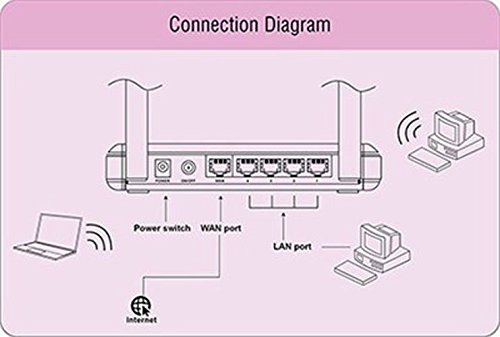
Figure 4.1: Diagram illustrating the connection points on the rear of the iBall WRB300N router, showing connections for power, WAN port to internet, and LAN ports to wired devices, alongside wireless connections to laptops and desktops.
4.2. Initial Configuration (Web Interface)
To configure your router, access its web-based management interface:
- Open a web browser (e.g., Chrome, Firefox, Edge) on a computer connected to the router (either wired or wirelessly).
- In the address bar, type the router's default IP address (commonly
192.168.1.1or192.168.0.1) and press Enter. Refer to the router's label or quick installation guide for the exact IP address. - Enter the default username and password when prompted. (Common defaults are
adminfor both username and password). - Follow the on-screen Quick Setup Wizard to configure your internet connection type (PPPoE, Dynamic IP, or Static IP) and wireless network settings (SSID and password).
- Save your settings and restart the router if prompted.
5. Operating Instructions
5.1. Wireless Security Configuration
It is crucial to secure your wireless network to prevent unauthorized access. The iBall WRB300N supports WEP, WPA, and WPA2-PSK encryption.
- Log in to the router's web management interface.
- Navigate to the "Wireless" or "Wireless Security" section.
- Select WPA2-PSK as the security mode for the strongest encryption.
- Enter a strong password (Pre-Shared Key) of at least 8 characters, combining letters, numbers, and symbols.
- Save the settings. All wireless devices will need to be reconnected using the new password.
5.2. WPS (Wi-Fi Protected Setup)
WPS allows for easy and secure connection of wireless devices without manually entering the password.
- Using the WPS Button: Press the WPS button on your router (usually located on the rear or side panel). Within two minutes, press the WPS button on your wireless client device. The devices will automatically establish a secure connection.
- Using PIN: Some devices may require you to enter a PIN from the router into the client device, or vice-versa, via the router's web interface.
Note: For security reasons, it is recommended to disable WPS after all devices are connected, or use it sparingly.
6. Maintenance
Regular maintenance helps ensure the longevity and optimal performance of your router.
- Firmware Updates: Periodically check the iBall website for firmware updates. Updating firmware can improve performance, add features, and fix security vulnerabilities.
- Physical Cleaning: Keep the router in a clean, dust-free environment. Ensure ventilation holes are not obstructed.
- Restarting: If you experience network issues, a simple restart (power cycling) of the router can often resolve them.
- Backup Configuration: Regularly back up your router's configuration settings through the web interface. This allows for quick restoration if a factory reset is needed.
7. Troubleshooting
If you encounter issues with your iBall WRB300N router, refer to the following common troubleshooting steps:
- No Internet Access:
- Check all cable connections (WAN, LAN, Power).
- Verify that the WAN LED is lit and stable.
- Restart your modem and router.
- Confirm your internet connection type (PPPoE, Dynamic IP, Static IP) and settings in the router's web interface.
- Contact your ISP to ensure there are no service outages.
- Cannot Access Router's Web Interface:
- Ensure your computer is connected to the router (wired or wirelessly).
- Verify the router's IP address (e.g., 192.168.1.1).
- Try a different web browser.
- Temporarily disable any firewall or antivirus software on your computer.
- If you forgot the login credentials, you may need to perform a factory reset (see below).
- Poor Wireless Signal or Disconnections:
- Relocate the router to a central location, away from obstructions and interference sources (e.g., cordless phones, microwaves).
- Adjust antenna orientation.
- Check for overlapping Wi-Fi channels from neighboring networks and change your router's channel in the wireless settings.
- Ensure your wireless devices are within range.
- Factory Reset: If all else fails, you can restore the router to its factory default settings. Locate the "Reset" button (often a small pinhole button) on the router. With the router powered on, press and hold the Reset button for 5-10 seconds until the LEDs flash. The router will restart with default settings. Warning: This will erase all your custom configurations.
8. Specifications
| Feature | Description |
|---|---|
| Model | WRB300N |
| Wireless Standards | IEEE 802.11b/g/n |
| Ethernet Standards | IEEE 802.3, IEEE 802.3u |
| Wireless Speed | Up to 300Mbps |
| Frequency Band | 2.4 GHz |
| Antennas | External, Dual Antenna Design |
| Ports | 1x WAN, 4x LAN (10/100Mbps) |
| Internet Connection Types | PPPoE, Dynamic IP, Static IP |
| Wireless Security | WEP, WPA, WPA2-PSK |
| Special Features | WPS (Wi-Fi Protected Setup) |
| Dimensions (LxWxH) | 26.2 x 16.6 x 7 cm (approx.) |
| Weight | 95 g (approx.) |
9. Warranty and Support
Your iBall 300M WRB300N MIMO Wireless-N Router comes with a 3-year warranty from the date of purchase.
For technical assistance, warranty claims, or any other queries, please contact iBall Customer Care:
- Customer Care Number: 186030042255
- Please have your product model number (WRB300N) and proof of purchase ready when contacting support.


