
T'nB MWERGOV
T'nB Ergonomic Wireless Vertical Mouse
User Manual
1. Product Overview
The T'nB Ergonomic Wireless Vertical Mouse (Model MWERGOV) is designed to provide a natural and comfortable hand position, reducing strain during extended use. Featuring 1600 DPI precision, 6 programmable buttons, and silent clicks, this mouse offers an enhanced user experience for both PC and Mac users.

Figure 1: Front view of the T'nB Ergonomic Wireless Vertical Mouse.
2. Setup Guide
2.1 Battery Installation
The mouse requires two AAA batteries (included). To install:
- Locate the battery compartment on the underside of the mouse.
- Slide open the battery compartment cover.
- Insert two AAA batteries, ensuring correct polarity (+/-).
- Close the battery compartment cover securely.
2.2 Connecting the Mouse
The T'nB Ergonomic Wireless Vertical Mouse connects via a USB radio-frequency dongle.
- Remove the USB receiver dongle from its storage slot, usually located near the battery compartment.
- Plug the USB receiver into an available USB-A port on your computer.
- The mouse should automatically connect. If not, ensure the mouse is powered on (if it has an on/off switch).

Figure 2: Connecting the wireless mouse via USB dongle.
2.3 System Compatibility
This mouse is compatible with a wide range of operating systems:
- Windows operating systems
- Mac OS
- Linux

Figure 3: The mouse is compatible with Windows, Mac OS, and Linux.
3. Operating Instructions
3.1 Ergonomic Design Benefits
The T'nB Ergonomic Vertical Mouse features a 53-degree inclination, promoting a natural handshake position for your hand and wrist. This design helps to reduce muscle strain and discomfort often associated with traditional flat mice.

Figure 4: The 53-degree inclination provides a natural hand position.

Figure 5: Benefits of using an ergonomic vertical mouse, including natural hand and arm posture.
3.2 Button Functions
The mouse is equipped with 6 buttons for enhanced productivity:
- Left Click Button: Standard primary click function.
- Right Click Button: Standard secondary click function.
- Scroll Wheel: For vertical scrolling and middle-click function.
- DPI Switch Button: Adjusts cursor sensitivity (DPI).
- Previous Button: Navigates back in web browsers or file explorers.
- Next Button: Navigates forward in web browsers or file explorers.
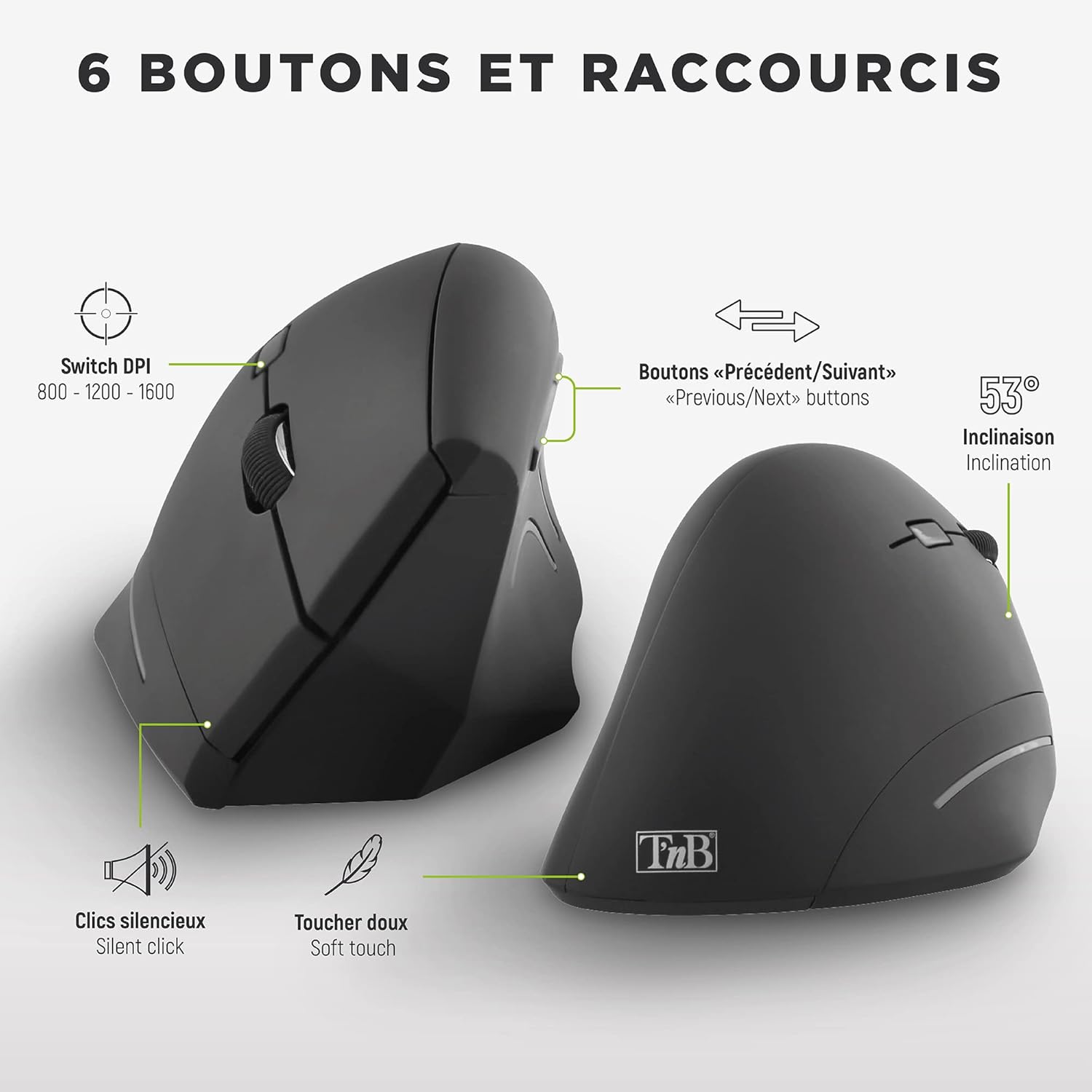
Figure 6: Overview of the mouse buttons and their functions.
3.3 DPI Adjustment
The DPI (Dots Per Inch) button allows you to change the cursor speed and sensitivity. Press the DPI button to cycle through the available settings: 800 DPI, 1200 DPI, and 1600 DPI. Choose the setting that best suits your preference and task.
3.4 Silent Clicks
The T'nB Ergonomic Wireless Vertical Mouse features silent click technology, significantly reducing click noise. This is ideal for quiet environments such as libraries, offices, or late-night work sessions, ensuring minimal disturbance to yourself and others.

Figure 7: The silent click feature ensures a quiet working environment.
4. Maintenance
4.1 Cleaning
To maintain optimal performance and hygiene, clean your mouse regularly:
- Disconnect the mouse from your computer (remove USB dongle).
- Use a soft, lint-free cloth slightly dampened with water or a mild cleaning solution.
- Wipe the surface of the mouse gently. Avoid excessive moisture.
- Do not use abrasive cleaners or immerse the mouse in liquid.
4.2 Battery Replacement
When the mouse performance degrades or it stops responding, it's time to replace the batteries. Follow the battery installation steps outlined in Section 2.1.
5. Troubleshooting
If you encounter issues with your T'nB Ergonomic Wireless Vertical Mouse, refer to the table below for common problems and solutions:
| Problem | Possible Cause | Solution |
|---|---|---|
| Mouse not responding | Low or dead batteries; USB receiver not connected; Mouse not powered on. | Replace batteries; Ensure USB receiver is firmly plugged in; Check if the mouse's power switch is ON. |
| Erratic cursor movement | Dirty sensor; Uneven surface; Interference. | Clean the optical sensor on the mouse's underside; Use on a smooth, opaque surface; Move mouse closer to receiver or away from other wireless devices. |
| Buttons not working | Software conflict; Hardware issue. | Restart your computer; Reinstall mouse drivers (if applicable); Test on another computer to rule out hardware defect. |
6. Technical Specifications
| Feature | Specification |
|---|---|
| Brand | T'nB |
| Model Number | MWERGOV |
| Color | Black |
| Connectivity Technology | Radio-frequency (Wireless) |
| Special Feature | Ergonomic Vertical Design, Silent Clicks |
| Movement Detection Technology | Laser |
| Number of Buttons | 6 |
| DPI Settings | 800 / 1200 / 1600 DPI |
| Hand Orientation | Right |
| Power Source | 2 x AAA Batteries (included) |
| Recommended Use | Office, General Computing |
| Compatibility | Windows, Mac OS, Linux |
7. Warranty and Support
For warranty information and technical support, please refer to the documentation provided with your purchase or contact the retailer or manufacturer directly. Keep your proof of purchase for any warranty claims.
Related documentsMWERGOV


Ask a question about this manual
Ask about setup, troubleshooting, compatibility, parts, safety, or missing instructions. Manuals+ will review the question and use this page’s manual context to help answer it.