
AT&T MF923-W
ZTE Velocity MF923 Mobile Wifi Hotspot User Manual
Model: MF923-W | Brand: AT&T
1. Introduction
The ZTE Velocity MF923 is a portable 4G LTE mobile Wi-Fi hotspot designed to provide high-speed internet access for multiple devices on the go. This device allows you to create a secure wireless local area network (WLAN) anywhere there is cellular coverage, enabling seamless uploading, downloading, and streaming. With its long battery life, dual-band Wi-Fi, and intuitive touchscreen, the ZTE Velocity offers a reliable and convenient internet solution for personal and business use.

Figure 1.1: ZTE Velocity MF923 Mobile Hotspot
This image shows the front view of the ZTE Velocity MF923 mobile hotspot. The device is white with a black screen displaying network information, including the Wi-Fi name (ATT-WIFI-2388), password, data usage, and battery level. Below the main display, there are touch icons for Wi-Fi, Messages, and Settings.
2. Package Contents
Please check the box for the following items:
- ZTE Velocity MF923 Mobile Wifi Hotspot
- 2,800 mAh Battery
- Wall Charger
- USB Cable
- Quick Start Guide (this manual provides more detailed information)
- Pre-installed SIM Card (Note: While a SIM card may be pre-installed, activation with your network provider is required.)

Figure 2.1: ZTE Velocity MF923 in Retail Packaging
This image displays the ZTE Velocity MF923 mobile hotspot inside its orange retail box. The device's screen is visible, showing the same network information as in Figure 1.1, confirming the product's appearance.
3. Product Features
The ZTE Velocity MF923 offers a range of features designed for optimal mobile connectivity:
- 4G LTE Connectivity: Experience high-speed internet with download speeds up to 150Mbps.
- Wi-Fi Hotspot: Connect up to 10 Wi-Fi enabled devices simultaneously.
- Dual-Band Wi-Fi: Supports both 2.4GHz and 5GHz Wi-Fi frequencies for flexible connectivity and reduced interference.
- Long Battery Life: Equipped with a 2,800mAh battery, providing up to 10 hours of continuous usage and up to 240 hours of standby time.
- Easy-to-Use Touchscreen: Navigate settings, view data usage, and manage connections directly from the device's color touchscreen display (240 x 320 pixels).
- GSM Unlocked: Compatible with GSM carriers that use SIM cards for service, such as AT&T and T-Mobile. (Note: Will not work with CDMA carriers like Sprint, Verizon, Boost, or Virgin.)
- MicroSD Card File Sharing: Share files directly from a MicroSD card inserted into the device.
- Secure Wi-Fi: Features separate Guest Wi-Fi for enhanced security.
4. Setup Guide
4.1. Battery and SIM Card Installation
The ZTE Velocity MF923 uses a Micro SIM card. While a SIM card may be pre-installed, ensure it is properly seated and activated with your chosen GSM network provider.
- Locate the battery cover on the back of the device.
- Gently remove the battery cover.
- If not already installed, insert the Micro SIM card into the designated SIM card slot with the gold contacts facing down and the notched corner aligned correctly.
- Insert the 2,800 mAh battery into its compartment, ensuring the contacts align.
- Replace the battery cover until it clicks into place.

Figure 4.1: Side View of ZTE Velocity MF923
This image shows a side view of the ZTE Velocity MF923, highlighting its compact design. This perspective is useful for identifying the location of ports or covers for battery and SIM card access.
4.2. Charging the Device
Before first use, fully charge the device.
- Connect the small end of the USB cable to the charging port on the ZTE Velocity.
- Connect the large end of the USB cable to the wall charger.
- Plug the wall charger into a power outlet.
- The device's screen will indicate charging status. A full charge typically takes a few hours.
4.3. Powering On/Off
- To Power On: Press and hold the Power button (usually located on the side or top) until the screen lights up.
- To Power Off: Press and hold the Power button until the power-off options appear on the screen, then select "Power Off" or slide to power off.
5. Operating Instructions
5.1. Connecting Devices to Wi-Fi
Once the ZTE Velocity is powered on and has established a cellular connection, you can connect your Wi-Fi enabled devices.
- On the ZTE Velocity's touchscreen, note the Wi-Fi Name (SSID) and Password displayed on the main screen.
- On your device (laptop, smartphone, tablet, etc.), go to its Wi-Fi settings.
- Select the Wi-Fi Name (SSID) that matches your ZTE Velocity.
- Enter the Wi-Fi Password when prompted.
- Your device should now be connected to the internet via the ZTE Velocity hotspot.
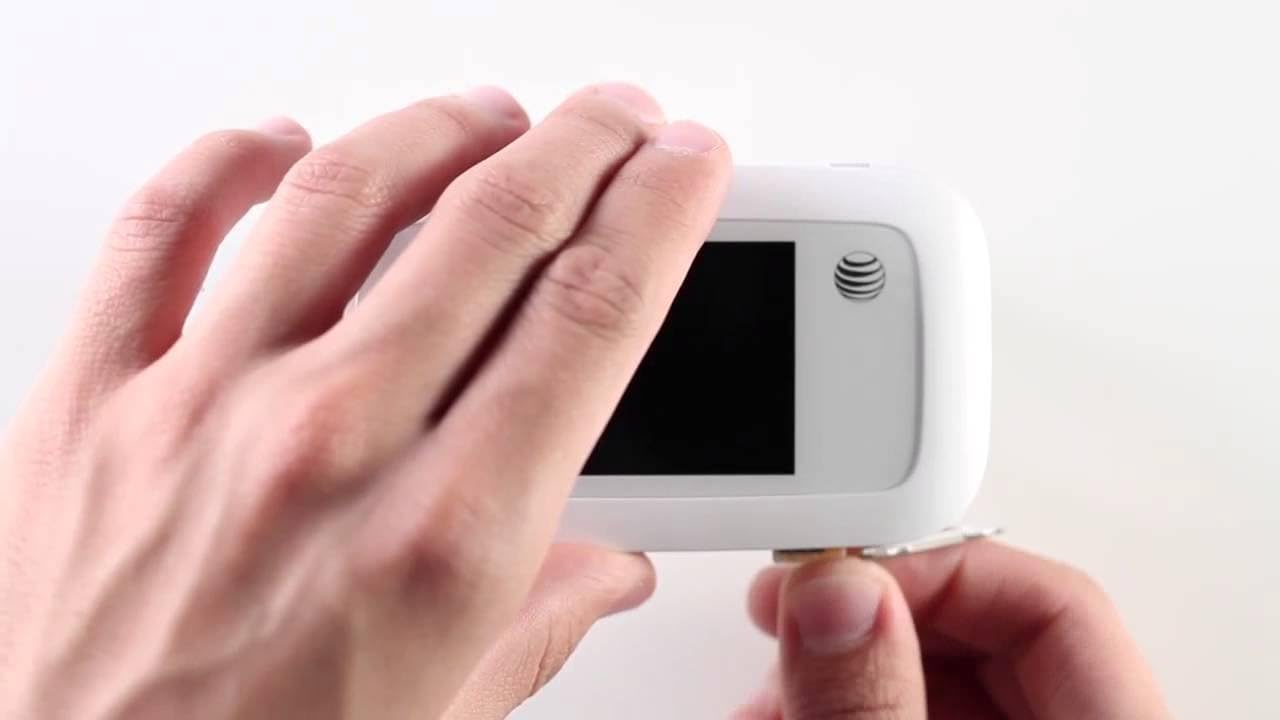
Figure 5.1: Using the ZTE Velocity for Mobile Connectivity
This image illustrates the convenience of using the ZTE Velocity mobile hotspot. A woman is shown working on a laptop in the back seat of a car, demonstrating how the device enables productivity and connectivity even when traveling.
5.2. Touchscreen Navigation
The ZTE Velocity features a responsive touchscreen for easy management.
- Main Screen: Displays Wi-Fi name, password, data usage, signal strength, and battery level.
- Wi-Fi Icon: Tap to view connected devices and manage Wi-Fi settings.
- Messages Icon: Access SMS messages (if supported by your carrier and plan).
- Settings Icon: Configure advanced settings such as network mode, Wi-Fi band (2.4GHz/5GHz), security, and device information.
- Swipe left or right to access additional screens or menus.
5.3. MicroSD Card File Sharing
The device supports MicroSD cards for file sharing.
- Insert a MicroSD card (up to 32GB, sold separately) into the dedicated slot.
- Access the device's web interface (usually 192.168.1.1 or similar, check manual or device screen for exact IP) from a connected device.
- Log in using the administrator password (default usually "admin" or found on device label).
- Navigate to the file sharing section to access and manage files on the MicroSD card.
6. Troubleshooting
If you encounter issues with your ZTE Velocity MF923, try the following troubleshooting steps:
| Problem | Possible Solution |
|---|---|
| No Internet Connection |
|
| Slow Internet Speed |
|
| Device Not Powering On |
|
| Cannot Connect to Wi-Fi |
|
7. Specifications
| Feature | Detail |
|---|---|
| Model Number | MF923-W |
| Dimensions | 2.5 x 0.7 x 4.5 inches |
| Item Weight | 4.6 ounces |
| Battery | 2,800 mAh Lithium Ion (included) |
| Usage Time | Up to 10 hours (4G LTE streaming) |
| Standby Time | Up to 240 hours |
| Processor | Single-Core Qualcomm MDM9225 |
| RAM | 256 MB |
| Display | Touchscreen, 240 x 320 pixels |
| Wi-Fi Standard | Dual-Band (2.4 GHz & 5 GHz Radio Frequency) |
| Network Frequencies | LTE bands 2/4/5/17/29; UMTS HSPA 850/1900/2100 |
| Max Connected Devices | 10 |
| SIM Card Type | Micro SIM |
| MicroSD Support | Yes (for file sharing) |
| Color | White |
| Manufacturer | ZTE |
8. Safety Information
Please read the following safety information carefully to ensure proper and safe use of your ZTE Velocity MF923:
- Do not expose the device to extreme temperatures, direct sunlight, or high humidity.
- Avoid dropping, hitting, or bending the device.
- Use only approved chargers and accessories.
- Do not disassemble or attempt to repair the device yourself. This will void the warranty.
- Keep the device away from medical devices, as it may interfere with their operation.
- Dispose of batteries and electronic components responsibly according to local regulations.
- Do not use the device while driving or operating heavy machinery.
9. Warranty and Support
For warranty information and technical support, please refer to the documentation provided by AT&T or visit the official AT&T support website. Keep your proof of purchase for warranty claims.
For further assistance, you may contact AT&T customer service directly.
Related documentsMF923-W


Ask a question about this manual
Ask about setup, troubleshooting, compatibility, parts, safety, or missing instructions. Manuals+ will review the question and use this page’s manual context to help answer it.