
NETGEAR XAVB5421-100PAS
Contents
NETGEAR Powerline 500 1-Port Extra Outlet Essentials Edition Starter Kit (XAVB5421) User Manual
Model: XAVB5421-100PAS
Introduction
The NETGEAR Powerline 500 + Extra Outlet, 1-Port extends your Internet access to any electrical outlet and features an extra noise-filtered power outlet. It offers plug-and-play setup and speeds for streaming music and HD video in a convenient, small design. It's perfect for connecting smart TVs and game consoles to your home network.
Package Contents
The NETGEAR Powerline 500 1-Port Extra Outlet Essentials Edition Starter Kit (XAVB5421) typically includes:
- Two (2) Powerline 500 + Extra Outlet Adapters (XAV5421)
- Two (2) Ethernet cables
- Quick install guide

Image: The NETGEAR Powerline 500 1-Port Extra Outlet Essentials Edition Starter Kit, showing both adapters included in the package.
Setup Instructions
Setting up your NETGEAR Powerline adapters is a simple plug-and-play process. No software configuration is typically required for basic setup.
- Connect the First Adapter: Plug one Powerline adapter into an electrical outlet near your internet router. Use an Ethernet cable to connect the adapter's Ethernet port to an available LAN port on your router.
- Connect the Second Adapter: Plug the second Powerline adapter into an electrical outlet in the room where you want to extend your network (e.g., near your Smart TV, game console, or desktop computer).
- Connect Your Device: Use another Ethernet cable to connect your device (e.g., Smart TV, game console, PC) to the Ethernet port on the second Powerline adapter.
- Secure Connection (Optional): For enhanced security, press the Security button on the first adapter for 2 seconds, then within 2 minutes, press the Security button on the second adapter for 2 seconds. The Powerline LED on both adapters will turn solid green, indicating a secure connection.

Image: A Powerline adapter connected to a wall outlet and an Ethernet cable, ready to be connected to your router or device.
For a visual guide on how Powerline technology works and its benefits, please watch the official video below:
Video: An official NETGEAR video explaining the concept and advantages of Powerline adapters for extending your home network.
Operating the Powerline Adapters
NETGEAR Powerline adapters utilize your home's existing electrical wiring to create a high-speed wired network connection. This allows you to extend your internet access to any room with an electrical outlet, bypassing the limitations of Wi-Fi signals due to walls or distance.
Key Features:
- High-Speed Connectivity: Enjoy wired data rates up to 1.2 Gigabits per second (Gbps), ideal for streaming HD video, online gaming, and large file transfers.
- Extra Outlet: Each adapter features a pass-through electrical outlet, ensuring that you don't lose an outlet when using the Powerline adapter. This outlet is noise-filtered for better performance.
- Pick-a-Plug LED: The LED indicator on the adapter helps you identify the best electrical outlet for optimal performance, ensuring the strongest possible connection.
- Expandable Network: Once one Powerline adapter is connected to your router, you can add up to 15 additional Powerline adapters throughout your home to expand your wired network coverage.

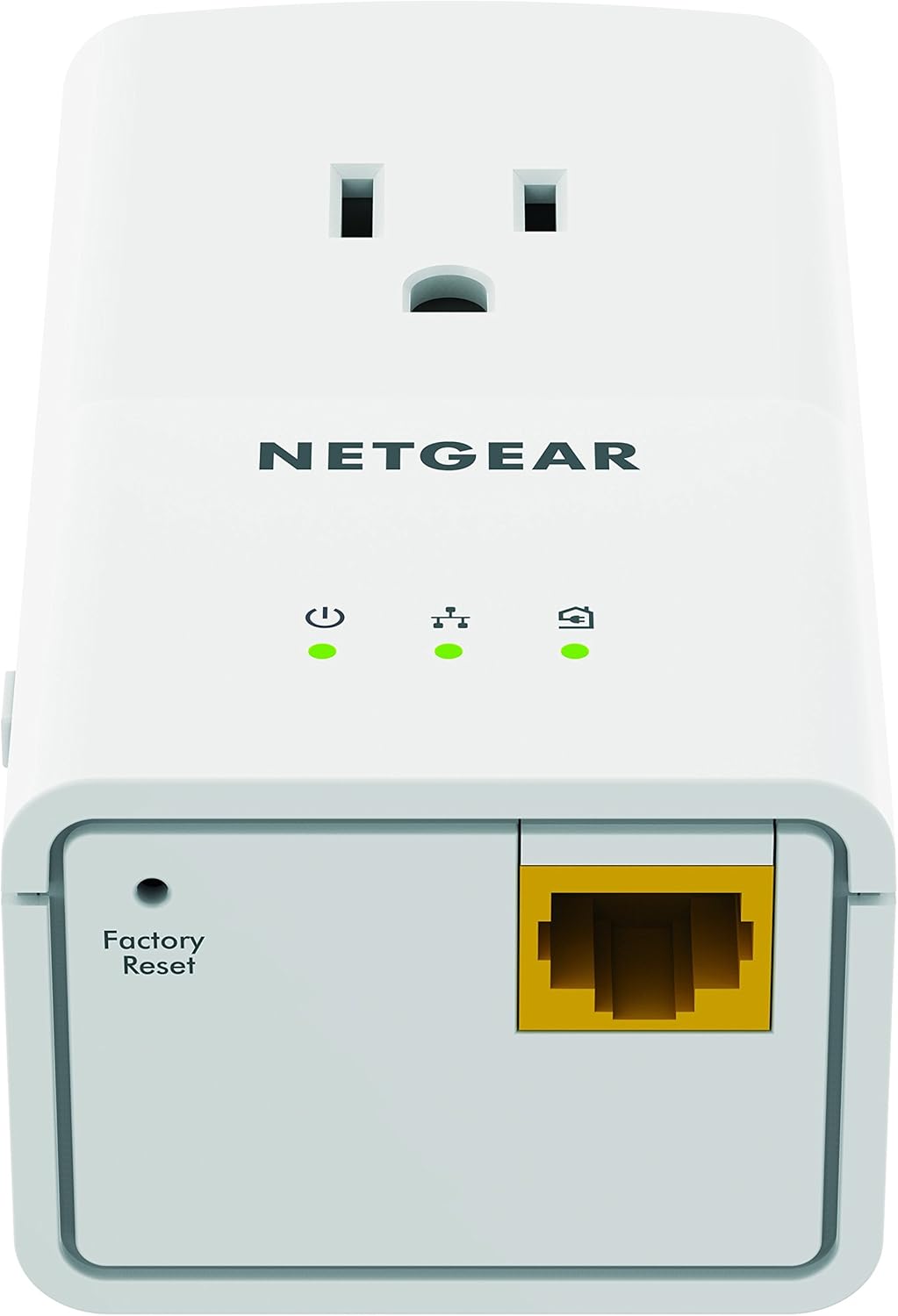
Image: Front and back views of a single Powerline adapter, highlighting its integrated power outlet, indicator lights, Ethernet port, and reset button.
Maintenance
To ensure optimal performance and longevity of your NETGEAR Powerline adapters, consider the following maintenance tips:
- Direct Outlet Connection: Always plug the Powerline adapters directly into a wall electrical outlet. Avoid using power strips, surge protectors, or extension cords, as these can interfere with the Powerline signal and reduce performance.
- Keep Clear: Ensure the adapters are not covered or obstructed, allowing for proper ventilation.
- Clean Gently: If cleaning is necessary, gently wipe the exterior with a soft, dry cloth. Do not use liquid or aerosol cleaners.
- Firm Connections: Periodically check that all Ethernet cables are securely plugged into their respective ports on the adapters and connected devices.
Troubleshooting
If you encounter issues with your NETGEAR Powerline 500 kit, try the following troubleshooting steps:
- No Connection / Dropped Connection:
- Ensure both Powerline adapters are plugged directly into wall outlets, not power strips or surge protectors.
- Check the Powerline LED on both adapters. If it's off or red, try a different electrical outlet. The "Pick-a-Plug" LED helps identify the best outlet for optimal performance.
- Verify that the Ethernet cables are securely connected to the adapters and your router/device.
- If connections frequently drop, it might be due to electrical noise on the lines or significant distance between adapters. Try moving adapters to different outlets or rooms to find a more stable connection path.
- Temporarily unplug and then replug both Powerline adapters to reset their connection.
- Slow Speeds:
- The Powerline LED color indicates connection quality: Green (best), Amber (better), Red (good). Aim for Green or Amber.
- Ensure the adapters are not plugged into outlets on different electrical phases (e.g., different circuit breakers) if your home has multiple phases, as this can significantly reduce performance.
- Minimize electrical interference from other high-power appliances (e.g., washing machines, refrigerators) by plugging adapters into outlets away from them.
- Security Button Not Working:
- Ensure you are pressing the security button for the correct duration (2 seconds) and within the specified timeframe (2 minutes between adapters).
- If issues persist, perform a factory reset on both adapters (refer to the full manual for detailed steps, usually involves pressing the reset button for 10 seconds) and then attempt the security pairing again.
For advanced troubleshooting or software utilities (e.g., Powerline Utility for Windows/Mac), refer to the official NETGEAR support website.
Specifications
| Feature | Detail |
|---|---|
| Brand | NETGEAR |
| Model Number | XAVB5421-100PAS |
| Wireless Type | 5.8 GHz Radio Frequency, 2.4 GHz Radio Frequency (Note: This product is a wired Powerline adapter. The listed wireless types may refer to general NETGEAR product categories or other models.) |
| Hardware Interface | Ethernet |
| Data Link Protocol | Ethernet |
| Compatible Devices | Smart TV, Game Consoles, Desktop Computers, Laptops |
| Color | White |
| Item Weight | 1.4 pounds |
| Product Dimensions (LxWxH) | 8.27 x 6.69 x 3.15 inches |
| UPC | 606449104585 |
| System Requirements (for software) | Microsoft Windows 8, 7, Vista, XP or Mac OS X |
Warranty Information
For detailed warranty information regarding your NETGEAR Powerline 500 kit, please refer to the warranty card included in your product packaging or visit the official NETGEAR support website. Warranty terms and conditions may vary by region and product.
Optional protection plans may be available for purchase separately to extend coverage beyond the standard manufacturer's warranty.
Support
For further assistance, technical support, or to download the latest drivers and utilities for your NETGEAR Powerline 500 kit, please visit the official NETGEAR support resources:
- NETGEAR Support Website: www.netgear.com/support
- NETGEAR Store on Amazon: Visit the NETGEAR Store
You can also find helpful FAQs and community forums on the NETGEAR support site.
Ask a question about this manual
Ask about setup, troubleshooting, compatibility, parts, safety, or missing instructions. Manuals+ will review the question and use this page’s manual context to help answer it.